> ## Documentation Index
> Fetch the complete documentation index at: https://vibekanban.com/docs/llms.txt
> Use this file to discover all available pages before exploring further.
# Customising Your Board
> Configure columns, colours, and display settings
Every team works differently. Customise your kanban board to match your workflow by adding columns, changing colours, renaming statuses, and controlling what's visible.
## Display Settings
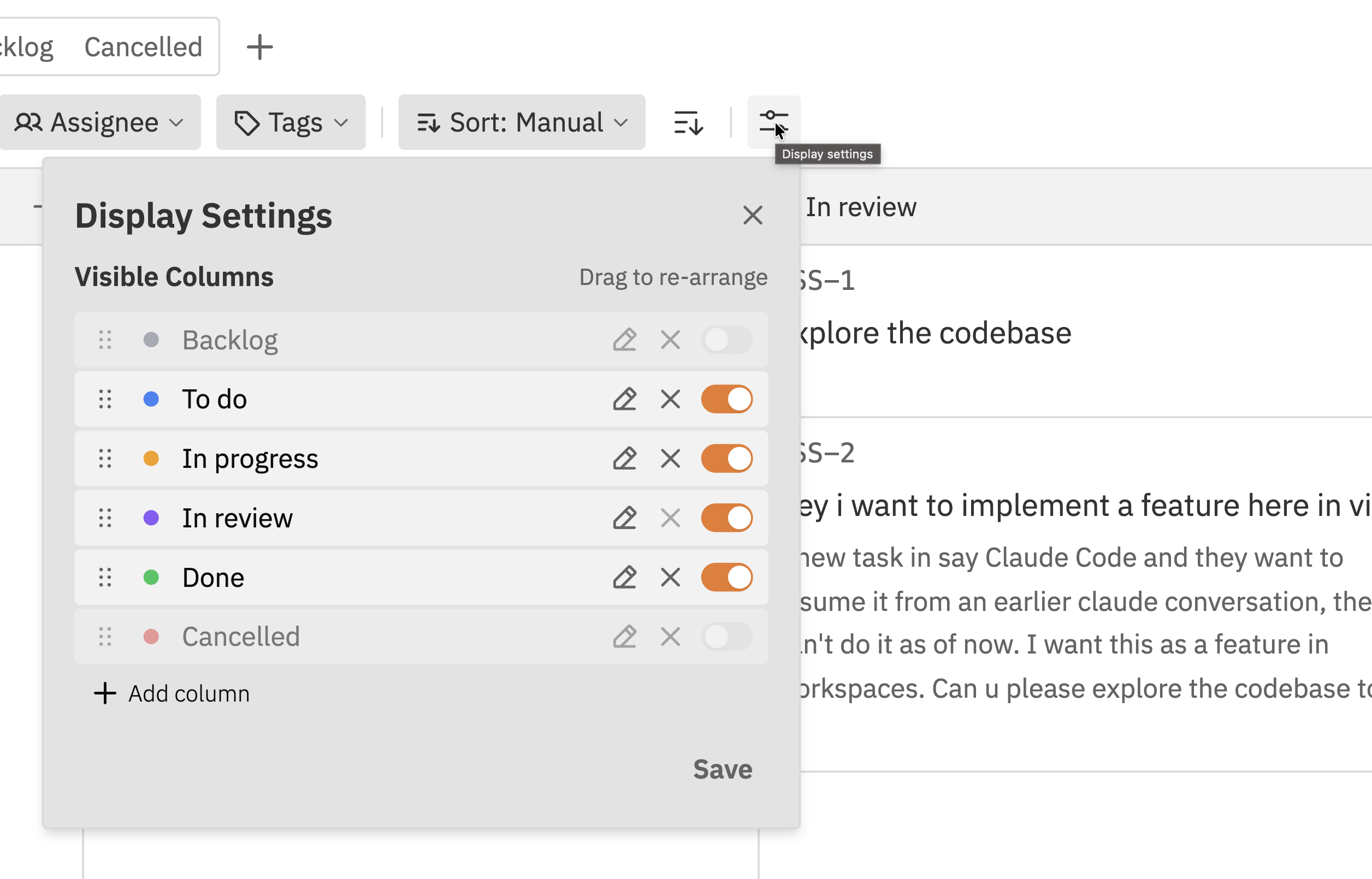
Access display settings to customise your board columns:
1. Click the **Display Settings** button () in the filter bar
2. The settings panel opens showing all your columns
 ## Managing Columns
### Adding a New Column
Click the **Display Settings** button () in the filter bar.
Click the **+ Add column** button at the bottom of the list.
Type a name for your new status (e.g., "In Review", "Blocked", "Testing").
Click **Save** to apply your changes. The new column appears on your board.
New columns are assigned a random colour. You can change it after creation.
### Renaming a Column
Click the **Display Settings** button () in the filter bar.
Click on the name of the column you want to rename.
Enter the new name and click outside the field or press Enter.
Click **Save** to apply your changes.
Renaming a column doesn't affect the issues in it. All issues keep their current status - only the display name changes.
### Changing Column Colours
Each column has a colour that appears in the column header and on issue cards.
Click the **Display Settings** button () in the filter bar.
Click the coloured circle next to the column name.
Choose from the preset colours.
Click **Save** to apply the new colour.
### Reordering Columns
Change the order columns appear on your board:
Click the **Display Settings** button () in the filter bar.
Click and hold the drag handle () next to a column.
Drag the column up or down to its new position.
Click **Save** to apply the new order.
Arrange columns to match your workflow from left to right - typically starting with "To Do" on the left and ending with "Done" on the right.
### Hiding Columns
Hide columns you don't use regularly to keep your board clean:
Click the **Display Settings** button () in the filter bar.
Click the toggle switch next to the column you want to hide. When the toggle is off, the column is hidden.
Click **Save** to hide the column.
**Hidden columns:**
* Don't appear on the board
* Still exist - issues in them are preserved
* Can be viewed using the "All" status tab
* Can be unhidden at any time
Hiding a column is useful for "Done" statuses. You can hide completed work to focus on active issues, but still access them when needed via the status tabs.
### Deleting Columns
Remove columns you no longer need:
Click the **Display Settings** button () in the filter bar.
Click the **×** button next to the column you want to delete.
Click **Save** to remove the column.
**You cannot delete a column that contains issues.** Move all issues to another column first, then delete the empty column.
## Managing Tags
Tags help categorise and filter issues. Tags are created inline when you add them to issues.
### Creating Tags
To create a new tag:
1. Open any issue
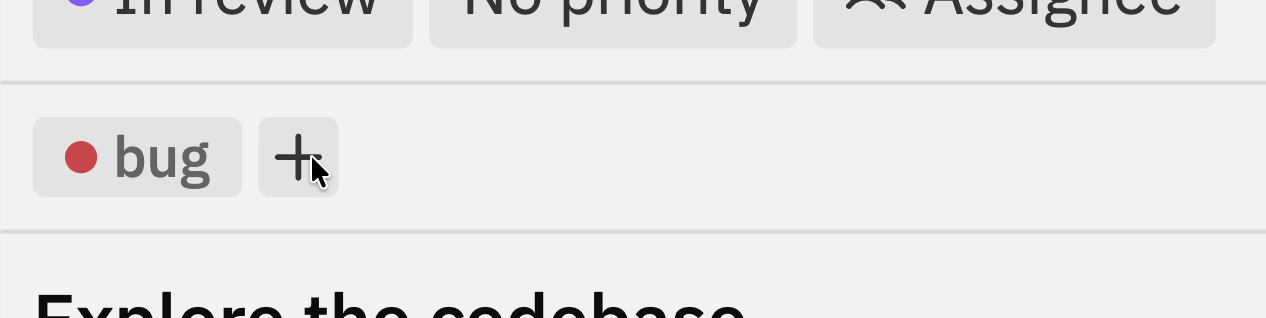
2. Click the **Tags** field (or the **+** button next to existing tags)
3. Type the name of your new tag
4. If the tag doesn't exist, you'll see a **Create** option
5. Select a colour for the tag
6. Click to create and apply the tag
## Managing Columns
### Adding a New Column
Click the **Display Settings** button () in the filter bar.
Click the **+ Add column** button at the bottom of the list.
Type a name for your new status (e.g., "In Review", "Blocked", "Testing").
Click **Save** to apply your changes. The new column appears on your board.
New columns are assigned a random colour. You can change it after creation.
### Renaming a Column
Click the **Display Settings** button () in the filter bar.
Click on the name of the column you want to rename.
Enter the new name and click outside the field or press Enter.
Click **Save** to apply your changes.
Renaming a column doesn't affect the issues in it. All issues keep their current status - only the display name changes.
### Changing Column Colours
Each column has a colour that appears in the column header and on issue cards.
Click the **Display Settings** button () in the filter bar.
Click the coloured circle next to the column name.
Choose from the preset colours.
Click **Save** to apply the new colour.
### Reordering Columns
Change the order columns appear on your board:
Click the **Display Settings** button () in the filter bar.
Click and hold the drag handle () next to a column.
Drag the column up or down to its new position.
Click **Save** to apply the new order.
Arrange columns to match your workflow from left to right - typically starting with "To Do" on the left and ending with "Done" on the right.
### Hiding Columns
Hide columns you don't use regularly to keep your board clean:
Click the **Display Settings** button () in the filter bar.
Click the toggle switch next to the column you want to hide. When the toggle is off, the column is hidden.
Click **Save** to hide the column.
**Hidden columns:**
* Don't appear on the board
* Still exist - issues in them are preserved
* Can be viewed using the "All" status tab
* Can be unhidden at any time
Hiding a column is useful for "Done" statuses. You can hide completed work to focus on active issues, but still access them when needed via the status tabs.
### Deleting Columns
Remove columns you no longer need:
Click the **Display Settings** button () in the filter bar.
Click the **×** button next to the column you want to delete.
Click **Save** to remove the column.
**You cannot delete a column that contains issues.** Move all issues to another column first, then delete the empty column.
## Managing Tags
Tags help categorise and filter issues. Tags are created inline when you add them to issues.
### Creating Tags
To create a new tag:
1. Open any issue
2. Click the **Tags** field (or the **+** button next to existing tags)
3. Type the name of your new tag
4. If the tag doesn't exist, you'll see a **Create** option
5. Select a colour for the tag
6. Click to create and apply the tag
 Tags are shared across all issues in the project. Once created, a tag can be added to any issue.
### Using Tags
* Click the **Tags** field on any issue to add or remove tags
* Use the tag filter in the filter bar to find issues with specific tags
* Tags appear as coloured labels on issue cards
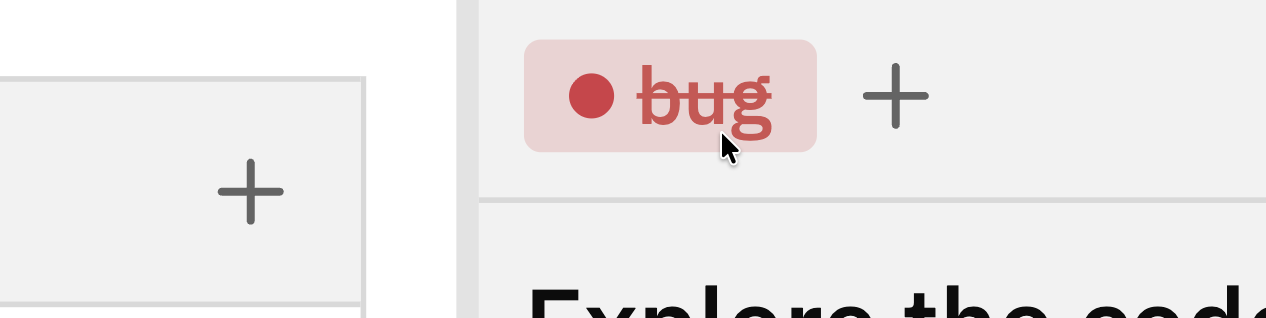
**To remove a tag from an issue**, click the tag - it will show a strikethrough indicating it will be removed.
Tags are shared across all issues in the project. Once created, a tag can be added to any issue.
### Using Tags
* Click the **Tags** field on any issue to add or remove tags
* Use the tag filter in the filter bar to find issues with specific tags
* Tags appear as coloured labels on issue cards
**To remove a tag from an issue**, click the tag - it will show a strikethrough indicating it will be removed.
 ## Best Practices
Start with fewer columns. You can always add more later. Too many columns creates confusion about where issues should go.
Column names should be obvious to everyone on the team. "In Progress" is clearer than "WIP" or "Active".
If you're not sure about a column, hide it instead of deleting. You can unhide it if you need it later.
Use consistent colour meanings across projects. For example, always use red for blocked/urgent statuses.
## Troubleshooting
The column probably has issues in it. You must move all issues to another column before deleting. Check:
1. Open Display Settings - it shows the issue count next to each status
2. Use the "All" status tab to see all issues including hidden ones
Make sure you clicked **Save** after making changes in Display Settings. Changes aren't applied until you save.
Open Display Settings and drag columns to reorder them. Remember to click **Save** after reordering.
It might be hidden. Open Display Settings and check the visibility toggle for each column. Or use the "All" status tab to see issues in hidden columns.
## Related Documentation
* [Kanban Board](/cloud/kanban-board) - Using the board interface
* [Issues](/cloud/issues) - Creating and managing issues
* [Filtering & Sorting](/cloud/filtering) - Finding issues with tags and filters
## Best Practices
Start with fewer columns. You can always add more later. Too many columns creates confusion about where issues should go.
Column names should be obvious to everyone on the team. "In Progress" is clearer than "WIP" or "Active".
If you're not sure about a column, hide it instead of deleting. You can unhide it if you need it later.
Use consistent colour meanings across projects. For example, always use red for blocked/urgent statuses.
## Troubleshooting
The column probably has issues in it. You must move all issues to another column before deleting. Check:
1. Open Display Settings - it shows the issue count next to each status
2. Use the "All" status tab to see all issues including hidden ones
Make sure you clicked **Save** after making changes in Display Settings. Changes aren't applied until you save.
Open Display Settings and drag columns to reorder them. Remember to click **Save** after reordering.
It might be hidden. Open Display Settings and check the visibility toggle for each column. Or use the "All" status tab to see issues in hidden columns.
## Related Documentation
* [Kanban Board](/cloud/kanban-board) - Using the board interface
* [Issues](/cloud/issues) - Creating and managing issues
* [Filtering & Sorting](/cloud/filtering) - Finding issues with tags and filters