> ## Documentation Index
> Fetch the complete documentation index at: https://vibekanban.com/docs/llms.txt
> Use this file to discover all available pages before exploring further.
# Getting Started with Cloud
> Sign in and start collaborating with your team
Vibe Kanban Cloud lets you collaborate with your team in real-time. Your data syncs to the cloud, so everyone sees the same projects, issues, and updates.
**Already using Vibe Kanban locally?** Cloud uses the same interface you're familiar with. The difference is your data syncs to the cloud and you can invite team members.
## Step 1: Launch Vibe Kanban
If you haven't already, start Vibe Kanban:
```bash theme={null}
npx vibe-kanban
```
The application opens in your browser at `http://localhost:...`.
## Step 2: Sign In
To access Cloud features, you need to sign in.
Click the **Login** button in the sidebar or when prompted.
Select how you want to sign in:
* **Sign in with GitHub** - Use your GitHub account
* **Sign in with Google** - Use your Google account
 You'll be redirected to GitHub or Google. Sign in if needed, then click **Authorize** or **Allow** to grant Vibe Kanban access.
Vibe Kanban only requests access to your basic profile (name, email, avatar). It cannot access your private repositories or post on your behalf.
After authorising, you're automatically redirected back and signed in.
## Step 3: Your Personal Organisation
When you sign in for the first time, a **personal organisation** is automatically created for you, along with an **Initial Project** to get you started. This is your private workspace.
Personal organisations are just for you - you cannot invite other members. To collaborate with a team, create a new organisation (see Step 5).
## Step 4: Create Your First Project
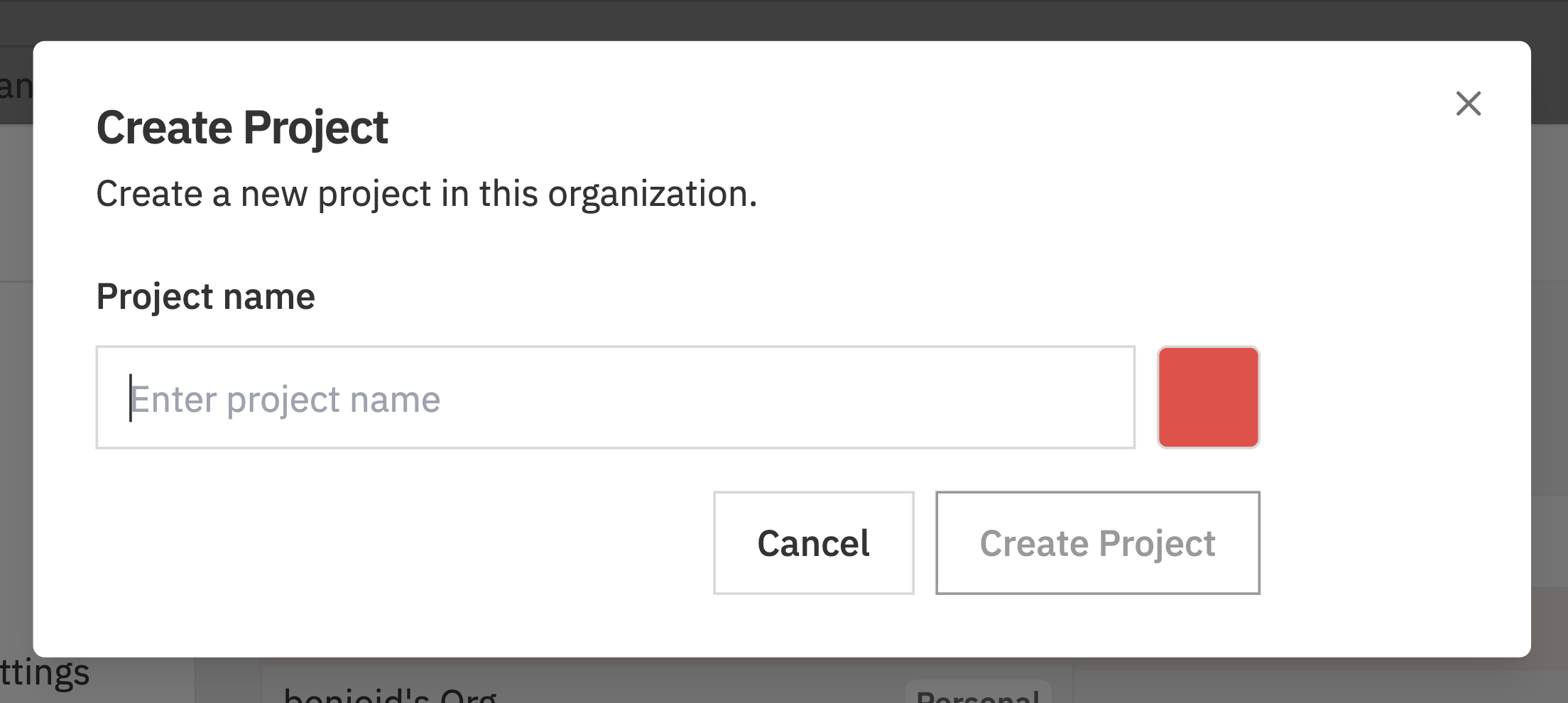
Now create a project to organise your work.
Click the **+ New Project** button in the sidebar.
* **Name** - What you're working on (e.g., "Mobile App", "Website Redesign")
* **Colour** - Pick a colour to identify the project
You'll be redirected to GitHub or Google. Sign in if needed, then click **Authorize** or **Allow** to grant Vibe Kanban access.
Vibe Kanban only requests access to your basic profile (name, email, avatar). It cannot access your private repositories or post on your behalf.
After authorising, you're automatically redirected back and signed in.
## Step 3: Your Personal Organisation
When you sign in for the first time, a **personal organisation** is automatically created for you, along with an **Initial Project** to get you started. This is your private workspace.
Personal organisations are just for you - you cannot invite other members. To collaborate with a team, create a new organisation (see Step 5).
## Step 4: Create Your First Project
Now create a project to organise your work.
Click the **+ New Project** button in the sidebar.
* **Name** - What you're working on (e.g., "Mobile App", "Website Redesign")
* **Colour** - Pick a colour to identify the project
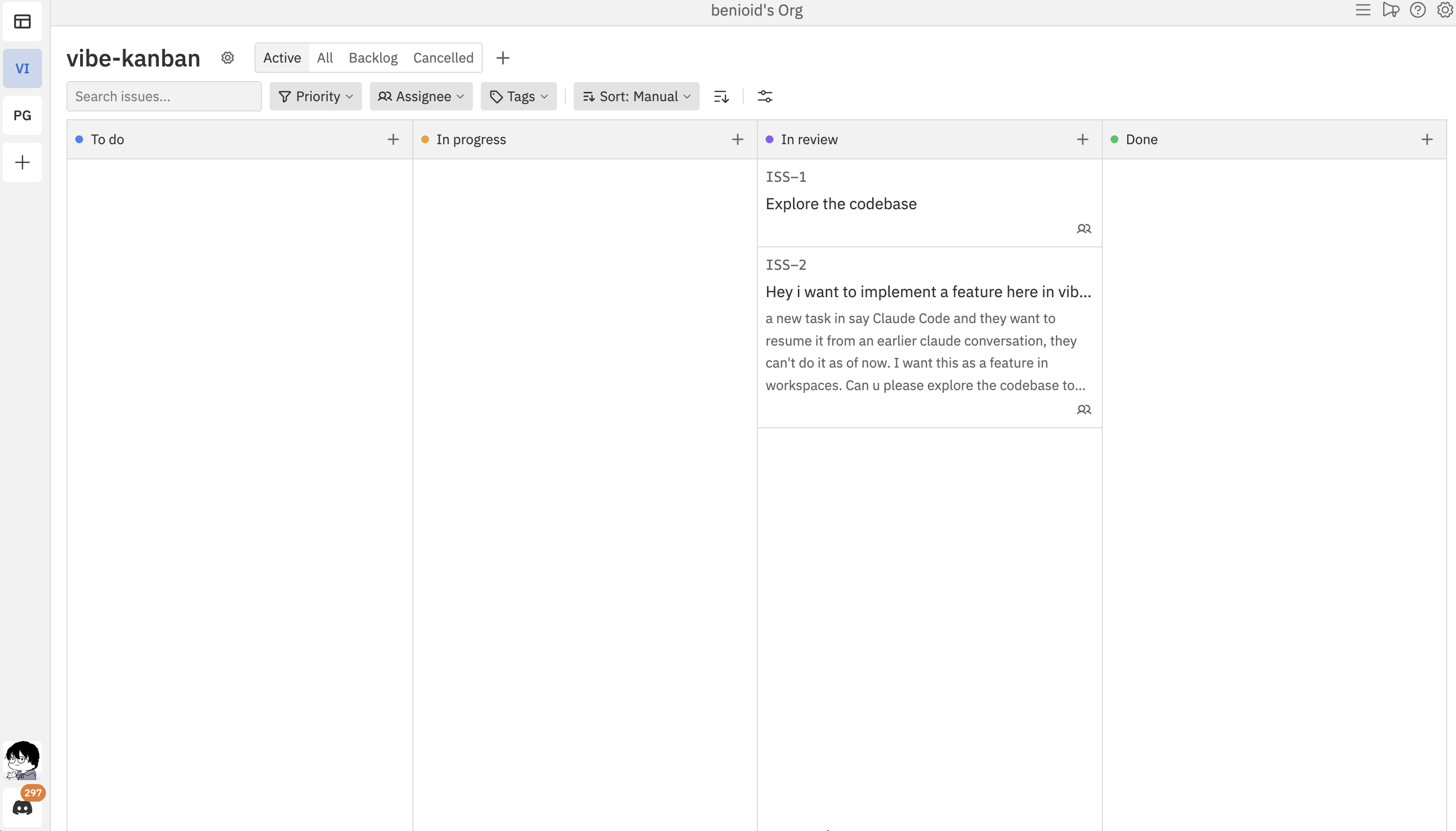
 Your project is created with a kanban board ready to use.
 ## Step 5: Invite Team Members (Optional)
Create a team organisation to collaborate with others, then invite as many members as you need. Team organisations and member invites are free, but new paid subscriptions are closed.
Open Organisation Settings (click the gear icon next to your org name), then:
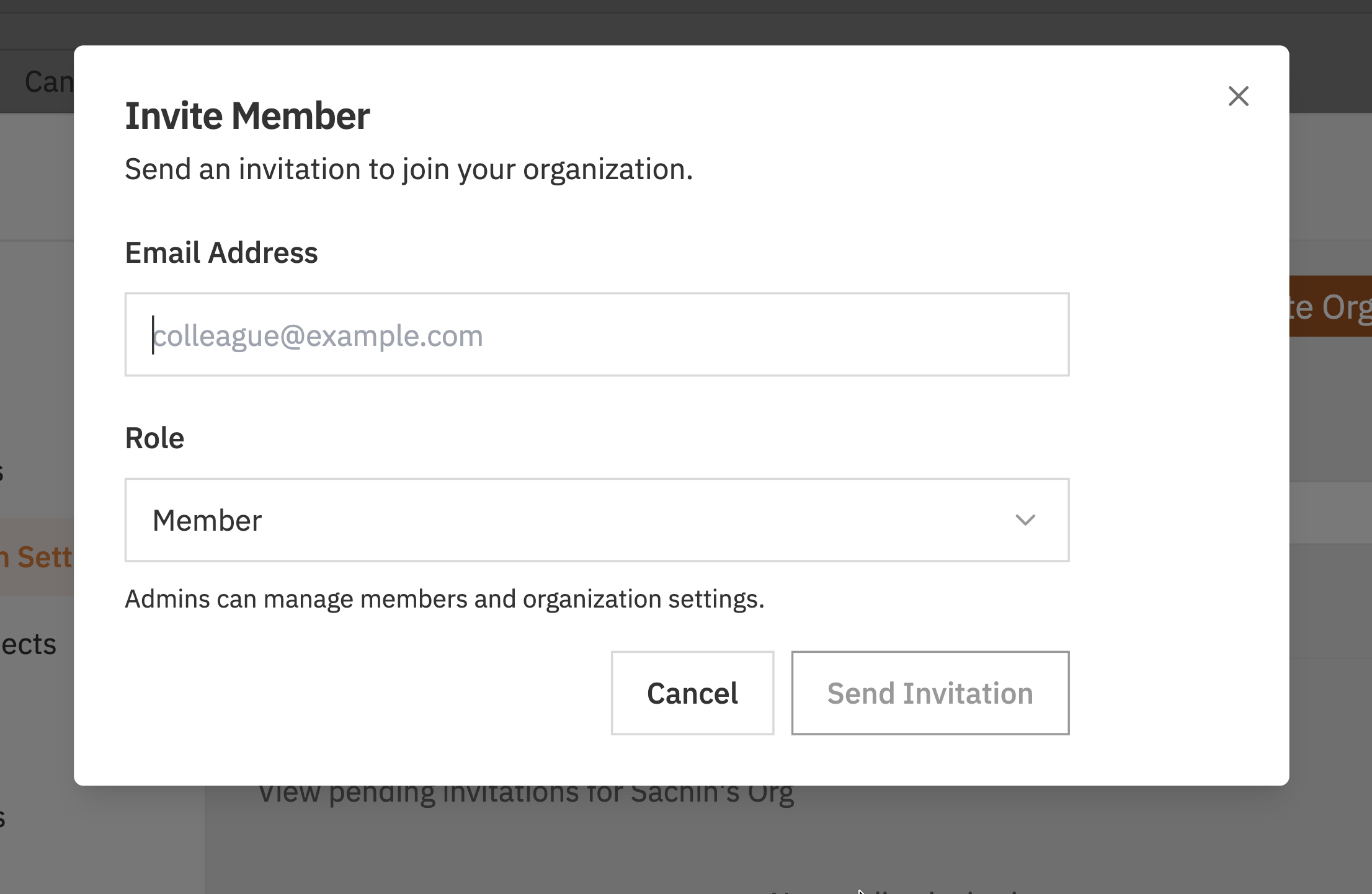
* Click **Invite Member**
* Enter your teammate's email address
* Select their role (**Member** or **Admin**)
* Click **Send Invitation**
## Step 5: Invite Team Members (Optional)
Create a team organisation to collaborate with others, then invite as many members as you need. Team organisations and member invites are free, but new paid subscriptions are closed.
Open Organisation Settings (click the gear icon next to your org name), then:
* Click **Invite Member**
* Enter your teammate's email address
* Select their role (**Member** or **Admin**)
* Click **Send Invitation**
 They'll receive an email with a link to join your organisation.
## You're Ready!
You now have:
* ✅ A Cloud account
* ✅ An organisation for your team
* ✅ A project with a kanban board
**Next steps:**
* [Create issues](/cloud/issues) to track your work
* [Learn the kanban board](/cloud/kanban-board) to manage tasks
* [Customise your board](/cloud/customisation) with columns and tags
* [Invite more team members](/cloud/team-members) to collaborate
## Signing Out
To sign out:
1. Click your **profile icon** in the bottom of the left sidebar
2. Click **Sign out**
They'll receive an email with a link to join your organisation.
## You're Ready!
You now have:
* ✅ A Cloud account
* ✅ An organisation for your team
* ✅ A project with a kanban board
**Next steps:**
* [Create issues](/cloud/issues) to track your work
* [Learn the kanban board](/cloud/kanban-board) to manage tasks
* [Customise your board](/cloud/customisation) with columns and tags
* [Invite more team members](/cloud/team-members) to collaborate
## Signing Out
To sign out:
1. Click your **profile icon** in the bottom of the left sidebar
2. Click **Sign out**
 Your data remains safe in the cloud. Sign in again anytime to continue where you left off.
## Switching Between Local and Cloud
You can use both local projects and Cloud projects:
| Local Projects | Cloud Projects |
| --------------------------- | ---------------------------- |
| Data stored on your machine | Data synced to cloud |
| Only you can access | Team members can collaborate |
| No sign-in required | Requires sign-in |
| Works offline | Requires internet connection |
Both appear in the same Vibe Kanban interface. Local projects show in one section, Cloud projects in another.
## Troubleshooting
**Possible causes:**
* Pop-up blocker preventing the OAuth window
* Network connectivity issues
**Solutions:**
1. Disable pop-up blocker for localhost
2. Check your internet connection
3. Try a different browser
**Possible causes:**
* You're not signed in
**Solutions:**
1. Click **Login** in the sidebar
2. Complete the sign-in process
**Possible causes:**
* They haven't accepted the invitation
* They signed in with a different email
**Solutions:**
1. Check if the invitation is still pending in your Members settings
2. Resend the invitation
3. Verify they're using the email address you invited
## Related Documentation
* [Authentication](/cloud/authentication) - More about signing in and sessions
* [Organisations](/cloud/organizations) - Managing your organisation
* [Team Members](/cloud/team-members) - Inviting and managing collaborators
Your data remains safe in the cloud. Sign in again anytime to continue where you left off.
## Switching Between Local and Cloud
You can use both local projects and Cloud projects:
| Local Projects | Cloud Projects |
| --------------------------- | ---------------------------- |
| Data stored on your machine | Data synced to cloud |
| Only you can access | Team members can collaborate |
| No sign-in required | Requires sign-in |
| Works offline | Requires internet connection |
Both appear in the same Vibe Kanban interface. Local projects show in one section, Cloud projects in another.
## Troubleshooting
**Possible causes:**
* Pop-up blocker preventing the OAuth window
* Network connectivity issues
**Solutions:**
1. Disable pop-up blocker for localhost
2. Check your internet connection
3. Try a different browser
**Possible causes:**
* You're not signed in
**Solutions:**
1. Click **Login** in the sidebar
2. Complete the sign-in process
**Possible causes:**
* They haven't accepted the invitation
* They signed in with a different email
**Solutions:**
1. Check if the invitation is still pending in your Members settings
2. Resend the invitation
3. Verify they're using the email address you invited
## Related Documentation
* [Authentication](/cloud/authentication) - More about signing in and sessions
* [Organisations](/cloud/organizations) - Managing your organisation
* [Team Members](/cloud/team-members) - Inviting and managing collaborators