> ## Documentation Index
> Fetch the complete documentation index at: https://vibekanban.com/docs/llms.txt
> Use this file to discover all available pages before exploring further.
# List View
> View and manage all your issues in a tabular format
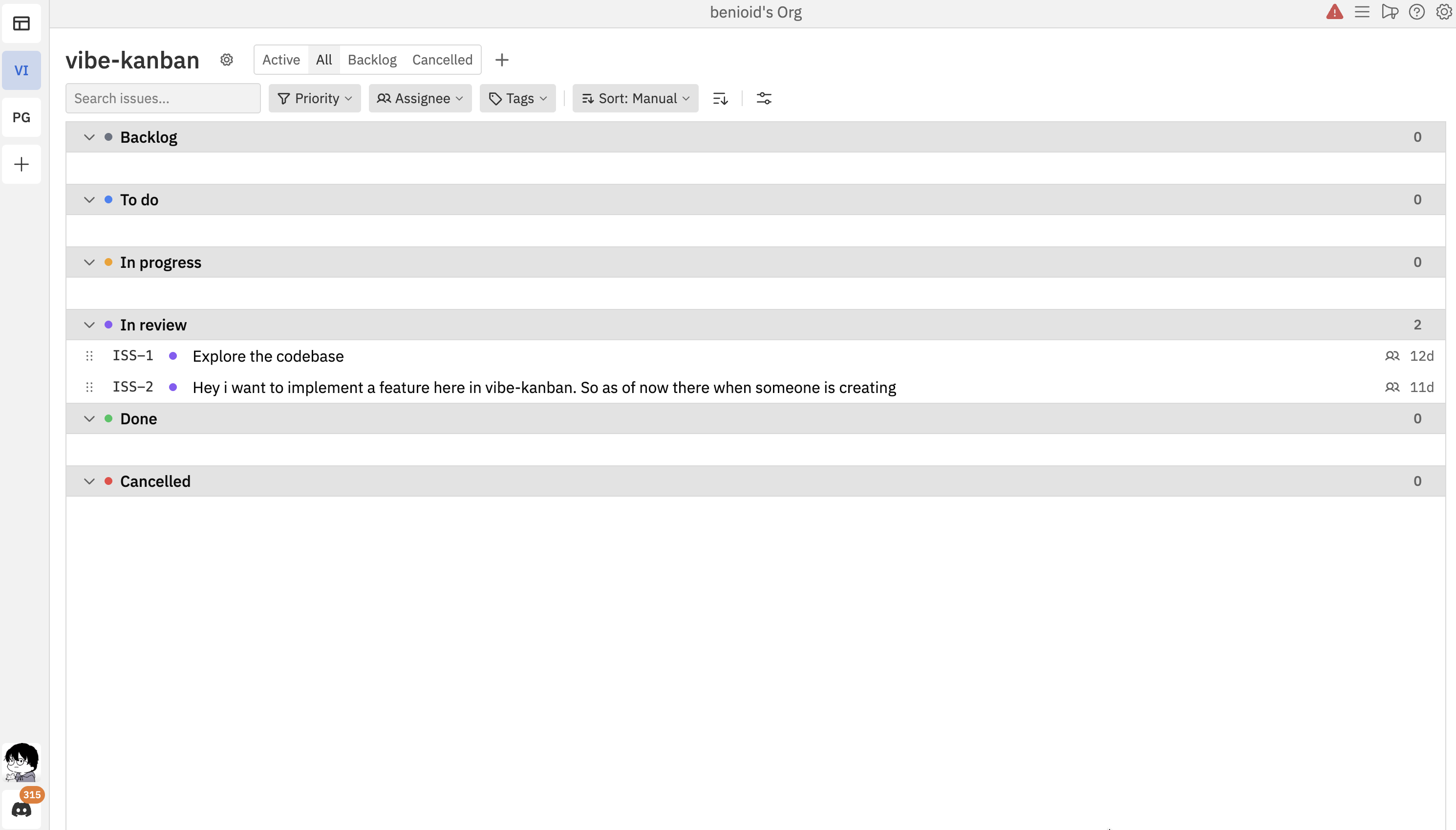
The list view provides a tabular way to see all your issues, including those in hidden statuses. It's ideal for reviewing many issues at once and getting a complete overview of your project.
 ## Accessing List View
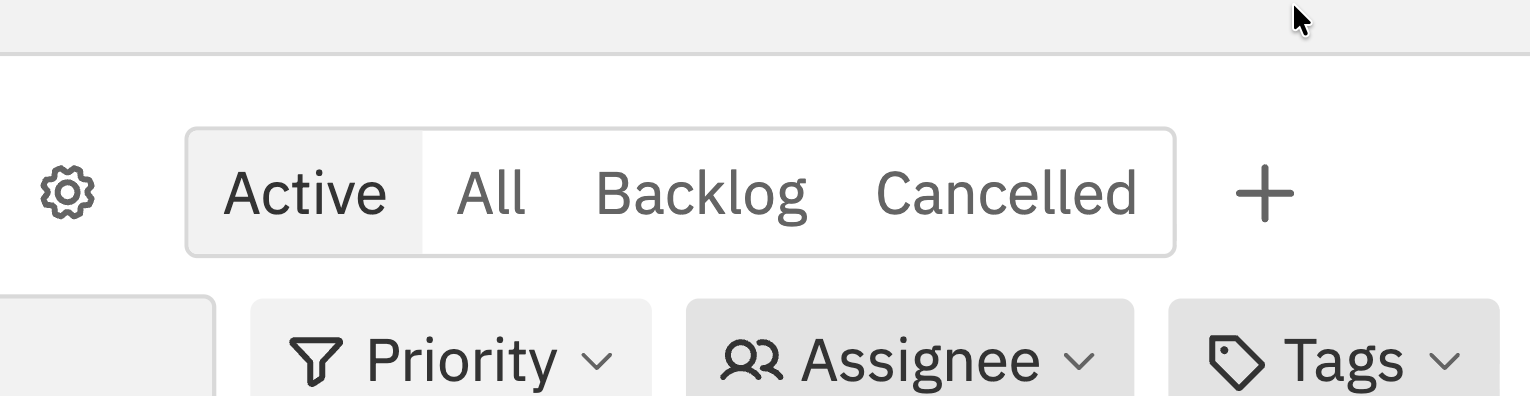
To switch to list view, click the **All** tab in the header above the board.
## Accessing List View
To switch to list view, click the **All** tab in the header above the board.
 | Tab | What it shows |
| -------------------------------- | ------------------------------------------------- |
| **All** | All issues across all statuses (including hidden) |
| **Backlog**, **Cancelled**, etc. | Issues in that specific hidden status only |
To return to the kanban view, click the **Active** tab.
## List Layout
Issues in the list view are grouped by status. Each status section shows:
* **Status name** with colour indicator
* **Issue count** for that status
* **Collapsible sections** - click to expand or collapse
| Tab | What it shows |
| -------------------------------- | ------------------------------------------------- |
| **All** | All issues across all statuses (including hidden) |
| **Backlog**, **Cancelled**, etc. | Issues in that specific hidden status only |
To return to the kanban view, click the **Active** tab.
## List Layout
Issues in the list view are grouped by status. Each status section shows:
* **Status name** with colour indicator
* **Issue count** for that status
* **Collapsible sections** - click to expand or collapse
 ### Issue Row Details
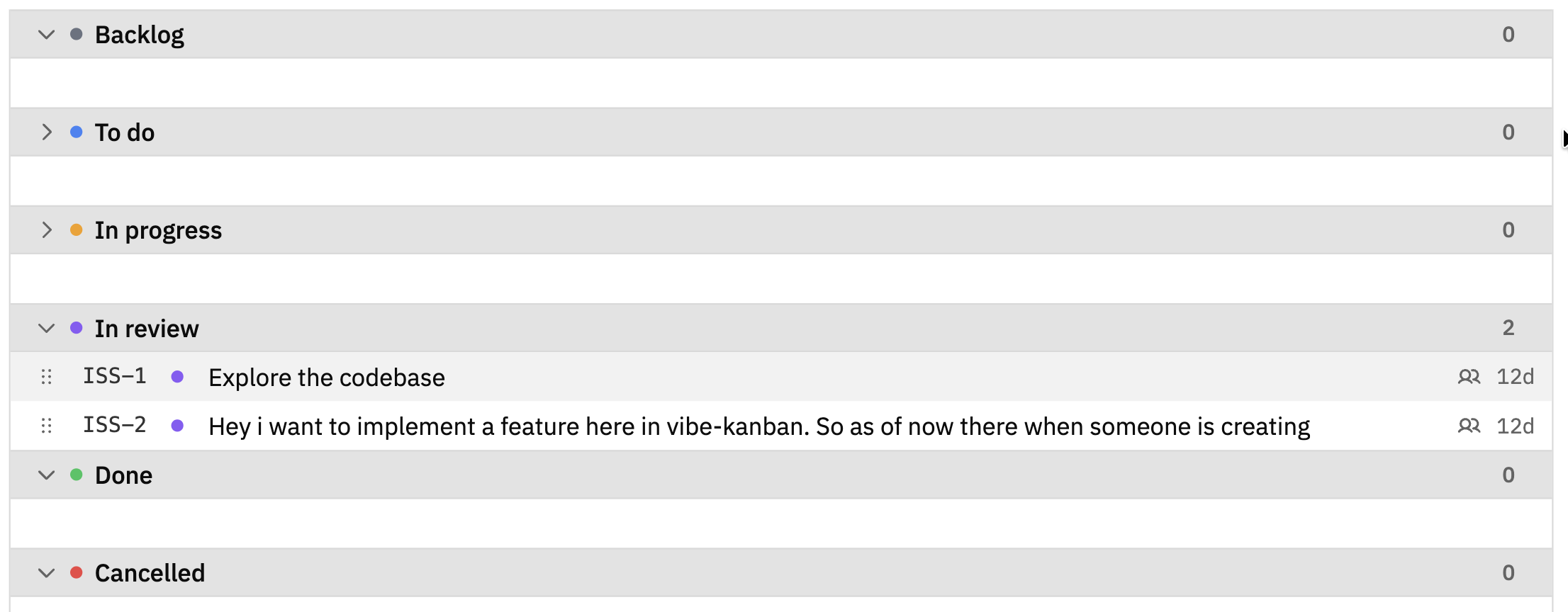
Each row in the list shows:
* **Simple ID** - The issue identifier (e.g., ISS-1)
* **Title** - The issue title
* **Workspace indicator** - Shows if the issue has linked workspaces
* **Age** - How long ago the issue was created (e.g., "12d" for 12 days)
Click any row to open the full [issue panel](/cloud/issues).
## Multi-Select in List View
List view supports multi-select for bulk operations. Each row has a checkbox that appears when you hover over its left edge.
### Selection Methods
* **Checkbox** - Hover over the left edge of a row to reveal the checkbox, then click to select
* **Cmd/Ctrl + Click** a row to toggle it in or out of the selection
* **Shift + Click** a row to select a range from the last selected row
* **X** to toggle the currently open issue
* **Shift + J / ↓** or **Shift + K / ↑** to extend the selection by one row
* **Cmd/Ctrl + A** to select all visible issues
* **Escape** to clear the selection
Selected rows are highlighted. When two or more issues are selected, the **bulk action bar** appears at the bottom of the screen with options to change status, priority, assignees, or delete. See [Selecting Multiple Issues](/cloud/issues#selecting-multiple-issues) for full details.
## When to Use List View
List view is best for:
See every issue in your project at once, including hidden statuses like Backlog and Cancelled.
Combined with search and filters, quickly locate issues across all statuses.
Select multiple issues with checkboxes to change status, priority, or assignees in bulk.
View and manage issues in Backlog, Cancelled, or other hidden statuses.
## Filtering and Sorting
The filter bar works the same in list view as in kanban view:
* **Search** - Find issues by title
* **Priority** - Filter by priority level
* **Assignee** - Filter by team member
* **Tags** - Filter by tags
* **Sort** - Change the order of issues
See [Filtering & Sorting](/cloud/filtering) for more details.
## Related Documentation
* [Kanban View](/cloud/kanban-board) - The default board view with columns
* [Issues](/cloud/issues) - Creating and editing issues
* [Filtering & Sorting](/cloud/filtering) - Finding issues quickly
### Issue Row Details
Each row in the list shows:
* **Simple ID** - The issue identifier (e.g., ISS-1)
* **Title** - The issue title
* **Workspace indicator** - Shows if the issue has linked workspaces
* **Age** - How long ago the issue was created (e.g., "12d" for 12 days)
Click any row to open the full [issue panel](/cloud/issues).
## Multi-Select in List View
List view supports multi-select for bulk operations. Each row has a checkbox that appears when you hover over its left edge.
### Selection Methods
* **Checkbox** - Hover over the left edge of a row to reveal the checkbox, then click to select
* **Cmd/Ctrl + Click** a row to toggle it in or out of the selection
* **Shift + Click** a row to select a range from the last selected row
* **X** to toggle the currently open issue
* **Shift + J / ↓** or **Shift + K / ↑** to extend the selection by one row
* **Cmd/Ctrl + A** to select all visible issues
* **Escape** to clear the selection
Selected rows are highlighted. When two or more issues are selected, the **bulk action bar** appears at the bottom of the screen with options to change status, priority, assignees, or delete. See [Selecting Multiple Issues](/cloud/issues#selecting-multiple-issues) for full details.
## When to Use List View
List view is best for:
See every issue in your project at once, including hidden statuses like Backlog and Cancelled.
Combined with search and filters, quickly locate issues across all statuses.
Select multiple issues with checkboxes to change status, priority, or assignees in bulk.
View and manage issues in Backlog, Cancelled, or other hidden statuses.
## Filtering and Sorting
The filter bar works the same in list view as in kanban view:
* **Search** - Find issues by title
* **Priority** - Filter by priority level
* **Assignee** - Filter by team member
* **Tags** - Filter by tags
* **Sort** - Change the order of issues
See [Filtering & Sorting](/cloud/filtering) for more details.
## Related Documentation
* [Kanban View](/cloud/kanban-board) - The default board view with columns
* [Issues](/cloud/issues) - Creating and editing issues
* [Filtering & Sorting](/cloud/filtering) - Finding issues quickly