> ## Documentation Index
> Fetch the complete documentation index at: https://vibekanban.com/docs/llms.txt
> Use this file to discover all available pages before exploring further.
# Organisations
> Manage organisations that group your team and projects
Organisations are the top-level container in Vibe Kanban Cloud. They group your team members and projects together.
## What is an Organisation?
An **organisation** represents your team, company, or group. It contains:
* **Projects** - Your kanban boards for managing tasks
* **Members** - People who can access the organisation
* **Settings** - Configuration that applies to all projects
### Organisation Structure
An organisation acts as a container that holds two main things:
**Members** are the people who belong to your organisation. Each member has a role:
* **Admins** have full control - they can invite/remove members, change settings, and delete the organisation
* **Members** can work on all projects but cannot manage organisation settings
**Projects** are your kanban boards. Each project contains tasks, statuses, and tags. All members of an organisation can see and work on all projects within it.
Think of an organisation like a company: the company has employees (members) and departments or initiatives (projects). Everyone in the company can see what each department is working on.
## Personal Organisation
When you sign in for the first time, a **personal organisation** is automatically created for you, along with an **Initial Project**. This is your private workspace.
Personal organisations:
* Are created automatically on first sign-in
* Come with an "Initial Project" ready to use
* Cannot have additional members invited
* Cannot be deleted
* Are only accessible by you
Team organisations can be created without payment, and members can be invited without seat limits.
## Organisation Settings
Access organisation settings by clicking the **settings icon** () next to your organisation name in the user menu.
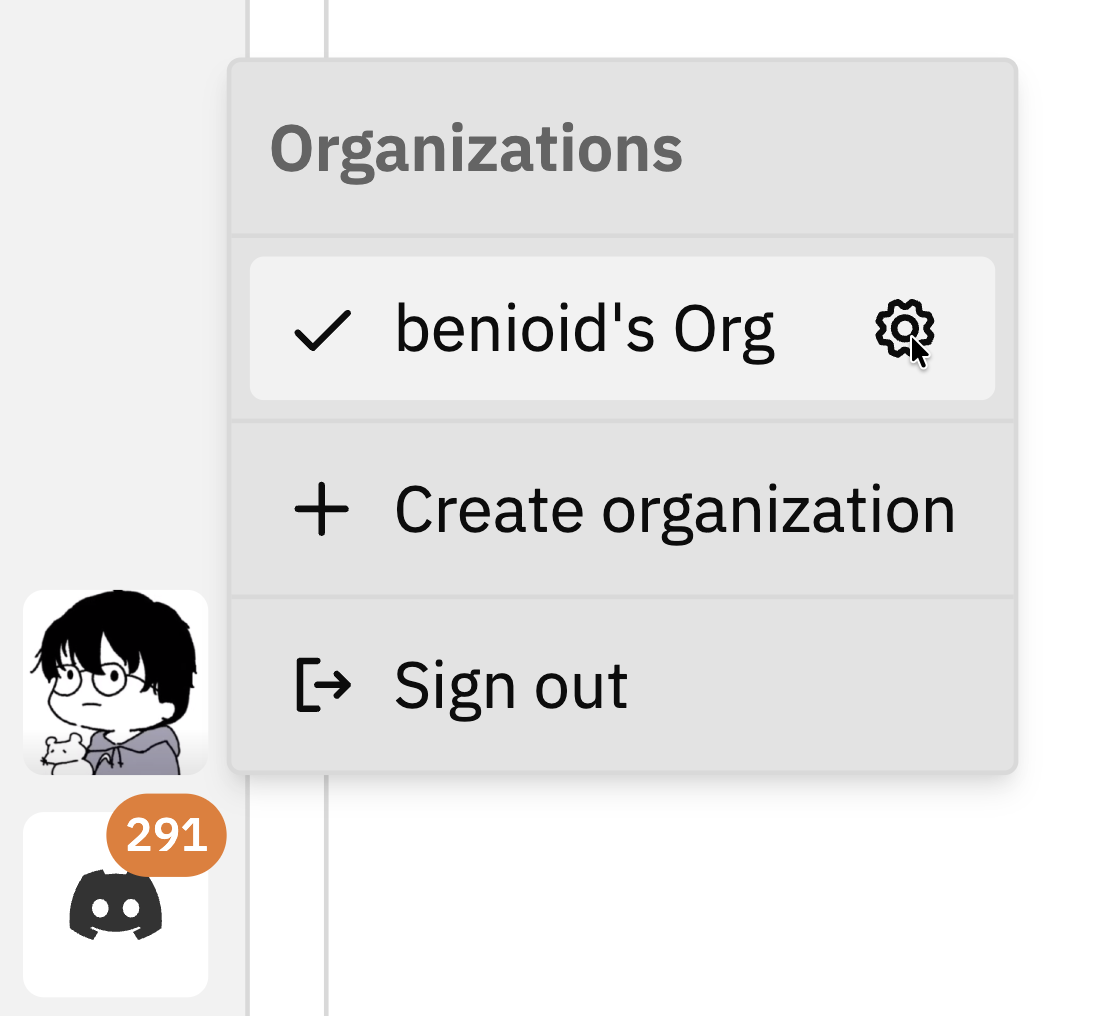 For detailed information about all organisation settings, see the [Organisation Settings](/settings/organization-settings) page.
From Organisation Settings you can:
* **Select organisation** - Switch between organisations you belong to
* **Manage members** - View, invite, and remove members (Admin only)
* **Manage invitations** - View and revoke pending invitations (Admin only)
* **Delete organisation** - Permanently delete the organisation (Admin only)
## Switching Organisations
If you're a member of multiple organisations:
Click your **profile icon** in the bottom of the left sidebar.
Click on the organisation you want to switch to from the list.
The page will refresh to show the selected organisation's projects and data.
## Leaving an Organisation
If you want to leave an organisation you're a member of:
Open the organisation settings.
Scroll down to the **Danger Zone** section.
Click **Leave Organisation** and confirm.
**You cannot leave if you're the only admin.** Transfer ownership to another member first, or delete the organisation.
## Deleting an Organisation
**This action is permanent and cannot be undone.** All projects, tasks, and data will be deleted.
Only organisation admins can delete an organisation. Personal organisations cannot be deleted.
For detailed information about all organisation settings, see the [Organisation Settings](/settings/organization-settings) page.
From Organisation Settings you can:
* **Select organisation** - Switch between organisations you belong to
* **Manage members** - View, invite, and remove members (Admin only)
* **Manage invitations** - View and revoke pending invitations (Admin only)
* **Delete organisation** - Permanently delete the organisation (Admin only)
## Switching Organisations
If you're a member of multiple organisations:
Click your **profile icon** in the bottom of the left sidebar.
Click on the organisation you want to switch to from the list.
The page will refresh to show the selected organisation's projects and data.
## Leaving an Organisation
If you want to leave an organisation you're a member of:
Open the organisation settings.
Scroll down to the **Danger Zone** section.
Click **Leave Organisation** and confirm.
**You cannot leave if you're the only admin.** Transfer ownership to another member first, or delete the organisation.
## Deleting an Organisation
**This action is permanent and cannot be undone.** All projects, tasks, and data will be deleted.
Only organisation admins can delete an organisation. Personal organisations cannot be deleted.
 Open the organisation settings.
Scroll down to the **Danger Zone** section.
Click **Delete** and confirm when prompted.
Before deleting, consider:
* Exporting any data you need
* Removing all members (they'll lose access immediately upon deletion)
* This cannot be recovered
## Organisation Roles
Members can have one of two roles:
| Role | Capabilities |
| ---------- | --------------------------------------------------------------------------------- |
| **Admin** | Full access - manage members, settings, and can delete the organisation |
| **Member** | Can view and work on projects, but cannot manage organisation settings or members |
### Role Permissions
| Action | Admin | Member |
| -------------------------- | ----- | ------ |
| View projects | ✅ | ✅ |
| Create projects | ✅ | ✅ |
| Edit project settings | ✅ | ✅ |
| Create/edit tasks | ✅ | ✅ |
| Invite members | ✅ | ❌ |
| Remove members | ✅ | ❌ |
| Change member roles | ✅ | ❌ |
| Edit organisation settings | ✅ | ❌ |
| Delete organisation | ✅ | ❌ |
The person who creates an organisation is automatically an Admin. There must always be at least one Admin.
## Best Practices
Create one organisation for your team or company. Don't create separate orgs for each project.
Choose organisation names that clearly identify the team. "Engineering" is better than "Org 1".
Ensure at least two people are admins in case one leaves or is unavailable.
Periodically review who has access and remove members who no longer need it.
## Troubleshooting
**Problem:** The create organisation button doesn't appear or doesn't work.
**Possible causes:**
* You're already in the organisation creation flow
* Network connectivity issues
**Solution:**
Refresh the page and try again. If the issue persists, check your browser's console for errors.
**Problem:** An organisation you were invited to doesn't appear in your list.
**Possible causes:**
* The invitation is still pending (check your email)
* You signed in with a different account
* You were removed from the organisation
**Solution:**
1. Check your email for an invitation link
2. Verify you're signed in with the correct account
3. Ask an admin of the organisation to check your membership
**Problem:** The "Leave Organisation" button is disabled.
**Cause:** You're the only admin.
**Solution:**
1. Promote another member to admin first
2. Then you can leave
3. Or delete the organisation if no one else needs it
## Related Documentation
* [Team Members](/cloud/team-members) - Inviting and managing organisation members
* [Getting Started](/cloud/getting-started) - Initial setup of Vibe Kanban Cloud
Open the organisation settings.
Scroll down to the **Danger Zone** section.
Click **Delete** and confirm when prompted.
Before deleting, consider:
* Exporting any data you need
* Removing all members (they'll lose access immediately upon deletion)
* This cannot be recovered
## Organisation Roles
Members can have one of two roles:
| Role | Capabilities |
| ---------- | --------------------------------------------------------------------------------- |
| **Admin** | Full access - manage members, settings, and can delete the organisation |
| **Member** | Can view and work on projects, but cannot manage organisation settings or members |
### Role Permissions
| Action | Admin | Member |
| -------------------------- | ----- | ------ |
| View projects | ✅ | ✅ |
| Create projects | ✅ | ✅ |
| Edit project settings | ✅ | ✅ |
| Create/edit tasks | ✅ | ✅ |
| Invite members | ✅ | ❌ |
| Remove members | ✅ | ❌ |
| Change member roles | ✅ | ❌ |
| Edit organisation settings | ✅ | ❌ |
| Delete organisation | ✅ | ❌ |
The person who creates an organisation is automatically an Admin. There must always be at least one Admin.
## Best Practices
Create one organisation for your team or company. Don't create separate orgs for each project.
Choose organisation names that clearly identify the team. "Engineering" is better than "Org 1".
Ensure at least two people are admins in case one leaves or is unavailable.
Periodically review who has access and remove members who no longer need it.
## Troubleshooting
**Problem:** The create organisation button doesn't appear or doesn't work.
**Possible causes:**
* You're already in the organisation creation flow
* Network connectivity issues
**Solution:**
Refresh the page and try again. If the issue persists, check your browser's console for errors.
**Problem:** An organisation you were invited to doesn't appear in your list.
**Possible causes:**
* The invitation is still pending (check your email)
* You signed in with a different account
* You were removed from the organisation
**Solution:**
1. Check your email for an invitation link
2. Verify you're signed in with the correct account
3. Ask an admin of the organisation to check your membership
**Problem:** The "Leave Organisation" button is disabled.
**Cause:** You're the only admin.
**Solution:**
1. Promote another member to admin first
2. Then you can leave
3. Or delete the organisation if no one else needs it
## Related Documentation
* [Team Members](/cloud/team-members) - Inviting and managing organisation members
* [Getting Started](/cloud/getting-started) - Initial setup of Vibe Kanban Cloud