> ## Documentation Index
> Fetch the complete documentation index at: https://vibekanban.com/docs/llms.txt
> Use this file to discover all available pages before exploring further.
# Organisation Settings
> Manage your organisation, members, and invitations
The Organisation Settings page lets you manage your Cloud organisations, invite team members, and configure organisation-level settings.
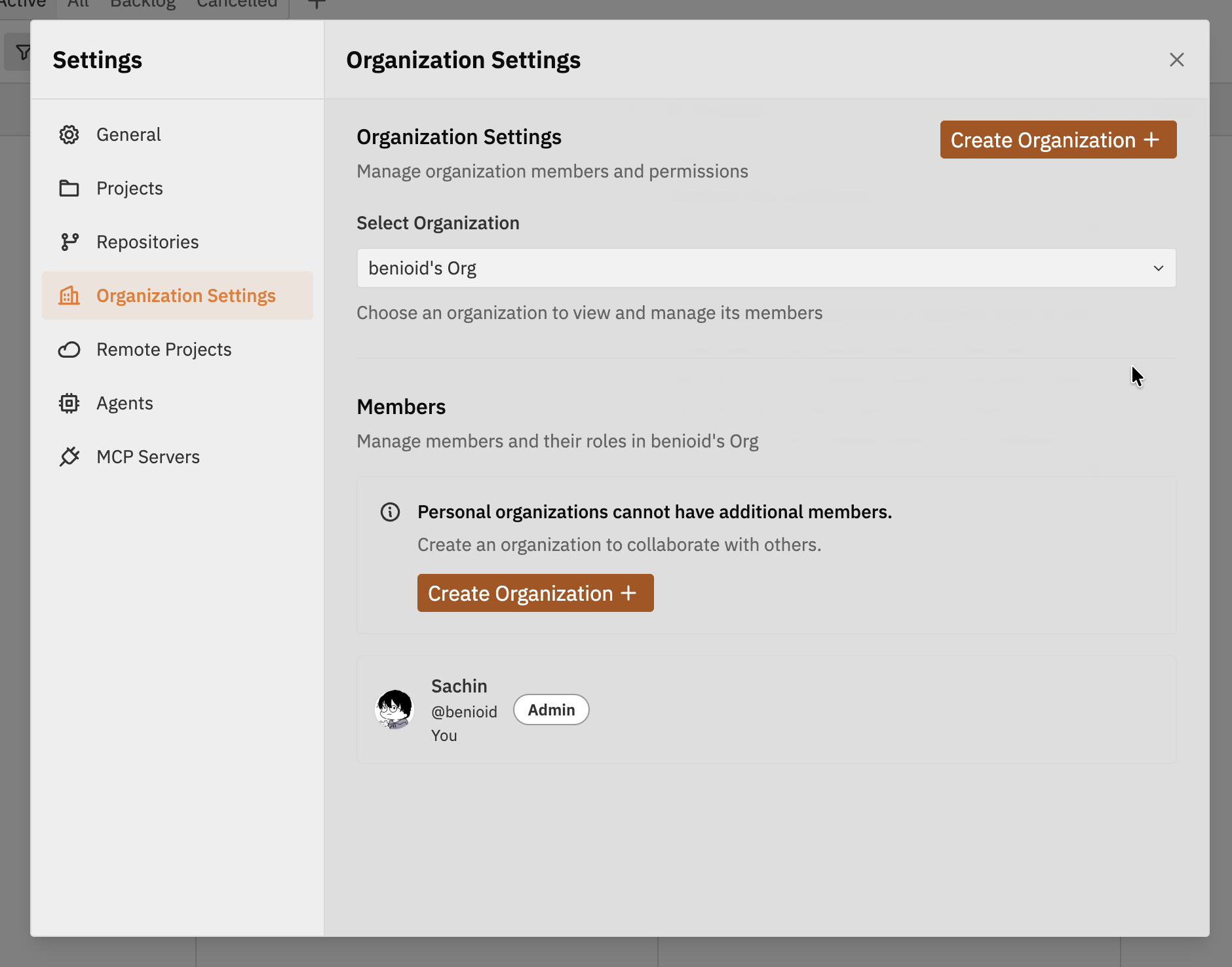 ## Accessing Organisation Settings
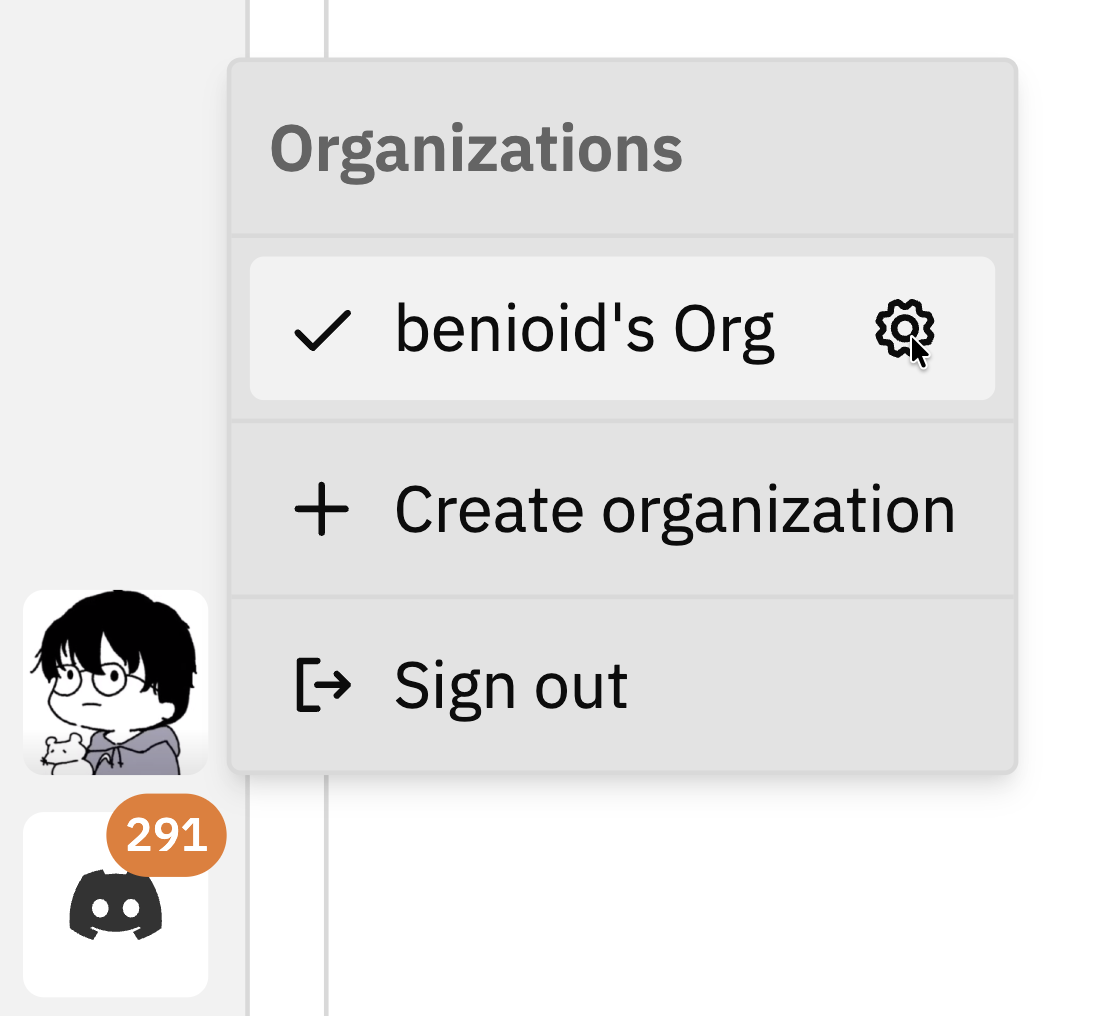
To open Organisation Settings:
1. Click your **profile icon** in the bottom of the left sidebar
2. Click the **settings icon** () next to your organisation name
## Accessing Organisation Settings
To open Organisation Settings:
1. Click your **profile icon** in the bottom of the left sidebar
2. Click the **settings icon** () next to your organisation name
 ## Organisation Selection
At the top of the settings page, you can:
* **Switch organisations** - Use the dropdown to select a different organisation
## Organisation Selection
At the top of the settings page, you can:
* **Switch organisations** - Use the dropdown to select a different organisation
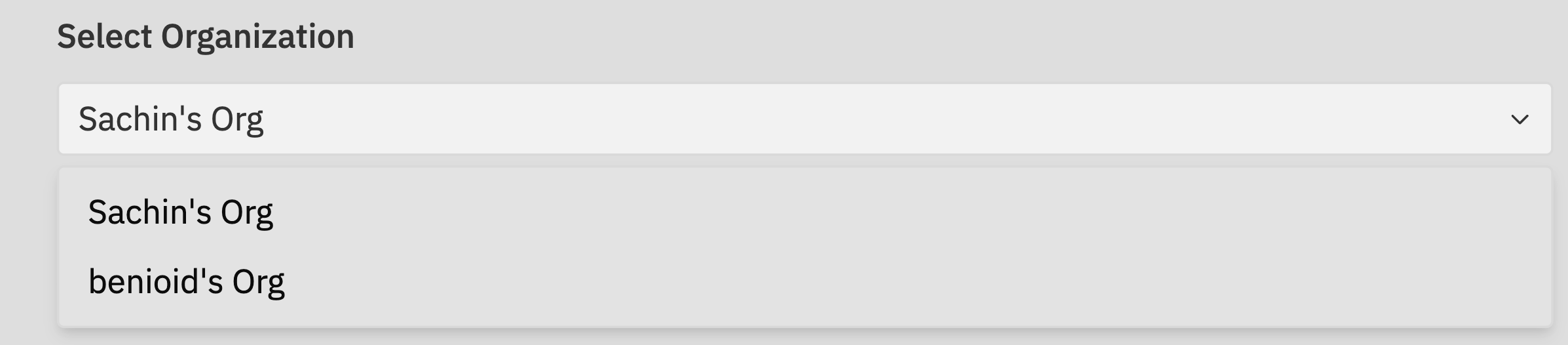 If you're a member of multiple organisations, switching here changes which organisation's settings you're viewing and editing.
### Personal Organisations
When you first sign up, a personal organisation is created for you with an **Initial Project**. Personal organisations have some restrictions:
* Cannot invite additional members
* Cannot be deleted
* Are only accessible by you
## Pending Invitations
This section is only visible to **Admins** and only for non-personal organisations.
The Pending Invitations section shows all invitations that have been sent but not yet accepted:
* **Email address** - Who was invited
* **Status** - Pending acceptance
* **Expiry** - Invitations expire after 7 days
* **Revoke** - Cancel the invitation if needed
### Revoking an Invitation
To revoke a pending invitation:
1. Find the invitation in the list
2. Click the **Revoke** button
3. The invitation link will no longer work
## Members
The Members section shows everyone who has access to the organisation:
If you're a member of multiple organisations, switching here changes which organisation's settings you're viewing and editing.
### Personal Organisations
When you first sign up, a personal organisation is created for you with an **Initial Project**. Personal organisations have some restrictions:
* Cannot invite additional members
* Cannot be deleted
* Are only accessible by you
## Pending Invitations
This section is only visible to **Admins** and only for non-personal organisations.
The Pending Invitations section shows all invitations that have been sent but not yet accepted:
* **Email address** - Who was invited
* **Status** - Pending acceptance
* **Expiry** - Invitations expire after 7 days
* **Revoke** - Cancel the invitation if needed
### Revoking an Invitation
To revoke a pending invitation:
1. Find the invitation in the list
2. Click the **Revoke** button
3. The invitation link will no longer work
## Members
The Members section shows everyone who has access to the organisation:
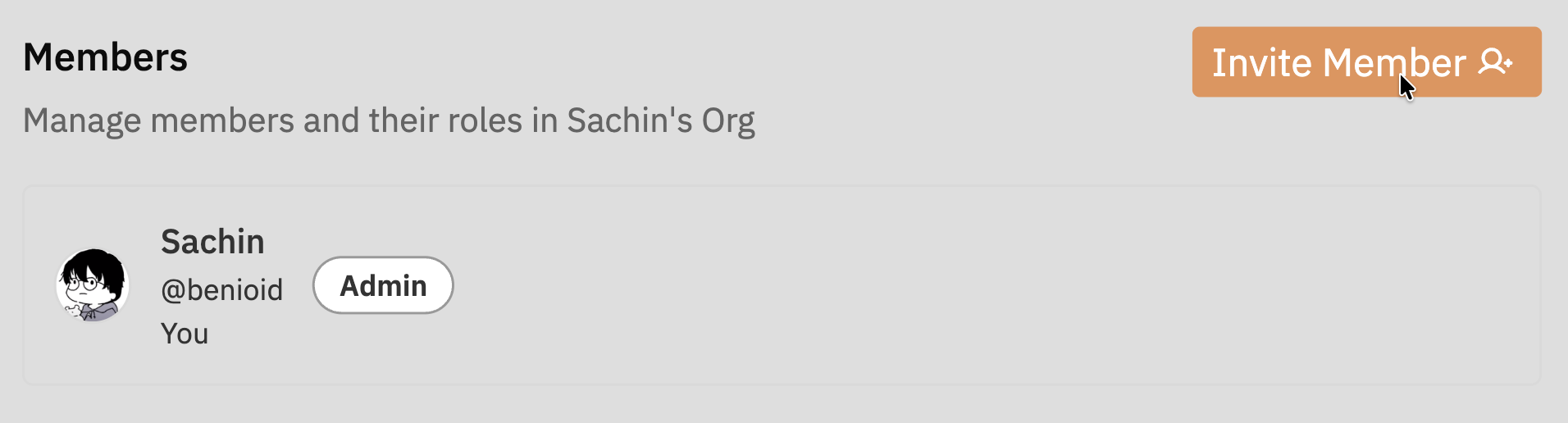 | Column | Description |
| ----------- | -------------------------------- |
| **Name** | Member's display name and avatar |
| **Role** | Admin or Member |
| **Actions** | Role change, remove (Admin only) |
### Member Roles
| Role | Permissions |
| ---------- | ------------------------------------------------------------------------ |
| **Admin** | Full access - manage members, invitations, settings, delete organisation |
| **Member** | Access projects and issues, cannot manage organisation settings |
### Changing a Member's Role
Only Admins can change member roles.
1. Find the member in the list
2. Click the role dropdown next to their name
3. Select the new role (Admin or Member)
4. The change takes effect immediately
### Removing a Member
Removing a member revokes their access to all projects in the organisation immediately.
1. Find the member in the list
2. Click the **Remove** button
3. Confirm the removal when prompted
### Inviting New Members
To invite someone to your organisation:
1. Click the **Invite Member** button
2. Enter their email address
3. Select their role (Admin or Member)
4. Click **Send Invitation**
| Column | Description |
| ----------- | -------------------------------- |
| **Name** | Member's display name and avatar |
| **Role** | Admin or Member |
| **Actions** | Role change, remove (Admin only) |
### Member Roles
| Role | Permissions |
| ---------- | ------------------------------------------------------------------------ |
| **Admin** | Full access - manage members, invitations, settings, delete organisation |
| **Member** | Access projects and issues, cannot manage organisation settings |
### Changing a Member's Role
Only Admins can change member roles.
1. Find the member in the list
2. Click the role dropdown next to their name
3. Select the new role (Admin or Member)
4. The change takes effect immediately
### Removing a Member
Removing a member revokes their access to all projects in the organisation immediately.
1. Find the member in the list
2. Click the **Remove** button
3. Confirm the removal when prompted
### Inviting New Members
To invite someone to your organisation:
1. Click the **Invite Member** button
2. Enter their email address
3. Select their role (Admin or Member)
4. Click **Send Invitation**
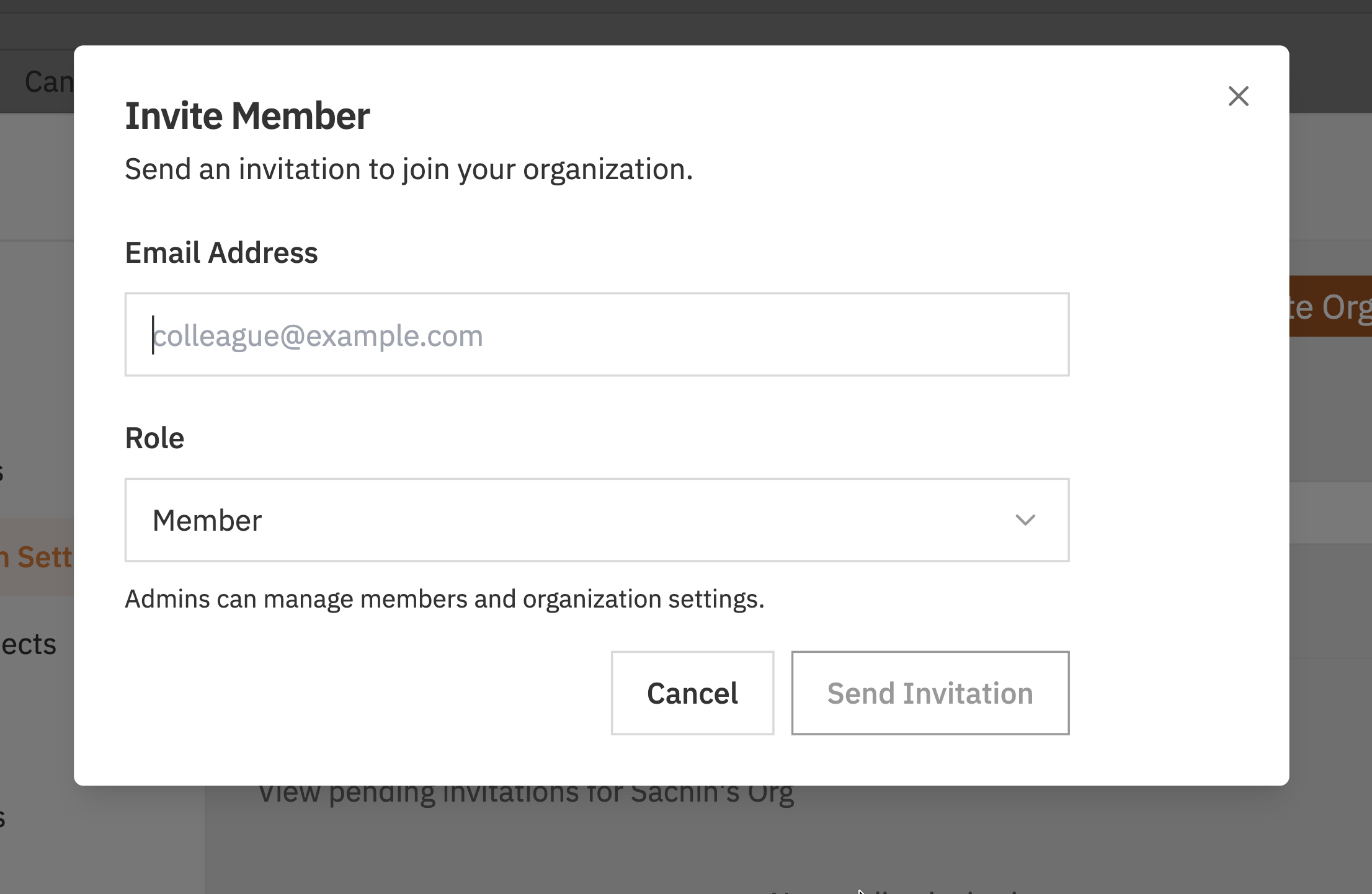 They'll receive an email with a link to join. The invitation expires after 7 days.
## Billing
This section is only visible to **Admins** of non-personal organisations.
The Billing section provides a link for existing customers to manage billing in the Vibe Kanban account portal.
Click **Manage Billing** to open the billing portal in a new tab where you can:
* View your current subscription
* Update payment methods
* View invoices and billing history
## Danger Zone
Actions in the Danger Zone are destructive and cannot be undone.
They'll receive an email with a link to join. The invitation expires after 7 days.
## Billing
This section is only visible to **Admins** of non-personal organisations.
The Billing section provides a link for existing customers to manage billing in the Vibe Kanban account portal.
Click **Manage Billing** to open the billing portal in a new tab where you can:
* View your current subscription
* Update payment methods
* View invoices and billing history
## Danger Zone
Actions in the Danger Zone are destructive and cannot be undone.
 ### Deleting an Organisation
Only Admins can delete organisations. Personal organisations cannot be deleted.
To delete an organisation:
1. Scroll to the **Danger Zone** section
2. Click **Delete**
3. Confirm the deletion when prompted
4. All projects, issues, and data will be permanently deleted
Deleting an organisation removes:
* All projects in the organisation
* All issues and their history
* All team member access
* All pending invitations
This action cannot be undone.
## Related Documentation
* [Organisations](/cloud/organizations) - Creating and understanding organisations
* [Team Members](/cloud/team-members) - Inviting and managing team members
* [Projects](/cloud/projects) - Managing projects within organisations
### Deleting an Organisation
Only Admins can delete organisations. Personal organisations cannot be deleted.
To delete an organisation:
1. Scroll to the **Danger Zone** section
2. Click **Delete**
3. Confirm the deletion when prompted
4. All projects, issues, and data will be permanently deleted
Deleting an organisation removes:
* All projects in the organisation
* All issues and their history
* All team member access
* All pending invitations
This action cannot be undone.
## Related Documentation
* [Organisations](/cloud/organizations) - Creating and understanding organisations
* [Team Members](/cloud/team-members) - Inviting and managing team members
* [Projects](/cloud/projects) - Managing projects within organisations