> ## Documentation Index
> Fetch the complete documentation index at: https://vibekanban.com/docs/llms.txt
> Use this file to discover all available pages before exploring further.
# Changes Panel
> Review code modifications and provide feedback to agents
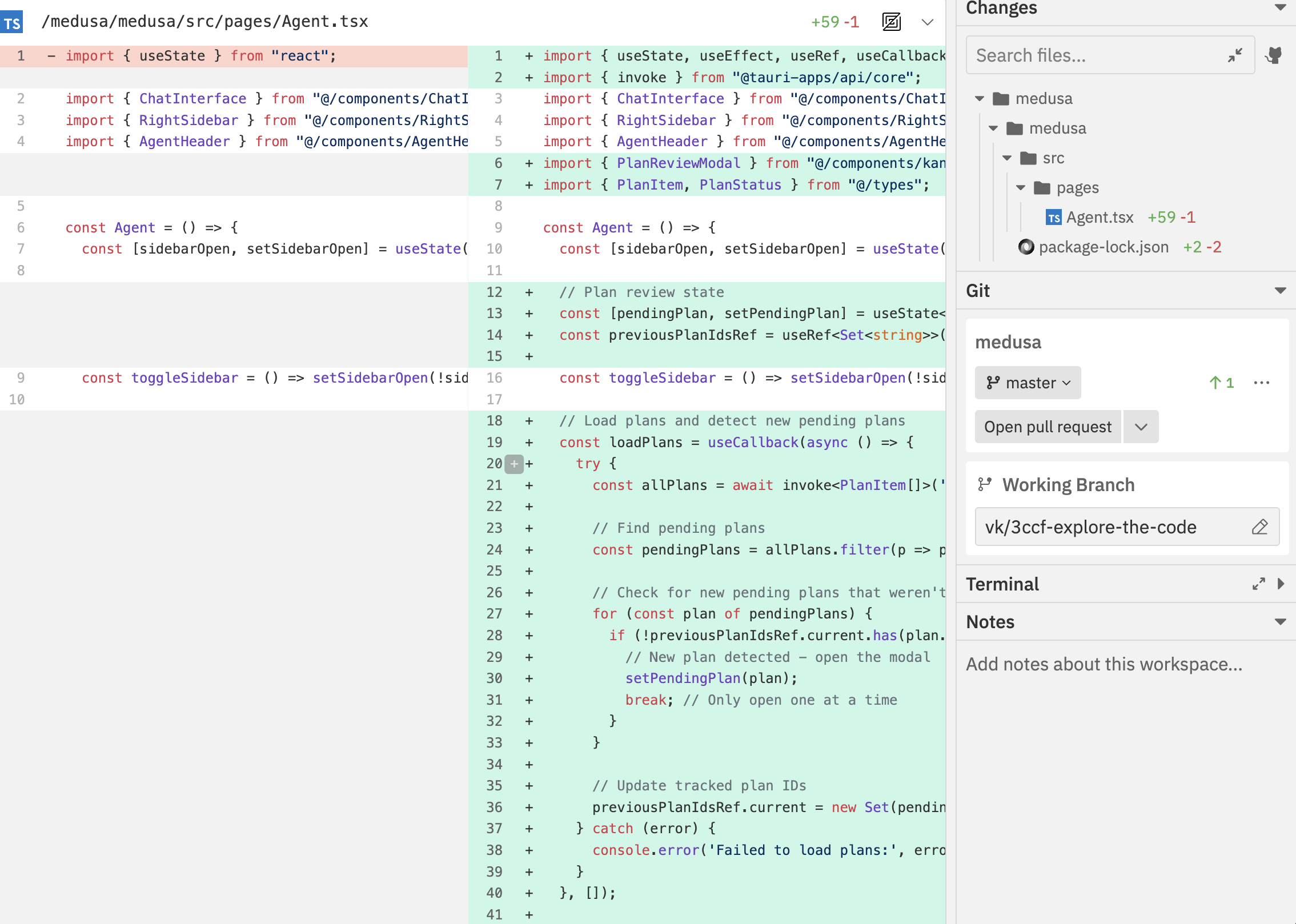 The changes panel lets you review all code modifications in your workspace and provide feedback to agents.
## Why Review Changes?
Before committing or creating a PR, you should always review what the agent changed:
* **Verify correctness** - Does the code do what you asked?
* **Check for issues** - Are there bugs, security problems, or style violations?
* **Understand the approach** - Learn what the agent did so you can explain it to reviewers
* **Provide feedback** - Ask the agent to fix problems before committing
**Never blindly trust agent output.** Always review changes before merging. Agents can make mistakes, introduce bugs, or misunderstand requirements.
## Opening Changes
* Click the **Changes** toggle () in the navbar
* Click the changes icon in the context bar
* Use the command bar: `Cmd/Ctrl + K` → "Toggle Changes Panel"
## File Tree
The changes panel displays a hierarchical file tree:
* **Folders**: Expand/collapse to navigate
* **Files**: Click to view the diff
* **Search**: Filter files by name
* **Expand/Collapse All**: Quick navigation buttons
## Diff Viewer
View code changes with syntax highlighting:
| Feature | Description |
| ---------------- | ----------------------------------------- |
| **Additions** | Green highlighting for new lines |
| **Deletions** | Red highlighting for removed lines |
| **Context** | Surrounding unchanged lines for reference |
| **Line numbers** | Original and new line numbers |
## Diff View Modes
Toggle between two display modes:
| Mode | Description |
| ---------------- | ----------------------------------------------- |
| **Unified** | Inline view with changes interleaved |
| **Side-by-Side** | Original and modified shown in parallel columns |
Switch modes using the diff view toggle in the navbar (when Changes panel is open) or via command bar: `Cmd/Ctrl + K` → "Toggle Diff View Mode".
## Diff Options
Customise the diff display:
| Option | Description |
| --------------------- | ------------------------------------------- |
| **Wrap Lines** | Enable/disable line wrapping for long lines |
| **Ignore Whitespace** | Show/hide whitespace-only changes |
| **Expand All** | Expand all collapsed diff sections |
| **Collapse All** | Collapse all diff sections |
Access these via the command bar's Diff Options page.
## Giving Feedback with Comments
The changes panel lets you review all code modifications in your workspace and provide feedback to agents.
## Why Review Changes?
Before committing or creating a PR, you should always review what the agent changed:
* **Verify correctness** - Does the code do what you asked?
* **Check for issues** - Are there bugs, security problems, or style violations?
* **Understand the approach** - Learn what the agent did so you can explain it to reviewers
* **Provide feedback** - Ask the agent to fix problems before committing
**Never blindly trust agent output.** Always review changes before merging. Agents can make mistakes, introduce bugs, or misunderstand requirements.
## Opening Changes
* Click the **Changes** toggle () in the navbar
* Click the changes icon in the context bar
* Use the command bar: `Cmd/Ctrl + K` → "Toggle Changes Panel"
## File Tree
The changes panel displays a hierarchical file tree:
* **Folders**: Expand/collapse to navigate
* **Files**: Click to view the diff
* **Search**: Filter files by name
* **Expand/Collapse All**: Quick navigation buttons
## Diff Viewer
View code changes with syntax highlighting:
| Feature | Description |
| ---------------- | ----------------------------------------- |
| **Additions** | Green highlighting for new lines |
| **Deletions** | Red highlighting for removed lines |
| **Context** | Surrounding unchanged lines for reference |
| **Line numbers** | Original and new line numbers |
## Diff View Modes
Toggle between two display modes:
| Mode | Description |
| ---------------- | ----------------------------------------------- |
| **Unified** | Inline view with changes interleaved |
| **Side-by-Side** | Original and modified shown in parallel columns |
Switch modes using the diff view toggle in the navbar (when Changes panel is open) or via command bar: `Cmd/Ctrl + K` → "Toggle Diff View Mode".
## Diff Options
Customise the diff display:
| Option | Description |
| --------------------- | ------------------------------------------- |
| **Wrap Lines** | Enable/disable line wrapping for long lines |
| **Ignore Whitespace** | Show/hide whitespace-only changes |
| **Expand All** | Expand all collapsed diff sections |
| **Collapse All** | Collapse all diff sections |
Access these via the command bar's Diff Options page.
## Giving Feedback with Comments
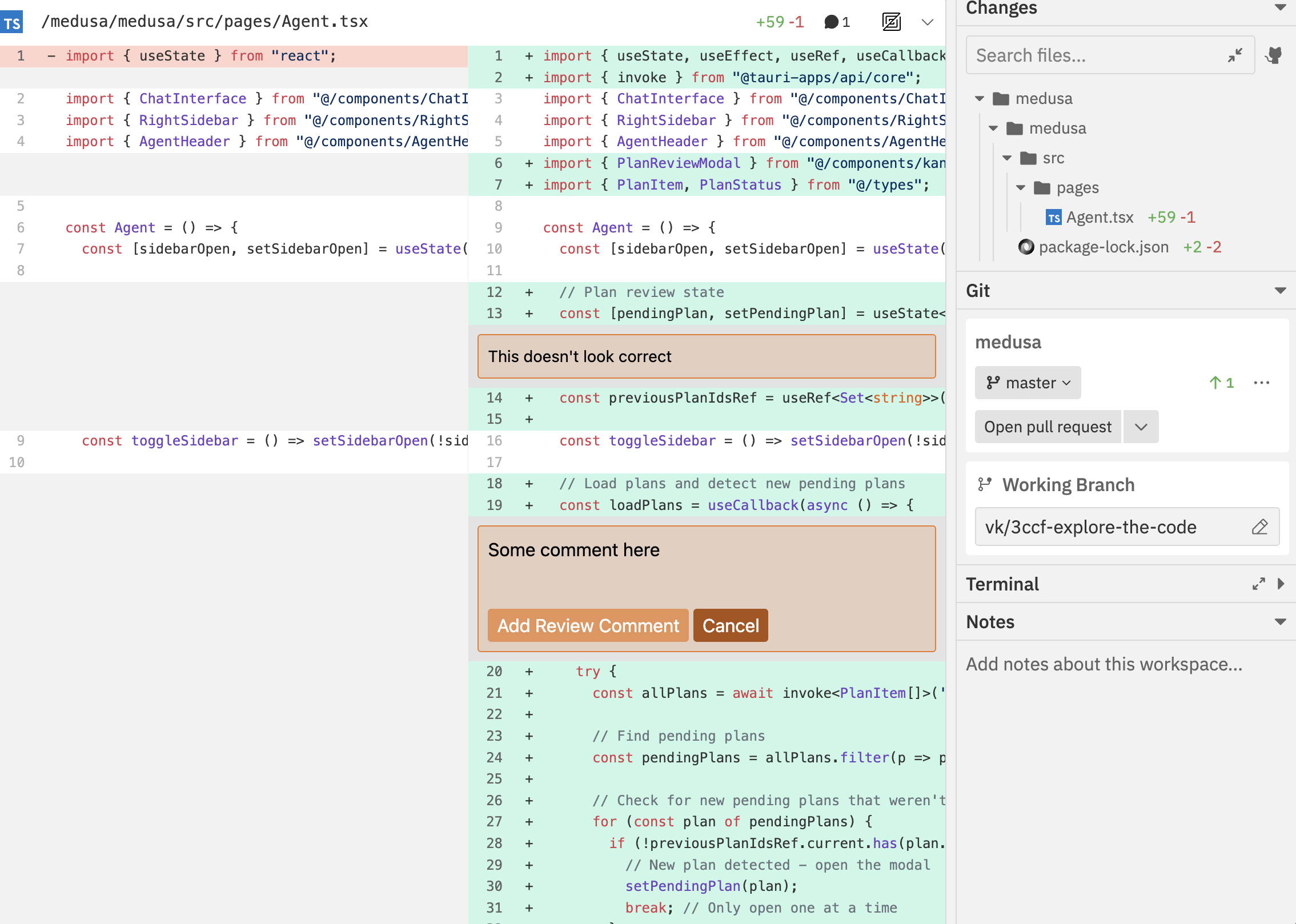 Add comments directly on code changes to provide feedback to agents.
### Adding Comments
1. Hover over a line in the diff
2. Click the comment icon that appears
3. Write your feedback
4. Submit the comment
### Comment Uses
* **Request changes**: Ask the agent to modify specific code
* **Ask questions**: Get explanations about implementation choices
* **Provide context**: Share additional requirements or constraints
* **Approve sections**: Indicate code that looks good
### Agent Response to Comments
Add comments directly on code changes to provide feedback to agents.
### Adding Comments
1. Hover over a line in the diff
2. Click the comment icon that appears
3. Write your feedback
4. Submit the comment
### Comment Uses
* **Request changes**: Ask the agent to modify specific code
* **Ask questions**: Get explanations about implementation choices
* **Provide context**: Share additional requirements or constraints
* **Approve sections**: Indicate code that looks good
### Agent Response to Comments
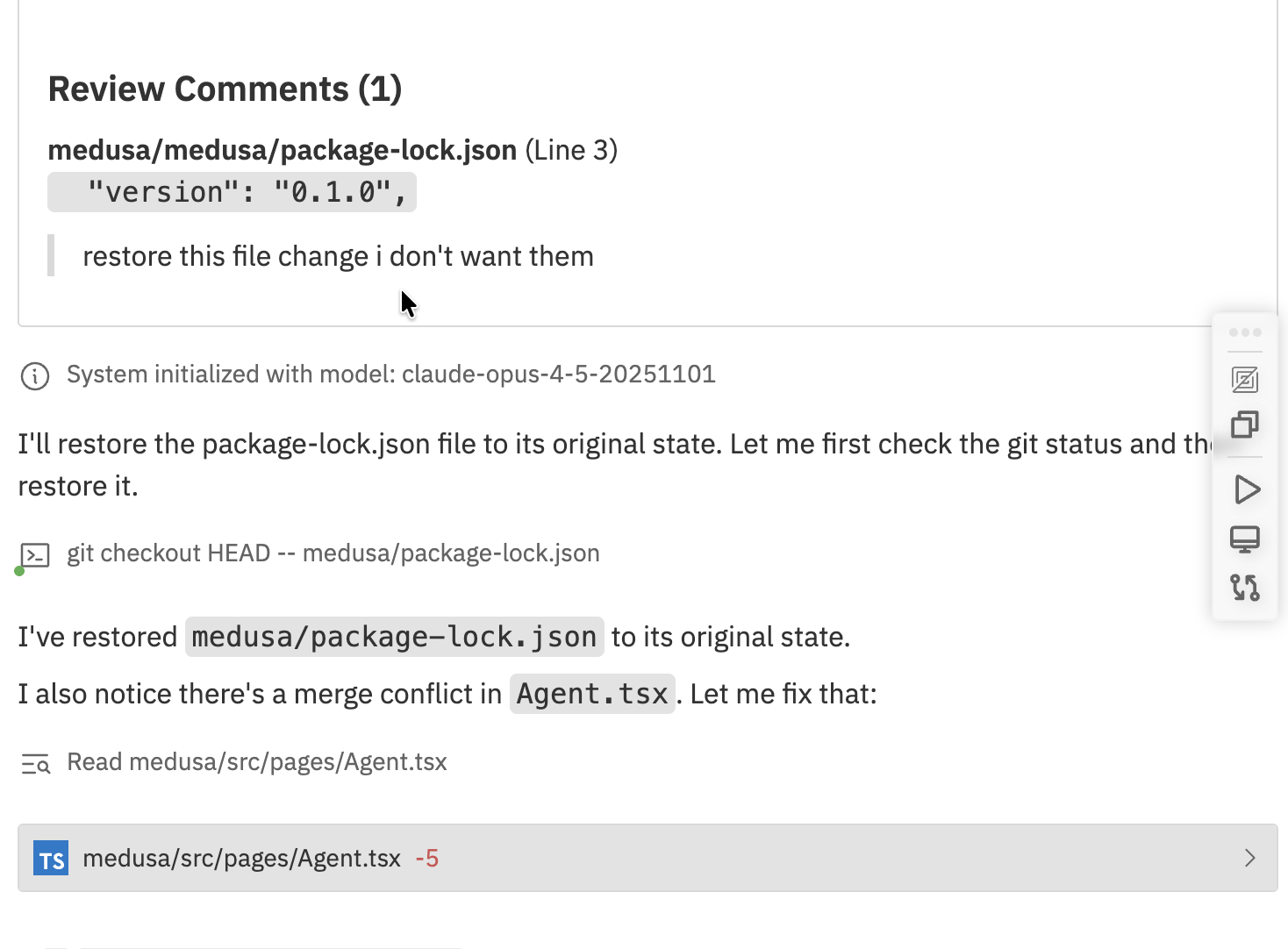 When you send a message with review comments, the agent sees your feedback and acts on it. In this example, the agent restores a file after the user requested the change be reverted.
Comments are visible to the agent in subsequent messages, helping guide further development.
## GitHub Integration
When your workspace is linked to a pull request:
### Viewing GitHub Comments
When you send a message with review comments, the agent sees your feedback and acts on it. In this example, the agent restores a file after the user requested the change be reverted.
Comments are visible to the agent in subsequent messages, helping guide further development.
## GitHub Integration
When your workspace is linked to a pull request:
### Viewing GitHub Comments
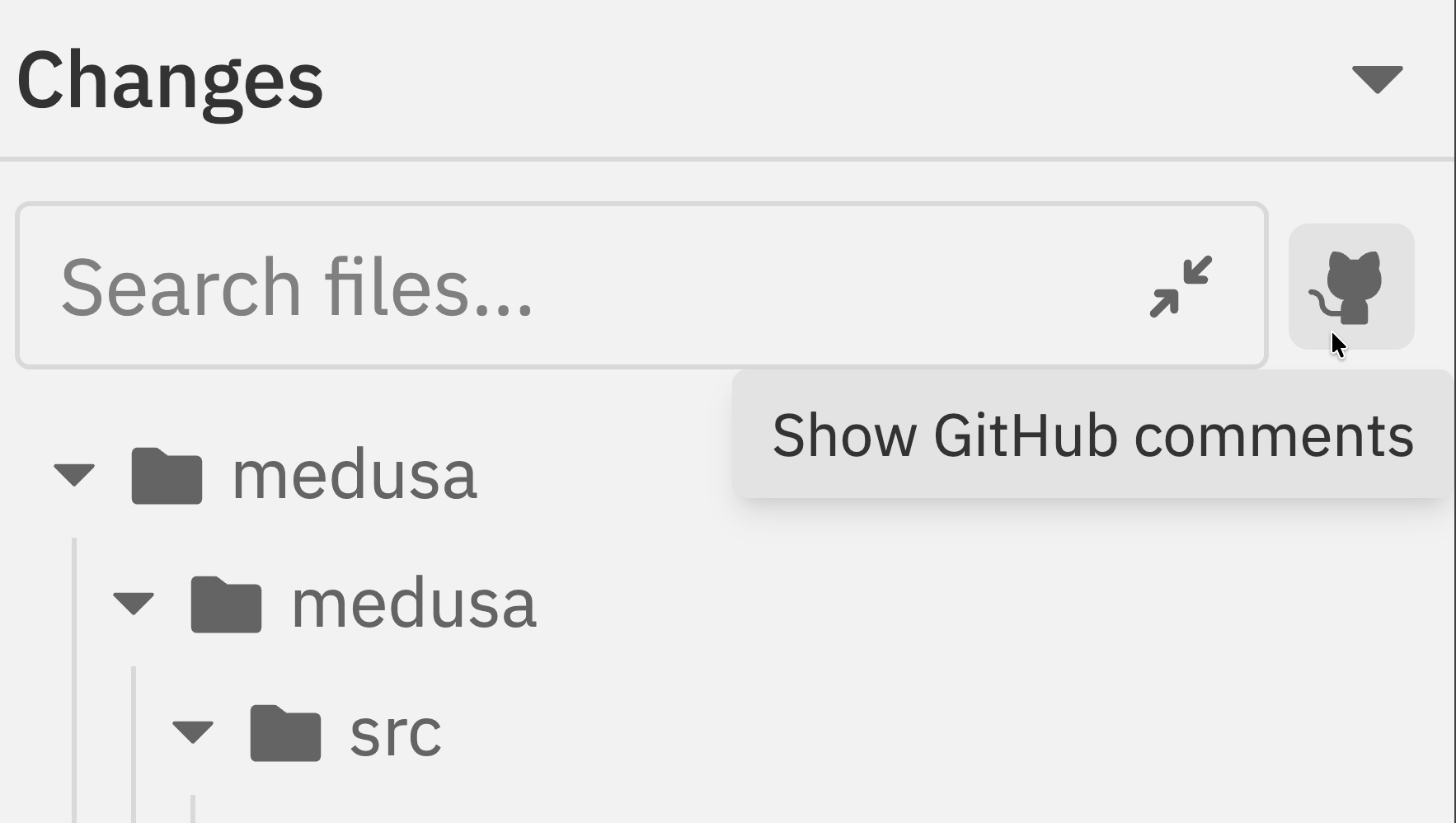 * Click the **GitHub icon** in the changes panel toolbar to toggle GitHub comments
* Comments from the PR appear inline with the diff
* Badge shows comment count per file
* Click the **GitHub icon** in the changes panel toolbar to toggle GitHub comments
* Comments from the PR appear inline with the diff
* Badge shows comment count per file
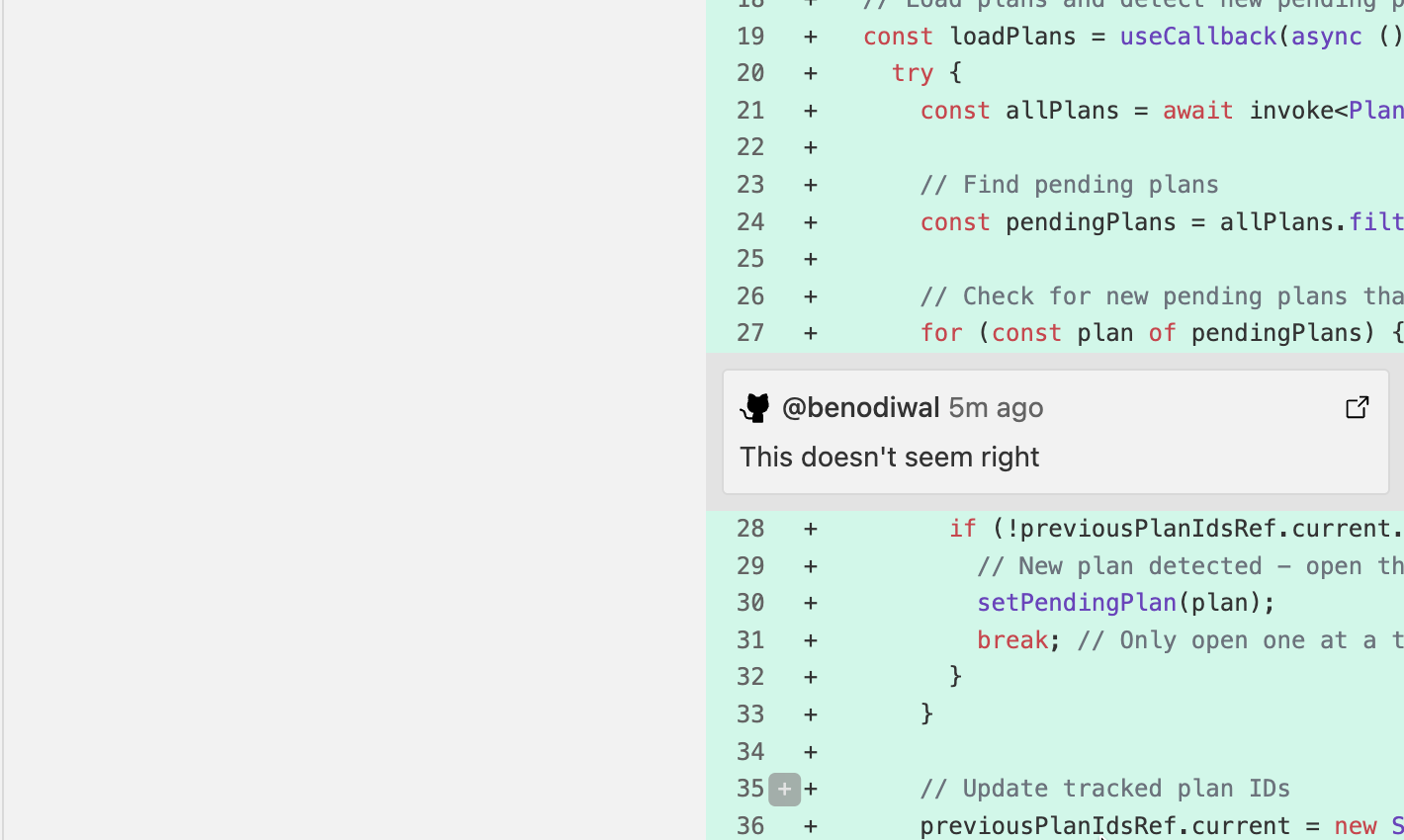 Only submitted review comments are shown. Pending reviews (not yet submitted on GitHub) won't appear until you submit the review.
### Linking to a PR
Workspaces automatically link when:
* You create a PR from the workspace
* The workspace branch matches an existing PR
Review GitHub comments alongside your changes to address PR feedback efficiently.
## Review Workflow
Follow this workflow to effectively review and refine agent changes:
Let the agent complete its work. The status in the sidebar will change from "Running" to "Idle".
Click the Changes icon in the navbar or use `Cmd/Ctrl + K` → "Toggle Changes Panel".
Click through each modified file in the file tree. Look for:
* **Logic errors** - Does the code do what you intended?
* **Missing pieces** - Are there unhandled edge cases?
* **Code quality** - Is the code readable and maintainable?
* **Security issues** - Any obvious vulnerabilities?
For any problems you find, hover over the line and click the comment icon. Write specific feedback:
**Good comment:** "This API endpoint should validate the user ID before querying the database to prevent unauthorized access."
**Bad comment:** "This is wrong, fix it."
Type a message in the chat (e.g., "Please address the review comments") and send it. The agent will see your inline comments and make corrections.
After the agent addresses feedback, review the new changes. Repeat until you're satisfied.
Once changes look good, create a pull request using the Git panel or command bar.
**Be specific in comments.** Instead of "this is wrong", explain what's wrong and ideally suggest a fix. The more context you give, the better the agent can correct the issue.
## Related Documentation
* [Browser Testing](/browser-testing) - Test your application with the built-in browser
* [Interface Guide](/workspaces/interface) - Overview of workspace panels
* [Git Operations](/workspaces/git-operations) - Create PRs and manage branches
Only submitted review comments are shown. Pending reviews (not yet submitted on GitHub) won't appear until you submit the review.
### Linking to a PR
Workspaces automatically link when:
* You create a PR from the workspace
* The workspace branch matches an existing PR
Review GitHub comments alongside your changes to address PR feedback efficiently.
## Review Workflow
Follow this workflow to effectively review and refine agent changes:
Let the agent complete its work. The status in the sidebar will change from "Running" to "Idle".
Click the Changes icon in the navbar or use `Cmd/Ctrl + K` → "Toggle Changes Panel".
Click through each modified file in the file tree. Look for:
* **Logic errors** - Does the code do what you intended?
* **Missing pieces** - Are there unhandled edge cases?
* **Code quality** - Is the code readable and maintainable?
* **Security issues** - Any obvious vulnerabilities?
For any problems you find, hover over the line and click the comment icon. Write specific feedback:
**Good comment:** "This API endpoint should validate the user ID before querying the database to prevent unauthorized access."
**Bad comment:** "This is wrong, fix it."
Type a message in the chat (e.g., "Please address the review comments") and send it. The agent will see your inline comments and make corrections.
After the agent addresses feedback, review the new changes. Repeat until you're satisfied.
Once changes look good, create a pull request using the Git panel or command bar.
**Be specific in comments.** Instead of "this is wrong", explain what's wrong and ideally suggest a fix. The more context you give, the better the agent can correct the issue.
## Related Documentation
* [Browser Testing](/browser-testing) - Test your application with the built-in browser
* [Interface Guide](/workspaces/interface) - Overview of workspace panels
* [Git Operations](/workspaces/git-operations) - Create PRs and manage branches