> ## Documentation Index
> Fetch the complete documentation index at: https://vibekanban.com/docs/llms.txt
> Use this file to discover all available pages before exploring further.
# Chat Interface
> Interact with coding agents through the conversation panel
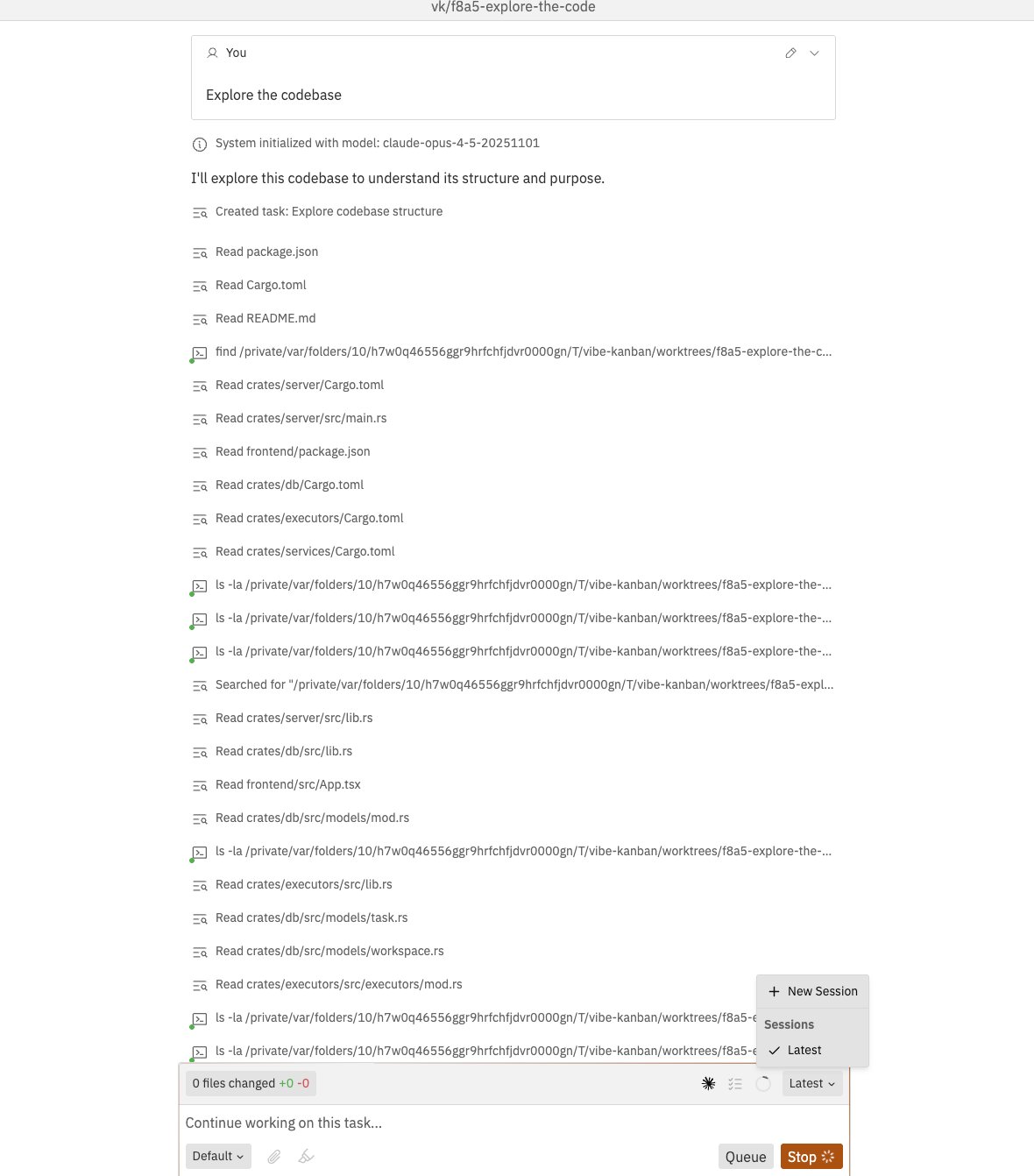 The chat interface is your primary way of communicating with coding agents. It supports rich message formatting, file attachments, approval workflows, and multiple conversation sessions.
## Message Types
The chat displays different types of messages, each with distinct styling:
### User Messages
Your messages appear with an edit option. Click the pencil icon to modify and resend a message.
### Agent Messages
Agent responses are rendered with full markdown support, including:
* Code blocks with syntax highlighting
* Tables and lists
* Links and formatted text
### System Messages
Informational messages from the system, such as model initialisation or status updates.
### Error Messages
Error messages appear in red with a warning icon. Click to expand and see full error details.
## Chat Input
### Writing Messages
The chat interface is your primary way of communicating with coding agents. It supports rich message formatting, file attachments, approval workflows, and multiple conversation sessions.
## Message Types
The chat displays different types of messages, each with distinct styling:
### User Messages
Your messages appear with an edit option. Click the pencil icon to modify and resend a message.
### Agent Messages
Agent responses are rendered with full markdown support, including:
* Code blocks with syntax highlighting
* Tables and lists
* Links and formatted text
### System Messages
Informational messages from the system, such as model initialisation or status updates.
### Error Messages
Error messages appear in red with a warning icon. Click to expand and see full error details.
## Chat Input
### Writing Messages
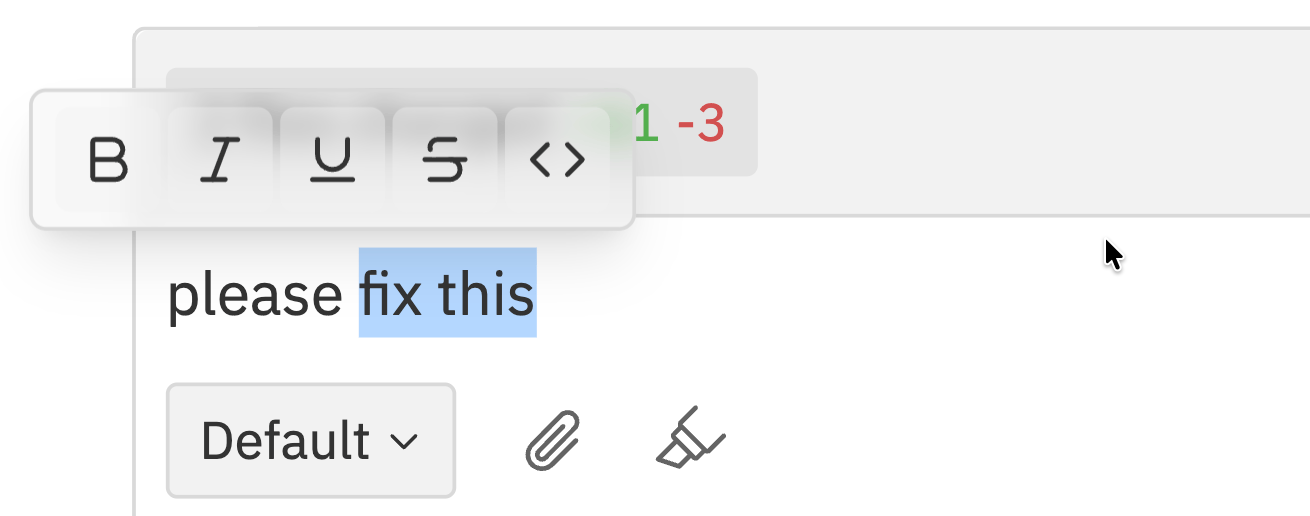 The chat input supports rich text editing:
* **Bold** - `Cmd/Ctrl + B` or click **B**
* **Italic** - `Cmd/Ctrl + I` or click **I**
* **Underline** - `Cmd/Ctrl + U` or click **U**
* **Strikethrough** - Click **S**
* **Code** - Click the code button or wrap with backticks
### Attaching Images
The chat input supports rich text editing:
* **Bold** - `Cmd/Ctrl + B` or click **B**
* **Italic** - `Cmd/Ctrl + I` or click **I**
* **Underline** - `Cmd/Ctrl + U` or click **U**
* **Strikethrough** - Click **S**
* **Code** - Click the code button or wrap with backticks
### Attaching Images
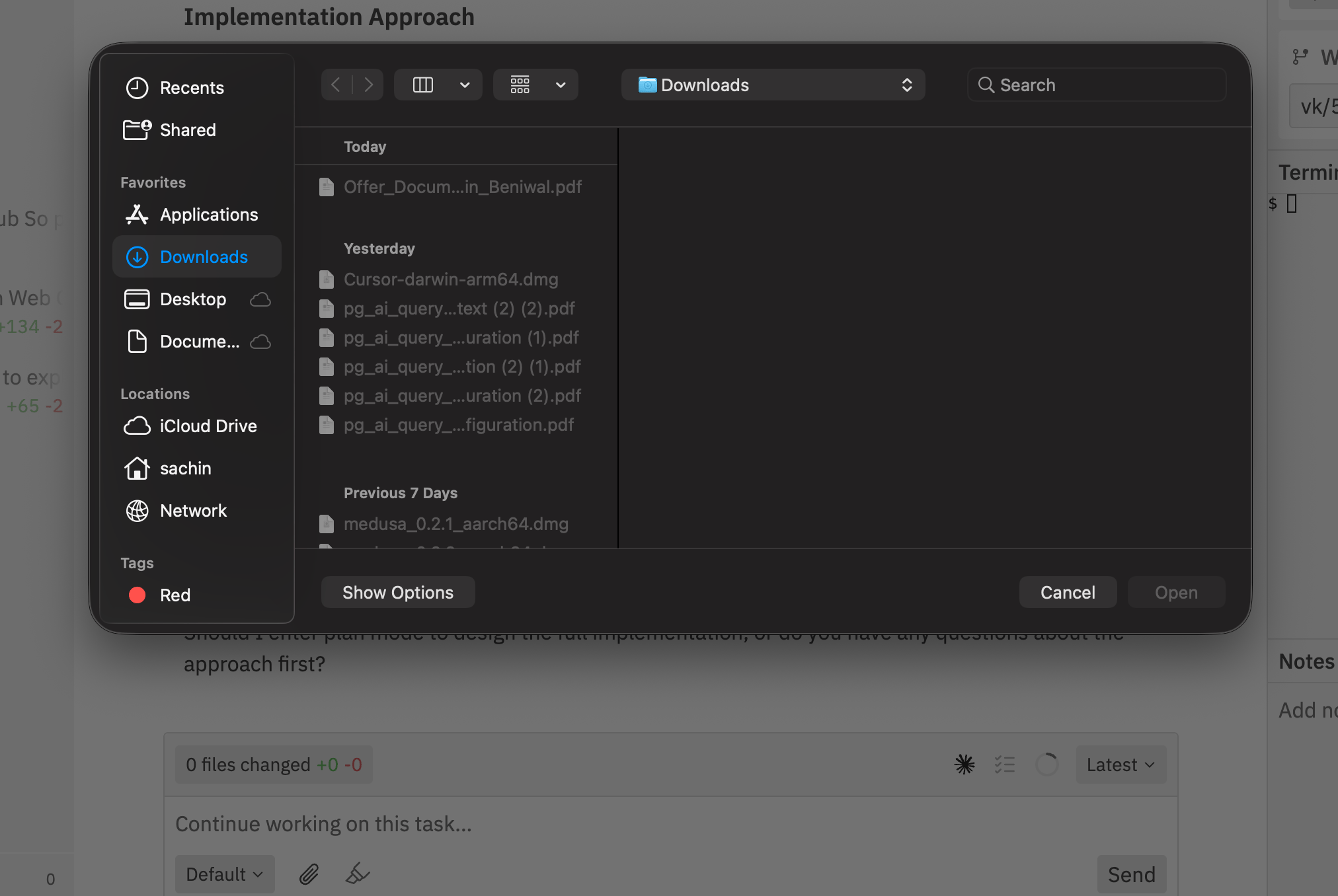 You can attach images to your messages:
1. **Click the attachment button** (paperclip icon) in the toolbar
2. **Drag and drop** images directly into the chat
3. Images are uploaded and referenced in your message
Attach screenshots to show the agent exactly what you're working on or what issue you're experiencing.
### File Mentions
You can attach images to your messages:
1. **Click the attachment button** (paperclip icon) in the toolbar
2. **Drag and drop** images directly into the chat
3. Images are uploaded and referenced in your message
Attach screenshots to show the agent exactly what you're working on or what issue you're experiencing.
### File Mentions
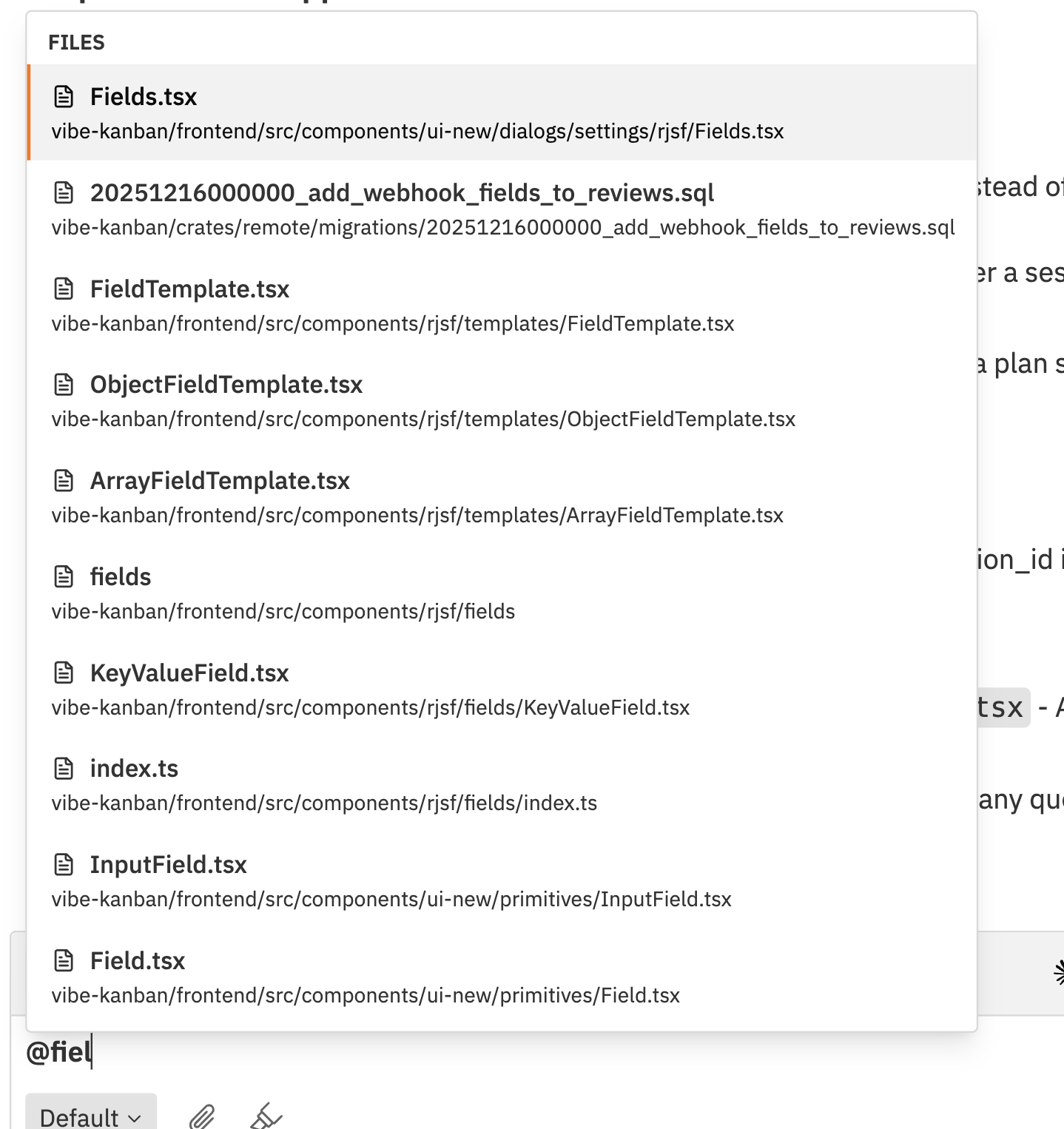 Type `@` to mention files from your repository. The chat provides typeahead suggestions showing:
* **Filename** in bold
* **Full path** below each file
* Matches update as you type
Select a file to include it as context for the agent.
## Sending Messages
### Send Actions
| Action | Shortcut | Description |
| --------- | ------------------ | ------------------------------------ |
| **Send** | `Cmd/Ctrl + Enter` | Send message immediately |
| **Queue** | Click Queue button | Queue message while agent is running |
| **Stop** | Click Stop button | Stop the current agent execution |
### Execution States
Type `@` to mention files from your repository. The chat provides typeahead suggestions showing:
* **Filename** in bold
* **Full path** below each file
* Matches update as you type
Select a file to include it as context for the agent.
## Sending Messages
### Send Actions
| Action | Shortcut | Description |
| --------- | ------------------ | ------------------------------------ |
| **Send** | `Cmd/Ctrl + Enter` | Send message immediately |
| **Queue** | Click Queue button | Queue message while agent is running |
| **Stop** | Click Stop button | Stop the current agent execution |
### Execution States
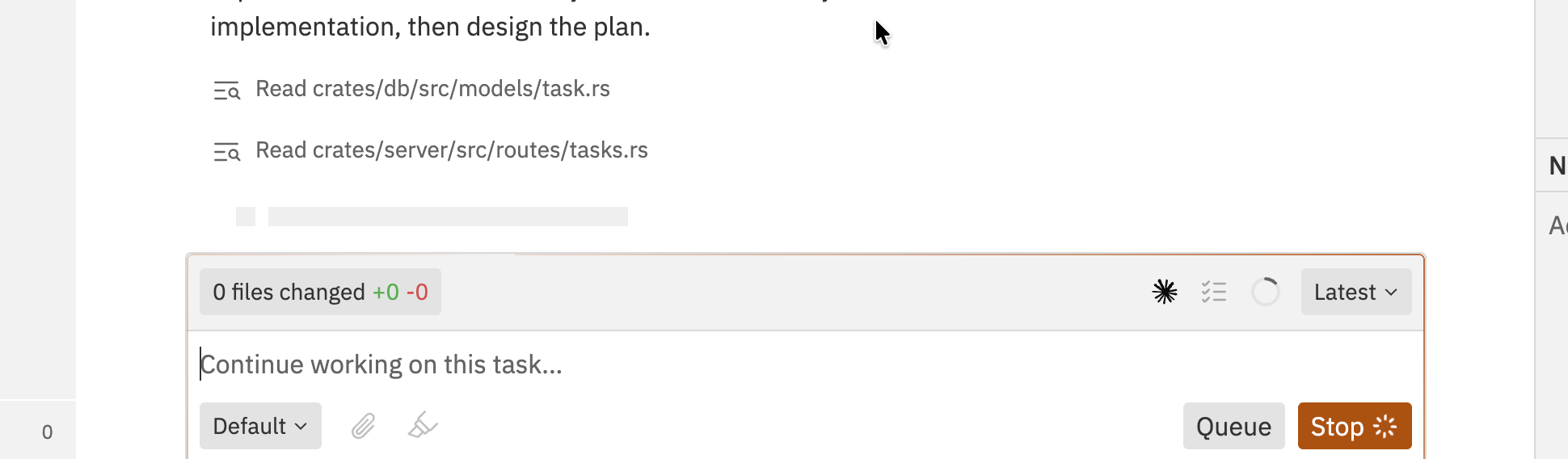 The chat interface shows different states:
| State | Description |
| ----------- | ---------------------------------------------- |
| **Idle** | Ready to send a new message |
| **Running** | Agent is actively working |
| **Queued** | Your message is queued for when agent finishes |
| **Sending** | Message is being sent |
When the agent is running, you can queue a follow-up message instead of waiting for it to finish.
## Agent Selection
### Choosing an Agent
Select which coding agent to use from the **Agent** dropdown in the chat toolbar. Available agents depend on your configuration.
### Variants
The chat interface shows different states:
| State | Description |
| ----------- | ---------------------------------------------- |
| **Idle** | Ready to send a new message |
| **Running** | Agent is actively working |
| **Queued** | Your message is queued for when agent finishes |
| **Sending** | Message is being sent |
When the agent is running, you can queue a follow-up message instead of waiting for it to finish.
## Agent Selection
### Choosing an Agent
Select which coding agent to use from the **Agent** dropdown in the chat toolbar. Available agents depend on your configuration.
### Variants
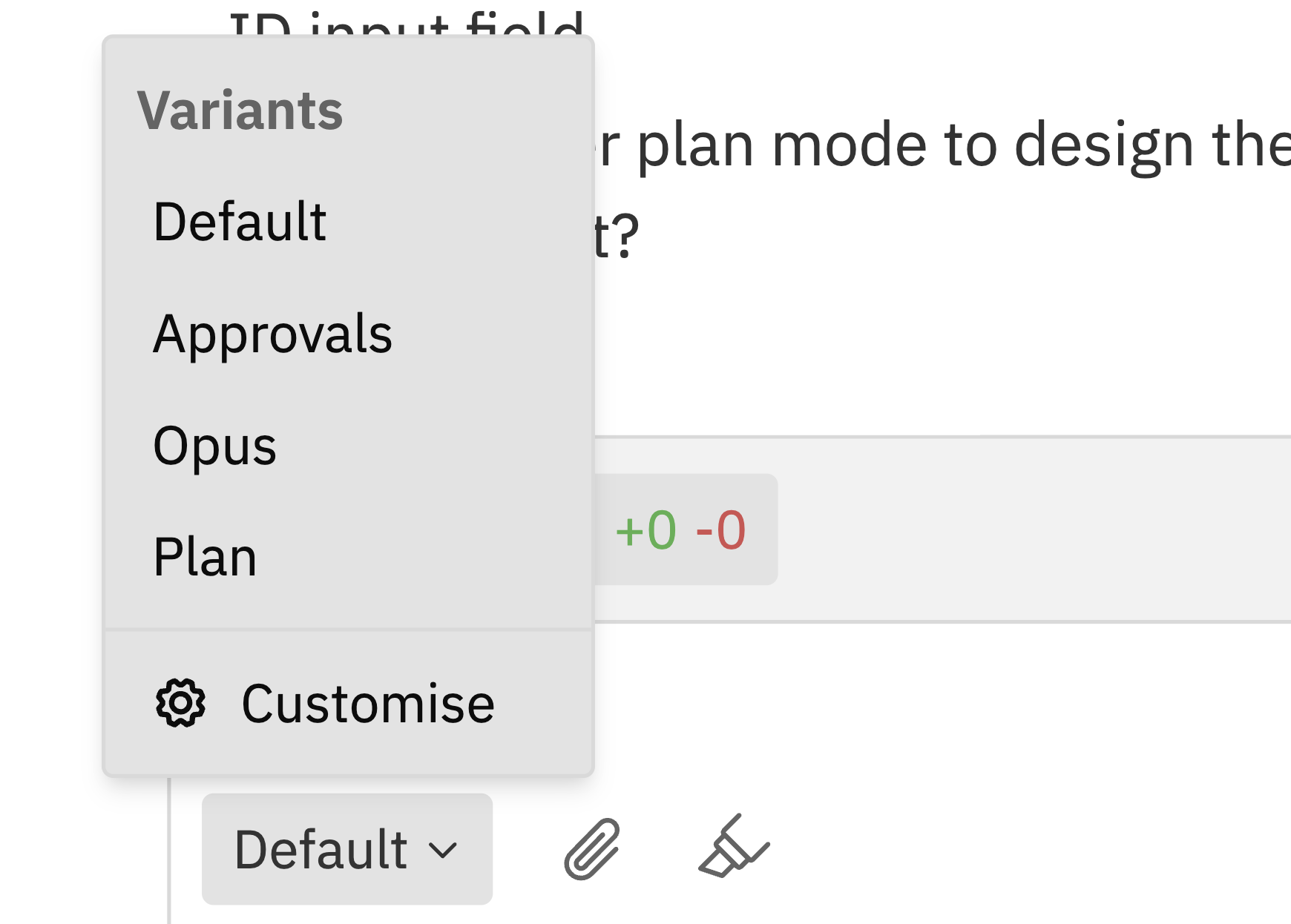 Some agents support different variants or profiles. Use the variant selector to choose:
* Different model configurations
* Custom system prompts
* Specialised behaviours
Click **Customise** to configure agent settings.
## Approval Workflow
Some agents (especially with planning mode enabled) ask for your approval before making changes. This gives you control over what gets implemented.
### Why Approvals Exist
* **Prevent unwanted changes** - Review the plan before code is written
* **Catch misunderstandings early** - Ensure the agent understood your request
* **Guide the approach** - Steer the agent toward your preferred solution
### Reviewing Plans
When the agent needs approval, you'll see an approval card in the chat:
1. **Read the plan summary** - What the agent intends to do
2. **Expand for details** - Click to see the full plan with specific files and changes
3. **Choose an action:**
* **Approve** - Agent proceeds with the plan
* **Request Changes** - Provide feedback for revision
### Requesting Changes
If the plan isn't quite right:
1. Type your feedback in the chat input explaining what should be different
2. Click **Request Changes**
3. The agent revises the plan based on your feedback
4. Review the new plan and approve or request more changes
**Be specific in your feedback.** Instead of "that's not right", say "don't modify the database schema - just add the validation to the existing User model."
**Approval timeouts:** If you don't respond to an approval request, it may timeout. You'll need to send a new message to restart the task.
### Disabling Approvals
If you want the agent to work autonomously without asking for approval:
1. Use an agent variant without planning mode
2. Or configure `dangerously_skip_permissions` in agent settings (use with caution)
## Editing Messages
You can edit and resend previous messages:
Some agents support different variants or profiles. Use the variant selector to choose:
* Different model configurations
* Custom system prompts
* Specialised behaviours
Click **Customise** to configure agent settings.
## Approval Workflow
Some agents (especially with planning mode enabled) ask for your approval before making changes. This gives you control over what gets implemented.
### Why Approvals Exist
* **Prevent unwanted changes** - Review the plan before code is written
* **Catch misunderstandings early** - Ensure the agent understood your request
* **Guide the approach** - Steer the agent toward your preferred solution
### Reviewing Plans
When the agent needs approval, you'll see an approval card in the chat:
1. **Read the plan summary** - What the agent intends to do
2. **Expand for details** - Click to see the full plan with specific files and changes
3. **Choose an action:**
* **Approve** - Agent proceeds with the plan
* **Request Changes** - Provide feedback for revision
### Requesting Changes
If the plan isn't quite right:
1. Type your feedback in the chat input explaining what should be different
2. Click **Request Changes**
3. The agent revises the plan based on your feedback
4. Review the new plan and approve or request more changes
**Be specific in your feedback.** Instead of "that's not right", say "don't modify the database schema - just add the validation to the existing User model."
**Approval timeouts:** If you don't respond to an approval request, it may timeout. You'll need to send a new message to restart the task.
### Disabling Approvals
If you want the agent to work autonomously without asking for approval:
1. Use an agent variant without planning mode
2. Or configure `dangerously_skip_permissions` in agent settings (use with caution)
## Editing Messages
You can edit and resend previous messages:
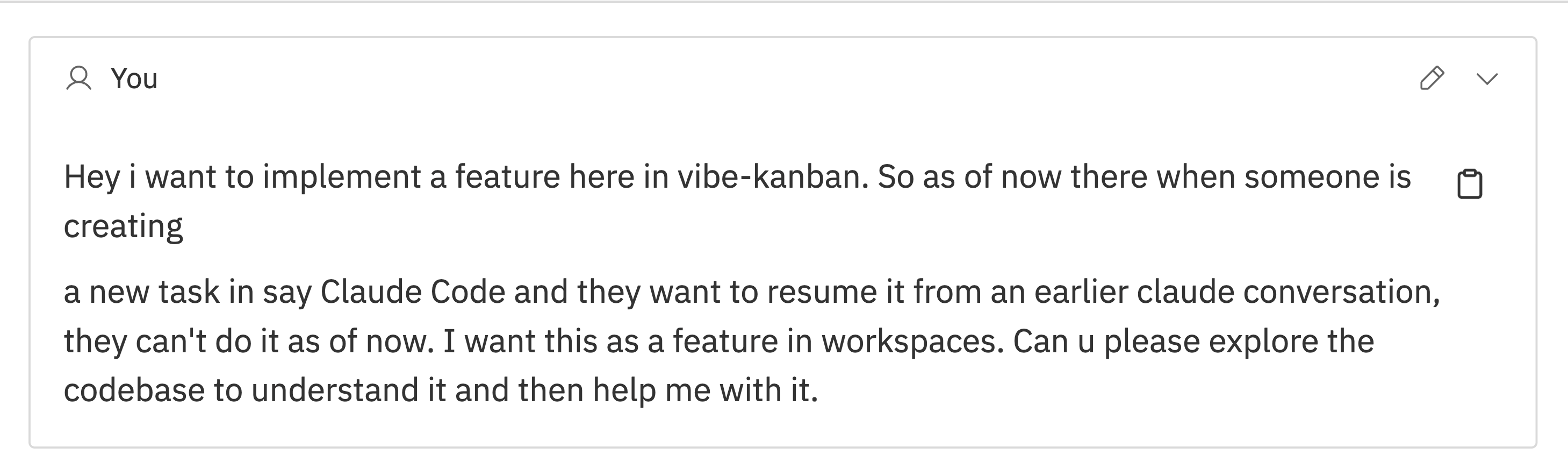 Click the pencil icon on any of your messages.
The message content appears in an editable text area. Make your changes.
Click the pencil icon on any of your messages.
The message content appears in an editable text area. Make your changes.
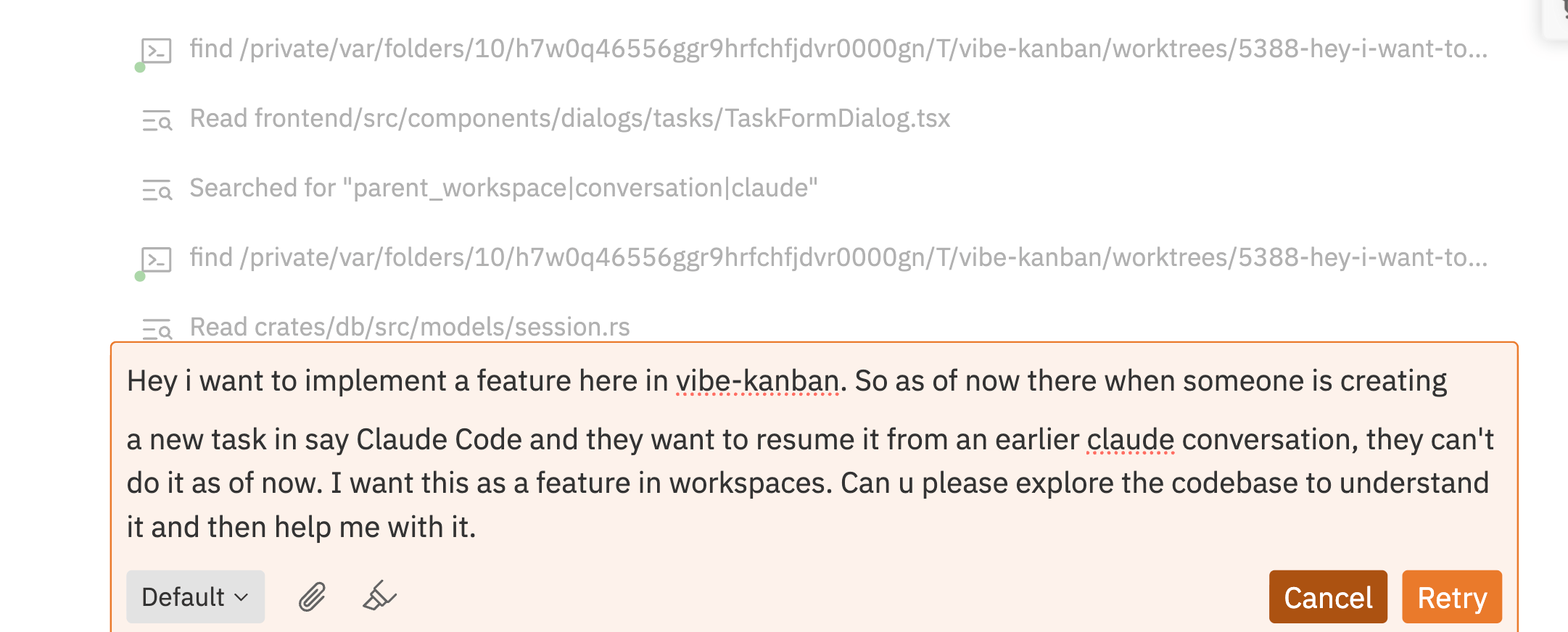 Click **Retry** to resend the modified message. The conversation continues from that point. Click **Cancel** to discard your changes.
Editing a message creates a new branch in the conversation. Subsequent messages after the edited one will be replaced.
## Status Indicators
### Token Usage
Click **Retry** to resend the modified message. The conversation continues from that point. Click **Cancel** to discard your changes.
Editing a message creates a new branch in the conversation. Subsequent messages after the edited one will be replaced.
## Status Indicators
### Token Usage
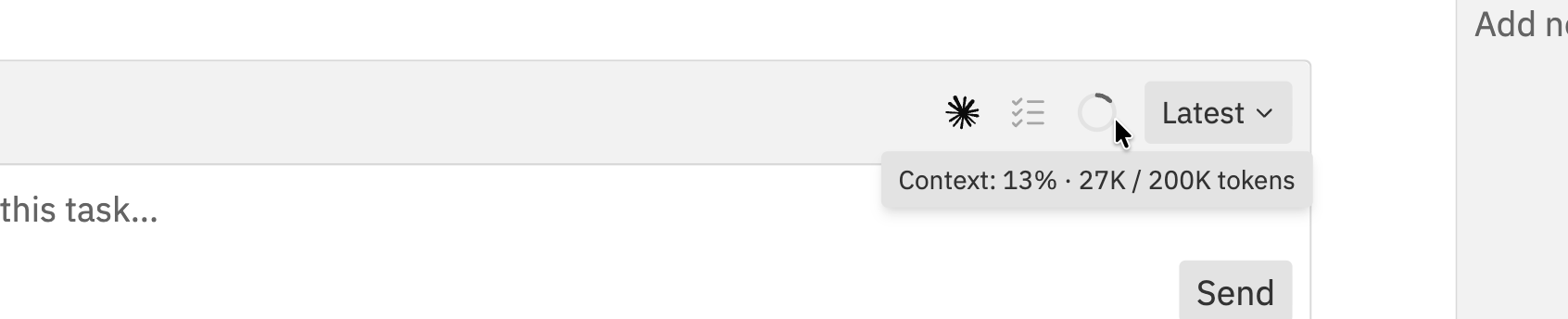 The context gauge shows how much of the agent's context window is used. Understanding this helps you get better results.
#### What are Tokens?
**Tokens** are how AI models measure text. Roughly:
* 1 token ≈ 4 characters or ¾ of a word
* A 200K context window can hold about 150,000 words
The context window includes everything the agent "remembers": your messages, its responses, code it has read, and file contents.
#### Why Token Usage Matters
When usage is high:
* Agent may "forget" earlier parts of the conversation
* Responses may become less accurate
* Agent might re-read files it already read
* Complex reasoning may suffer
#### Usage Levels
| Colour | Usage | What to Do |
| ------- | ------ | --------------------------------------------- |
| Grey | 0-30% | All good, continue working |
| Default | 30-60% | Normal usage, keep going |
| Orange | 60-80% | Consider starting a new session soon |
| Red | 80%+ | Start a new session - agent is near its limit |
**Pro tip:** When starting a new session due to high token usage, briefly summarise what was accomplished. The new agent won't know what happened before.
### Tasks Progress
The context gauge shows how much of the agent's context window is used. Understanding this helps you get better results.
#### What are Tokens?
**Tokens** are how AI models measure text. Roughly:
* 1 token ≈ 4 characters or ¾ of a word
* A 200K context window can hold about 150,000 words
The context window includes everything the agent "remembers": your messages, its responses, code it has read, and file contents.
#### Why Token Usage Matters
When usage is high:
* Agent may "forget" earlier parts of the conversation
* Responses may become less accurate
* Agent might re-read files it already read
* Complex reasoning may suffer
#### Usage Levels
| Colour | Usage | What to Do |
| ------- | ------ | --------------------------------------------- |
| Grey | 0-30% | All good, continue working |
| Default | 30-60% | Normal usage, keep going |
| Orange | 60-80% | Consider starting a new session soon |
| Red | 80%+ | Start a new session - agent is near its limit |
**Pro tip:** When starting a new session due to high token usage, briefly summarise what was accomplished. The new agent won't know what happened before.
### Tasks Progress
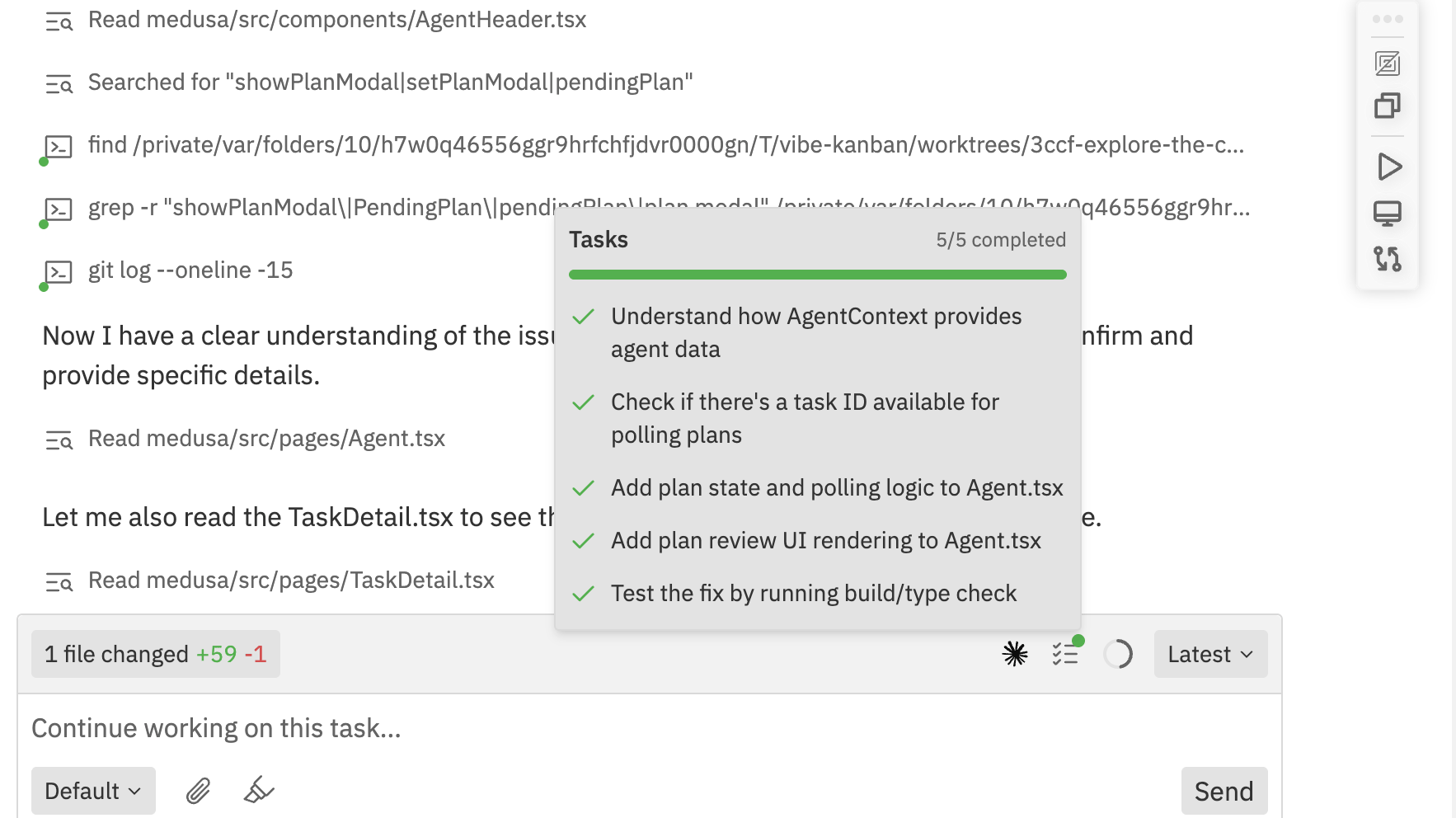 When the agent breaks down work into tasks, a progress indicator appears in the chat toolbar:
* **Progress bar** showing completion percentage
* **Task count** (e.g., "5/5 completed")
* **Individual tasks** with checkmarks when complete
Click the indicator to expand the full task list showing each step the agent is working through.
### File Changes
The chat shows file modification summaries:
* **Green** numbers indicate lines added
* **Red** numbers indicate lines removed
* Click to view the file in the Changes panel
## Tool Outputs
### Command Execution
When the agent runs commands, you'll see:
* **Terminal icon** for bash commands
* **Exit code** for completed commands
* **Fix Script** button if a command fails
Click to view full output in the logs panel.
### Search Results
Search operations show summarised results. Click to expand and see full search output.
## Review Comments
When you add inline comments in the Changes panel:
1. A banner appears showing the comment count
2. Comments are automatically included when you send a message
3. Click **Clear** to remove pending comments
## Keyboard Shortcuts
| Shortcut | Action |
| ------------------ | ----------------------------------- |
| `Cmd/Ctrl + Enter` | Send message (or contextual action) |
| `Cmd/Ctrl + B` | Bold text |
| `Cmd/Ctrl + I` | Italic text |
| `Escape` | Cancel current action |
## Related Documentation
* [Slash Commands](/workspaces/slash-commands) - Quick actions with slash commands
* [Sessions](/workspaces/sessions) - Managing multiple conversation sessions
* [Interface Guide](/workspaces/interface) - Overview of the workspace layout
* [Command Bar](/workspaces/command-bar) - Quick actions and shortcuts
When the agent breaks down work into tasks, a progress indicator appears in the chat toolbar:
* **Progress bar** showing completion percentage
* **Task count** (e.g., "5/5 completed")
* **Individual tasks** with checkmarks when complete
Click the indicator to expand the full task list showing each step the agent is working through.
### File Changes
The chat shows file modification summaries:
* **Green** numbers indicate lines added
* **Red** numbers indicate lines removed
* Click to view the file in the Changes panel
## Tool Outputs
### Command Execution
When the agent runs commands, you'll see:
* **Terminal icon** for bash commands
* **Exit code** for completed commands
* **Fix Script** button if a command fails
Click to view full output in the logs panel.
### Search Results
Search operations show summarised results. Click to expand and see full search output.
## Review Comments
When you add inline comments in the Changes panel:
1. A banner appears showing the comment count
2. Comments are automatically included when you send a message
3. Click **Clear** to remove pending comments
## Keyboard Shortcuts
| Shortcut | Action |
| ------------------ | ----------------------------------- |
| `Cmd/Ctrl + Enter` | Send message (or contextual action) |
| `Cmd/Ctrl + B` | Bold text |
| `Cmd/Ctrl + I` | Italic text |
| `Escape` | Cancel current action |
## Related Documentation
* [Slash Commands](/workspaces/slash-commands) - Quick actions with slash commands
* [Sessions](/workspaces/sessions) - Managing multiple conversation sessions
* [Interface Guide](/workspaces/interface) - Overview of the workspace layout
* [Command Bar](/workspaces/command-bar) - Quick actions and shortcuts