> ## Documentation Index
> Fetch the complete documentation index at: https://vibekanban.com/docs/llms.txt
> Use this file to discover all available pages before exploring further.
# Command Bar
> Navigate and control your workspace with keyboard shortcuts
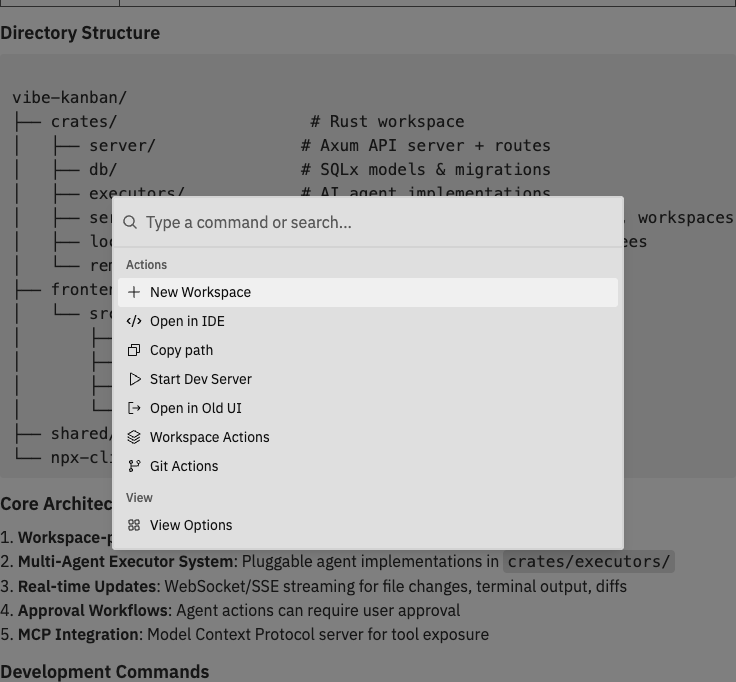 The command bar is the central hub for navigating and controlling your workspace. Access every action quickly without leaving the keyboard.
## Opening the Command Bar
| Platform | Shortcut |
| ----------------- | ---------- |
| **Mac** | `Cmd + K` |
| **Windows/Linux** | `Ctrl + K` |
You can also click the command bar icon in the navbar.
## Available Commands
### Quick Actions
Access these from the root command bar page:
| Command | Description |
| ----------------- | -------------------------------------------- |
| New Workspace | Create a new workspace |
| Open in IDE | Open the workspace in your configured editor |
| Copy Path | Copy the workspace path to clipboard |
| Toggle Dev Server | Start or stop the dev server |
| Open in Old UI | Switch to the classic kanban interface |
| Feedback | Send feedback about Workspaces |
| Workspaces Guide | Open the onboarding guide |
| Settings | Open application settings |
### Workspace Actions
Manage the current workspace:
| Command | Description |
| ------------------- | ------------------------------------- |
| Start Review | Begin a code review session |
| Rename Workspace | Change the workspace name |
| Duplicate Workspace | Create a copy of the workspace |
| Pin/Unpin Workspace | Toggle pinned status |
| Archive/Unarchive | Move to/from archive |
| Delete Workspace | Permanently delete the workspace |
| Run Setup Script | Execute the repository setup script |
| Run Cleanup Script | Execute the repository cleanup script |
### Git Actions
Perform git operations:
| Command | Description |
| -------------------- | --------------------------------------------------- |
| Create Pull Request | Open PR creation dialog |
| Merge | Pull target branch changes into your working branch |
| Rebase | Rebase your working branch onto target branch |
| Change Target Branch | Switch the merge target |
| Push | Push commits to remote (when applicable) |
Git commands are context-aware and only appear when they're applicable to the current workspace state.
### View Options
Control panel visibility:
| Command | Description |
| -------------------- | ------------------------- |
| Toggle Left Sidebar | Show/hide workspace list |
| Toggle Chat Panel | Show/hide conversation |
| Toggle Right Sidebar | Show/hide details |
| Toggle Changes Panel | Show/hide code changes |
| Toggle Logs Panel | Show/hide process logs |
| Toggle Preview Panel | Show/hide browser preview |
### Diff Options
Customise the diff viewer (available when changes panel is visible):
| Command | Description |
| ------------------------ | --------------------------------------- |
| Toggle Diff View Mode | Switch between unified and side-by-side |
| Toggle Wrap Lines | Enable/disable line wrapping |
| Toggle Ignore Whitespace | Show/hide whitespace changes |
| Expand All Diffs | Expand all collapsed diffs |
| Collapse All Diffs | Collapse all expanded diffs |
### Repository Actions
For workspaces with multiple repositories, manage individual repos:
| Command | Description |
| --------------------------- | ------------------------------- |
| Copy Repo Path | Copy specific repository path |
| Open Repo in IDE | Open just this repository |
| Repository Settings | Configure repository options |
| Create PR (repo) | Create PR for specific repo |
| Merge (repo) | Merge specific repository |
| Rebase (repo) | Rebase specific repository |
| Change Target Branch (repo) | Change target for specific repo |
## Keyboard Shortcuts
### Global Shortcuts
| Shortcut | Action |
| -------------- | --------------------------- |
| `Cmd/Ctrl + K` | Open command bar |
| `Escape` | Close command bar or dialog |
## Command Bar Navigation
The command bar organises commands into pages:
1. **Root** - Quick actions and navigation to other pages
2. **Workspace Actions** - Workspace management commands
3. **Git Actions** - Version control operations
4. **View Options** - Panel visibility toggles
5. **Diff Options** - Diff viewer settings
6. **Repo Actions** - Per-repository commands (multi-repo workspaces)
Use the search field to filter commands across all pages, or navigate to specific pages for categorised access.
Start typing to search for any command. The command bar uses fuzzy matching, so you don't need to type the exact command name.
## Power User Tips
These commands will speed up your workflow significantly:
| Shortcut | What It Does |
| ---------------------------------- | -------------------- |
| `Cmd/Ctrl + K` → `n` → Enter | New workspace |
| `Cmd/Ctrl + K` → `pr` → Enter | Create pull request |
| `Cmd/Ctrl + K` → `changes` → Enter | Toggle changes panel |
| `Cmd/Ctrl + K` → `preview` → Enter | Toggle preview panel |
| `Cmd/Ctrl + K` → `ide` → Enter | Open in your IDE |
The command bar uses fuzzy matching - you can type partial words or abbreviations:
* `nw` matches "**N**ew **W**orkspace"
* `cpr` matches "**C**reate **P**ull **R**equest"
* `tog prev` matches "**Tog**gle **Prev**iew Panel"
* `reb` matches "**Reb**ase"
Use the command bar to quickly show/hide panels without moving your mouse:
1. Press `Cmd/Ctrl + K`
2. Type `toggle`
3. See all toggle options
4. Select the panel you want to show/hide
Some commands only appear when relevant:
* **Push** only shows when you have unpushed commits
* **Rebase** only shows when you're behind target
* **Repo Actions** only shows in multi-repo workspaces
* **Diff Options** only shows when Changes panel is visible
## Related Documentation
* [Interface Guide](/workspaces/interface) - Learn about the workspace layout and panels
* [Git Operations](/workspaces/git-operations) - Detailed guide to git commands
* [General Settings](/settings/general) - Application settings and preferences
The command bar is the central hub for navigating and controlling your workspace. Access every action quickly without leaving the keyboard.
## Opening the Command Bar
| Platform | Shortcut |
| ----------------- | ---------- |
| **Mac** | `Cmd + K` |
| **Windows/Linux** | `Ctrl + K` |
You can also click the command bar icon in the navbar.
## Available Commands
### Quick Actions
Access these from the root command bar page:
| Command | Description |
| ----------------- | -------------------------------------------- |
| New Workspace | Create a new workspace |
| Open in IDE | Open the workspace in your configured editor |
| Copy Path | Copy the workspace path to clipboard |
| Toggle Dev Server | Start or stop the dev server |
| Open in Old UI | Switch to the classic kanban interface |
| Feedback | Send feedback about Workspaces |
| Workspaces Guide | Open the onboarding guide |
| Settings | Open application settings |
### Workspace Actions
Manage the current workspace:
| Command | Description |
| ------------------- | ------------------------------------- |
| Start Review | Begin a code review session |
| Rename Workspace | Change the workspace name |
| Duplicate Workspace | Create a copy of the workspace |
| Pin/Unpin Workspace | Toggle pinned status |
| Archive/Unarchive | Move to/from archive |
| Delete Workspace | Permanently delete the workspace |
| Run Setup Script | Execute the repository setup script |
| Run Cleanup Script | Execute the repository cleanup script |
### Git Actions
Perform git operations:
| Command | Description |
| -------------------- | --------------------------------------------------- |
| Create Pull Request | Open PR creation dialog |
| Merge | Pull target branch changes into your working branch |
| Rebase | Rebase your working branch onto target branch |
| Change Target Branch | Switch the merge target |
| Push | Push commits to remote (when applicable) |
Git commands are context-aware and only appear when they're applicable to the current workspace state.
### View Options
Control panel visibility:
| Command | Description |
| -------------------- | ------------------------- |
| Toggle Left Sidebar | Show/hide workspace list |
| Toggle Chat Panel | Show/hide conversation |
| Toggle Right Sidebar | Show/hide details |
| Toggle Changes Panel | Show/hide code changes |
| Toggle Logs Panel | Show/hide process logs |
| Toggle Preview Panel | Show/hide browser preview |
### Diff Options
Customise the diff viewer (available when changes panel is visible):
| Command | Description |
| ------------------------ | --------------------------------------- |
| Toggle Diff View Mode | Switch between unified and side-by-side |
| Toggle Wrap Lines | Enable/disable line wrapping |
| Toggle Ignore Whitespace | Show/hide whitespace changes |
| Expand All Diffs | Expand all collapsed diffs |
| Collapse All Diffs | Collapse all expanded diffs |
### Repository Actions
For workspaces with multiple repositories, manage individual repos:
| Command | Description |
| --------------------------- | ------------------------------- |
| Copy Repo Path | Copy specific repository path |
| Open Repo in IDE | Open just this repository |
| Repository Settings | Configure repository options |
| Create PR (repo) | Create PR for specific repo |
| Merge (repo) | Merge specific repository |
| Rebase (repo) | Rebase specific repository |
| Change Target Branch (repo) | Change target for specific repo |
## Keyboard Shortcuts
### Global Shortcuts
| Shortcut | Action |
| -------------- | --------------------------- |
| `Cmd/Ctrl + K` | Open command bar |
| `Escape` | Close command bar or dialog |
## Command Bar Navigation
The command bar organises commands into pages:
1. **Root** - Quick actions and navigation to other pages
2. **Workspace Actions** - Workspace management commands
3. **Git Actions** - Version control operations
4. **View Options** - Panel visibility toggles
5. **Diff Options** - Diff viewer settings
6. **Repo Actions** - Per-repository commands (multi-repo workspaces)
Use the search field to filter commands across all pages, or navigate to specific pages for categorised access.
Start typing to search for any command. The command bar uses fuzzy matching, so you don't need to type the exact command name.
## Power User Tips
These commands will speed up your workflow significantly:
| Shortcut | What It Does |
| ---------------------------------- | -------------------- |
| `Cmd/Ctrl + K` → `n` → Enter | New workspace |
| `Cmd/Ctrl + K` → `pr` → Enter | Create pull request |
| `Cmd/Ctrl + K` → `changes` → Enter | Toggle changes panel |
| `Cmd/Ctrl + K` → `preview` → Enter | Toggle preview panel |
| `Cmd/Ctrl + K` → `ide` → Enter | Open in your IDE |
The command bar uses fuzzy matching - you can type partial words or abbreviations:
* `nw` matches "**N**ew **W**orkspace"
* `cpr` matches "**C**reate **P**ull **R**equest"
* `tog prev` matches "**Tog**gle **Prev**iew Panel"
* `reb` matches "**Reb**ase"
Use the command bar to quickly show/hide panels without moving your mouse:
1. Press `Cmd/Ctrl + K`
2. Type `toggle`
3. See all toggle options
4. Select the panel you want to show/hide
Some commands only appear when relevant:
* **Push** only shows when you have unpushed commits
* **Rebase** only shows when you're behind target
* **Repo Actions** only shows in multi-repo workspaces
* **Diff Options** only shows when Changes panel is visible
## Related Documentation
* [Interface Guide](/workspaces/interface) - Learn about the workspace layout and panels
* [Git Operations](/workspaces/git-operations) - Detailed guide to git commands
* [General Settings](/settings/general) - Application settings and preferences