> ## Documentation Index
> Fetch the complete documentation index at: https://vibekanban.com/docs/llms.txt
> Use this file to discover all available pages before exploring further.
# Git Operations
> Create pull requests, merge, rebase, and manage branches in Workspaces
 Workspaces provide integrated git operations for managing your code changes.
## Git Basics for Workspaces
If you're not familiar with git, here's what you need to know:
A **branch** is a separate line of development. Think of it as a copy of your code where you can make changes without affecting the original.
In Workspaces:
* **Target branch** (e.g., `main`) - The "original" you'll eventually merge back into
* **Working branch** (e.g., `vk/abc123-task`) - Your copy where changes happen
A **commit** is a saved snapshot of your changes. It's like a save point in a video game - you can always go back to it.
In Workspaces, commits happen automatically as the agent works, or you can commit manually through the terminal.
A **pull request** is a request to merge your changes from your working branch into the target branch. It:
* Shows all your changes in one place
* Lets teammates review your code
* Runs automated tests (CI)
* Provides a history of what was changed and why
**Rebasing** updates your working branch with the latest changes from the target branch. It's like saying "pretend I started my work from the current state of main, not the old state."
**When to rebase:**
* Before creating a PR (to avoid conflicts)
* When the target branch has new commits
* When prompted by Vibe Kanban
**Merging** combines your changes with the target branch. In Workspaces, this typically happens through a PR on GitHub after code review.
The "Merge" action in Workspaces pulls the target branch INTO your working branch (the opposite direction of a PR merge).
## Repository Status
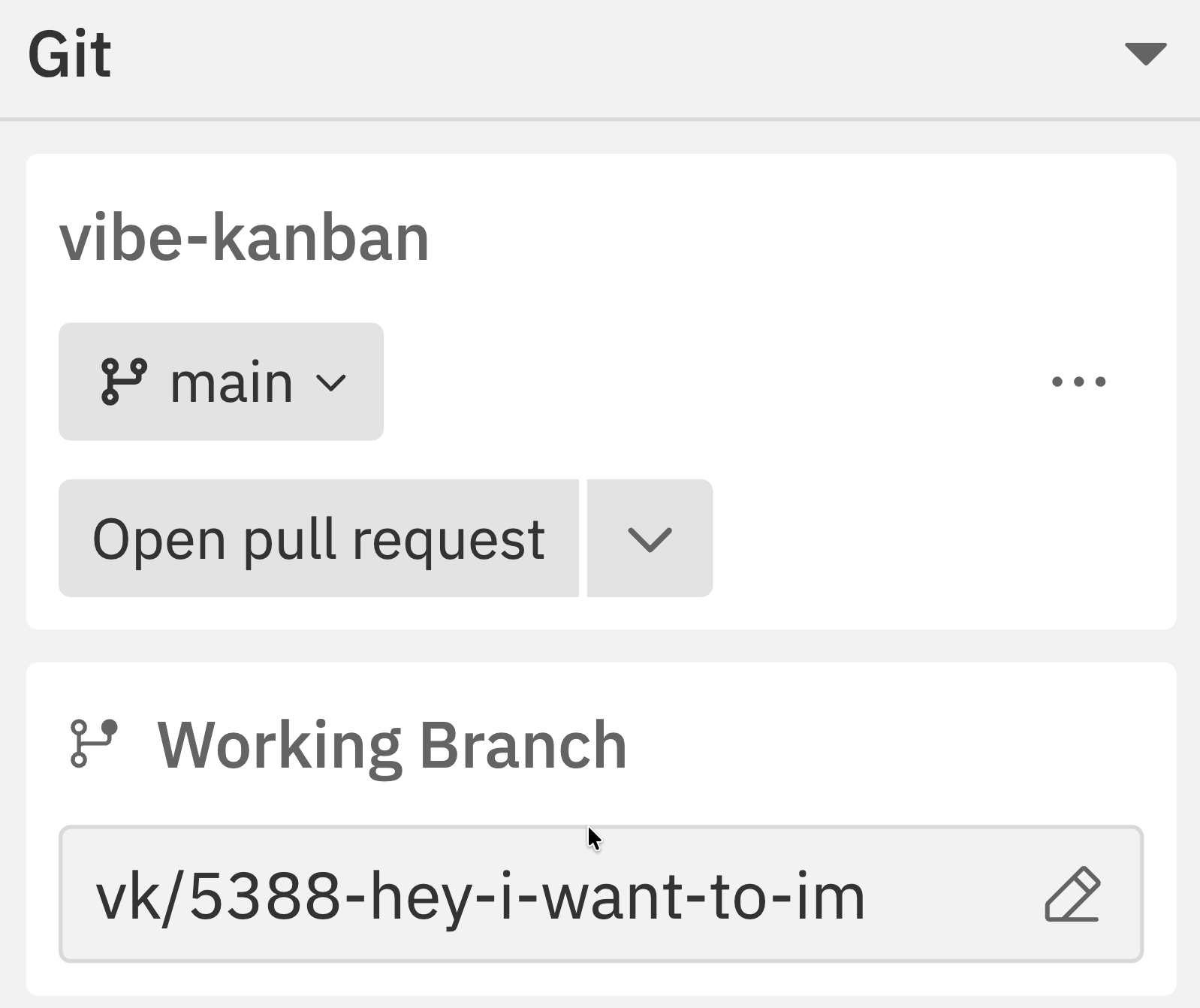
The Git section in the right sidebar shows:
| Information | Description |
| ----------------------- | --------------------------------- |
| **Repository name** | Current repository with status |
| **Current branch** | Your working branch |
| **Target branch** | Branch you'll merge into |
| **Uncommitted changes** | Number of modified files |
| **Ahead/Behind** | Commits relative to target branch |
| **Conflict indicator** | Shows when merge conflicts exist |
## Creating Pull Requests
Workspaces provide integrated git operations for managing your code changes.
## Git Basics for Workspaces
If you're not familiar with git, here's what you need to know:
A **branch** is a separate line of development. Think of it as a copy of your code where you can make changes without affecting the original.
In Workspaces:
* **Target branch** (e.g., `main`) - The "original" you'll eventually merge back into
* **Working branch** (e.g., `vk/abc123-task`) - Your copy where changes happen
A **commit** is a saved snapshot of your changes. It's like a save point in a video game - you can always go back to it.
In Workspaces, commits happen automatically as the agent works, or you can commit manually through the terminal.
A **pull request** is a request to merge your changes from your working branch into the target branch. It:
* Shows all your changes in one place
* Lets teammates review your code
* Runs automated tests (CI)
* Provides a history of what was changed and why
**Rebasing** updates your working branch with the latest changes from the target branch. It's like saying "pretend I started my work from the current state of main, not the old state."
**When to rebase:**
* Before creating a PR (to avoid conflicts)
* When the target branch has new commits
* When prompted by Vibe Kanban
**Merging** combines your changes with the target branch. In Workspaces, this typically happens through a PR on GitHub after code review.
The "Merge" action in Workspaces pulls the target branch INTO your working branch (the opposite direction of a PR merge).
## Repository Status
The Git section in the right sidebar shows:
| Information | Description |
| ----------------------- | --------------------------------- |
| **Repository name** | Current repository with status |
| **Current branch** | Your working branch |
| **Target branch** | Branch you'll merge into |
| **Uncommitted changes** | Number of modified files |
| **Ahead/Behind** | Commits relative to target branch |
| **Conflict indicator** | Shows when merge conflicts exist |
## Creating Pull Requests
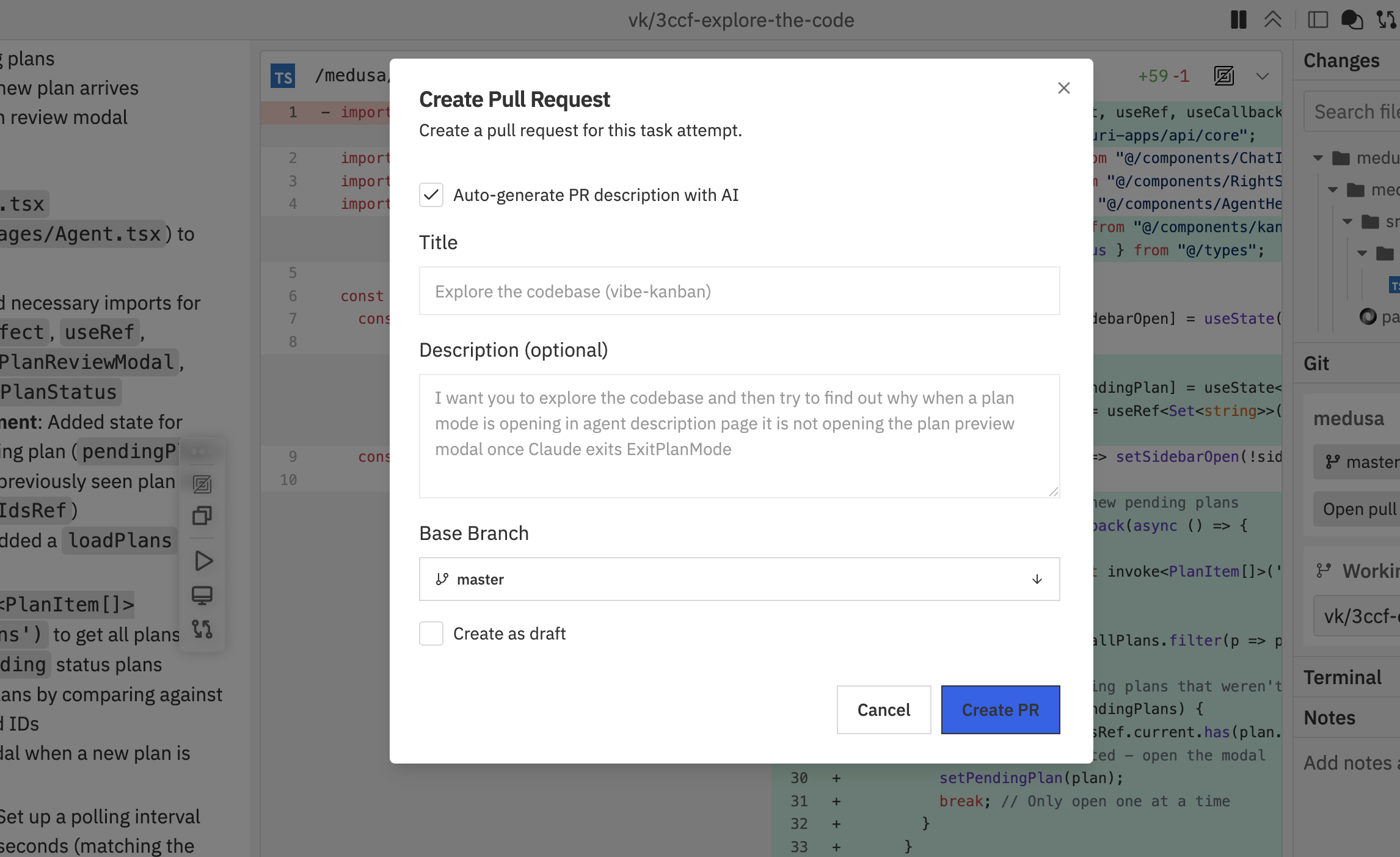 Create PRs directly from your workspace.
### Creating a PR
**From the Git panel:**
1. Click **Open pull request** in the Git section of the right sidebar
2. Fill in the PR details
**From the command bar:**
1. Press `Cmd/Ctrl + K`
2. Select **Create Pull Request**
**PR details:**
* **Auto-generate PR description with AI** - Let AI write the description based on your changes
* **Title** - PR title (auto-filled from task name)
* **Description** - Optional details about the changes
* **Base Branch** - The branch to merge into
* **Create as draft** - Mark as draft PR
4. Click **Create PR**
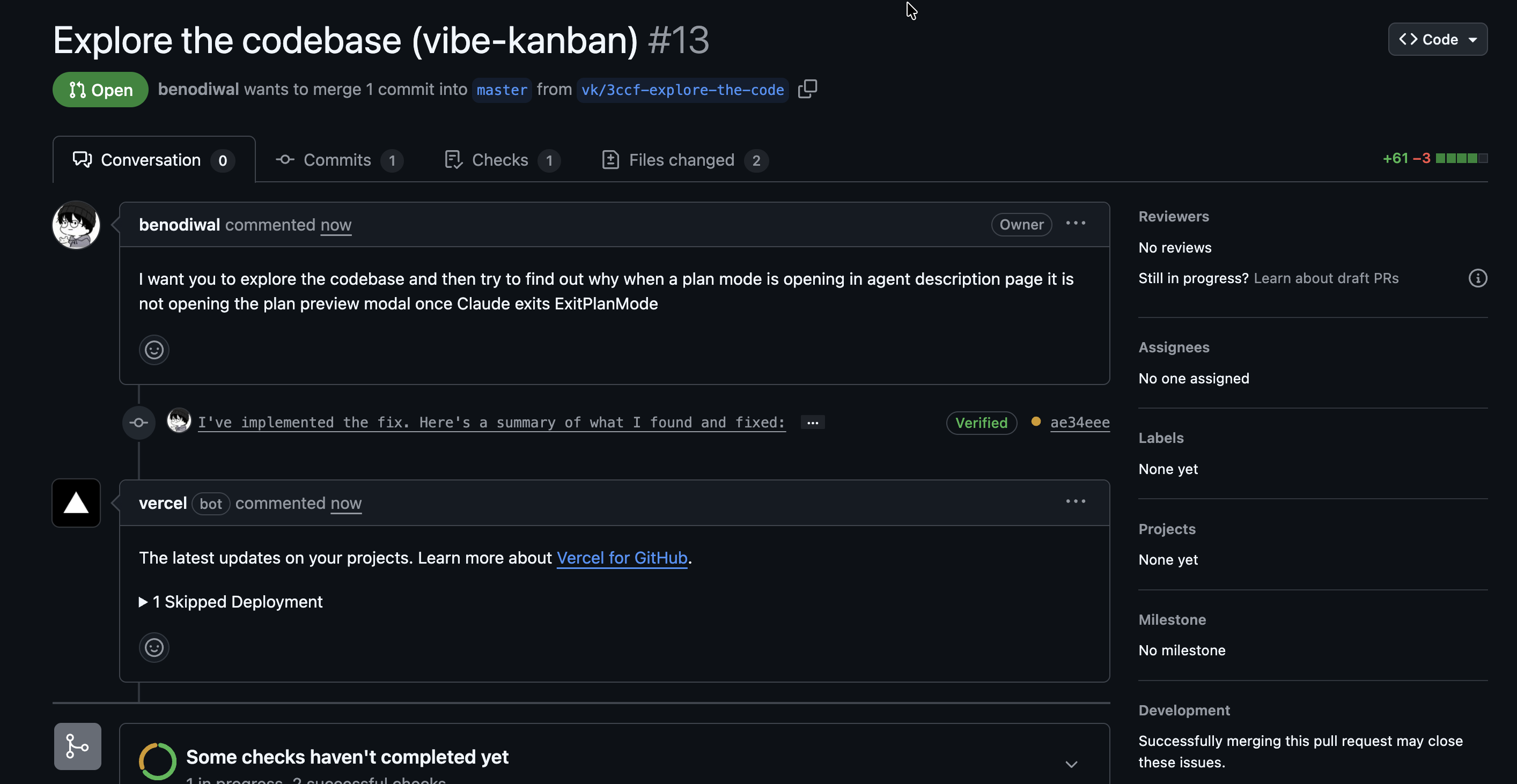
Once created, your PR appears on GitHub with your commits, description, and CI checks running.
Create PRs directly from your workspace.
### Creating a PR
**From the Git panel:**
1. Click **Open pull request** in the Git section of the right sidebar
2. Fill in the PR details
**From the command bar:**
1. Press `Cmd/Ctrl + K`
2. Select **Create Pull Request**
**PR details:**
* **Auto-generate PR description with AI** - Let AI write the description based on your changes
* **Title** - PR title (auto-filled from task name)
* **Description** - Optional details about the changes
* **Base Branch** - The branch to merge into
* **Create as draft** - Mark as draft PR
4. Click **Create PR**
Once created, your PR appears on GitHub with your commits, description, and CI checks running.
 ### Draft PRs
Enable **Draft** mode when:
* Work is still in progress
* You want early feedback before completion
* CI checks should run but reviewers shouldn't merge yet
### Multi-Repo PRs
For workspaces with multiple repositories:
* Create PRs for each repo separately
* Use the Repo Actions in the command bar
* Reference related PRs in descriptions
Create PRs early to get CI feedback and enable team visibility into your progress.
## Merging Changes
Pull the latest changes from the target branch into your working branch.
### Merge Process
**From the Git panel:**
1. Click the dropdown arrow next to **Open pull request**
2. Select **Merge**
**From the command bar:**
1. Press `Cmd/Ctrl + K` and select **Merge**
Target branch changes are merged into your working branch after confirmation.
### Before Merging
The workspace checks if you're behind the target branch:
* **Up to date**: Merge proceeds normally
* **Behind target**: You'll be prompted to rebase first
Always ensure CI checks pass and code reviews are complete before merging.
## Rebasing
Keep your branch up to date with the target branch.
### Rebase Process
**From the Git panel:**
1. Click the target branch dropdown (e.g., **main**)
2. Select **Rebase** from the menu
**From the command bar:**
1. Press `Cmd/Ctrl + K` and select **Rebase**
Your commits are replayed on top of the target branch after confirmation.
### Handling Conflicts
### Draft PRs
Enable **Draft** mode when:
* Work is still in progress
* You want early feedback before completion
* CI checks should run but reviewers shouldn't merge yet
### Multi-Repo PRs
For workspaces with multiple repositories:
* Create PRs for each repo separately
* Use the Repo Actions in the command bar
* Reference related PRs in descriptions
Create PRs early to get CI feedback and enable team visibility into your progress.
## Merging Changes
Pull the latest changes from the target branch into your working branch.
### Merge Process
**From the Git panel:**
1. Click the dropdown arrow next to **Open pull request**
2. Select **Merge**
**From the command bar:**
1. Press `Cmd/Ctrl + K` and select **Merge**
Target branch changes are merged into your working branch after confirmation.
### Before Merging
The workspace checks if you're behind the target branch:
* **Up to date**: Merge proceeds normally
* **Behind target**: You'll be prompted to rebase first
Always ensure CI checks pass and code reviews are complete before merging.
## Rebasing
Keep your branch up to date with the target branch.
### Rebase Process
**From the Git panel:**
1. Click the target branch dropdown (e.g., **main**)
2. Select **Rebase** from the menu
**From the command bar:**
1. Press `Cmd/Ctrl + K` and select **Rebase**
Your commits are replayed on top of the target branch after confirmation.
### Handling Conflicts
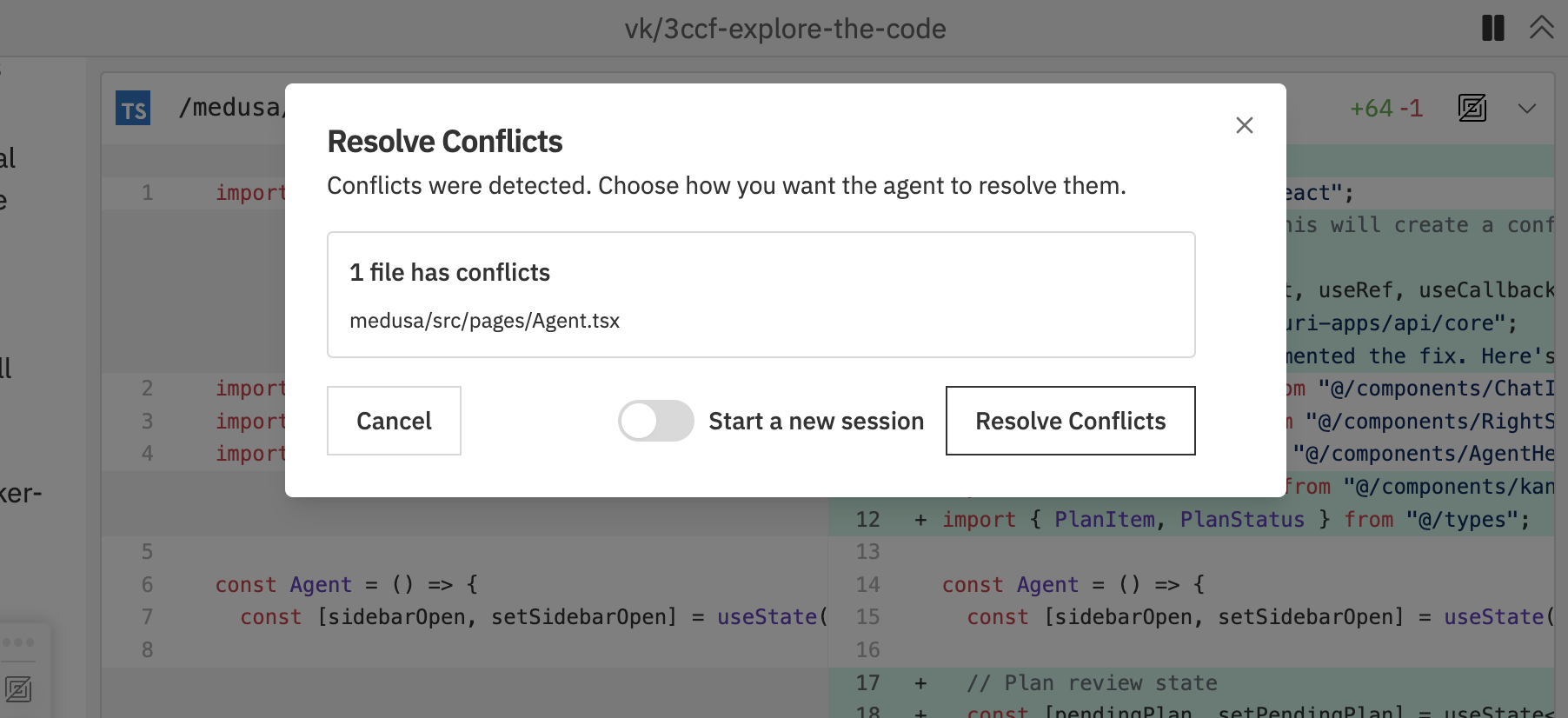 If conflicts occur during rebase:
1. The workspace shows a conflict resolution dialog
2. List of conflicting files is displayed
3. Resolve conflicts in your editor
4. Mark files as resolved
5. Continue or abort the rebase
### When to Rebase
* Before creating a pull request
* When the target branch has new commits
* Before merging to ensure a clean history
* When prompted due to being behind target
## Changing Target Branch
Switch the branch you're merging into.
### Changing the Target
**From the Git panel:**
1. Click the target branch dropdown (e.g., **main**) in the Git section
2. Select a new target branch from the list
**From the command bar:**
1. Press `Cmd/Ctrl + K` and select **Change Target Branch**
2. Choose the new target branch
The workspace updates to show the new ahead/behind status.
### Use Cases
* Switch from `develop` to `main` for release
* Target a feature branch instead of main
* Correct an incorrectly set target
## Pushing Changes
Push your commits to the remote repository.
### When Push is Available
The Push command appears when:
* You have unpushed commits
* A pull request is open for the branch
### Pushing
**From the Git panel:**
* Click the **Push** button when it appears (shows when you have unpushed commits)
**From the command bar:**
* Press `Cmd/Ctrl + K` and select **Push**
Commits are pushed to the remote repository.
Push is contextual - it only appears when there are changes to push and a PR exists.
## Multi-Repository Git Operations
For workspaces with multiple repositories, manage each repo independently.
### Per-Repository Actions
Access via command bar's **Repo Actions** page:
| Action | Description |
| ------------- | --------------------------------- |
| Create PR | Create PR for specific repository |
| Merge | Merge specific repository only |
| Rebase | Rebase specific repository |
| Change Target | Change target for specific repo |
### Coordinating Changes
When working across repos:
1. Make related changes in each repository
2. Create linked PRs referencing each other
3. Merge in the correct order based on dependencies
4. Verify integration after merging
## Conflict Resolution
When git conflicts occur:
### Conflict Dialog
The workspace displays a conflict resolution dialog showing:
* List of conflicting files
* Options to resolve or abort
### Resolution Steps
1. Open conflicting files in your editor
2. Resolve the conflicts manually
3. Save the resolved files
4. Return to the workspace
5. Continue the operation
### Aborting
If you can't resolve conflicts:
* Click **Abort** in the conflict dialog
* The operation is cancelled
* Your branch returns to its previous state
Unresolved conflicts block git operations. Always resolve or abort before continuing work.
## Best Practices
### Branch Hygiene
* Rebase regularly to stay current with target
* Create PRs early for visibility
* Use descriptive branch names
* Delete merged branches
### PR Workflow
1. Complete your changes
2. Review diffs in the changes panel
3. Rebase if behind target
4. Create a PR (draft if work continues)
5. Address review feedback
6. Merge when approved
### Multi-Repo Coordination
* Plan cross-repo changes upfront
* Document dependencies between PRs
* Merge in dependency order
* Test integration thoroughly
## Troubleshooting
**What it means:** You have modified files that haven't been committed.
**Solutions:**
1. Let the agent finish its current work (it may be about to commit)
2. Check the Changes panel to see what's modified
3. Commit the changes using the terminal: `git add . && git commit -m "WIP"`
4. Or stash them: `git stash`
**What it means:** The target branch (e.g., `main`) has new commits that your working branch doesn't have.
**Solution:** Rebase your branch to include the new changes:
1. Open command bar (`Cmd/Ctrl + K`)
2. Select **Rebase**
3. Resolve any conflicts if prompted
**What it means:** Your changes and the target branch's changes modify the same lines of code.
**Solutions:**
1. Vibe Kanban shows a conflict dialog listing affected files
2. Open each conflicting file in your editor
3. Look for conflict markers (`<<<<<<<`, `=======`, `>>>>>>>`)
4. Choose which version to keep (or combine them)
5. Save the file and mark it as resolved
6. Continue the rebase
For complex conflicts, you can ask the agent to help resolve them. Start a new message describing the conflict.
**Possible causes:**
* Not authenticated with GitHub
* No changes to create a PR from
* Branch doesn't exist on remote
**Solutions:**
1. Check GitHub integration in Settings → Integrations
2. Ensure you have committed changes
3. Try pushing the branch first using the terminal
**Possible causes:**
* No remote configured
* Authentication issues
* Remote branch is protected
**Solutions:**
1. Verify remote is configured: `git remote -v` in terminal
2. Check GitHub authentication in Settings
3. For protected branches, create a PR instead of pushing directly
## Related Documentation
* [Multi-Repo & Sessions](/workspaces/multi-repo-sessions) - Working with multiple repositories
* [Command Bar](/workspaces/command-bar) - Git commands and shortcuts
* [GitHub Integration](/integrations/github-integration) - GitHub setup and features
If conflicts occur during rebase:
1. The workspace shows a conflict resolution dialog
2. List of conflicting files is displayed
3. Resolve conflicts in your editor
4. Mark files as resolved
5. Continue or abort the rebase
### When to Rebase
* Before creating a pull request
* When the target branch has new commits
* Before merging to ensure a clean history
* When prompted due to being behind target
## Changing Target Branch
Switch the branch you're merging into.
### Changing the Target
**From the Git panel:**
1. Click the target branch dropdown (e.g., **main**) in the Git section
2. Select a new target branch from the list
**From the command bar:**
1. Press `Cmd/Ctrl + K` and select **Change Target Branch**
2. Choose the new target branch
The workspace updates to show the new ahead/behind status.
### Use Cases
* Switch from `develop` to `main` for release
* Target a feature branch instead of main
* Correct an incorrectly set target
## Pushing Changes
Push your commits to the remote repository.
### When Push is Available
The Push command appears when:
* You have unpushed commits
* A pull request is open for the branch
### Pushing
**From the Git panel:**
* Click the **Push** button when it appears (shows when you have unpushed commits)
**From the command bar:**
* Press `Cmd/Ctrl + K` and select **Push**
Commits are pushed to the remote repository.
Push is contextual - it only appears when there are changes to push and a PR exists.
## Multi-Repository Git Operations
For workspaces with multiple repositories, manage each repo independently.
### Per-Repository Actions
Access via command bar's **Repo Actions** page:
| Action | Description |
| ------------- | --------------------------------- |
| Create PR | Create PR for specific repository |
| Merge | Merge specific repository only |
| Rebase | Rebase specific repository |
| Change Target | Change target for specific repo |
### Coordinating Changes
When working across repos:
1. Make related changes in each repository
2. Create linked PRs referencing each other
3. Merge in the correct order based on dependencies
4. Verify integration after merging
## Conflict Resolution
When git conflicts occur:
### Conflict Dialog
The workspace displays a conflict resolution dialog showing:
* List of conflicting files
* Options to resolve or abort
### Resolution Steps
1. Open conflicting files in your editor
2. Resolve the conflicts manually
3. Save the resolved files
4. Return to the workspace
5. Continue the operation
### Aborting
If you can't resolve conflicts:
* Click **Abort** in the conflict dialog
* The operation is cancelled
* Your branch returns to its previous state
Unresolved conflicts block git operations. Always resolve or abort before continuing work.
## Best Practices
### Branch Hygiene
* Rebase regularly to stay current with target
* Create PRs early for visibility
* Use descriptive branch names
* Delete merged branches
### PR Workflow
1. Complete your changes
2. Review diffs in the changes panel
3. Rebase if behind target
4. Create a PR (draft if work continues)
5. Address review feedback
6. Merge when approved
### Multi-Repo Coordination
* Plan cross-repo changes upfront
* Document dependencies between PRs
* Merge in dependency order
* Test integration thoroughly
## Troubleshooting
**What it means:** You have modified files that haven't been committed.
**Solutions:**
1. Let the agent finish its current work (it may be about to commit)
2. Check the Changes panel to see what's modified
3. Commit the changes using the terminal: `git add . && git commit -m "WIP"`
4. Or stash them: `git stash`
**What it means:** The target branch (e.g., `main`) has new commits that your working branch doesn't have.
**Solution:** Rebase your branch to include the new changes:
1. Open command bar (`Cmd/Ctrl + K`)
2. Select **Rebase**
3. Resolve any conflicts if prompted
**What it means:** Your changes and the target branch's changes modify the same lines of code.
**Solutions:**
1. Vibe Kanban shows a conflict dialog listing affected files
2. Open each conflicting file in your editor
3. Look for conflict markers (`<<<<<<<`, `=======`, `>>>>>>>`)
4. Choose which version to keep (or combine them)
5. Save the file and mark it as resolved
6. Continue the rebase
For complex conflicts, you can ask the agent to help resolve them. Start a new message describing the conflict.
**Possible causes:**
* Not authenticated with GitHub
* No changes to create a PR from
* Branch doesn't exist on remote
**Solutions:**
1. Check GitHub integration in Settings → Integrations
2. Ensure you have committed changes
3. Try pushing the branch first using the terminal
**Possible causes:**
* No remote configured
* Authentication issues
* Remote branch is protected
**Solutions:**
1. Verify remote is configured: `git remote -v` in terminal
2. Check GitHub authentication in Settings
3. For protected branches, create a PR instead of pushing directly
## Related Documentation
* [Multi-Repo & Sessions](/workspaces/multi-repo-sessions) - Working with multiple repositories
* [Command Bar](/workspaces/command-bar) - Git commands and shortcuts
* [GitHub Integration](/integrations/github-integration) - GitHub setup and features