> ## Documentation Index
> Fetch the complete documentation index at: https://vibekanban.com/docs/llms.txt
> Use this file to discover all available pages before exploring further.
# Interface Guide
> Understanding the Workspaces four-panel layout and navigation
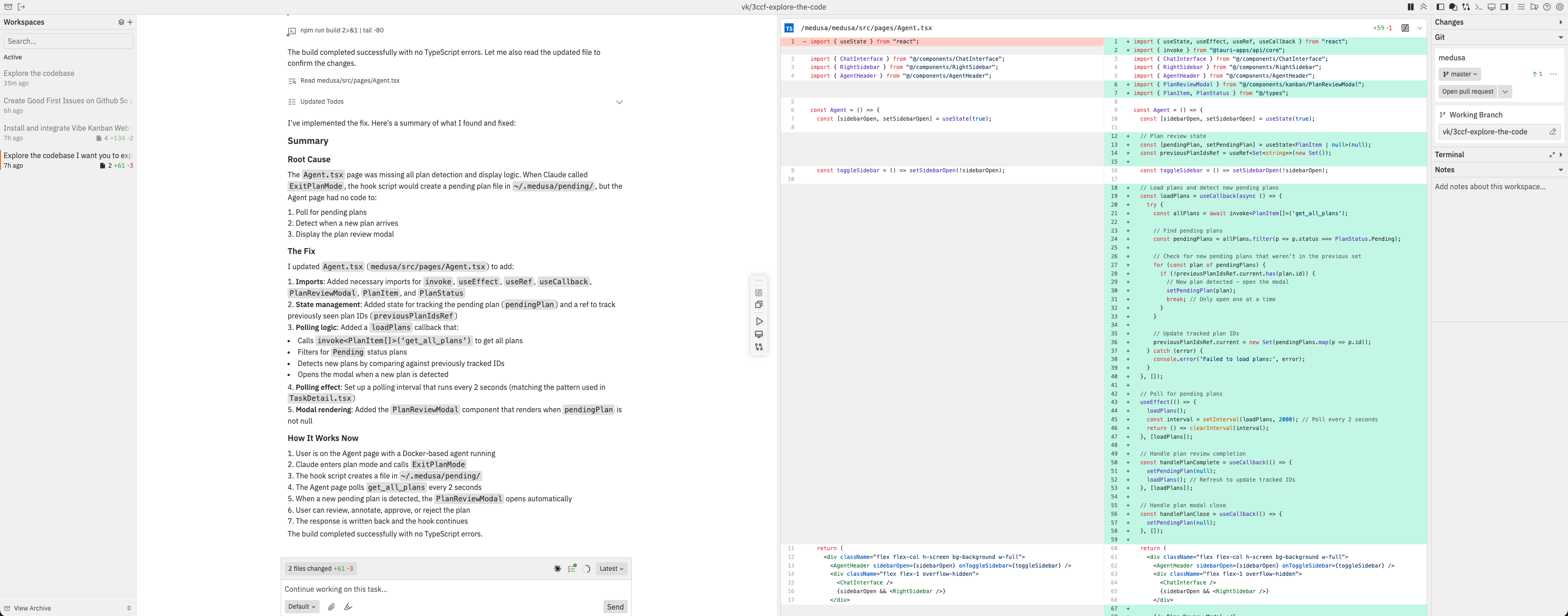 The Workspaces UI uses a flexible four-panel layout designed for efficient AI-assisted development workflows.
## Panel Overview
| Panel | Position | Purpose |
| ---------------------- | ---------- | --------------------------------------------- |
| **Workspace Sidebar** | Left edge | List of all workspaces with status indicators |
| **Conversation Panel** | Left main | Chat with coding agents, session management |
| **Context Panel** | Right main | Changes, logs, or preview (toggleable) |
| **Details Sidebar** | Right edge | Git status, terminal, notes |
## Navbar
The navbar at the top of the workspace provides quick access to common actions.
### Left Section
| Icon | Action | Description |
| :--------------------------------------: | ----------------- | ------------------------------- |
| | Archive Workspace | Move workspace to/from archive |
| | Open in Old UI | Switch to the classic interface |
### Right Section - Panel Controls
| Icon | Action | Description |
| :--------------------------: | -------------------- | -------------------------------- |
| | Toggle Left Sidebar | Show/hide the workspace list |
| | Toggle Chat Panel | Show/hide the conversation panel |
| | Toggle Changes | Show/hide the changes panel |
| | Toggle Logs | Show/hide the logs panel |
| | Toggle Preview | Show/hide the preview panel |
| | Toggle Right Sidebar | Show/hide the details sidebar |
### Right Section - Utilities
| Icon | Action | Description |
| :-----------------------------: | ---------------- | ------------------------------ |
| | Command Bar | Open the command bar |
| | Feedback | Send feedback about Workspaces |
| | Workspaces Guide | Open the onboarding guide |
| | Settings | Open application settings |
When the Changes panel is open, additional diff controls appear for toggling between side-by-side and inline views.
## Workspace Sidebar
The Workspaces UI uses a flexible four-panel layout designed for efficient AI-assisted development workflows.
## Panel Overview
| Panel | Position | Purpose |
| ---------------------- | ---------- | --------------------------------------------- |
| **Workspace Sidebar** | Left edge | List of all workspaces with status indicators |
| **Conversation Panel** | Left main | Chat with coding agents, session management |
| **Context Panel** | Right main | Changes, logs, or preview (toggleable) |
| **Details Sidebar** | Right edge | Git status, terminal, notes |
## Navbar
The navbar at the top of the workspace provides quick access to common actions.
### Left Section
| Icon | Action | Description |
| :--------------------------------------: | ----------------- | ------------------------------- |
| | Archive Workspace | Move workspace to/from archive |
| | Open in Old UI | Switch to the classic interface |
### Right Section - Panel Controls
| Icon | Action | Description |
| :--------------------------: | -------------------- | -------------------------------- |
| | Toggle Left Sidebar | Show/hide the workspace list |
| | Toggle Chat Panel | Show/hide the conversation panel |
| | Toggle Changes | Show/hide the changes panel |
| | Toggle Logs | Show/hide the logs panel |
| | Toggle Preview | Show/hide the preview panel |
| | Toggle Right Sidebar | Show/hide the details sidebar |
### Right Section - Utilities
| Icon | Action | Description |
| :-----------------------------: | ---------------- | ------------------------------ |
| | Command Bar | Open the command bar |
| | Feedback | Send feedback about Workspaces |
| | Workspaces Guide | Open the onboarding guide |
| | Settings | Open application settings |
When the Changes panel is open, additional diff controls appear for toggling between side-by-side and inline views.
## Workspace Sidebar
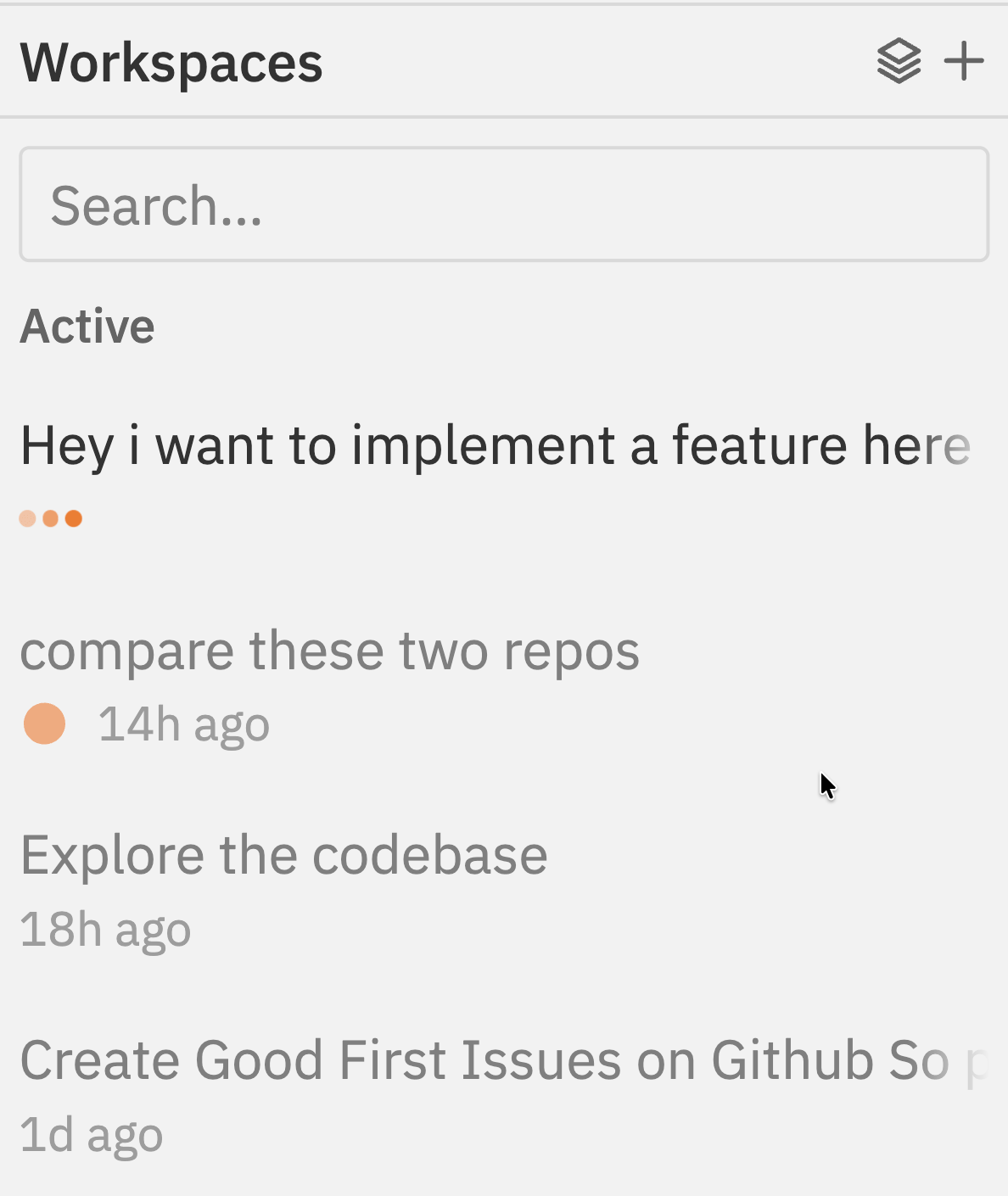 The left sidebar displays all your workspaces at a glance.
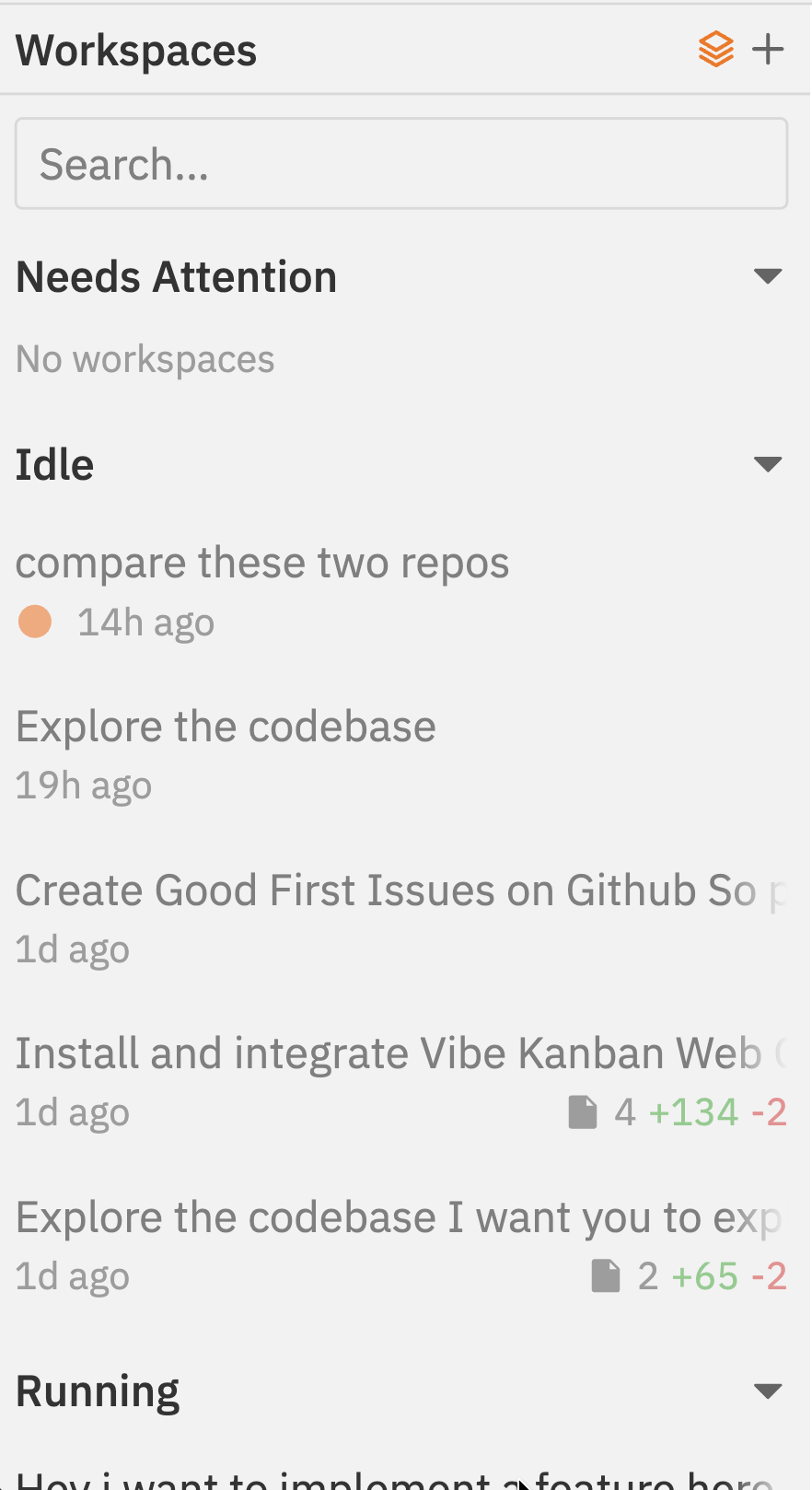
Switch to accordion layout to group workspaces by status:
The left sidebar displays all your workspaces at a glance.
Switch to accordion layout to group workspaces by status:
 ### Status Indicators
Each workspace shows its current state:
| Indicator | Meaning |
| ------------------- | -------------------------------------------- |
| **Running** | Agent is actively processing |
| **Idle** | Waiting for input |
| **Needs Attention** | Pending approval required (raised hand icon) |
| **Pinned** | Workspace pinned to top of list |
| **Dev Server** | Blue indicator when dev server is running |
| **PR Status** | Badge showing linked pull request status |
### Workspace Actions
* **Search**: Filter workspaces by name or branch
* **Pin**: Keep important workspaces at the top
* **Archive**: Move completed workspaces out of the main list
* **Layout toggle**: Switch between flat list and accordion (grouped by status)
### Creating a New Workspace
### Status Indicators
Each workspace shows its current state:
| Indicator | Meaning |
| ------------------- | -------------------------------------------- |
| **Running** | Agent is actively processing |
| **Idle** | Waiting for input |
| **Needs Attention** | Pending approval required (raised hand icon) |
| **Pinned** | Workspace pinned to top of list |
| **Dev Server** | Blue indicator when dev server is running |
| **PR Status** | Badge showing linked pull request status |
### Workspace Actions
* **Search**: Filter workspaces by name or branch
* **Pin**: Keep important workspaces at the top
* **Archive**: Move completed workspaces out of the main list
* **Layout toggle**: Switch between flat list and accordion (grouped by status)
### Creating a New Workspace
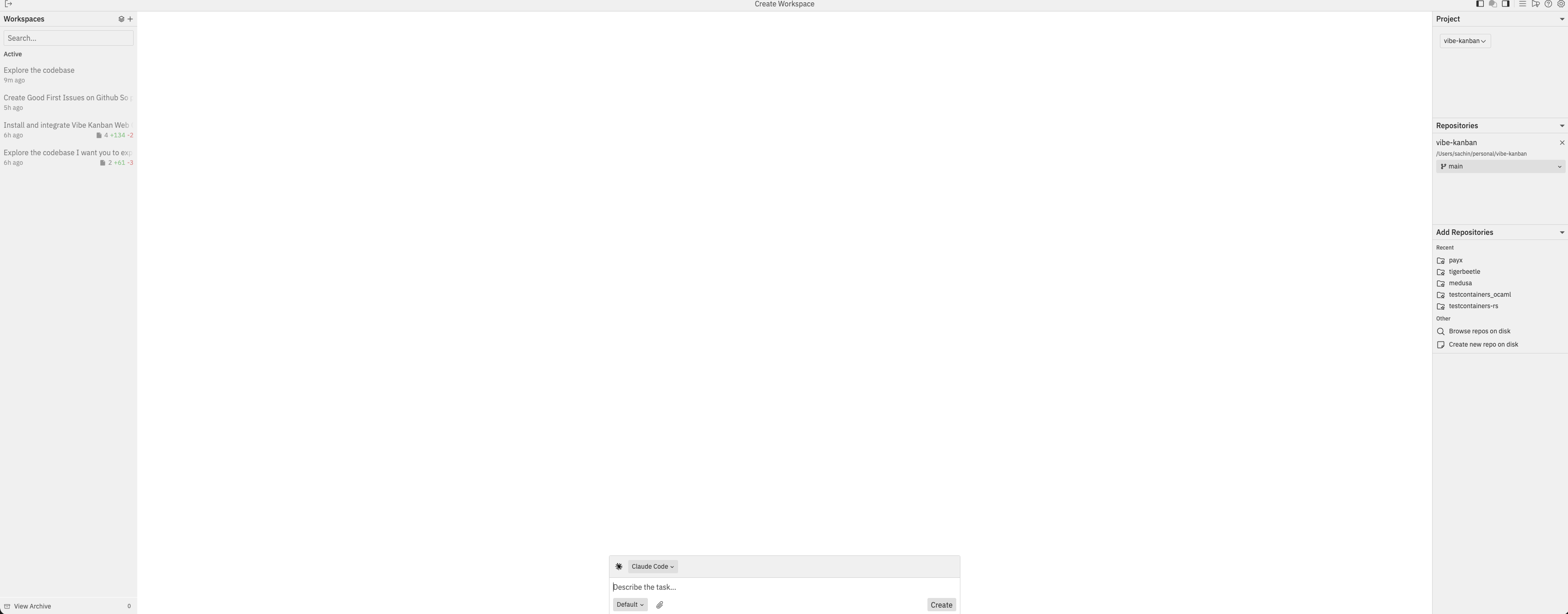 Click the **+** button at the top of the sidebar to create a new workspace. The interface switches to create mode:
1. **Select a project** from the Project dropdown in the right sidebar
2. **Add repositories** - click repos from the "Add Repositories" list or browse for repos on disk
3. **Set target branch** - each selected repo shows its target branch (click to change)
4. **Describe your task** in the chat input at the bottom
5. **Select an agent** (e.g., Claude Code) and variant
6. Click **Create** to start the workspace
For detailed instructions, see [Creating Workspaces](/workspaces/creating-workspaces) and [Repositories](/workspaces/repositories).
## Conversation Panel
Click the **+** button at the top of the sidebar to create a new workspace. The interface switches to create mode:
1. **Select a project** from the Project dropdown in the right sidebar
2. **Add repositories** - click repos from the "Add Repositories" list or browse for repos on disk
3. **Set target branch** - each selected repo shows its target branch (click to change)
4. **Describe your task** in the chat input at the bottom
5. **Select an agent** (e.g., Claude Code) and variant
6. Click **Create** to start the workspace
For detailed instructions, see [Creating Workspaces](/workspaces/creating-workspaces) and [Repositories](/workspaces/repositories).
## Conversation Panel
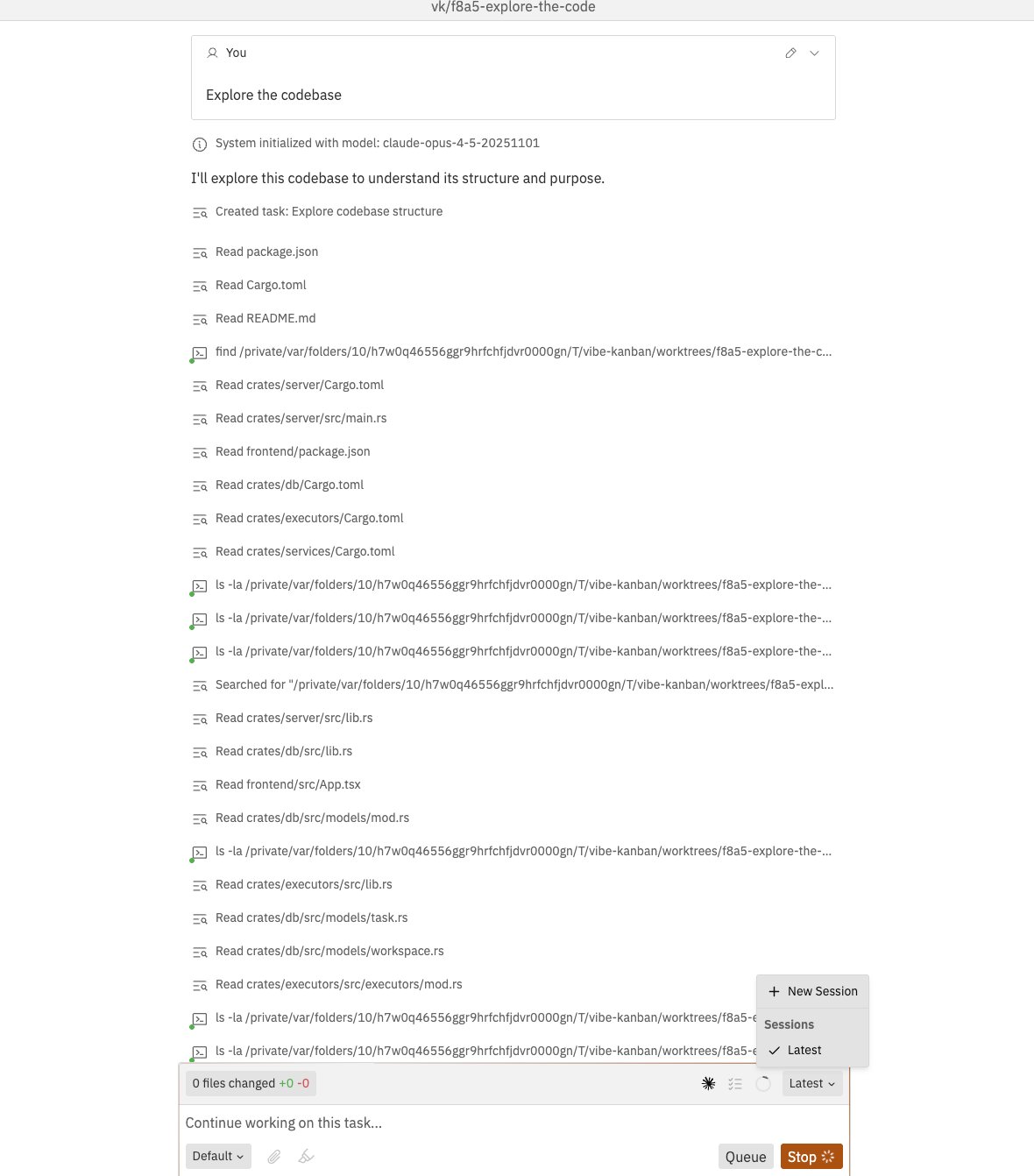 The left main panel is where you interact with coding agents.
### Chat Interface
* View the full conversation history with the agent
* Send messages and follow-up instructions
* Rich text support for formatting
* Approval workflows for reviewing agent plans
* Agent and variant selection
See [Chat Interface](/workspaces/chat-interface) for the complete guide.
### Session Dropdown
The chat box toolbar includes a session dropdown that lets you:
* View all sessions in the workspace
* Switch between sessions (shows "Latest" or timestamp)
* Create a new session by selecting "New Session"
Create multiple sessions to work around conversation token limits or to run different agents in parallel.
See [Sessions](/workspaces/sessions) for more details on managing multiple sessions.
### Chat Shortcuts
| Shortcut | Action |
| -------------------------- | --------------------- |
| `Cmd/Ctrl + Enter` | Send message |
| `Shift + Cmd/Ctrl + Enter` | Alternative send mode |
| `Cmd/Ctrl + B` | Bold text |
| `Cmd/Ctrl + I` | Italic text |
| `Cmd/Ctrl + U` | Underline text |
## Context Panel
The right main panel toggles between three views:
### Changes View
The left main panel is where you interact with coding agents.
### Chat Interface
* View the full conversation history with the agent
* Send messages and follow-up instructions
* Rich text support for formatting
* Approval workflows for reviewing agent plans
* Agent and variant selection
See [Chat Interface](/workspaces/chat-interface) for the complete guide.
### Session Dropdown
The chat box toolbar includes a session dropdown that lets you:
* View all sessions in the workspace
* Switch between sessions (shows "Latest" or timestamp)
* Create a new session by selecting "New Session"
Create multiple sessions to work around conversation token limits or to run different agents in parallel.
See [Sessions](/workspaces/sessions) for more details on managing multiple sessions.
### Chat Shortcuts
| Shortcut | Action |
| -------------------------- | --------------------- |
| `Cmd/Ctrl + Enter` | Send message |
| `Shift + Cmd/Ctrl + Enter` | Alternative send mode |
| `Cmd/Ctrl + B` | Bold text |
| `Cmd/Ctrl + I` | Italic text |
| `Cmd/Ctrl + U` | Underline text |
## Context Panel
The right main panel toggles between three views:
### Changes View
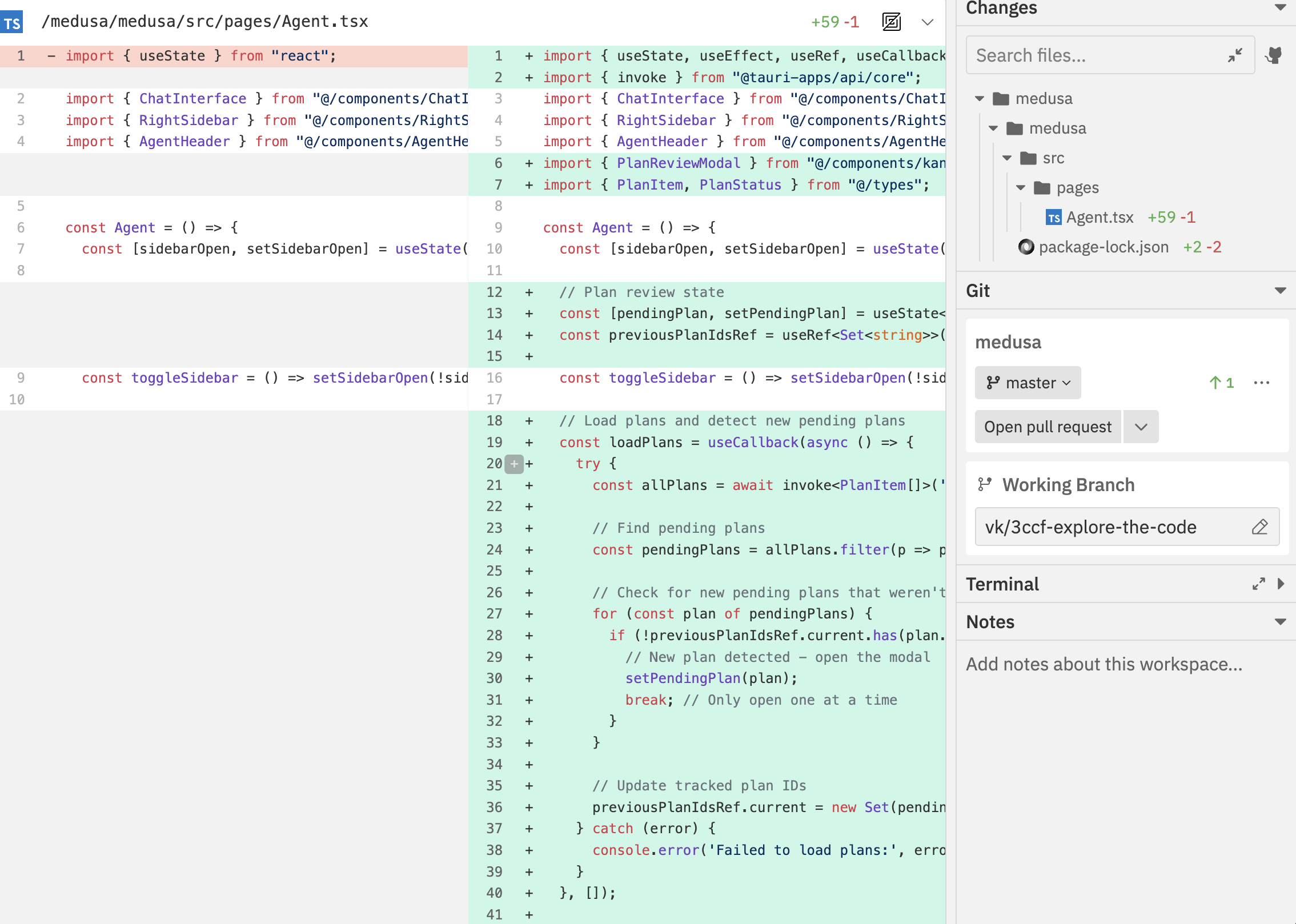 Displays all modified files with inline diffs:
* **File tree**: Hierarchical view of changed files
* **Search**: Filter files by name
* **Diff viewer**: See code changes with syntax highlighting
* **Comments**: Add inline comments for agent feedback
### Logs View
Displays all modified files with inline diffs:
* **File tree**: Hierarchical view of changed files
* **Search**: Filter files by name
* **Diff viewer**: See code changes with syntax highlighting
* **Comments**: Add inline comments for agent feedback
### Logs View
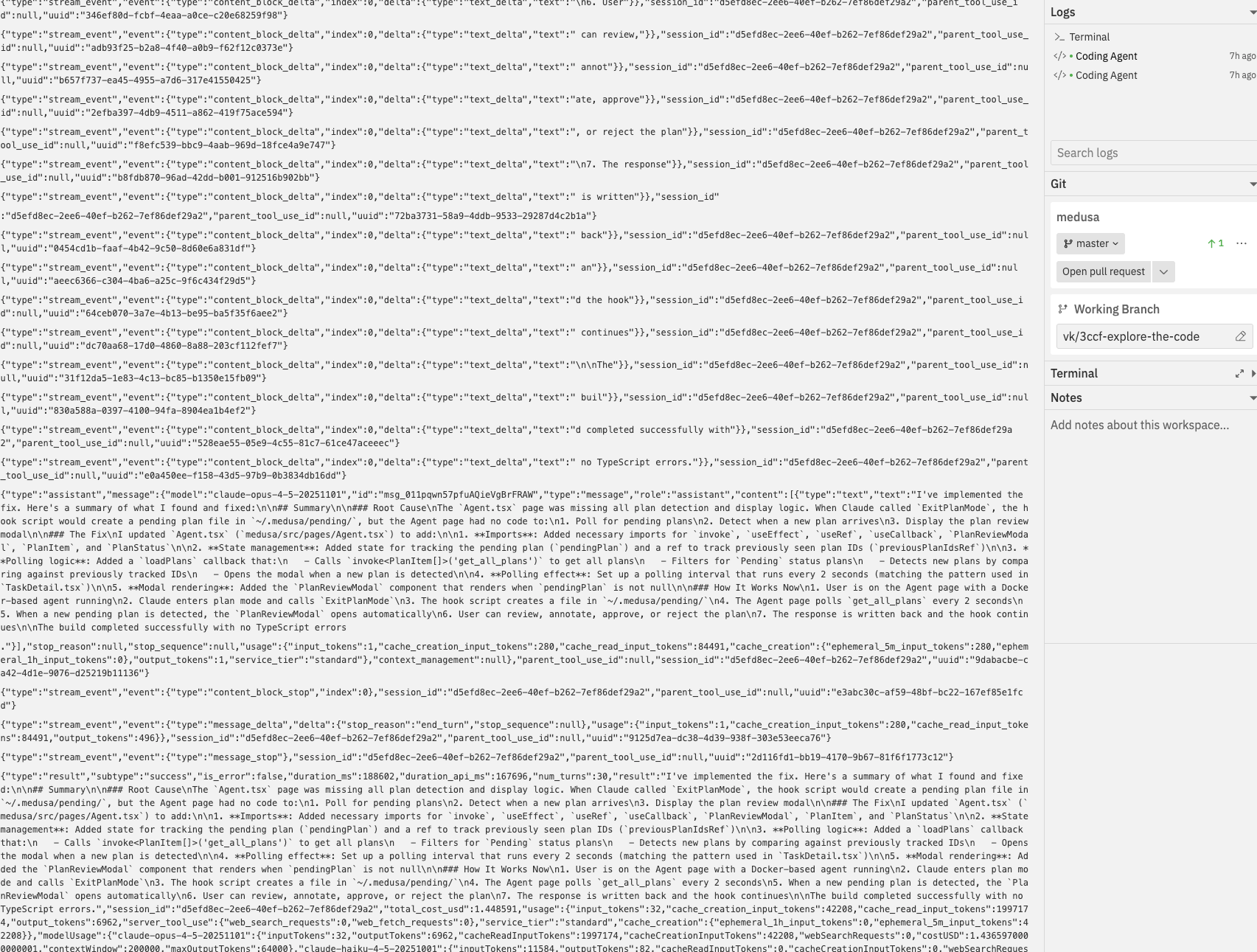 Shows process execution logs:
* **Process tabs**: Switch between different running processes
* **Log output**: View stdout/stderr in real-time
* **Search logs**: Filter log content
### Preview View
Shows process execution logs:
* **Process tabs**: Switch between different running processes
* **Log output**: View stdout/stderr in real-time
* **Search logs**: Filter log content
### Preview View
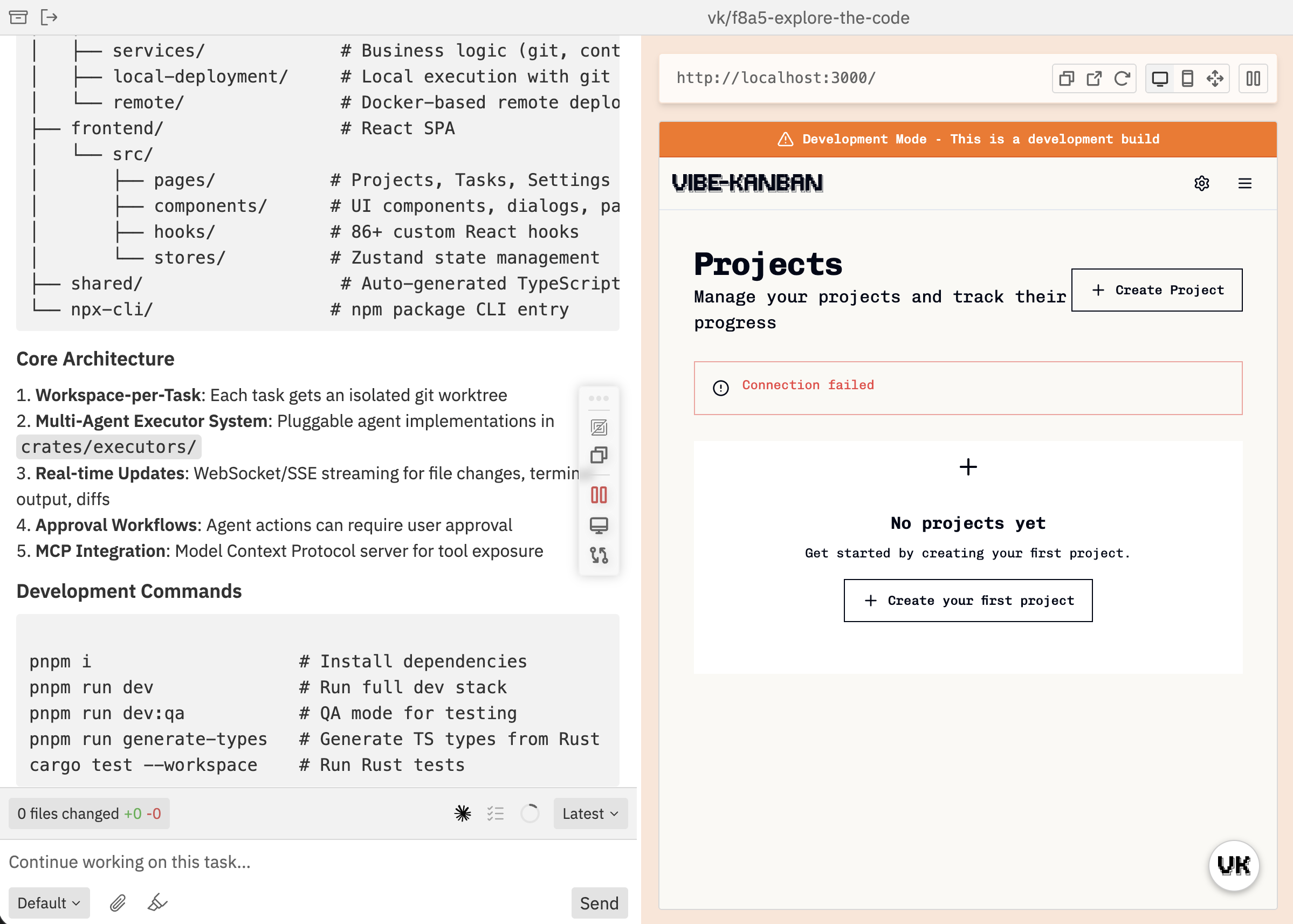 Built-in browser for testing your application:
* **Dev server tabs**: Multiple dev servers supported
* **Device modes**: Desktop, mobile, custom viewport
* **Process logs**: View dev server output
Toggle between views using the navbar buttons or the [command bar](/workspaces/command-bar).
## Details Sidebar
The right sidebar provides quick access to workspace details.
### Git Section
Built-in browser for testing your application:
* **Dev server tabs**: Multiple dev servers supported
* **Device modes**: Desktop, mobile, custom viewport
* **Process logs**: View dev server output
Toggle between views using the navbar buttons or the [command bar](/workspaces/command-bar).
## Details Sidebar
The right sidebar provides quick access to workspace details.
### Git Section
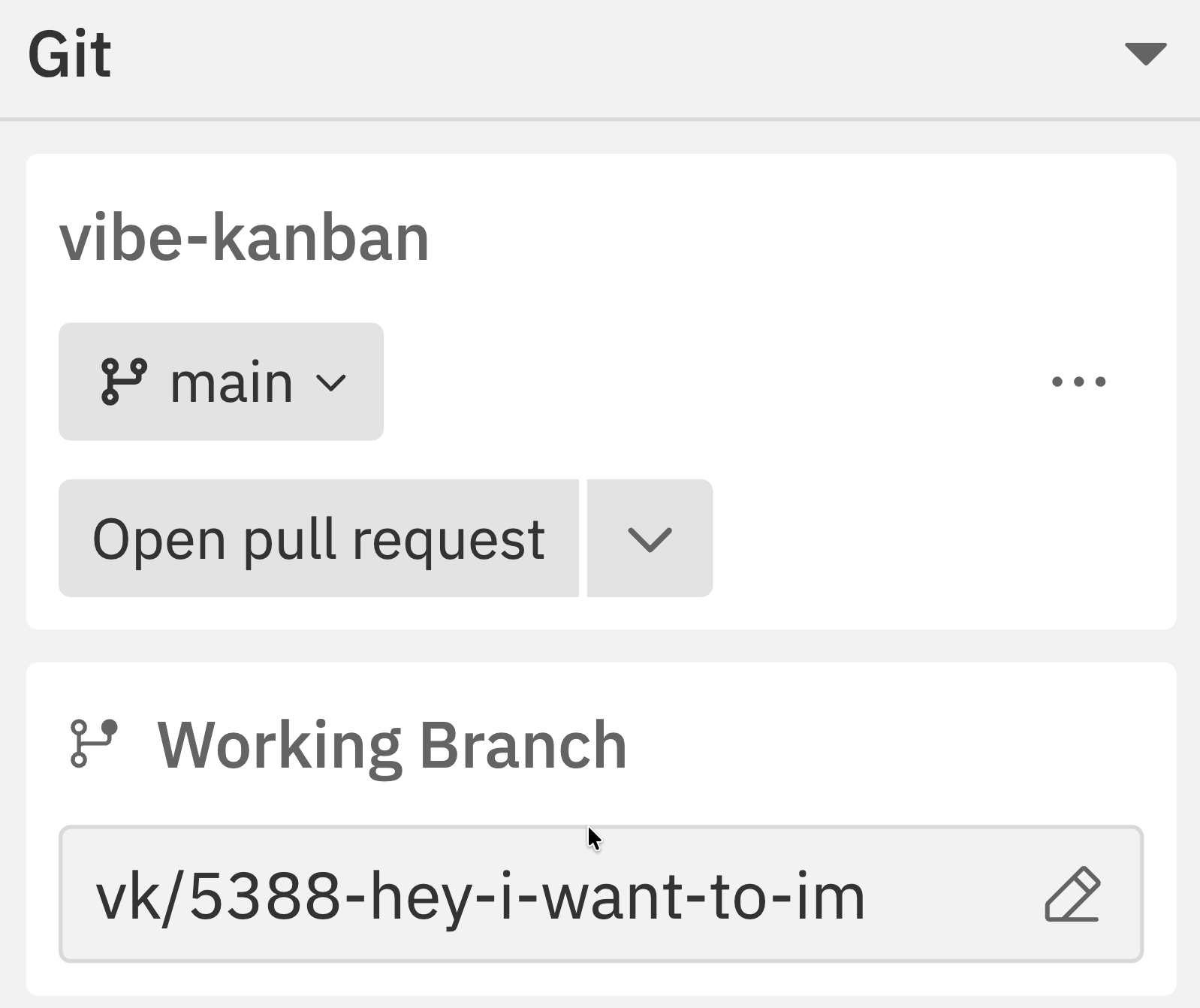 Always visible, showing:
* Current repository and branch
* Target branch for merging
* Uncommitted changes count
* Commits ahead/behind target
* Quick access to [git operations](/workspaces/git-operations)
See [Repositories](/workspaces/repositories) for details on managing repositories and branches.
### Terminal Section
Always visible, showing:
* Current repository and branch
* Target branch for merging
* Uncommitted changes count
* Commits ahead/behind target
* Quick access to [git operations](/workspaces/git-operations)
See [Repositories](/workspaces/repositories) for details on managing repositories and branches.
### Terminal Section
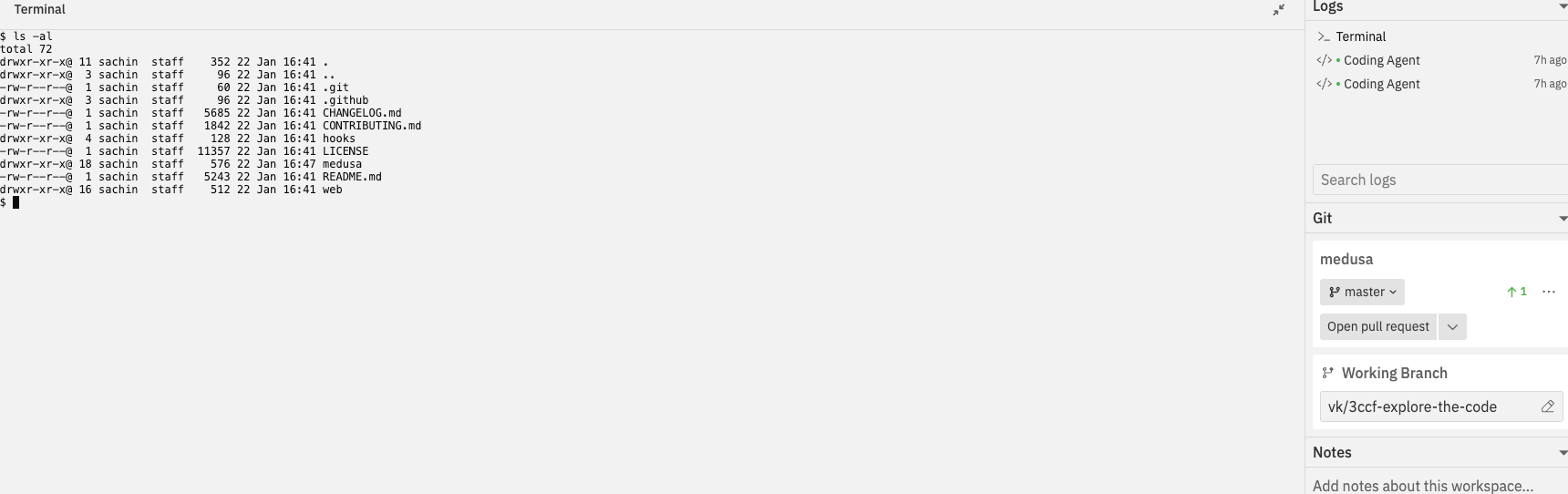 The integrated terminal is a new feature exclusive to the Workspaces UI and is not available in the classic interface.
The expandable terminal lets you run commands directly in your workspace:
* **Full terminal emulation** powered by xterm.js
* **Run any command** - git, npm, build scripts, etc.
* **Persistent state** - terminal persists across panel toggles
* **Expandable** - collapse when not needed, expand when you need it
### Notes Section
The integrated terminal is a new feature exclusive to the Workspaces UI and is not available in the classic interface.
The expandable terminal lets you run commands directly in your workspace:
* **Full terminal emulation** powered by xterm.js
* **Run any command** - git, npm, build scripts, etc.
* **Persistent state** - terminal persists across panel toggles
* **Expandable** - collapse when not needed, expand when you need it
### Notes Section
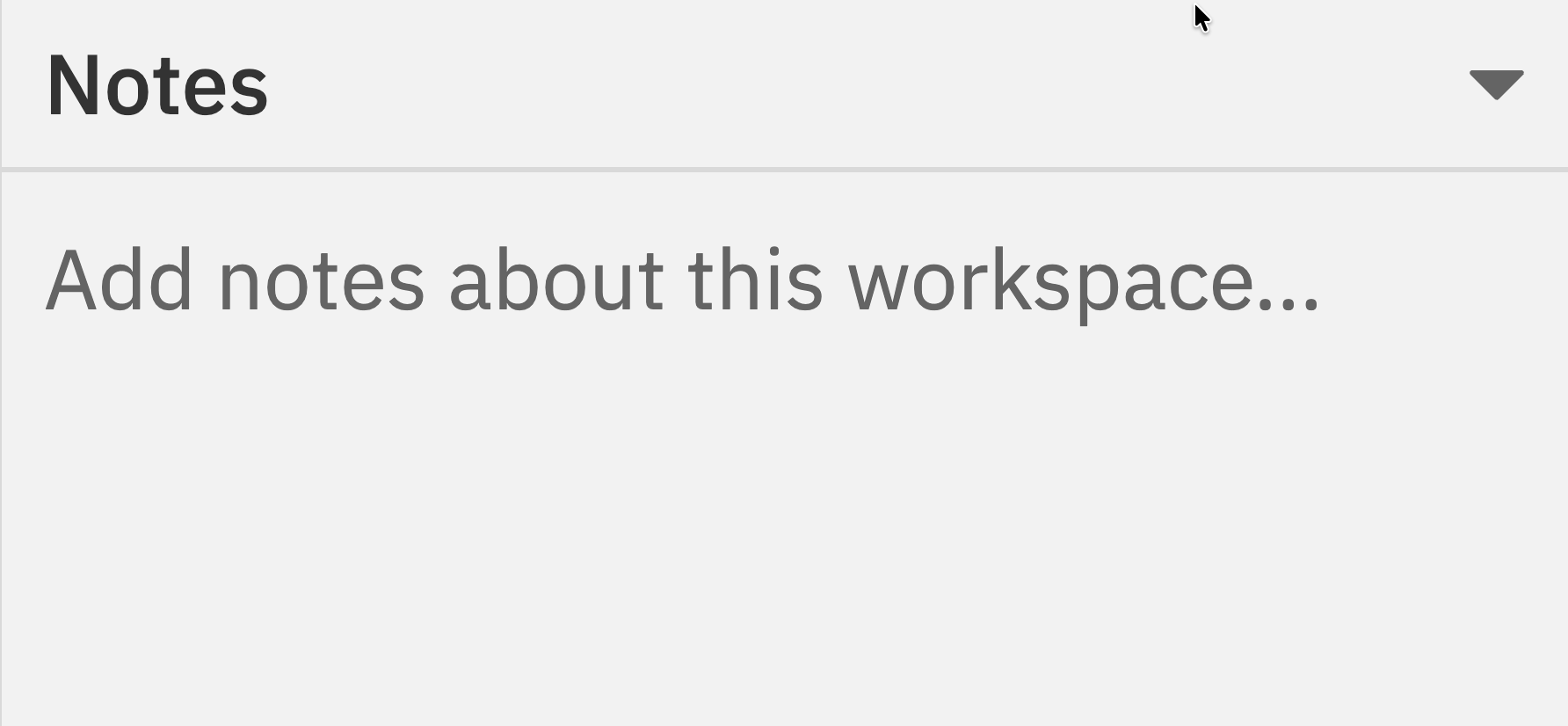 Workspace notes are a new feature exclusive to the Workspaces UI and are not available in the classic interface.
The expandable notes section lets you document important information:
* **Auto-save** - Notes save automatically as you type
* **Per-workspace** - Each workspace has its own notes
* **Persistent** - Notes are preserved across sessions
## Context Bar
Workspace notes are a new feature exclusive to the Workspaces UI and are not available in the classic interface.
The expandable notes section lets you document important information:
* **Auto-save** - Notes save automatically as you type
* **Per-workspace** - Each workspace has its own notes
* **Persistent** - Notes are preserved across sessions
## Context Bar
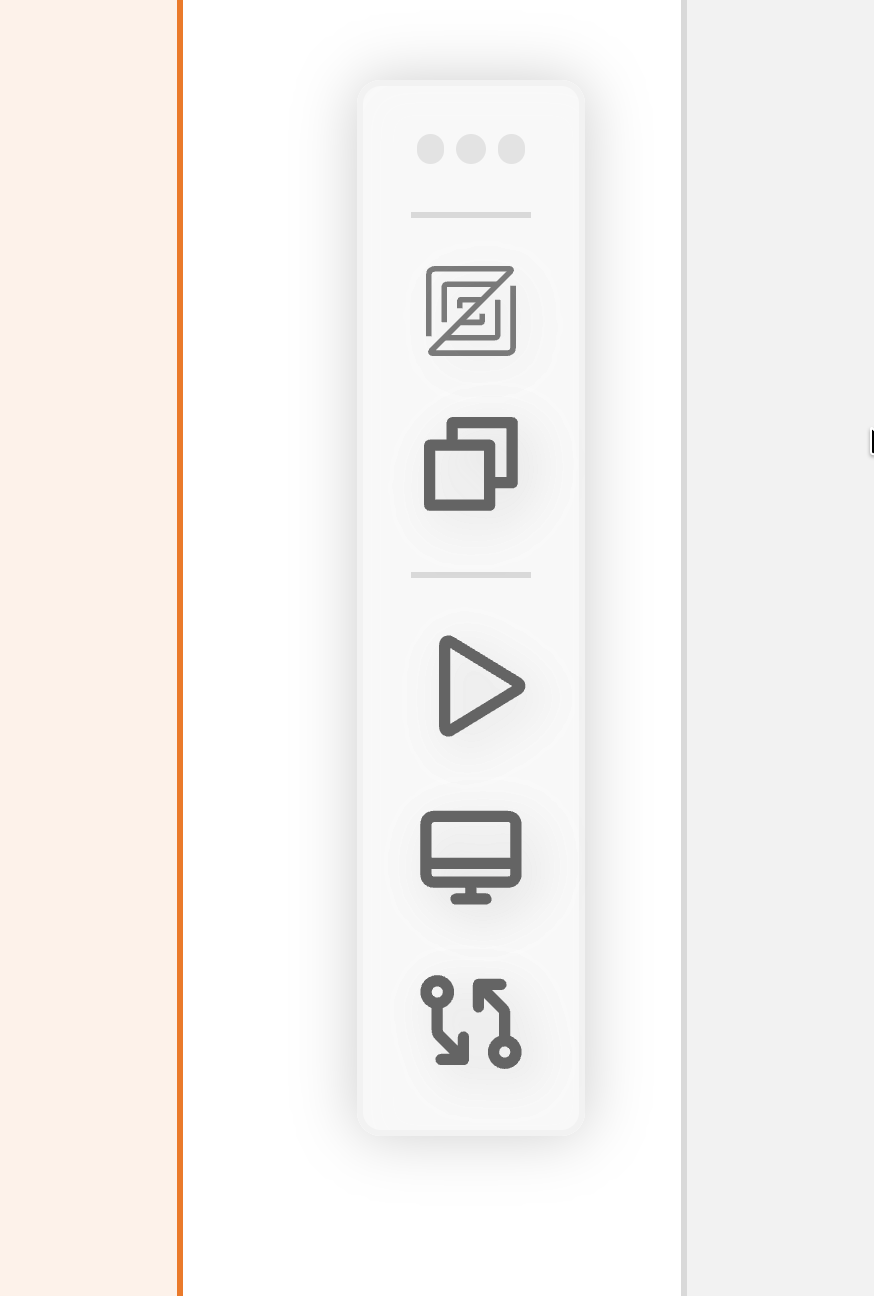 A floating toolbar that provides quick access to common actions:
| Icon | Action | Description |
| :-------------------------: | ----------------- | ---------------------------------------------------------------- |
| *IDE logo* | Open in IDE | Launch workspace in your configured editor (icon shows your IDE) |
| | Copy Path | Copy the workspace path to clipboard |
| | Toggle Dev Server | Start or stop the development server |
| | Toggle Preview | Show or hide the preview panel |
| | Toggle Changes | Show or hide the changes panel |
The context bar is draggable - position it wherever works best for your workflow.
## Resizing Panels
Drag the separators between panels to adjust their proportions. Your layout preferences are saved per workspace.
## Toggling Panels
Show or hide panels to focus on what matters:
* Use the navbar toggle buttons
* Use the [command bar](/workspaces/command-bar) with `Cmd/Ctrl + K`
* View Options commands let you toggle any panel
Panel states are remembered, so your preferred layout is restored when you return to a workspace.
## Related Documentation
* [Creating Workspaces](/workspaces/creating-workspaces) - Step-by-step guide to creating workspaces
* [Repositories](/workspaces/repositories) - Managing repositories and branches
* [Sessions](/workspaces/sessions) - Working with multiple conversation sessions
* [Chat Interface](/workspaces/chat-interface) - Complete guide to the conversation panel
* [Command Bar](/workspaces/command-bar) - Master keyboard shortcuts and quick actions
* [Browser Testing](/browser-testing) - Built-in browser for testing your application
* [Changes Panel](/workspaces/changes) - Review code modifications and provide feedback
* [Git Operations](/workspaces/git-operations) - Create PRs, merge, rebase, and manage branches
A floating toolbar that provides quick access to common actions:
| Icon | Action | Description |
| :-------------------------: | ----------------- | ---------------------------------------------------------------- |
| *IDE logo* | Open in IDE | Launch workspace in your configured editor (icon shows your IDE) |
| | Copy Path | Copy the workspace path to clipboard |
| | Toggle Dev Server | Start or stop the development server |
| | Toggle Preview | Show or hide the preview panel |
| | Toggle Changes | Show or hide the changes panel |
The context bar is draggable - position it wherever works best for your workflow.
## Resizing Panels
Drag the separators between panels to adjust their proportions. Your layout preferences are saved per workspace.
## Toggling Panels
Show or hide panels to focus on what matters:
* Use the navbar toggle buttons
* Use the [command bar](/workspaces/command-bar) with `Cmd/Ctrl + K`
* View Options commands let you toggle any panel
Panel states are remembered, so your preferred layout is restored when you return to a workspace.
## Related Documentation
* [Creating Workspaces](/workspaces/creating-workspaces) - Step-by-step guide to creating workspaces
* [Repositories](/workspaces/repositories) - Managing repositories and branches
* [Sessions](/workspaces/sessions) - Working with multiple conversation sessions
* [Chat Interface](/workspaces/chat-interface) - Complete guide to the conversation panel
* [Command Bar](/workspaces/command-bar) - Master keyboard shortcuts and quick actions
* [Browser Testing](/browser-testing) - Built-in browser for testing your application
* [Changes Panel](/workspaces/changes) - Review code modifications and provide feedback
* [Git Operations](/workspaces/git-operations) - Create PRs, merge, rebase, and manage branches