> ## Documentation Index
> Fetch the complete documentation index at: https://vibekanban.com/docs/llms.txt
> Use this file to discover all available pages before exploring further.
# Managing Workspaces
> Archive, delete, and manage disk space for your workspaces
Learn how to organise your workspace list, free up disk space, and understand what happens to your code when you archive or delete workspaces.
**Workspace Actions** are available from both the command bar and the workspace sidebar. These actions require an active workspace - they won't appear on the create workspace page.
## Accessing Workspace Actions
You can access workspace actions in two ways:
**From the sidebar:**
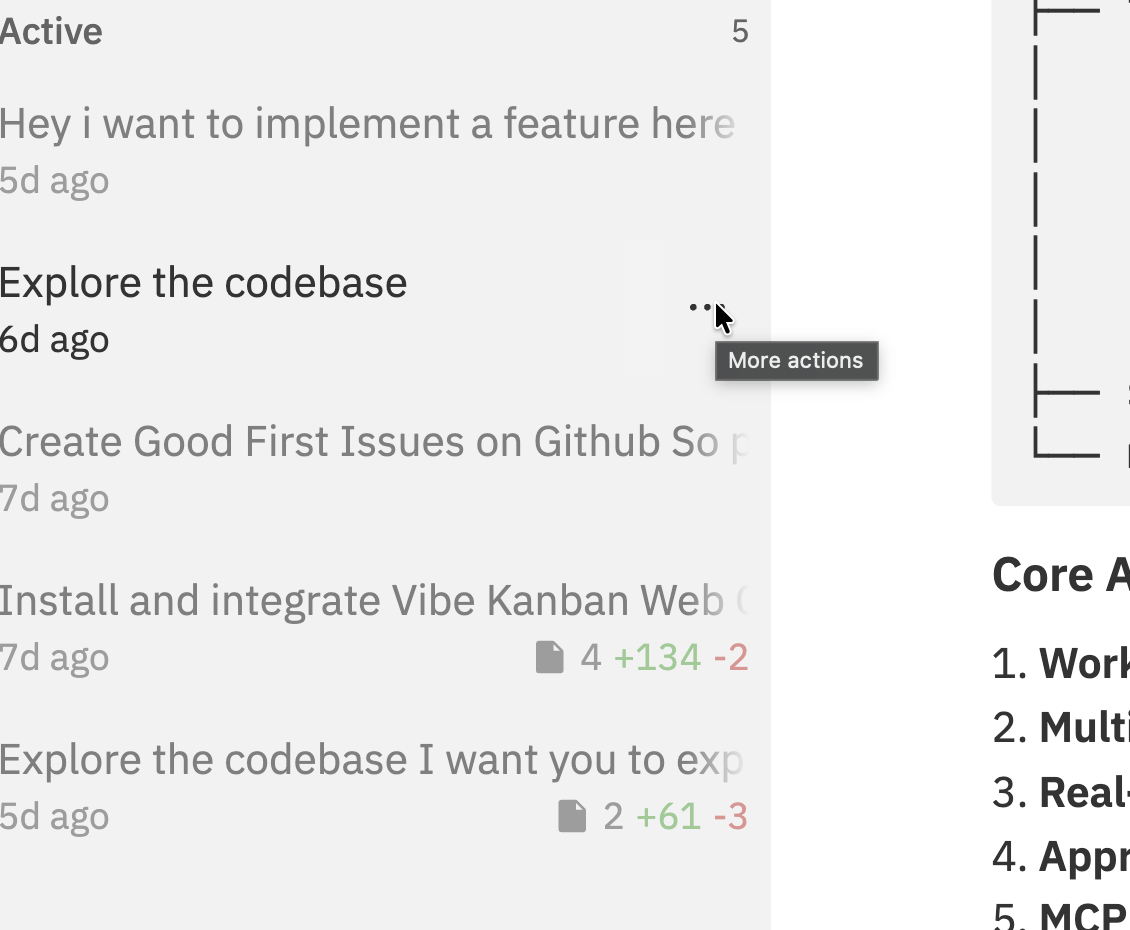 Hover over a workspace in the sidebar and click the **...** (More actions) button to see available actions.
**From the command bar:**
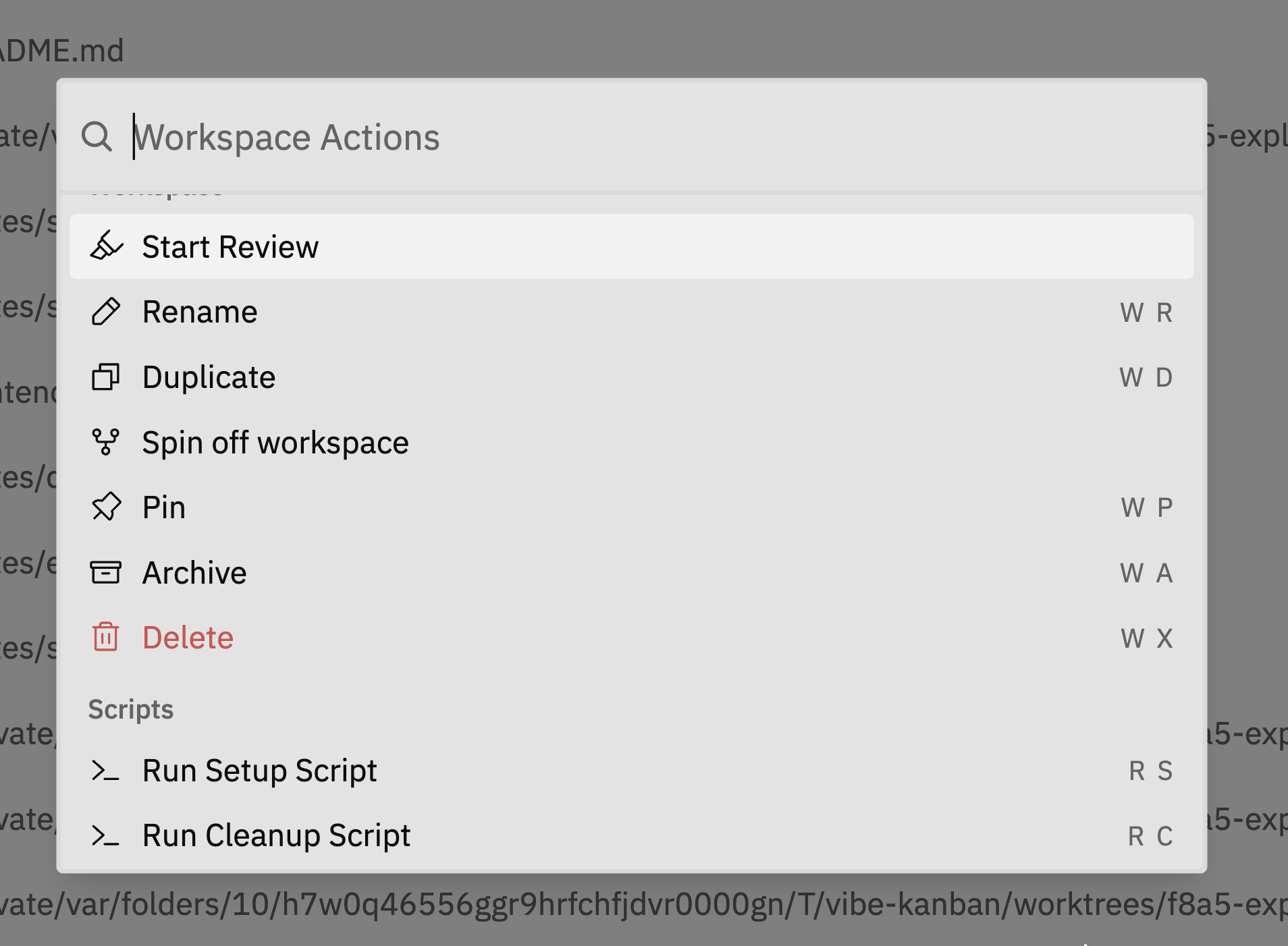
1. Press `Cmd/Ctrl + K`
2. Go to **Workspace Actions**
3. Select the action you want
Hover over a workspace in the sidebar and click the **...** (More actions) button to see available actions.
**From the command bar:**
1. Press `Cmd/Ctrl + K`
2. Go to **Workspace Actions**
3. Select the action you want
 ## Pinning Workspaces
Keep important workspaces at the top of your list by selecting **Pin Workspace** from the workspace actions.
Pinned workspaces appear at the top of the sidebar regardless of their last activity time.
## Archiving Workspaces
When you're done with a workspace but might want to return to it later, archive it to keep your workspace list clean.
Select **Archive** from the workspace actions, or click the **Archive** button () in the top left of the navbar.
Archived workspaces can be viewed by clicking **View Archive** at the bottom of the sidebar.
**Archiving preserves everything.** Your conversation history, sessions, notes, and worktree files all remain intact. You can unarchive at any time to continue working.
## Deleting Workspaces
To permanently delete a workspace, select **Delete Workspace** from the workspace actions.
Deleting a workspace is permanent and cannot be undone. Make sure you've pushed any changes you want to keep before deleting.
### What Gets Deleted
When you delete a workspace:
| What | Deleted? | Notes |
| ----------------------- | -------- | ------------------------------------------- |
| **Workspace data** | Yes | Conversation history, sessions, notes |
| **Git worktree** | Yes | The working directory and its files |
| **Git branch** | No | The branch remains in your repository |
| **Commits** | No | All commits are preserved in the repository |
| **Original repository** | No | Your source repository is never touched |
**Your code is safe.** Deleting a workspace removes the worktree copy, but all commits remain in your original repository. If you've pushed to remote or created a PR, your work is preserved.
### Archive vs Delete
| Action | Worktree | Conversation | Can Restore? |
| ----------- | ------------ | ------------ | ----------------------- |
| **Archive** | Kept on disk | Preserved | Yes - unarchive anytime |
| **Delete** | Removed | Deleted | No - permanent |
**Use Archive when:**
* You might return to this work later
* You want to keep the conversation history
* You're cleaning up your workspace list but not done with the task
**Use Delete when:**
* The task is complete and merged
* You want to free up disk space
* You don't need the conversation history
## Disk Space and Worktree Location
Each workspace creates a **git worktree** - a separate working directory with a full copy of your repository's tracked files. Multiple workspaces for large repositories can consume significant disk space.
### Where Worktrees Are Stored
Worktrees are stored in a platform-specific directory by default:
| Platform | Default Location |
| ----------- | -------------------------------------------------------- |
| **macOS** | `/var/folders/.../T/vibe-kanban/worktrees` (system temp) |
| **Linux** | `/var/tmp/vibe-kanban/worktrees` |
| **Windows** | `%TEMP%\vibe-kanban\worktrees` |
You can configure a custom location in **Settings → General → Workspace Directory**. When set, worktrees are stored in `{your-path}/.vibe-kanban-workspaces`.
### Checking Disk Usage
```bash theme={null}
du -sh $TMPDIR/vibe-kanban/worktrees
```
```bash theme={null}
du -sh /var/tmp/vibe-kanban/worktrees
```
```powershell theme={null}
Get-ChildItem "$env:TEMP\vibe-kanban\worktrees" -Recurse | Measure-Object -Property Length -Sum
```
### Freeing Up Space
To reduce disk usage:
1. **Delete completed workspaces** - Use Delete (not Archive) for tasks that are finished and merged
2. **Review archived workspaces** - Archived workspaces still consume disk space
3. **Configure cleanup scripts** - Add cleanup scripts to remove build artifacts (like `node_modules`) when workspaces close
Large directories like `node_modules`, `target/`, or `build/` are copied into each worktree. Consider adding cleanup scripts to remove these when you're done with a workspace.
## Manual Worktree Deletion
If you manually delete a worktree directory (e.g., using `rm -rf` in terminal), Vibe Kanban will **automatically recreate it** the next time you open that workspace. The worktree is recreated from the branch's last commit.
**Uncommitted changes will be lost.** If you had staged or unstaged changes that weren't committed, they cannot be recovered. Always commit your work before manually deleting worktree directories.
## Orphan Cleanup
Vibe Kanban automatically cleans up "orphaned" worktrees on startup - these are worktree directories that no longer have a matching workspace in the database (e.g., if the app crashed during deletion).
This cleanup runs automatically, so you don't need to manually manage stale worktree directories.
## Renaming Workspaces
To rename a workspace, select **Rename Workspace** from the workspace actions and enter the new name.
## Duplicating Workspaces
To create a copy of an existing workspace, select **Duplicate Workspace** from the workspace actions.
The duplicate includes the same repositories and branch configuration but starts with a fresh conversation.
## Related Documentation
* [Creating Workspaces](/workspaces/creating-workspaces) - Setting up new workspaces
* [Interface Guide](/workspaces/interface) - Understanding the workspace layout
* [Command Bar](/workspaces/command-bar) - Quick actions and keyboard shortcuts
## Pinning Workspaces
Keep important workspaces at the top of your list by selecting **Pin Workspace** from the workspace actions.
Pinned workspaces appear at the top of the sidebar regardless of their last activity time.
## Archiving Workspaces
When you're done with a workspace but might want to return to it later, archive it to keep your workspace list clean.
Select **Archive** from the workspace actions, or click the **Archive** button () in the top left of the navbar.
Archived workspaces can be viewed by clicking **View Archive** at the bottom of the sidebar.
**Archiving preserves everything.** Your conversation history, sessions, notes, and worktree files all remain intact. You can unarchive at any time to continue working.
## Deleting Workspaces
To permanently delete a workspace, select **Delete Workspace** from the workspace actions.
Deleting a workspace is permanent and cannot be undone. Make sure you've pushed any changes you want to keep before deleting.
### What Gets Deleted
When you delete a workspace:
| What | Deleted? | Notes |
| ----------------------- | -------- | ------------------------------------------- |
| **Workspace data** | Yes | Conversation history, sessions, notes |
| **Git worktree** | Yes | The working directory and its files |
| **Git branch** | No | The branch remains in your repository |
| **Commits** | No | All commits are preserved in the repository |
| **Original repository** | No | Your source repository is never touched |
**Your code is safe.** Deleting a workspace removes the worktree copy, but all commits remain in your original repository. If you've pushed to remote or created a PR, your work is preserved.
### Archive vs Delete
| Action | Worktree | Conversation | Can Restore? |
| ----------- | ------------ | ------------ | ----------------------- |
| **Archive** | Kept on disk | Preserved | Yes - unarchive anytime |
| **Delete** | Removed | Deleted | No - permanent |
**Use Archive when:**
* You might return to this work later
* You want to keep the conversation history
* You're cleaning up your workspace list but not done with the task
**Use Delete when:**
* The task is complete and merged
* You want to free up disk space
* You don't need the conversation history
## Disk Space and Worktree Location
Each workspace creates a **git worktree** - a separate working directory with a full copy of your repository's tracked files. Multiple workspaces for large repositories can consume significant disk space.
### Where Worktrees Are Stored
Worktrees are stored in a platform-specific directory by default:
| Platform | Default Location |
| ----------- | -------------------------------------------------------- |
| **macOS** | `/var/folders/.../T/vibe-kanban/worktrees` (system temp) |
| **Linux** | `/var/tmp/vibe-kanban/worktrees` |
| **Windows** | `%TEMP%\vibe-kanban\worktrees` |
You can configure a custom location in **Settings → General → Workspace Directory**. When set, worktrees are stored in `{your-path}/.vibe-kanban-workspaces`.
### Checking Disk Usage
```bash theme={null}
du -sh $TMPDIR/vibe-kanban/worktrees
```
```bash theme={null}
du -sh /var/tmp/vibe-kanban/worktrees
```
```powershell theme={null}
Get-ChildItem "$env:TEMP\vibe-kanban\worktrees" -Recurse | Measure-Object -Property Length -Sum
```
### Freeing Up Space
To reduce disk usage:
1. **Delete completed workspaces** - Use Delete (not Archive) for tasks that are finished and merged
2. **Review archived workspaces** - Archived workspaces still consume disk space
3. **Configure cleanup scripts** - Add cleanup scripts to remove build artifacts (like `node_modules`) when workspaces close
Large directories like `node_modules`, `target/`, or `build/` are copied into each worktree. Consider adding cleanup scripts to remove these when you're done with a workspace.
## Manual Worktree Deletion
If you manually delete a worktree directory (e.g., using `rm -rf` in terminal), Vibe Kanban will **automatically recreate it** the next time you open that workspace. The worktree is recreated from the branch's last commit.
**Uncommitted changes will be lost.** If you had staged or unstaged changes that weren't committed, they cannot be recovered. Always commit your work before manually deleting worktree directories.
## Orphan Cleanup
Vibe Kanban automatically cleans up "orphaned" worktrees on startup - these are worktree directories that no longer have a matching workspace in the database (e.g., if the app crashed during deletion).
This cleanup runs automatically, so you don't need to manually manage stale worktree directories.
## Renaming Workspaces
To rename a workspace, select **Rename Workspace** from the workspace actions and enter the new name.
## Duplicating Workspaces
To create a copy of an existing workspace, select **Duplicate Workspace** from the workspace actions.
The duplicate includes the same repositories and branch configuration but starts with a fresh conversation.
## Related Documentation
* [Creating Workspaces](/workspaces/creating-workspaces) - Setting up new workspaces
* [Interface Guide](/workspaces/interface) - Understanding the workspace layout
* [Command Bar](/workspaces/command-bar) - Quick actions and keyboard shortcuts