> ## Documentation Index
> Fetch the complete documentation index at: https://vibekanban.com/docs/llms.txt
> Use this file to discover all available pages before exploring further.
# Repositories
> Add and manage repositories within your workspaces
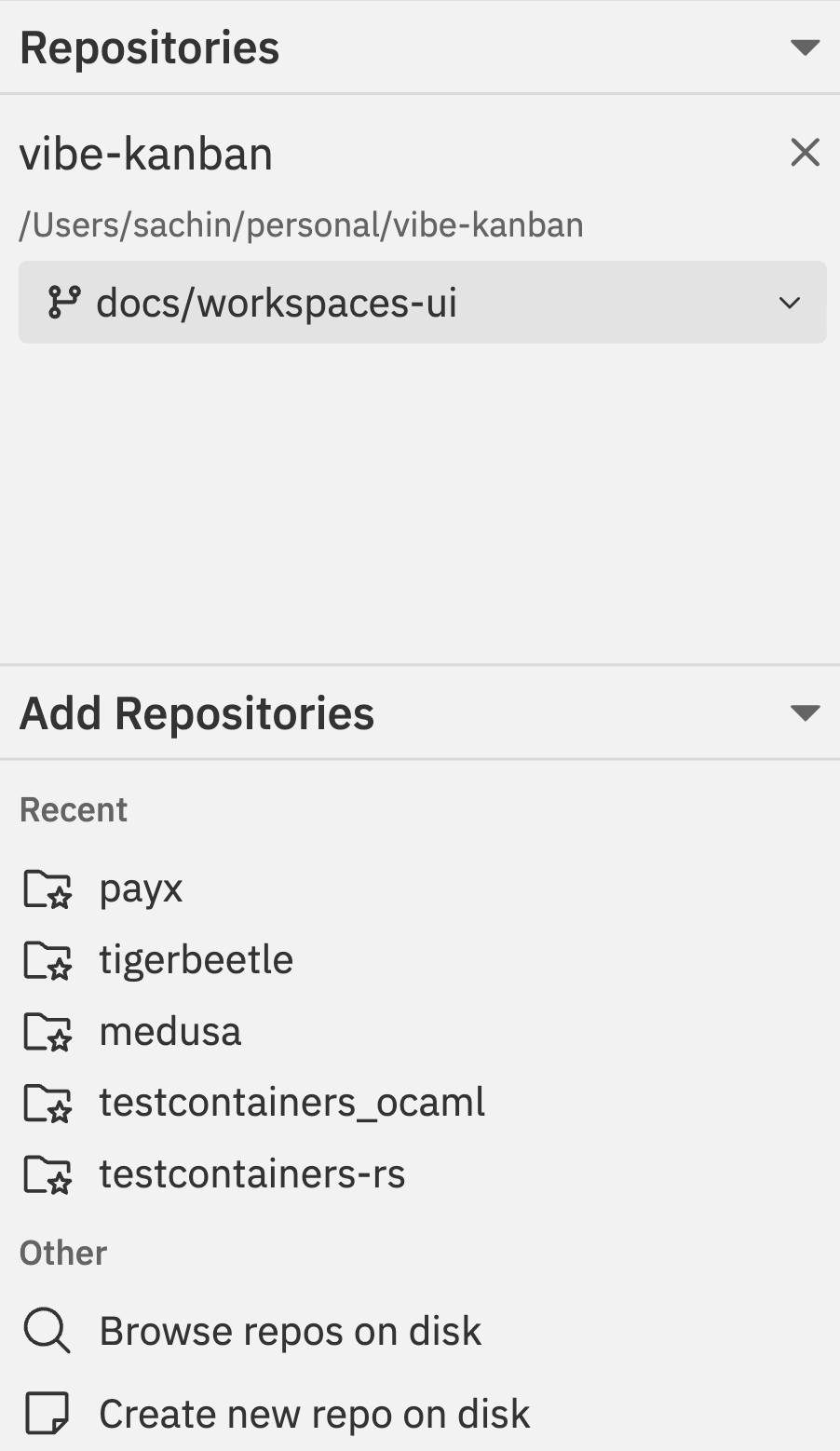 Repositories are the codebases you work with inside a workspace. Each workspace can include one or more repositories, and each repository maintains its own independent git state.
## How Repositories Work in Workspaces
When you add a repository to a workspace, Vibe Kanban creates a **git worktree** - a separate working directory linked to your repository.
A **git worktree** is a git feature that lets you have multiple working directories for the same repository, each on a different branch.
**Why this matters for you:**
* Your original repository folder stays exactly as it was
* The workspace gets its own folder with its own branch
* You can have multiple workspaces working on different features simultaneously
* Switching between workspaces doesn't require stashing or committing
**Where worktrees are stored:** In the `.vibe-kanban-workspaces` directory (configurable in Settings).
Each repository in a workspace has its own:
* **Working branch** - The branch where changes are made
* **Target branch** - The branch you'll merge into
* **Commit history** - Commits made in this workspace
* **Staged/unstaged changes** - Independent of other workspaces
This means you can have multiple workspaces modifying the same repository on different branches without conflicts.
## Adding Repositories
When creating or editing a workspace, you can add repositories from several sources:
### Recent Repositories
Repositories are the codebases you work with inside a workspace. Each workspace can include one or more repositories, and each repository maintains its own independent git state.
## How Repositories Work in Workspaces
When you add a repository to a workspace, Vibe Kanban creates a **git worktree** - a separate working directory linked to your repository.
A **git worktree** is a git feature that lets you have multiple working directories for the same repository, each on a different branch.
**Why this matters for you:**
* Your original repository folder stays exactly as it was
* The workspace gets its own folder with its own branch
* You can have multiple workspaces working on different features simultaneously
* Switching between workspaces doesn't require stashing or committing
**Where worktrees are stored:** In the `.vibe-kanban-workspaces` directory (configurable in Settings).
Each repository in a workspace has its own:
* **Working branch** - The branch where changes are made
* **Target branch** - The branch you'll merge into
* **Commit history** - Commits made in this workspace
* **Staged/unstaged changes** - Independent of other workspaces
This means you can have multiple workspaces modifying the same repository on different branches without conflicts.
## Adding Repositories
When creating or editing a workspace, you can add repositories from several sources:
### Recent Repositories
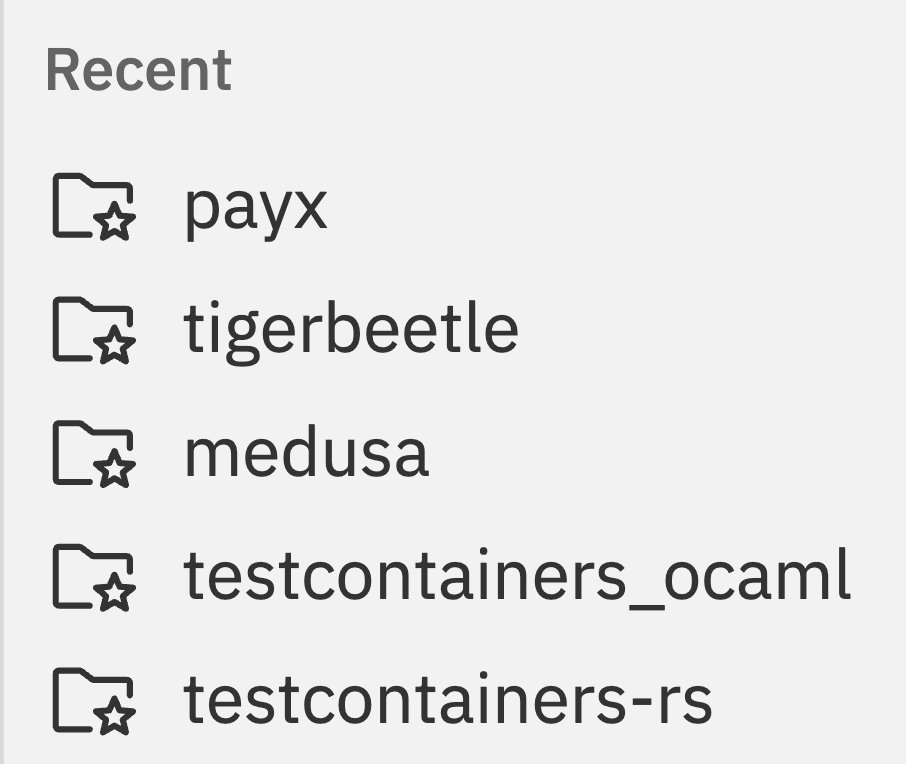 Your recently used repositories appear at the top of the list. Click any repository to add it to the workspace.
### Browse Repos on Disk
Your recently used repositories appear at the top of the list. Click any repository to add it to the workspace.
### Browse Repos on Disk
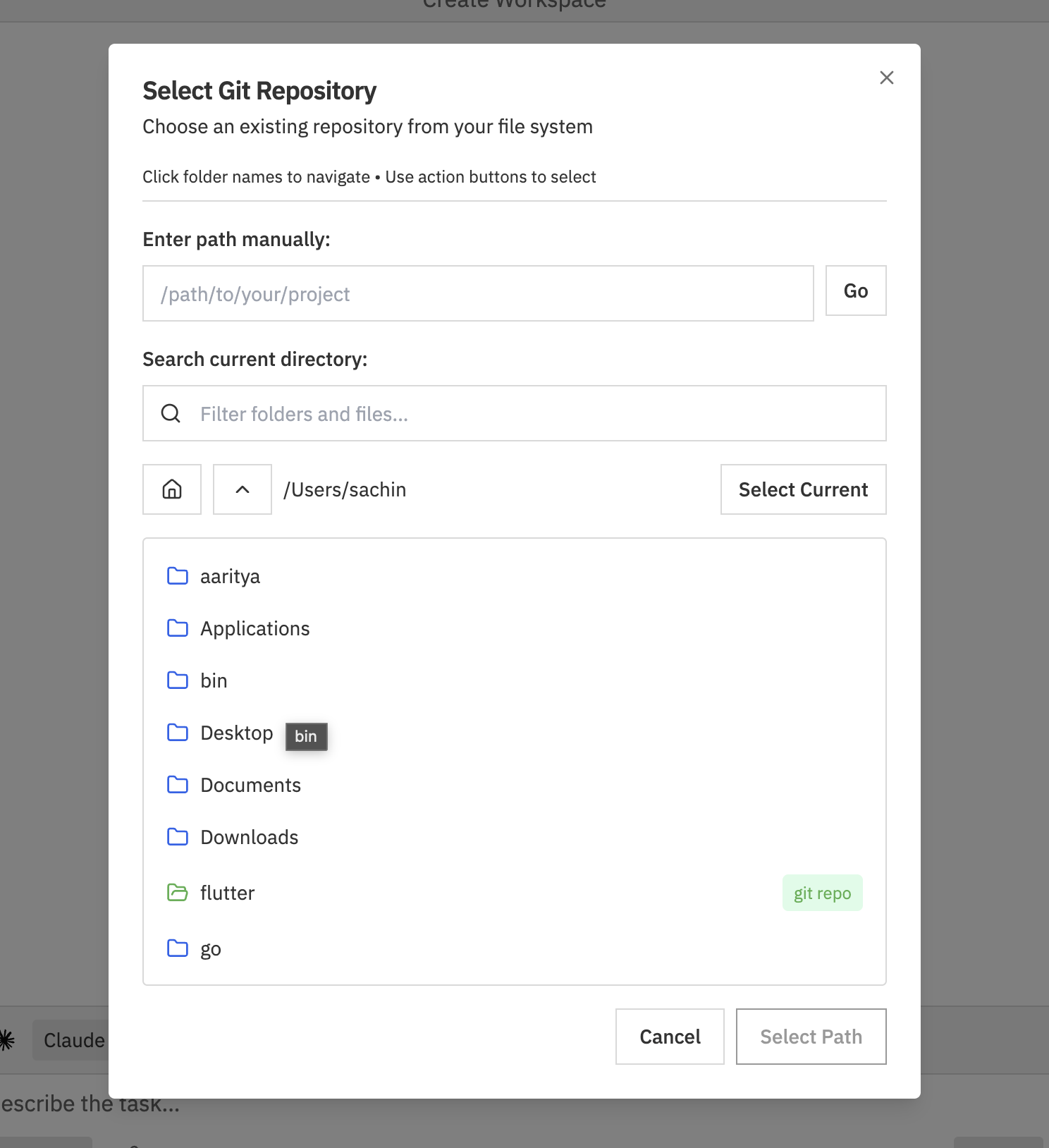 Click **Browse repos on disk** to find repositories that aren't in your recent list. You can:
* **Enter path manually** - Type the full path and click **Go**
* **Search current directory** - Filter folders by name
* **Navigate folders** - Click folder names to browse, use home and up buttons
* **Select Current** - Use the current directory as the repository
Folders containing git repositories are marked with a **git repo** badge.
### Create New Repo on Disk
Click **Browse repos on disk** to find repositories that aren't in your recent list. You can:
* **Enter path manually** - Type the full path and click **Go**
* **Search current directory** - Filter folders by name
* **Navigate folders** - Click folder names to browse, use home and up buttons
* **Select Current** - Use the current directory as the repository
Folders containing git repositories are marked with a **git repo** badge.
### Create New Repo on Disk
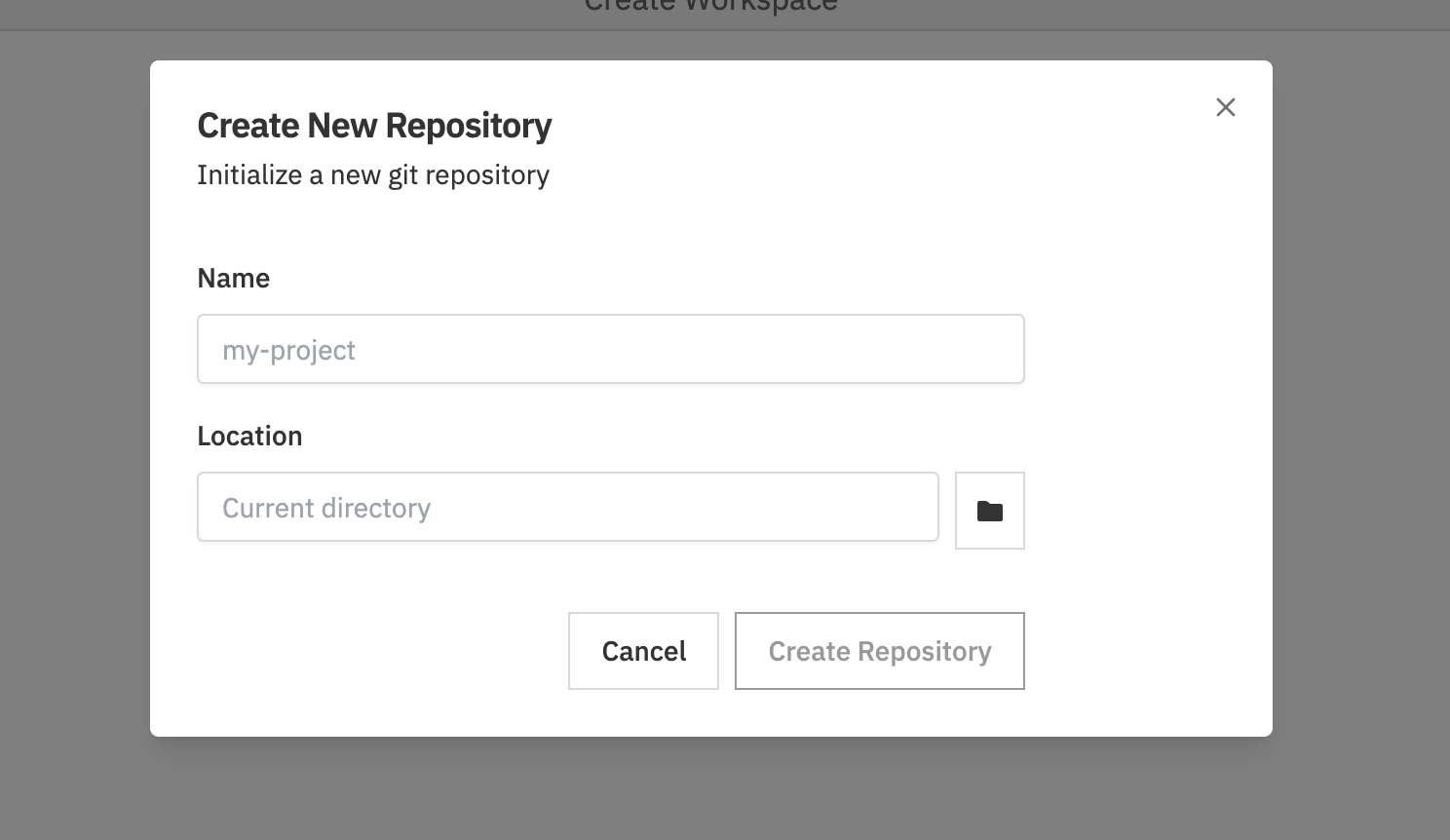 Click **Create new repo on disk** to initialise a new git repository:
1. Enter a **Name** for the repository
2. Choose a **Location** on disk (click the folder icon to browse)
3. Click **Create Repository**
This creates a new folder with an initialised git repository, ready for use in your workspace.
## Target Branches
Click **Create new repo on disk** to initialise a new git repository:
1. Enter a **Name** for the repository
2. Choose a **Location** on disk (click the folder icon to browse)
3. Click **Create Repository**
This creates a new folder with an initialised git repository, ready for use in your workspace.
## Target Branches
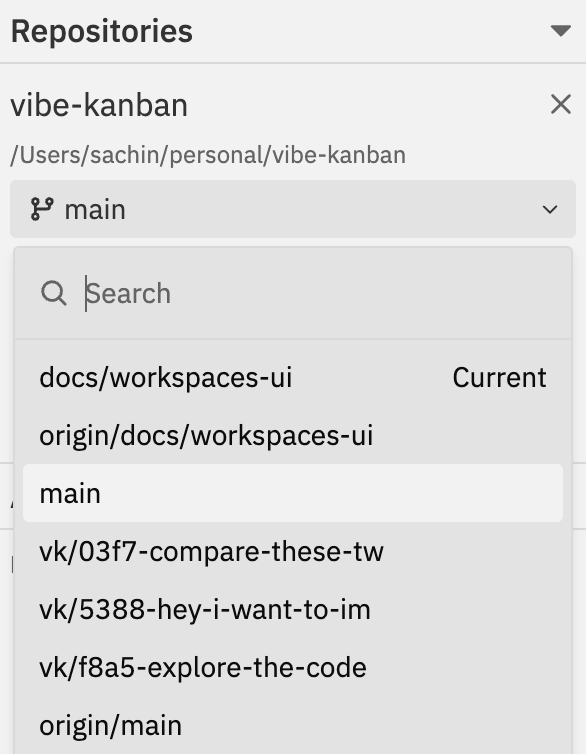 Each repository in a workspace has a **target branch** - the branch your changes will eventually be merged into (typically `main`, `master`, or `develop`).
### Setting the Target Branch
1. Click the branch dropdown next to the repository name
2. Search or scroll to find the branch you want to target
3. Select the branch - the workspace creates a working branch based on this target
The dropdown shows:
* **Current** badge - indicates your current branch
* **Local branches** - branches on your machine
* **Remote branches** - branches from origin (e.g., `origin/main`)
Changes you make won't affect the target branch until you create a pull request and merge.
### Changing the Target Branch
To change the target branch after workspace creation:
**From the Git panel:**
1. Click the target branch dropdown (e.g., **main**) in the Git section of the right sidebar
2. Select a new target branch
**From the command bar:**
1. Press `Cmd/Ctrl + K`
2. Select **Change Target Branch**
3. Choose the new target branch
Changing the target branch may require rebasing your changes. See [Git Operations](/workspaces/git-operations) if conflicts occur.
## Working Branch
When you create a workspace, a **working branch** is automatically created for each repository. This is where your changes are made.
The working branch name is based on your task and branch prefix settings (configured in [General Settings](/settings/general)).
### Viewing the Working Branch
The current working branch is displayed in the **Git** section of the details sidebar, under "Working Branch".
## Multi-Repository Workspaces
Each repository in a workspace has a **target branch** - the branch your changes will eventually be merged into (typically `main`, `master`, or `develop`).
### Setting the Target Branch
1. Click the branch dropdown next to the repository name
2. Search or scroll to find the branch you want to target
3. Select the branch - the workspace creates a working branch based on this target
The dropdown shows:
* **Current** badge - indicates your current branch
* **Local branches** - branches on your machine
* **Remote branches** - branches from origin (e.g., `origin/main`)
Changes you make won't affect the target branch until you create a pull request and merge.
### Changing the Target Branch
To change the target branch after workspace creation:
**From the Git panel:**
1. Click the target branch dropdown (e.g., **main**) in the Git section of the right sidebar
2. Select a new target branch
**From the command bar:**
1. Press `Cmd/Ctrl + K`
2. Select **Change Target Branch**
3. Choose the new target branch
Changing the target branch may require rebasing your changes. See [Git Operations](/workspaces/git-operations) if conflicts occur.
## Working Branch
When you create a workspace, a **working branch** is automatically created for each repository. This is where your changes are made.
The working branch name is based on your task and branch prefix settings (configured in [General Settings](/settings/general)).
### Viewing the Working Branch
The current working branch is displayed in the **Git** section of the details sidebar, under "Working Branch".
## Multi-Repository Workspaces
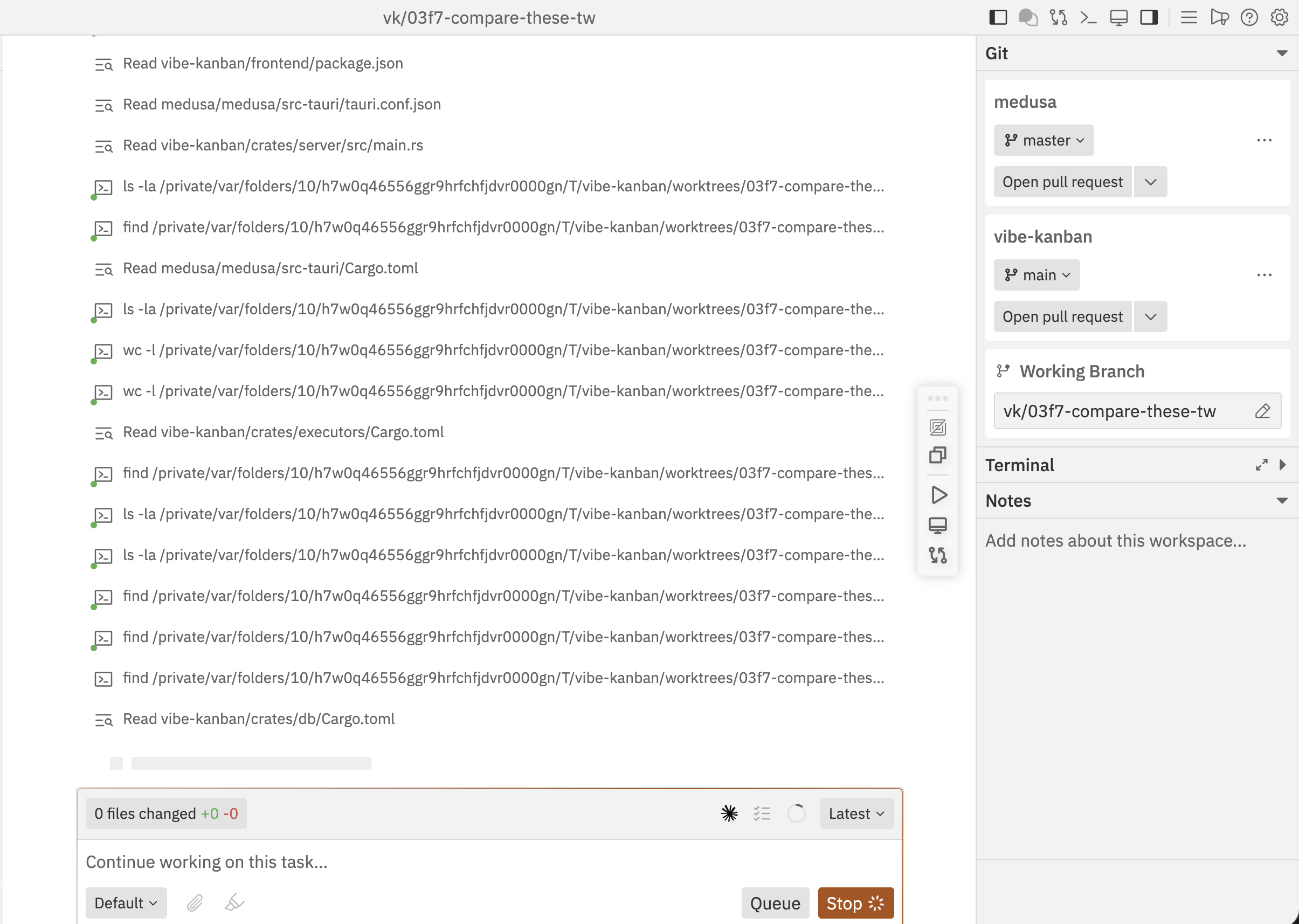 Workspaces can include multiple repositories for tasks that span several codebases.
### When to Use Multiple Repositories
* **Monorepo alternatives** - Work across frontend and backend repos simultaneously
* **Shared libraries** - Update a library and its consumers together
* **Microservices** - Coordinate changes across multiple services
### Independent Git State
Each repository in a multi-repo workspace maintains independent git state:
* Separate working branches
* Separate target branches
* Individual commit histories
* Independent pull requests
### Cross-Repository Context
When working with multiple repositories, the agent can:
* Read code from all repositories
* Make changes across repositories in a single session
* Reference patterns from one repo while implementing in another
Use clear task descriptions that specify which repositories should be modified to help the agent understand your intent.
## Repository Actions
Access repository-specific actions through the command bar:
| Action | Description |
| ----------------------- | ------------------------------------------------ |
| **Copy Repo Path** | Copy the repository's local path to clipboard |
| **Open Repo in IDE** | Open the repository in your configured editor |
| **Repository Settings** | Configure repository-specific settings |
| **Create PR** | Create a pull request for this repository |
| **Merge** | Merge the target branch into your working branch |
| **Rebase** | Rebase your working branch onto the target |
| **Push** | Push commits to the remote repository |
For multi-repo workspaces, repository actions show which repo they apply to. Select the specific repository when prompted.
## Removing Repositories
Workspaces can include multiple repositories for tasks that span several codebases.
### When to Use Multiple Repositories
* **Monorepo alternatives** - Work across frontend and backend repos simultaneously
* **Shared libraries** - Update a library and its consumers together
* **Microservices** - Coordinate changes across multiple services
### Independent Git State
Each repository in a multi-repo workspace maintains independent git state:
* Separate working branches
* Separate target branches
* Individual commit histories
* Independent pull requests
### Cross-Repository Context
When working with multiple repositories, the agent can:
* Read code from all repositories
* Make changes across repositories in a single session
* Reference patterns from one repo while implementing in another
Use clear task descriptions that specify which repositories should be modified to help the agent understand your intent.
## Repository Actions
Access repository-specific actions through the command bar:
| Action | Description |
| ----------------------- | ------------------------------------------------ |
| **Copy Repo Path** | Copy the repository's local path to clipboard |
| **Open Repo in IDE** | Open the repository in your configured editor |
| **Repository Settings** | Configure repository-specific settings |
| **Create PR** | Create a pull request for this repository |
| **Merge** | Merge the target branch into your working branch |
| **Rebase** | Rebase your working branch onto the target |
| **Push** | Push commits to the remote repository |
For multi-repo workspaces, repository actions show which repo they apply to. Select the specific repository when prompted.
## Removing Repositories
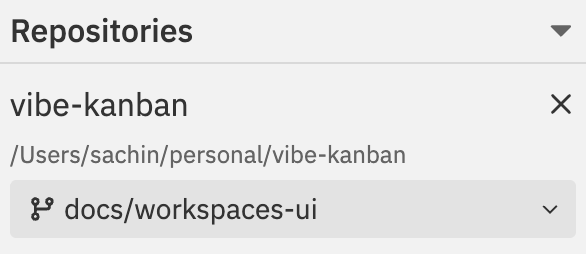 To remove a repository from a workspace, click the **X** button next to the repository name.
Removing a repository doesn't delete any code or branches. It only removes the repository from the current workspace.
## Related Documentation
* [Creating Workspaces](/workspaces/creating-workspaces) - Setting up new workspaces with repositories
* [Git Operations](/workspaces/git-operations) - Detailed guide to git commands
* [Multi-Repo & Sessions](/workspaces/multi-repo-sessions) - Working across multiple repositories
To remove a repository from a workspace, click the **X** button next to the repository name.
Removing a repository doesn't delete any code or branches. It only removes the repository from the current workspace.
## Related Documentation
* [Creating Workspaces](/workspaces/creating-workspaces) - Setting up new workspaces with repositories
* [Git Operations](/workspaces/git-operations) - Detailed guide to git commands
* [Multi-Repo & Sessions](/workspaces/multi-repo-sessions) - Working across multiple repositories