> ## Documentation Index
> Fetch the complete documentation index at: https://vibekanban.com/docs/llms.txt
> Use this file to discover all available pages before exploring further.
# Sessions
> Create and manage multiple conversation sessions within a workspace
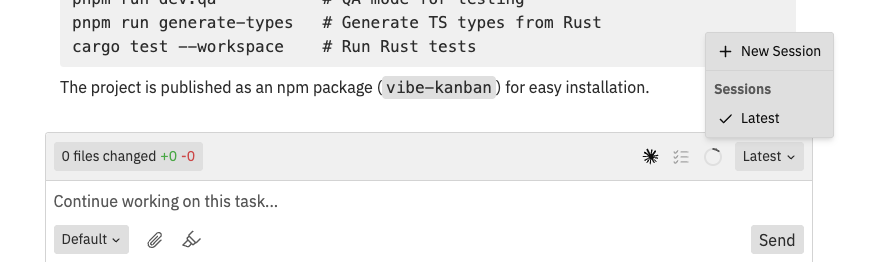 Sessions are conversation threads with coding agents within a workspace. Each session maintains its own conversation history, allowing you to work on different aspects of a task or try alternative approaches.
## What is a Session?
A **session** is a single conversation with a coding agent. Think of it like a chat thread:
* **Each session has its own conversation history** - messages, code changes, and context
* **Sessions share the same files** - changes from one session are visible to all sessions
* **Sessions are independent processes** - one can be running while another is idle
**Key point:** Sessions share files but not conversation context. If Session 1 makes changes, Session 2 can see those file changes but doesn't know what instructions Session 1 received.
## Understanding Token Limits
AI models have a **context window** - a limit on how much text they can "remember" in a conversation. When you hit this limit:
* The agent may forget earlier parts of the conversation
* Responses may become less accurate
* You'll see the context gauge turn orange or red
**Solution:** Start a new session. The new session gets a fresh context window while still having access to all your files.
Watch the **context gauge** in the chat interface. When it shows high usage (orange/red), consider starting a new session.
## When to Create a New Session
Context gauge shows high usage - start fresh to give the agent full context capacity.
Have agents work on independent parts simultaneously (backend API + frontend UI).
Try an alternative solution without losing your original conversation.
Use Claude Code for one task, Gemini CLI for another.
## When NOT to Create a New Session
* **Continuing related work** - Keep using the same session if the agent needs context from earlier messages
* **Providing feedback** - Use the same session to tell the agent what to fix
* **Small follow-ups** - "Also add a loading spinner" belongs in the current session
New sessions don't inherit conversation history. The new agent won't know what happened in previous sessions unless you explain it again or it reads the file changes.
All sessions within a workspace share the same repositories and git state. Changes made by one session are visible to others.
## Creating a New Session
Click the session dropdown (showing "Latest" or the session name) in the chat toolbar.
Select **+ New Session** from the dropdown menu.
Sessions are conversation threads with coding agents within a workspace. Each session maintains its own conversation history, allowing you to work on different aspects of a task or try alternative approaches.
## What is a Session?
A **session** is a single conversation with a coding agent. Think of it like a chat thread:
* **Each session has its own conversation history** - messages, code changes, and context
* **Sessions share the same files** - changes from one session are visible to all sessions
* **Sessions are independent processes** - one can be running while another is idle
**Key point:** Sessions share files but not conversation context. If Session 1 makes changes, Session 2 can see those file changes but doesn't know what instructions Session 1 received.
## Understanding Token Limits
AI models have a **context window** - a limit on how much text they can "remember" in a conversation. When you hit this limit:
* The agent may forget earlier parts of the conversation
* Responses may become less accurate
* You'll see the context gauge turn orange or red
**Solution:** Start a new session. The new session gets a fresh context window while still having access to all your files.
Watch the **context gauge** in the chat interface. When it shows high usage (orange/red), consider starting a new session.
## When to Create a New Session
Context gauge shows high usage - start fresh to give the agent full context capacity.
Have agents work on independent parts simultaneously (backend API + frontend UI).
Try an alternative solution without losing your original conversation.
Use Claude Code for one task, Gemini CLI for another.
## When NOT to Create a New Session
* **Continuing related work** - Keep using the same session if the agent needs context from earlier messages
* **Providing feedback** - Use the same session to tell the agent what to fix
* **Small follow-ups** - "Also add a loading spinner" belongs in the current session
New sessions don't inherit conversation history. The new agent won't know what happened in previous sessions unless you explain it again or it reads the file changes.
All sessions within a workspace share the same repositories and git state. Changes made by one session are visible to others.
## Creating a New Session
Click the session dropdown (showing "Latest" or the session name) in the chat toolbar.
Select **+ New Session** from the dropdown menu.
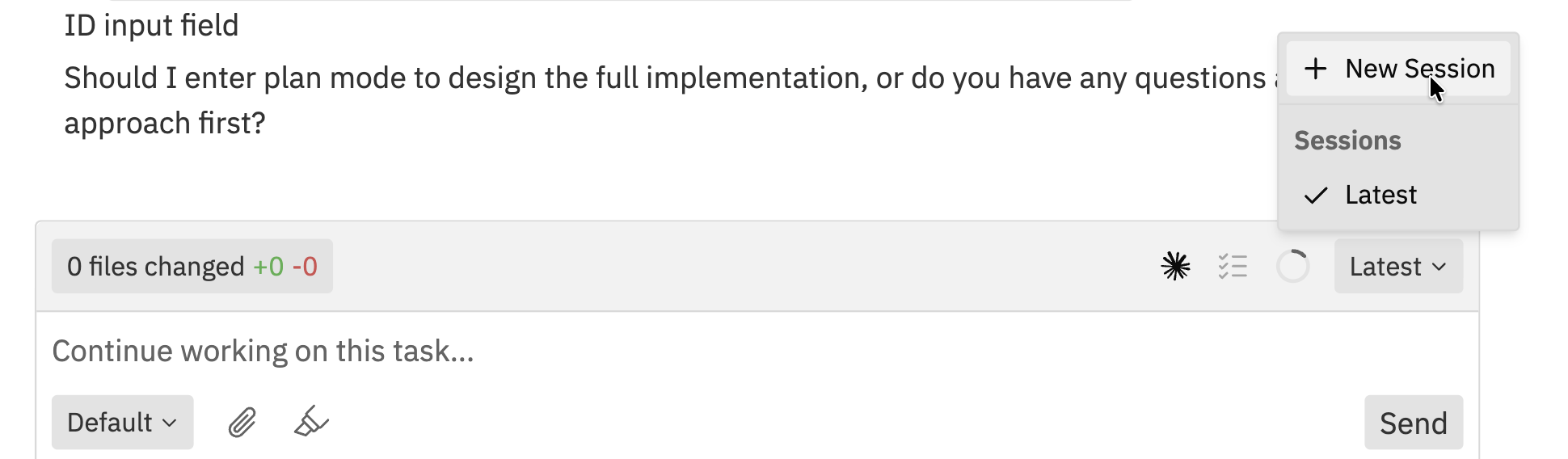 The new session opens with a fresh conversation. Describe what you want the agent to work on.
Give context about what's already been done in other sessions if relevant. The agent doesn't have access to conversations from other sessions.
## Switching Between Sessions
To switch to a different session:
1. Click the session dropdown in the chat toolbar
2. Select the session you want to switch to
The dropdown shows:
* **Session name** - Based on the initial task or auto-generated
* **Latest** indicator - Shows which session was most recently active
Switching sessions doesn't interrupt any running agent processes. Each session's agent continues working independently.
## Session States
Sessions can be in different states:
| State | Description |
| ------------------- | ----------------------------------------------- |
| **Running** | Agent is actively processing and making changes |
| **Idle** | Waiting for your input |
| **Needs Attention** | Agent is waiting for approval or has a question |
The workspace sidebar shows the overall workspace state based on its sessions.
## Managing Sessions
### Renaming Sessions
Sessions are automatically named based on the initial task description. Currently, session names cannot be manually changed.
### Viewing Session History
Each session maintains its complete conversation history. Scroll up in the conversation panel to view earlier messages and agent actions.
### Stopping an Agent
If an agent is running in the current session:
1. Click the **Stop** button in the navbar, or
2. Use the keyboard shortcut to stop execution
Stopping an agent may leave changes in an incomplete state. Review the changes panel to see what was modified.
## Multiple Agents in Sessions
Different sessions can use different agents:
1. Create a new session
2. Select a different agent from the **Agent** dropdown before sending your message
3. Each session remembers which agent it's using
Use specialised agents for different tasks - for example, one agent for backend work and another for frontend changes.
## Session Best Practices
### When to Create New Sessions
* **Task complexity** - Break complex tasks into smaller sessions
* **Token limits** - Start fresh when conversations get long
* **Different approaches** - Try alternative solutions without losing progress
* **Parallel work** - Have agents work on independent parts simultaneously
### Keeping Sessions Organised
* **One focus per session** - Keep each session focused on a specific goal
* **Use workspace notes** - Document which session is for what purpose
* **Review before switching** - Check the changes panel before switching sessions
## Resolving Conflicts Between Sessions
When multiple sessions make changes to the same files:
1. The changes panel shows all modifications across sessions
2. Review changes carefully before committing
3. Use the inline comment feature to mark areas needing attention
Git handles most conflicts automatically. For complex conflicts, see [Git Operations](/workspaces/git-operations).
## Related Documentation
* [Creating Workspaces](/workspaces/creating-workspaces) - Setting up new workspaces
* [Interface Guide](/workspaces/interface) - Understanding the workspace layout
* [Multi-Repo & Sessions](/workspaces/multi-repo-sessions) - Working with multiple repositories
* [Command Bar](/workspaces/command-bar) - Quick actions and keyboard shortcuts
The new session opens with a fresh conversation. Describe what you want the agent to work on.
Give context about what's already been done in other sessions if relevant. The agent doesn't have access to conversations from other sessions.
## Switching Between Sessions
To switch to a different session:
1. Click the session dropdown in the chat toolbar
2. Select the session you want to switch to
The dropdown shows:
* **Session name** - Based on the initial task or auto-generated
* **Latest** indicator - Shows which session was most recently active
Switching sessions doesn't interrupt any running agent processes. Each session's agent continues working independently.
## Session States
Sessions can be in different states:
| State | Description |
| ------------------- | ----------------------------------------------- |
| **Running** | Agent is actively processing and making changes |
| **Idle** | Waiting for your input |
| **Needs Attention** | Agent is waiting for approval or has a question |
The workspace sidebar shows the overall workspace state based on its sessions.
## Managing Sessions
### Renaming Sessions
Sessions are automatically named based on the initial task description. Currently, session names cannot be manually changed.
### Viewing Session History
Each session maintains its complete conversation history. Scroll up in the conversation panel to view earlier messages and agent actions.
### Stopping an Agent
If an agent is running in the current session:
1. Click the **Stop** button in the navbar, or
2. Use the keyboard shortcut to stop execution
Stopping an agent may leave changes in an incomplete state. Review the changes panel to see what was modified.
## Multiple Agents in Sessions
Different sessions can use different agents:
1. Create a new session
2. Select a different agent from the **Agent** dropdown before sending your message
3. Each session remembers which agent it's using
Use specialised agents for different tasks - for example, one agent for backend work and another for frontend changes.
## Session Best Practices
### When to Create New Sessions
* **Task complexity** - Break complex tasks into smaller sessions
* **Token limits** - Start fresh when conversations get long
* **Different approaches** - Try alternative solutions without losing progress
* **Parallel work** - Have agents work on independent parts simultaneously
### Keeping Sessions Organised
* **One focus per session** - Keep each session focused on a specific goal
* **Use workspace notes** - Document which session is for what purpose
* **Review before switching** - Check the changes panel before switching sessions
## Resolving Conflicts Between Sessions
When multiple sessions make changes to the same files:
1. The changes panel shows all modifications across sessions
2. Review changes carefully before committing
3. Use the inline comment feature to mark areas needing attention
Git handles most conflicts automatically. For complex conflicts, see [Git Operations](/workspaces/git-operations).
## Related Documentation
* [Creating Workspaces](/workspaces/creating-workspaces) - Setting up new workspaces
* [Interface Guide](/workspaces/interface) - Understanding the workspace layout
* [Multi-Repo & Sessions](/workspaces/multi-repo-sessions) - Working with multiple repositories
* [Command Bar](/workspaces/command-bar) - Quick actions and keyboard shortcuts