


Accessing Remote Projects Settings
To open Remote Projects settings:- Open Settings (click the gear icon or press the settings shortcut)
- Select Remote Projects from the sidebar
You must be signed in to access Remote Projects. If you’re not signed in, you’ll see a prompt to sign in first.
Understanding the Layout
The Remote Projects page has a two-column layout:
When you select a project, an edit form appears below where you can modify the project details.
Viewing Projects
1
Select an organisation
Click on an organisation in the left column to view its projects.
2
Browse projects
Projects appear in the right column with their colour indicator. Click any project to select it.
Creating a Project
To create a new project in an organisation:1
Select the organisation
Click on the organisation where you want to create the project.
2
Click the + button
Click the + button in the Projects column header.
3
Enter project details
In the dialog that appears: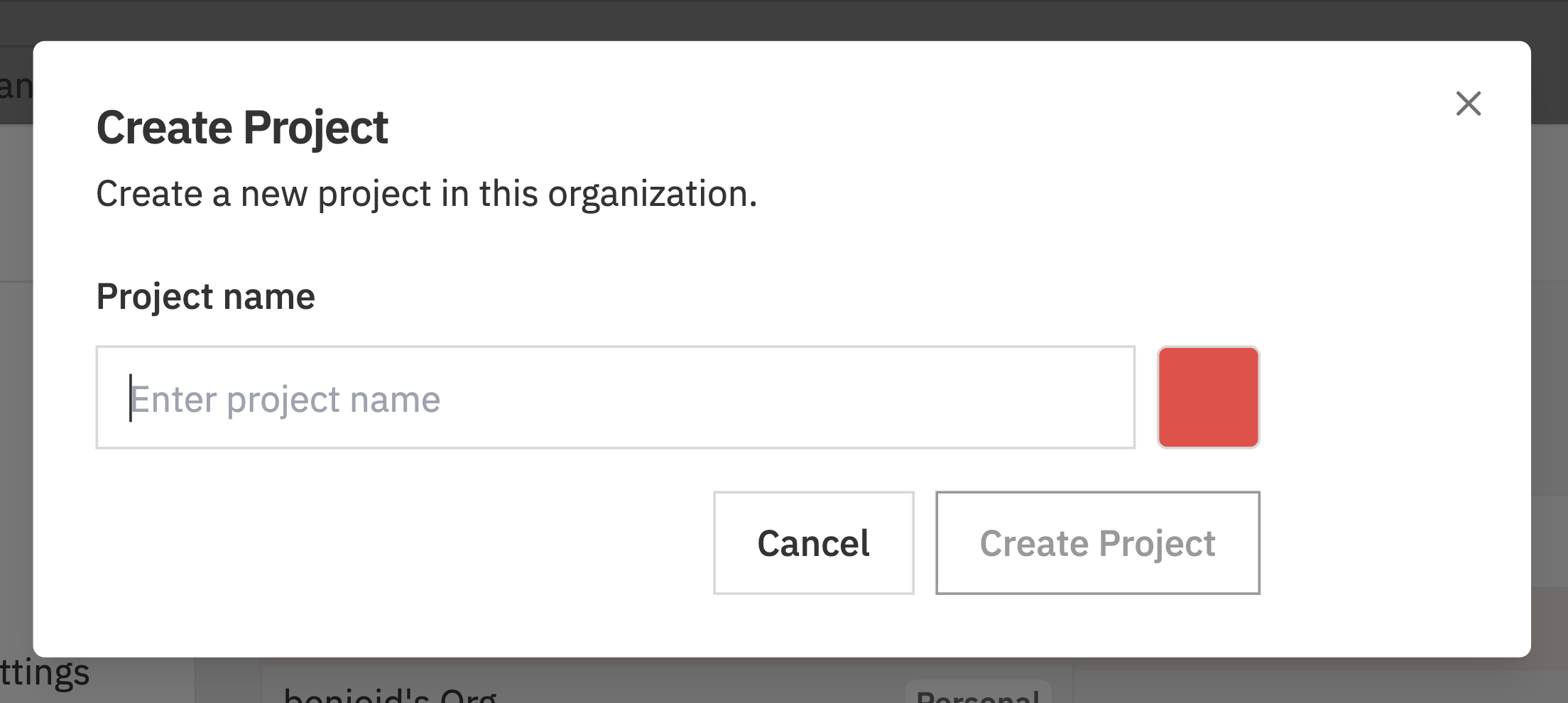
- Project Name - Enter a name for your project
- Project Colour - Click the colour swatch to choose a colour
4
Create the project
Click Create Project to create the project. It will appear in the projects list.
Editing a Project
To edit an existing project:1
Select the project
Click on the project you want to edit. An edit form appears below the two-column picker.
2
Make changes
Update the project details: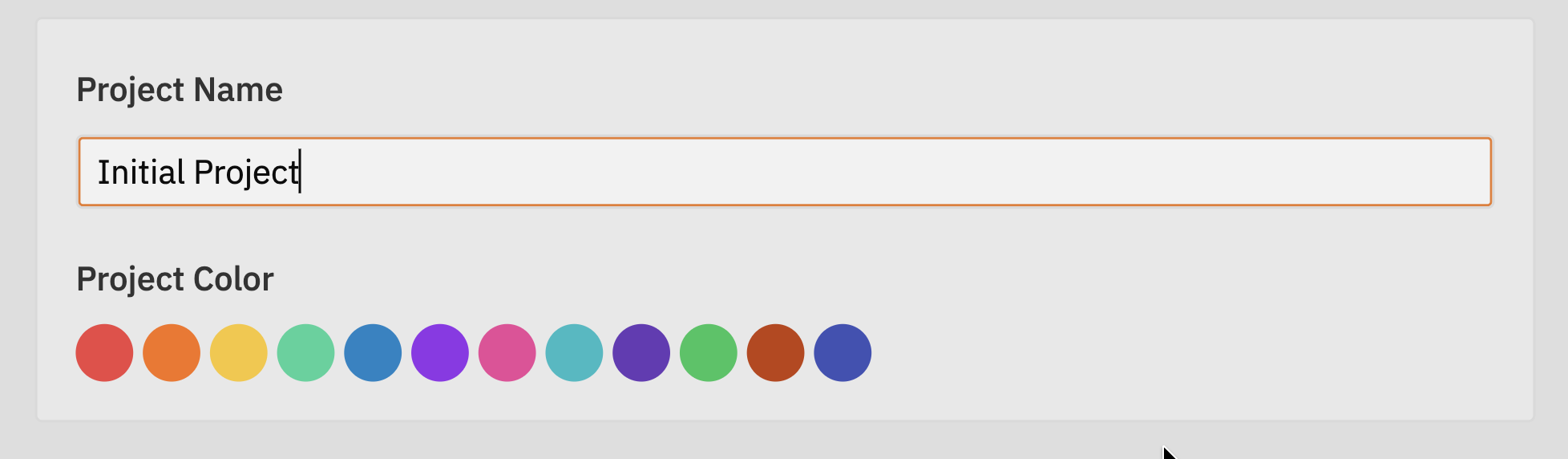
- Project Name - Change the display name
- Project Colour - Select a different colour from the palette
3
Save changes
A save bar appears at the bottom when you have unsaved changes. Click Save to apply your changes, or Discard to revert.
Changes sync automatically to all team members in the organisation.
Deleting a Project
To delete a project:1
Find the project
Select the organisation and locate the project you want to delete.
2
Open the menu
Hover over the project and click the ⋯ (three dots) menu that appears.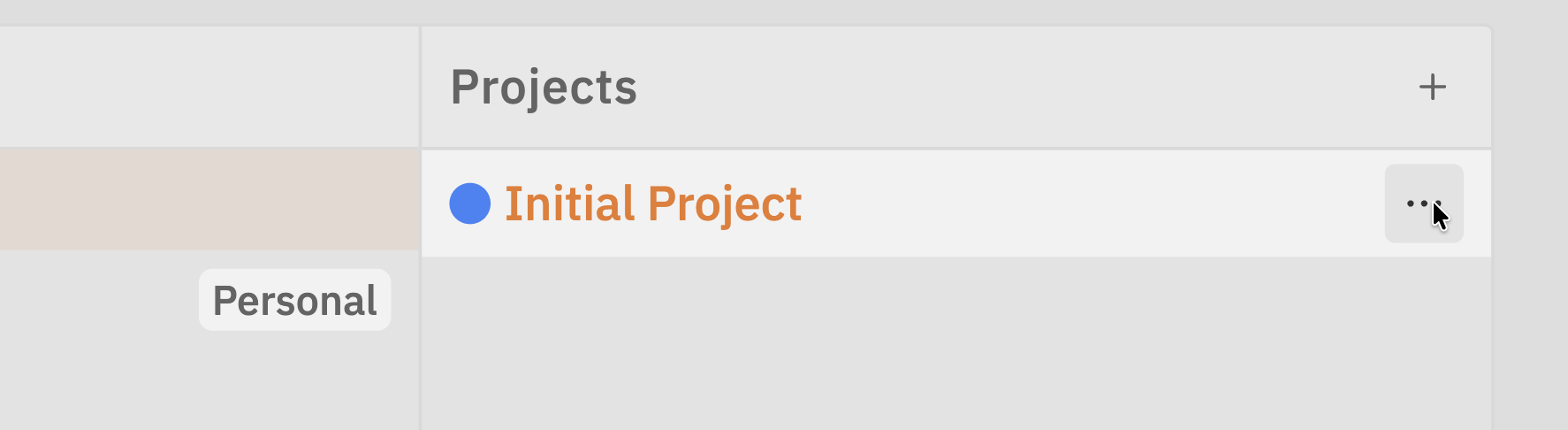
3
Click Delete
Select Delete from the menu.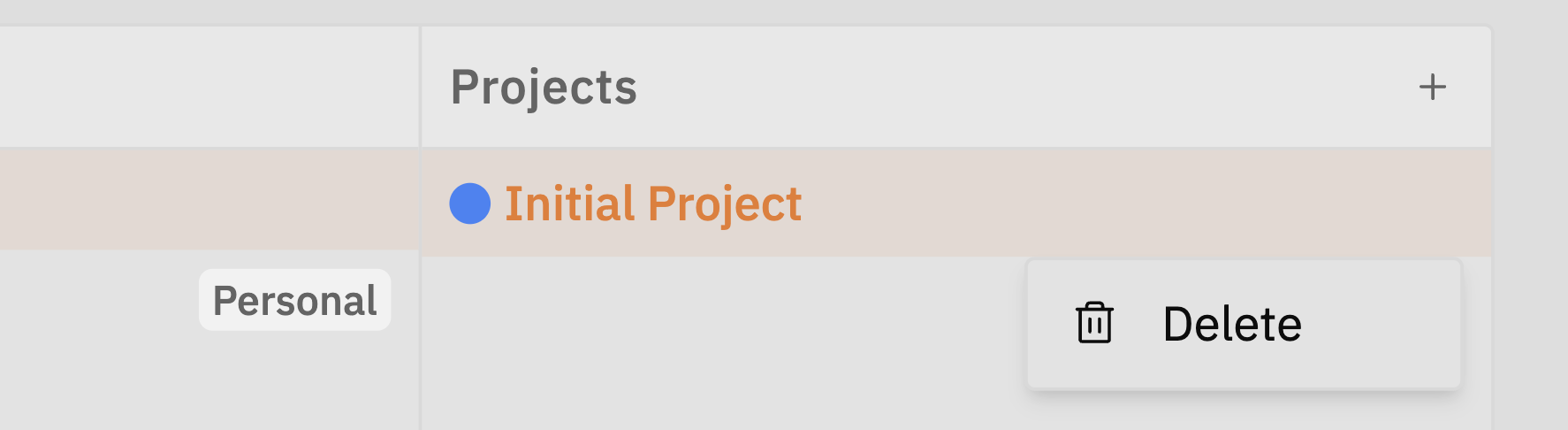
4
Confirm deletion
Confirm the deletion when prompted. The project and all its data will be permanently removed.
Switching Between Organisations
If you belong to multiple organisations, you can quickly switch between them:- Click on a different organisation in the left column
- The projects list updates to show that organisation’s projects
- If you have unsaved changes, you’ll be prompted to discard them first
Troubleshooting
I don't see any organisations
I don't see any organisations
Make sure you’re signed in. If you just signed up, a personal organisation should have been created automatically.If you still don’t see any organisations:
- Sign out and sign back in
- Check your internet connection
- Try refreshing the page
I can't create a project
I can't create a project
Check the following:
- You must have an organisation selected
- You need to be signed in
- Check your internet connection
My changes aren't saving
My changes aren't saving
The save bar appears when you have unsaved changes. Make sure to click Save before:
- Selecting a different project
- Selecting a different organisation
- Closing the settings dialog
Related Documentation
- Projects - Working with projects on the kanban board
- Organisation Settings - Managing organisation members
- Organisations - Understanding organisations