

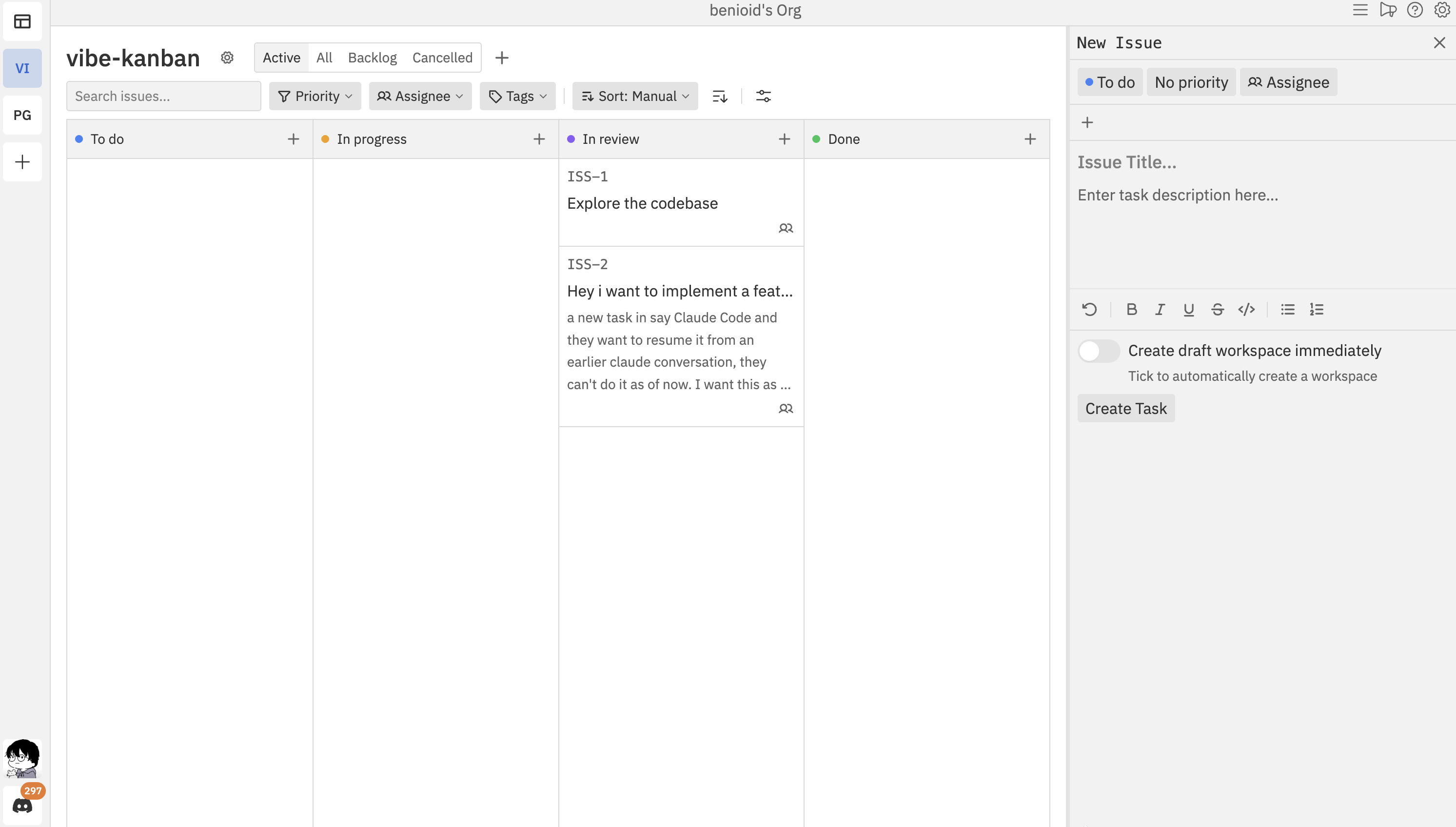
What is an Issue?
An issue represents a single piece of work. It has:- Title - A short description of what needs to be done
- Description - Detailed information, requirements, or context
- Status - Which column it’s in (To Do, In Progress, Done, etc.)
- Priority - How urgent it is (Urgent, High, Medium, Low)
- Assignees - Who’s responsible for the work
- Tags - Labels for categorisation and filtering
- Simple ID - A unique identifier like
TASK-123for easy reference
Creating Issues
From a Column
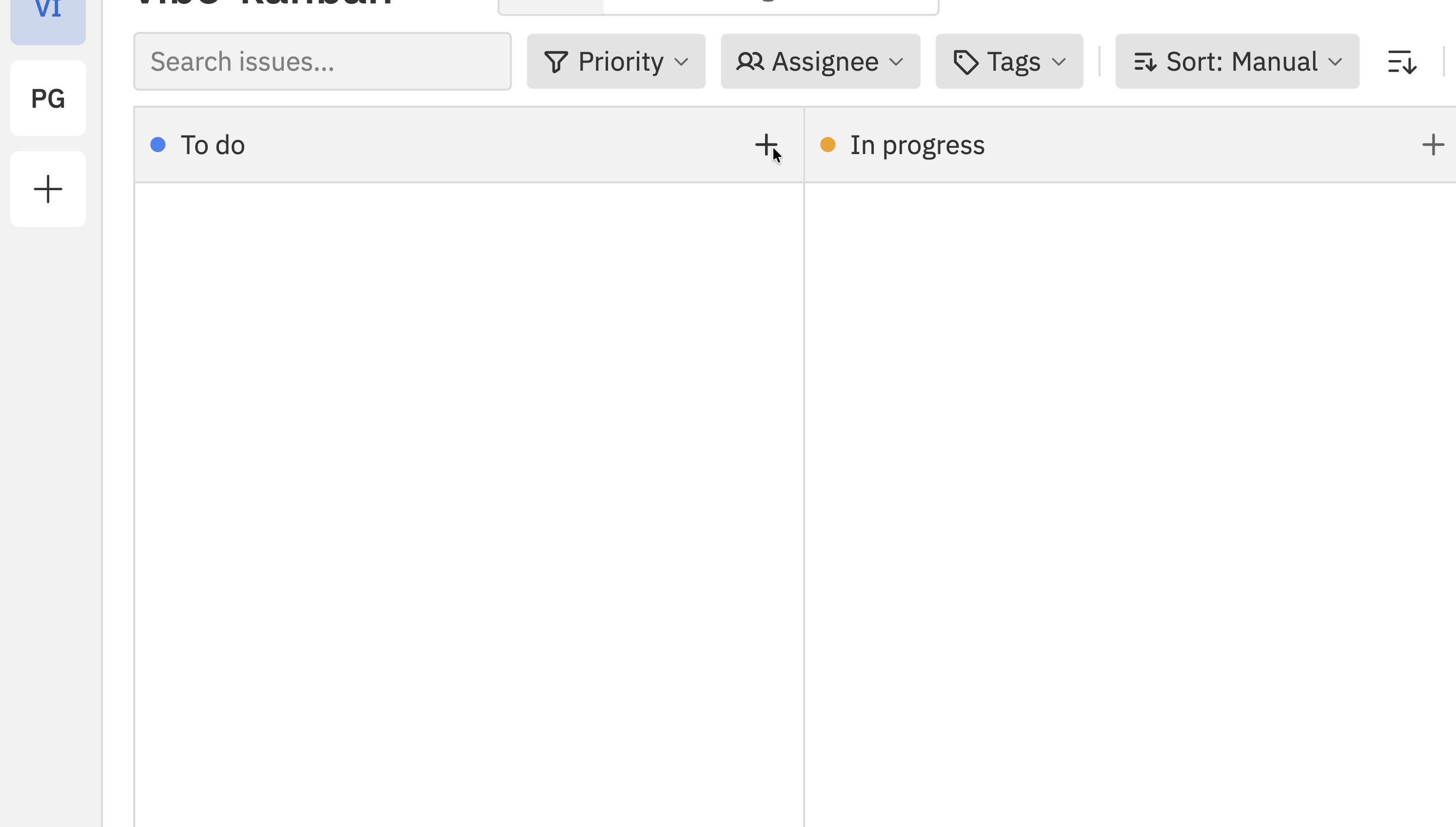
To create an issue in a specific column:- Click the + button at the top of any status column
- The New Issue panel opens with that status pre-selected
- Fill in the issue details and click Create Task
From the Header
To create an issue using the header button: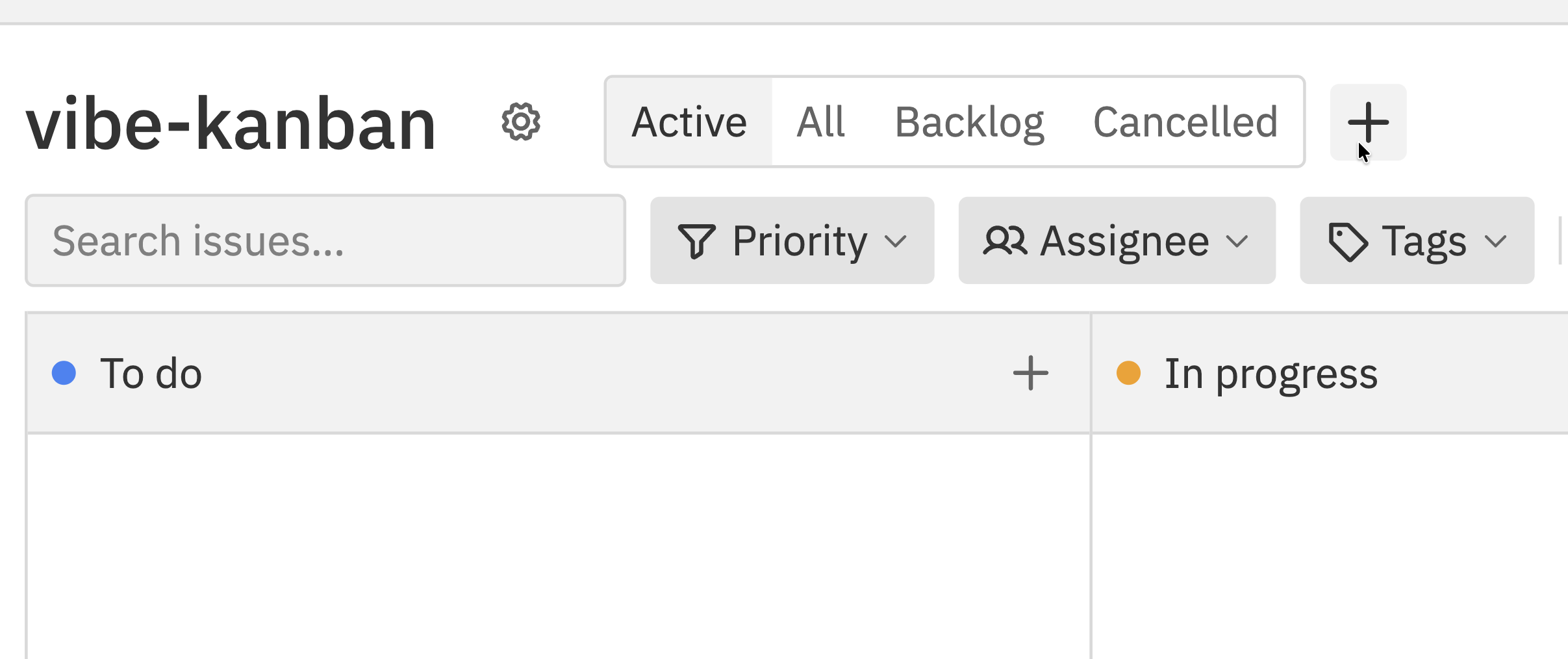
1
Open the create panel
Click the + button in the header next to the status tabs.
2
Enter the title
Type a clear, descriptive title. The title field is focused automatically.
3
Set the status
Choose which column the issue should start in.
4
Set priority (optional)
Select a priority level (default is no priority):
5
Assign team members (optional)
Click the assignee field and select one or more team members. You can assign multiple people to the same issue.
6
Add tags (optional)
Select tags to categorise the issue. Tags help with filtering and organisation.
7
Add description (optional)
Write a detailed description using the rich text editor. You can format text, add lists, code blocks, and links.
8
Create the issue
Click Create Task to save the issue. The issue will appear on the board in the selected status column.
Create with Workspace
If you want to immediately start working on an issue with AI assistance: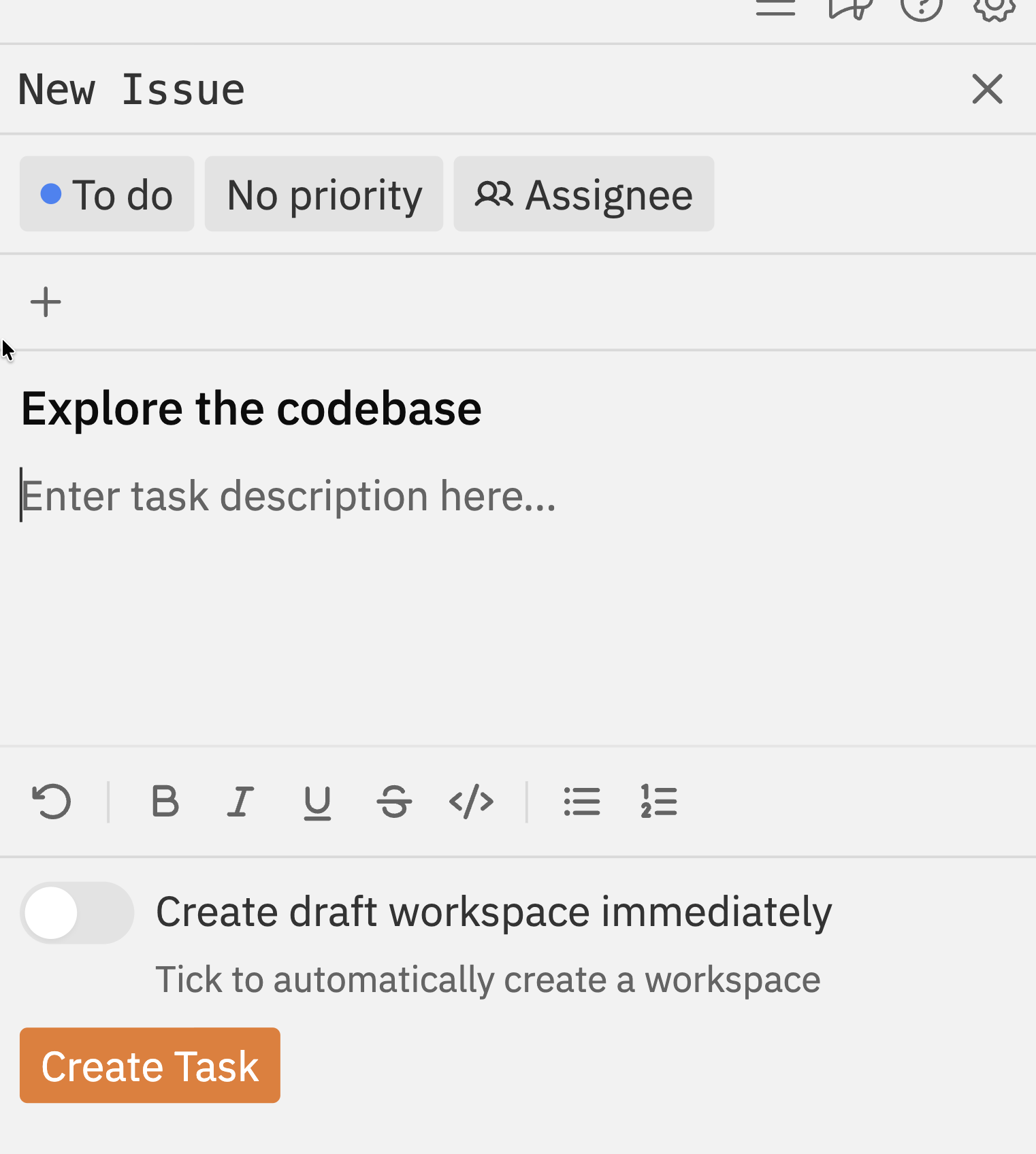
- When creating an issue, enable Create draft workspace immediately
- The issue is created with a linked workspace
- You can start working with coding agents right away
Editing Issues
Opening an Issue
Click any issue card on the board to open the issue panel. The panel slides in from the right side.Auto-Save
Changes to the title and description save automatically as you type. You don’t need to click a save button - just edit and your changes are saved.Auto-save has a small delay (about half a second) to avoid saving every keystroke. If you close the panel immediately after typing, wait a moment for the save to complete.
Editing Properties
Properties like status, priority, assignees, and tags save immediately when you change them:Editing the Description
The description uses a rich text editor with formatting options:- Bold, italic,
strikethrough - Bullet lists and numbered lists
- Code blocks for technical content
- Links to external resources
Issue Sections
The issue panel has collapsible sections for additional information:Workspaces Section
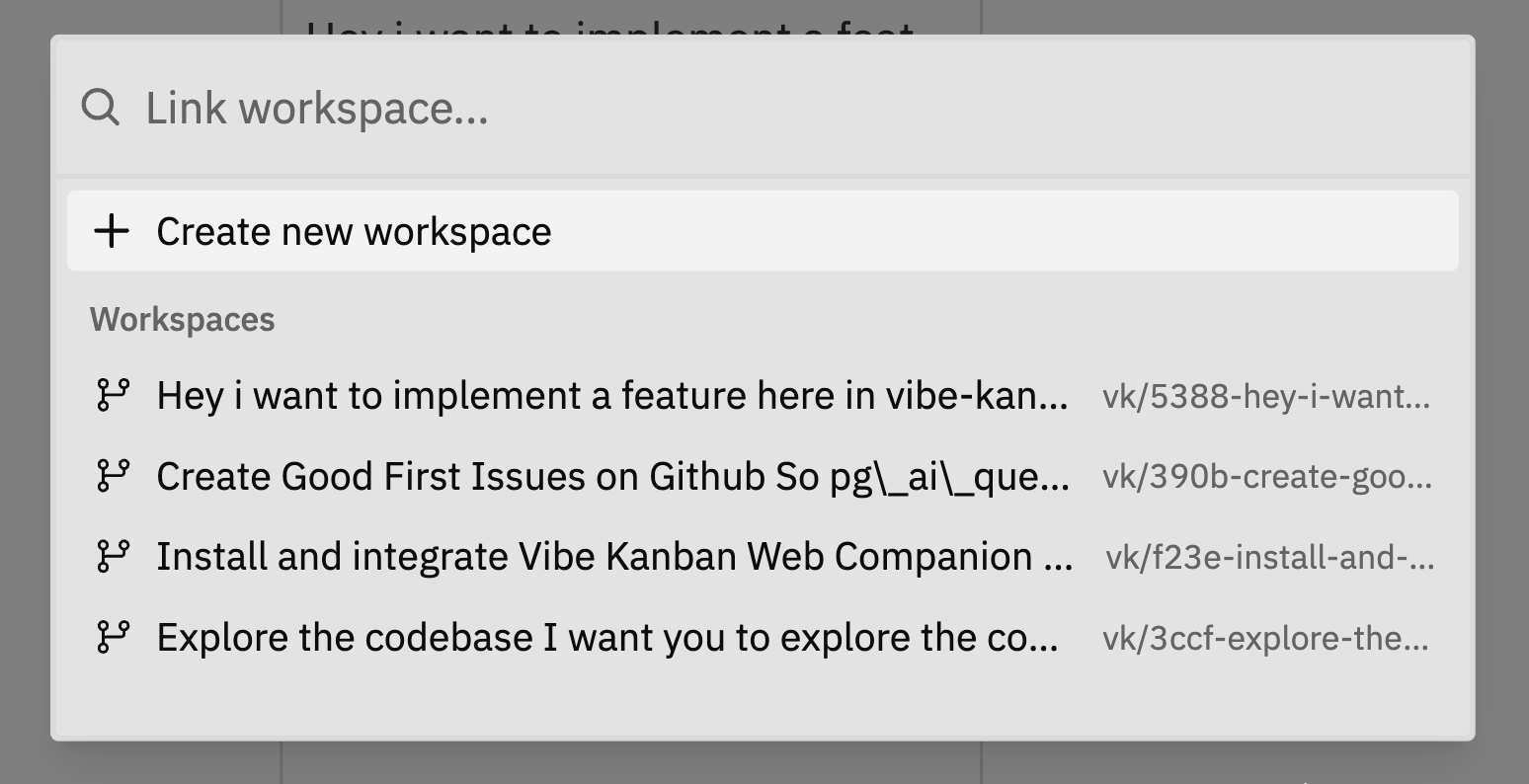
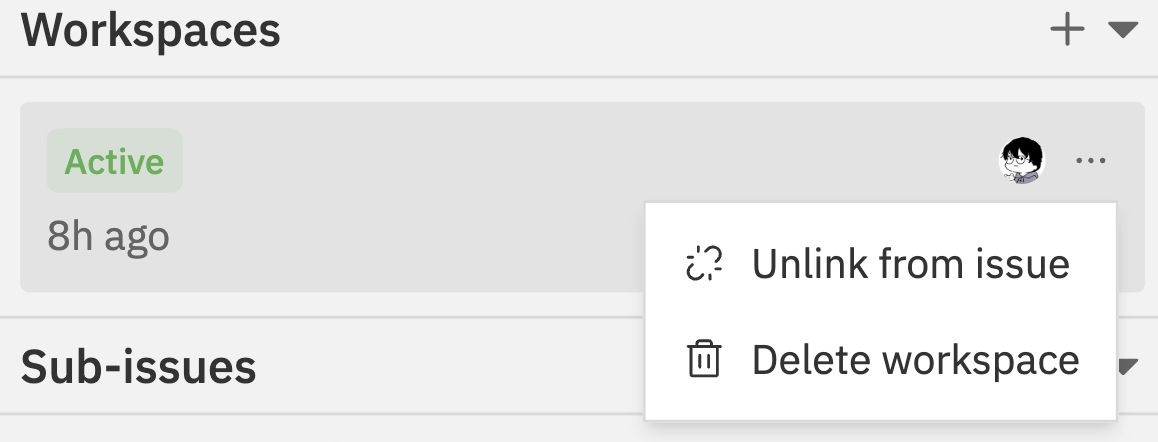
Shows development workspaces linked to this issue. Workspaces are where coding agents do their work.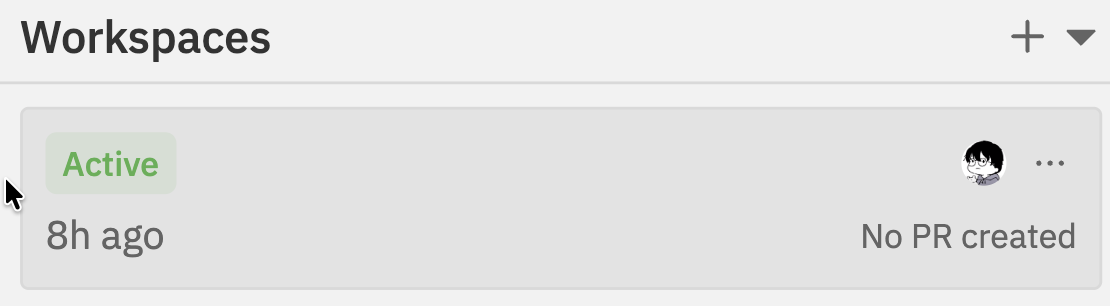
- Status - Active, idle, or completed
- Age - How long ago it was created
- PR status - Whether a pull request has been created
Sub-Issues Section
Issues can have child issues (subtasks) for breaking down work:
- Add Sub-Issue - Create a new child issue
- Link Existing Issue - Make an existing issue a subtask
- View Parent - If this is a sub-issue, see its parent
Comments Section
Discussion thread for the issue:- Add Comment - Share updates, ask questions, or provide feedback
- React - Add emoji reactions to comments
- Edit/Delete - Modify or remove your own comments
Sub-Issues (Subtasks)
Break large issues into smaller, manageable pieces using sub-issues.Creating a Sub-Issue
1
Open the parent issue
Click the issue that will be the parent.
2
Expand the Sub-Issues section
Click the Sub-Issues section header to expand it.
3
Click Add Sub-Issue
Click the + button in the Sub-Issues section header. A dropdown appears with options to create a new issue or link an existing one.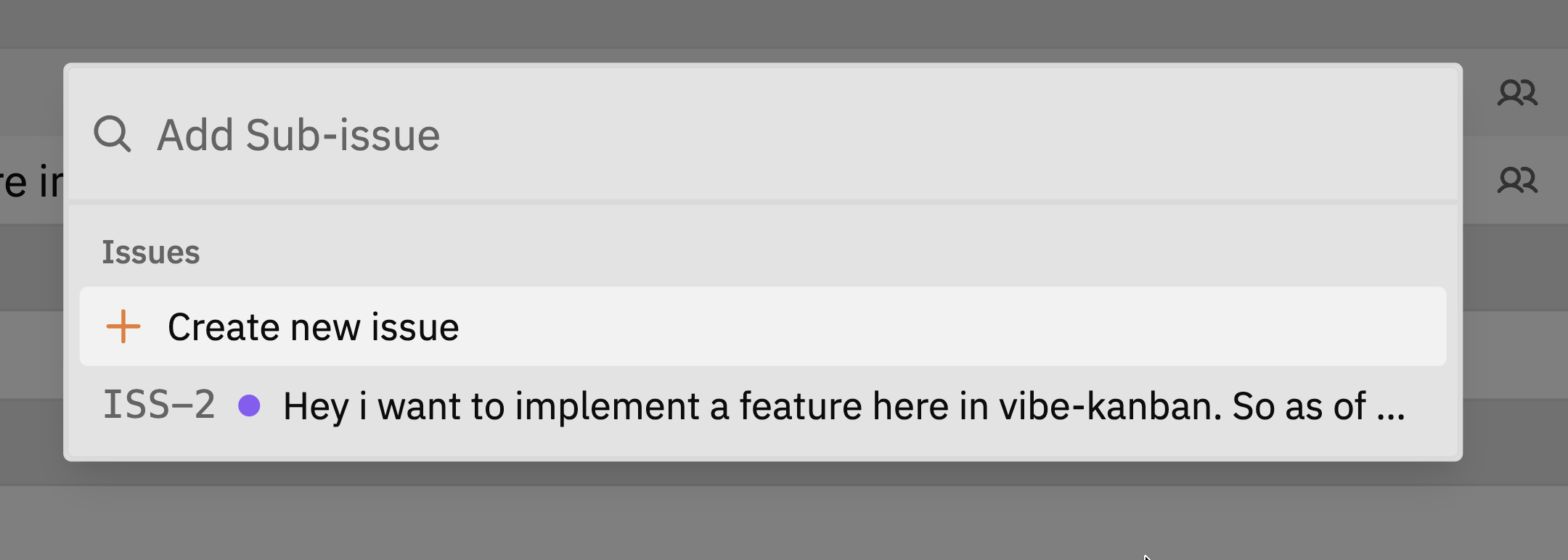
4
Create or link
- Click Create new issue to create a new sub-issue
- Or select an existing issue from the list to link it as a sub-issue
Viewing the Parent Issue
When viewing a sub-issue, you’ll see a Parent link below the issue properties. Click it to navigate to the parent issue.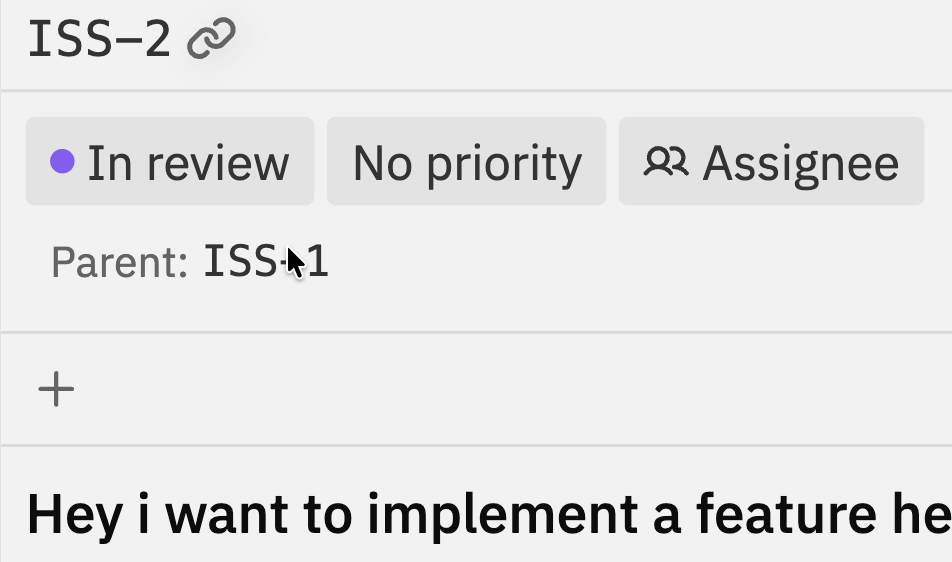
Sub-Issue Behaviour
- Sub-issues appear on the board just like regular issues
- They can have their own status, priority, and assignees
- Completing all sub-issues doesn’t automatically complete the parent
- Sub-issues can’t have their own sub-issues (only one level deep)
Issue Actions
Issue Actions provide quick access to common operations on an issue. You can access them in two ways:From the Issue Panel
Click the More button (three dots) in the top-right corner of the issue panel.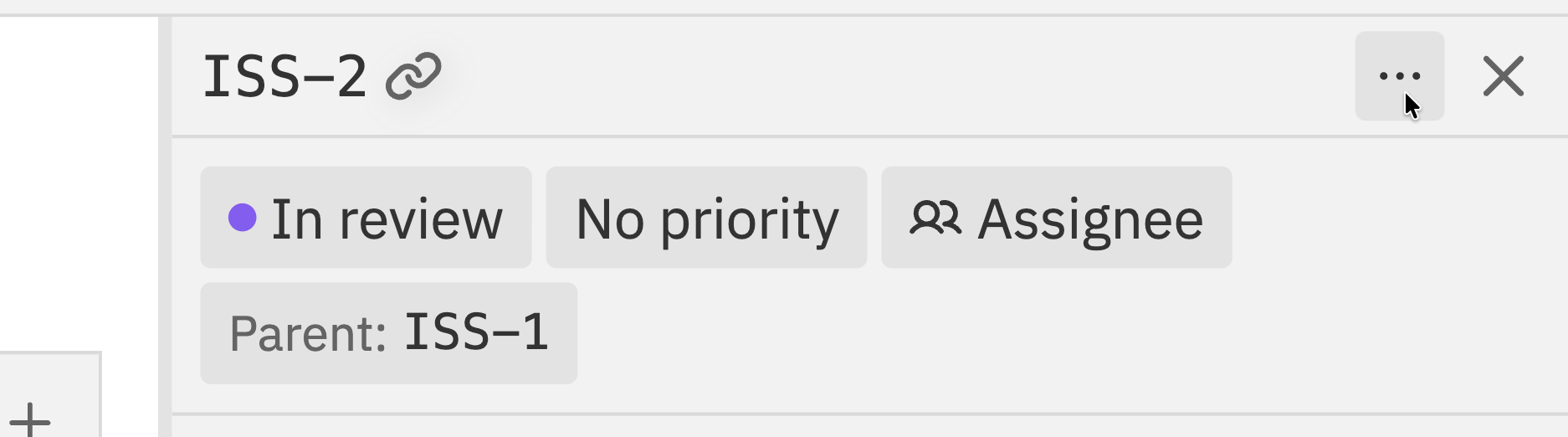
From the Command Bar
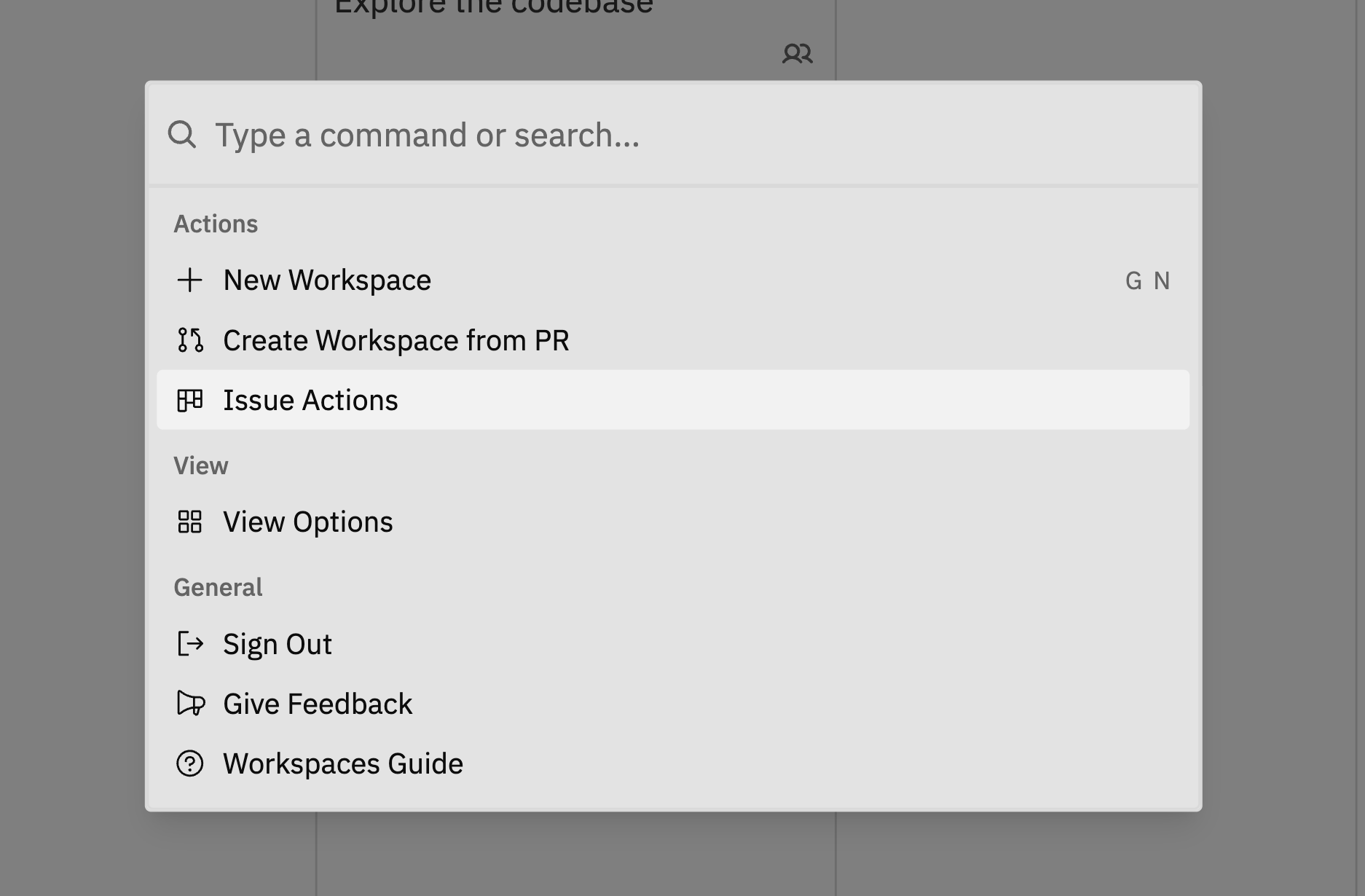
Open the command bar withCmd/Ctrl + K, then select Issue Actions.
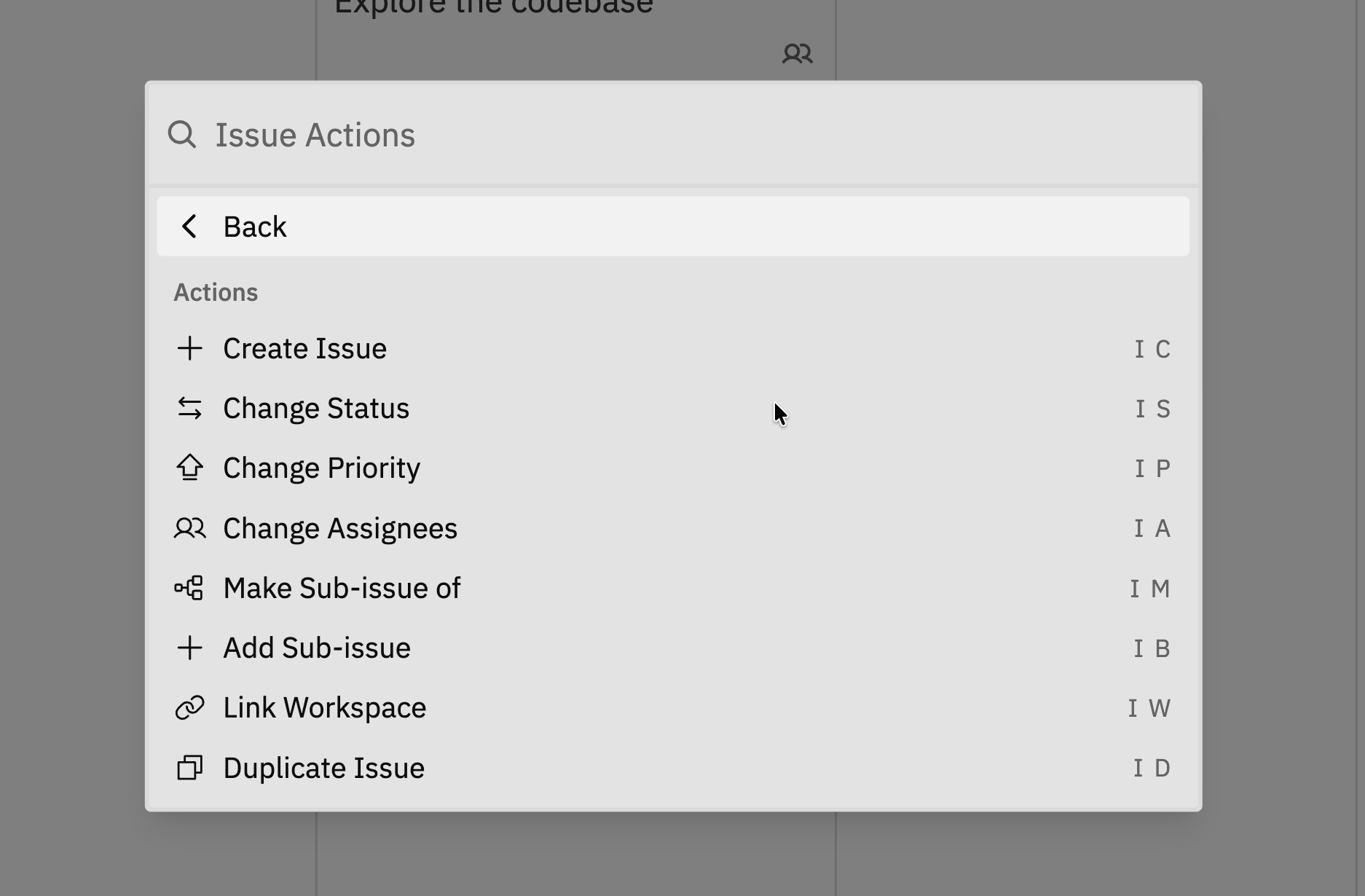
Available Actions
Copying Issue Links
To share an issue with someone:- Open the issue panel
- Click the Copy Link button () in the panel header
- The issue URL is copied to your clipboard
Selecting Multiple Issues
You can select multiple issues to perform bulk operations, similar to how you’d select files in a file manager.Selection Methods
Selection works in both the kanban board and list view. In list view, checkboxes appear on hover for each row. In the kanban board, use modifier keys or keyboard shortcuts to select cards.
Bulk Action Bar
When two or more issues are selected, a floating action bar appears at the bottom of the screen. From this bar you can:
Click the X button on the action bar or press Escape to clear the selection.
Deleting Issues
To delete a single issue:- Open the issue panel
- Click the More button (three dots) to open Issue Actions
- Select Delete Issue
- Confirm the deletion
Issue Simple IDs
Every issue has a Simple ID - a short, unique identifier likeTASK-123. This makes it easy to reference issues in conversations, commits, and documentation.
The Simple ID is shown:
- On issue cards on the board
- In the issue panel header
- In the URL when viewing an issue
Best Practices
Write clear titles
Issue titles should describe what needs to be done, not the problem. “Add password reset flow” is better than “Users can’t reset password”.
Use priority wisely
Reserve “Urgent” for genuine emergencies. If everything is urgent, nothing is.
Assign deliberately
Assign issues to people who will actually work on them. Unassigned issues are fine for backlog items.
Keep descriptions updated
As requirements change or you learn more, update the description. It’s the source of truth for what needs to be done.
Related Documentation
- Kanban Board - Moving and organising issues on the board
- Filtering & Sorting - Finding issues quickly
- Customising Your Board - Configuring statuses and tags
- Workspaces - Working with coding agents