

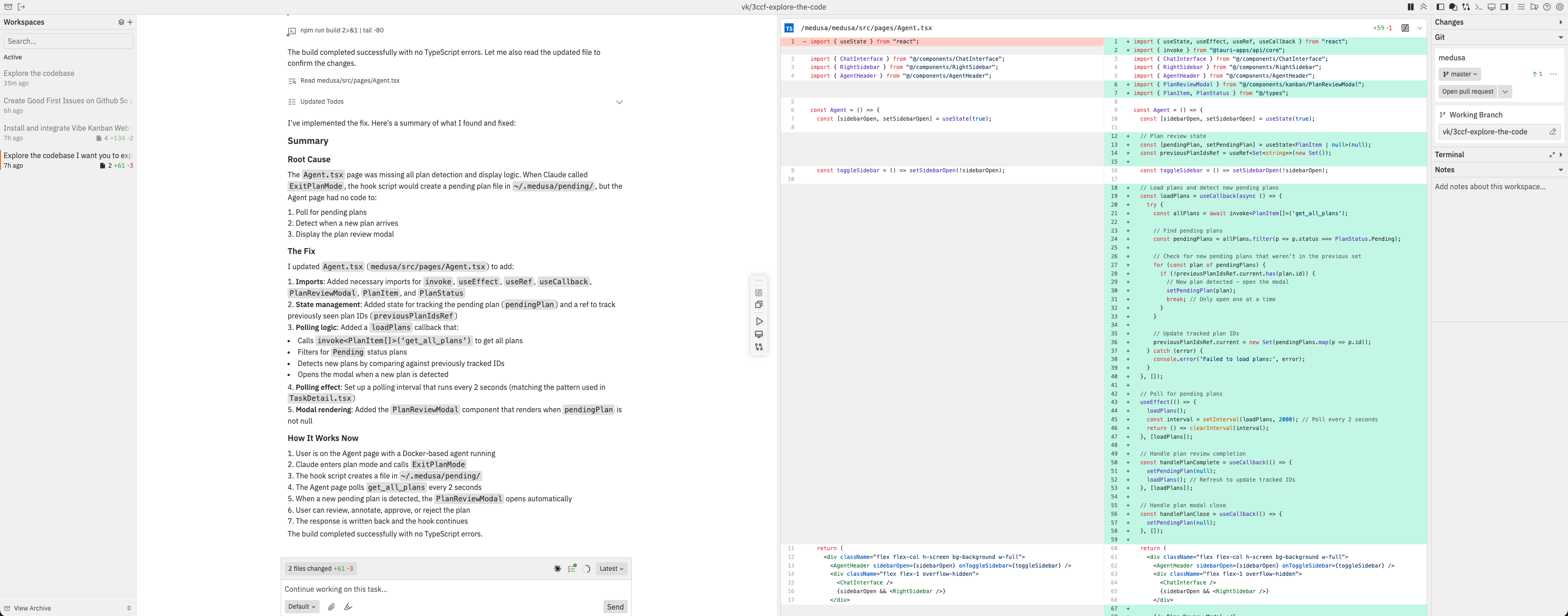
Panel Overview
Navbar
The navbar at the top of the workspace provides quick access to common actions.Left Section
Right Section - Panel Controls
Right Section - Utilities
Workspace Sidebar
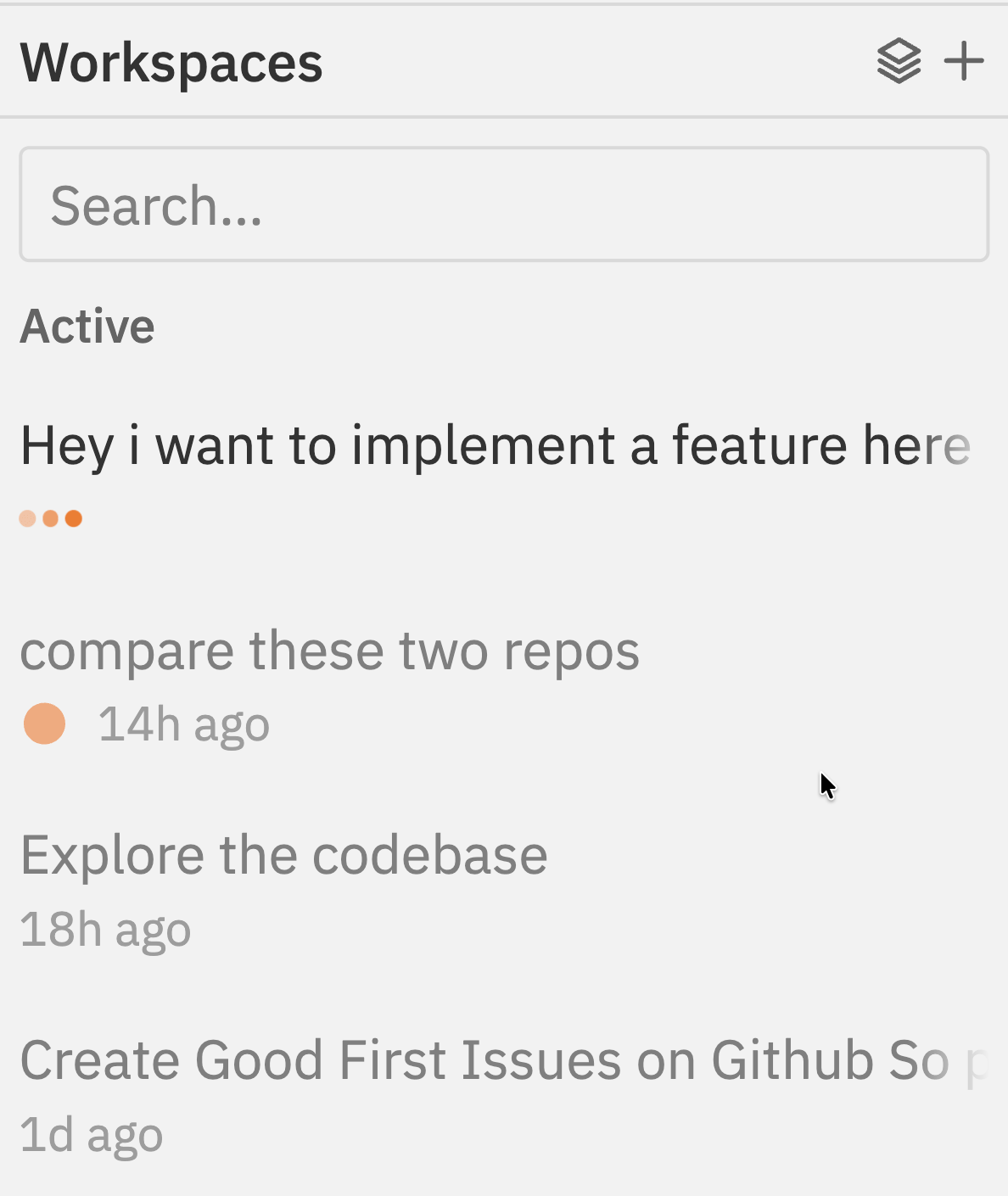
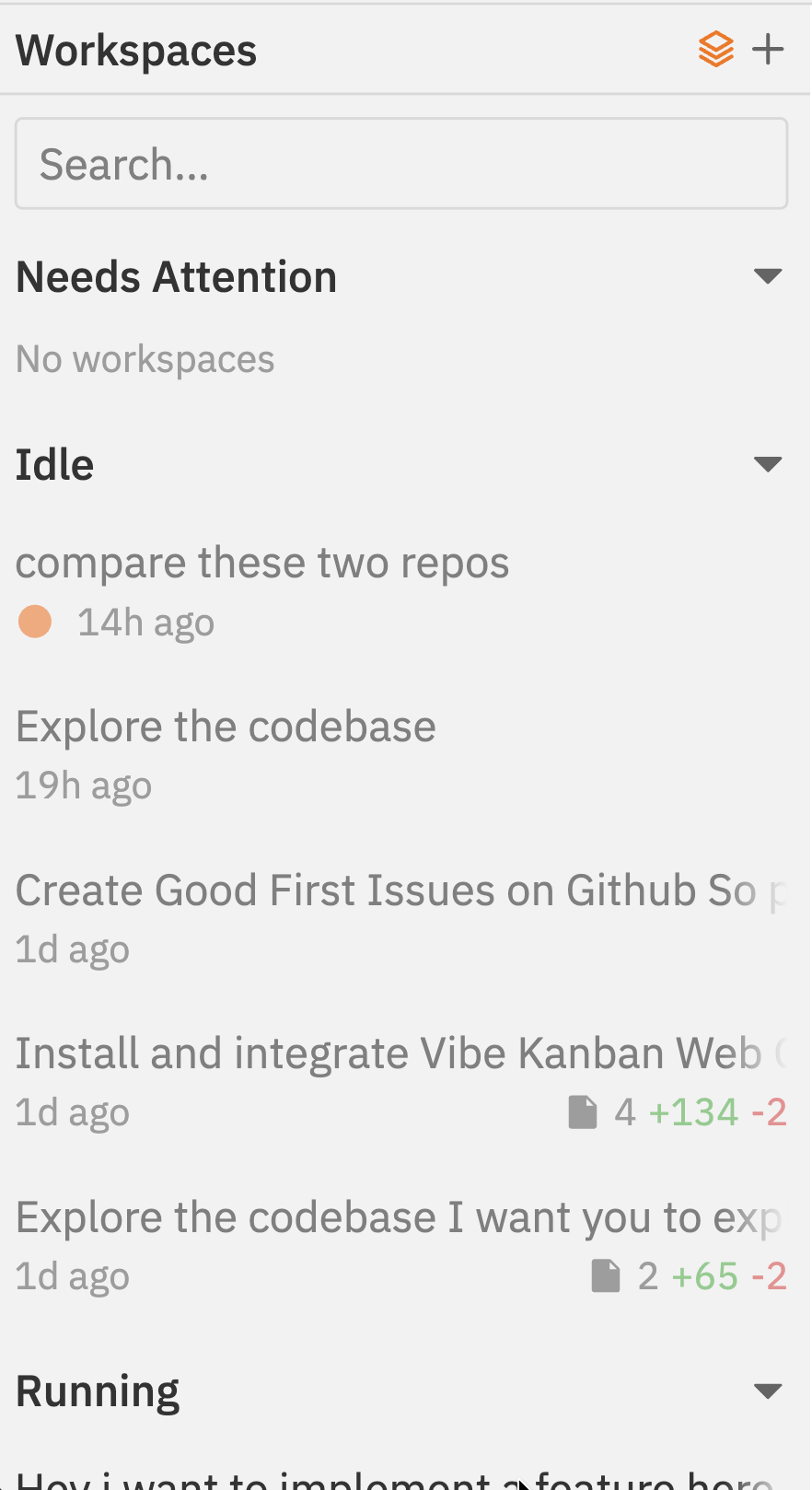
Status Indicators
Each workspace shows its current state:Workspace Actions
- Search: Filter workspaces by name or branch
- Pin: Keep important workspaces at the top
- Archive: Move completed workspaces out of the main list
- Layout toggle: Switch between flat list and accordion (grouped by status)
Creating a New Workspace
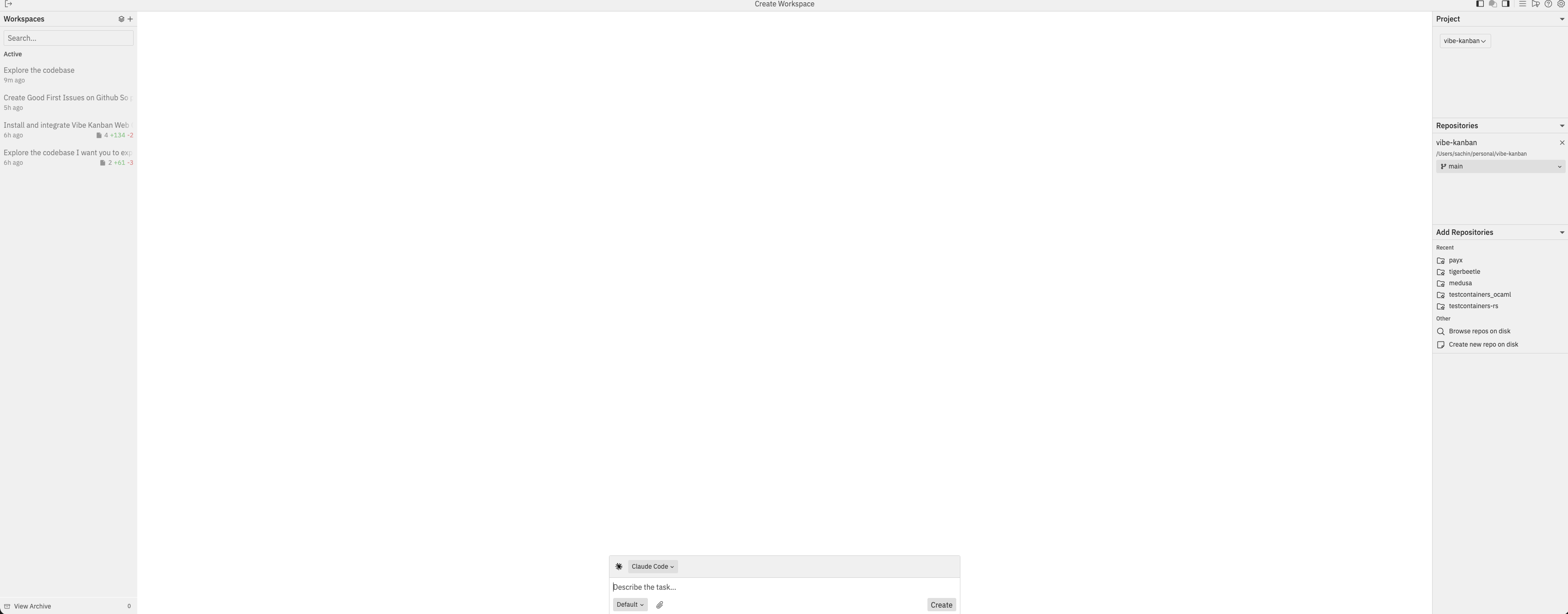
- Select a project from the Project dropdown in the right sidebar
- Add repositories - click repos from the “Add Repositories” list or browse for repos on disk
- Set target branch - each selected repo shows its target branch (click to change)
- Describe your task in the chat input at the bottom
- Select an agent (e.g., Claude Code) and variant
- Click Create to start the workspace
For detailed instructions, see Creating Workspaces and Repositories.
Conversation Panel
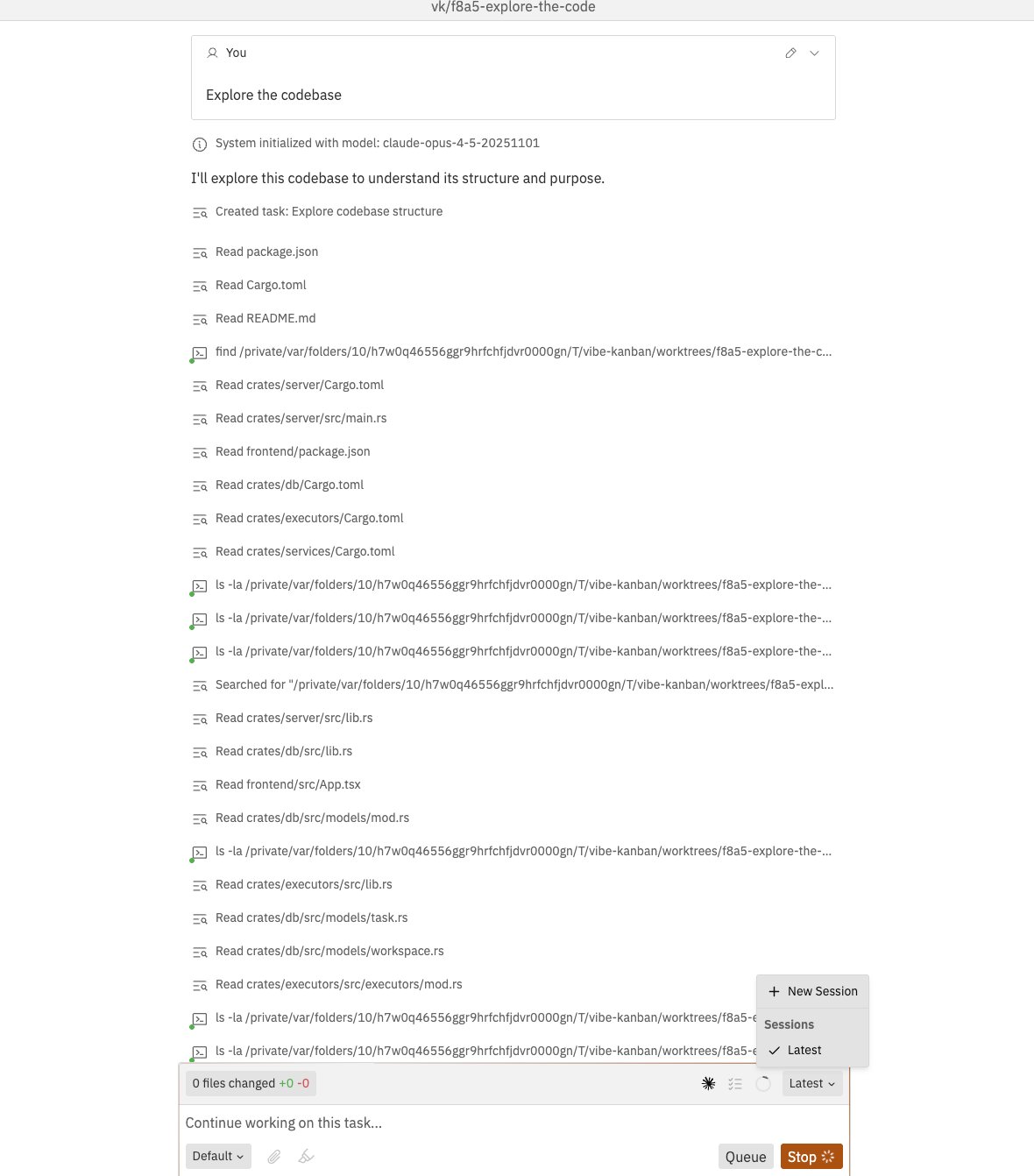
Chat Interface
- View the full conversation history with the agent
- Send messages and follow-up instructions
- Rich text support for formatting
- Approval workflows for reviewing agent plans
- Agent and variant selection
Session Dropdown
The chat box toolbar includes a session dropdown that lets you:- View all sessions in the workspace
- Switch between sessions (shows “Latest” or timestamp)
- Create a new session by selecting “New Session”
Chat Shortcuts
Context Panel
The right main panel toggles between three views:Changes View
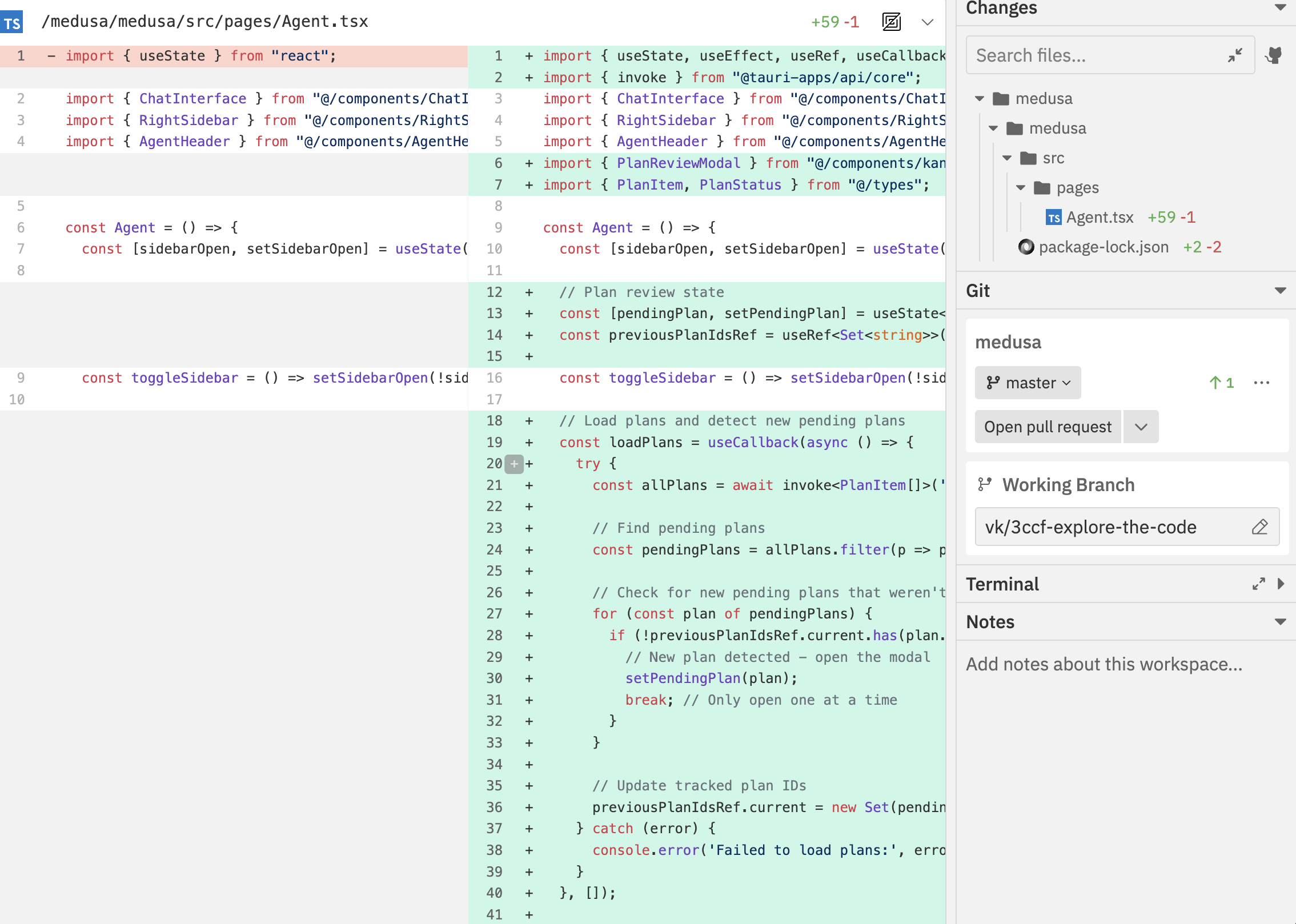
- File tree: Hierarchical view of changed files
- Search: Filter files by name
- Diff viewer: See code changes with syntax highlighting
- Comments: Add inline comments for agent feedback
Logs View
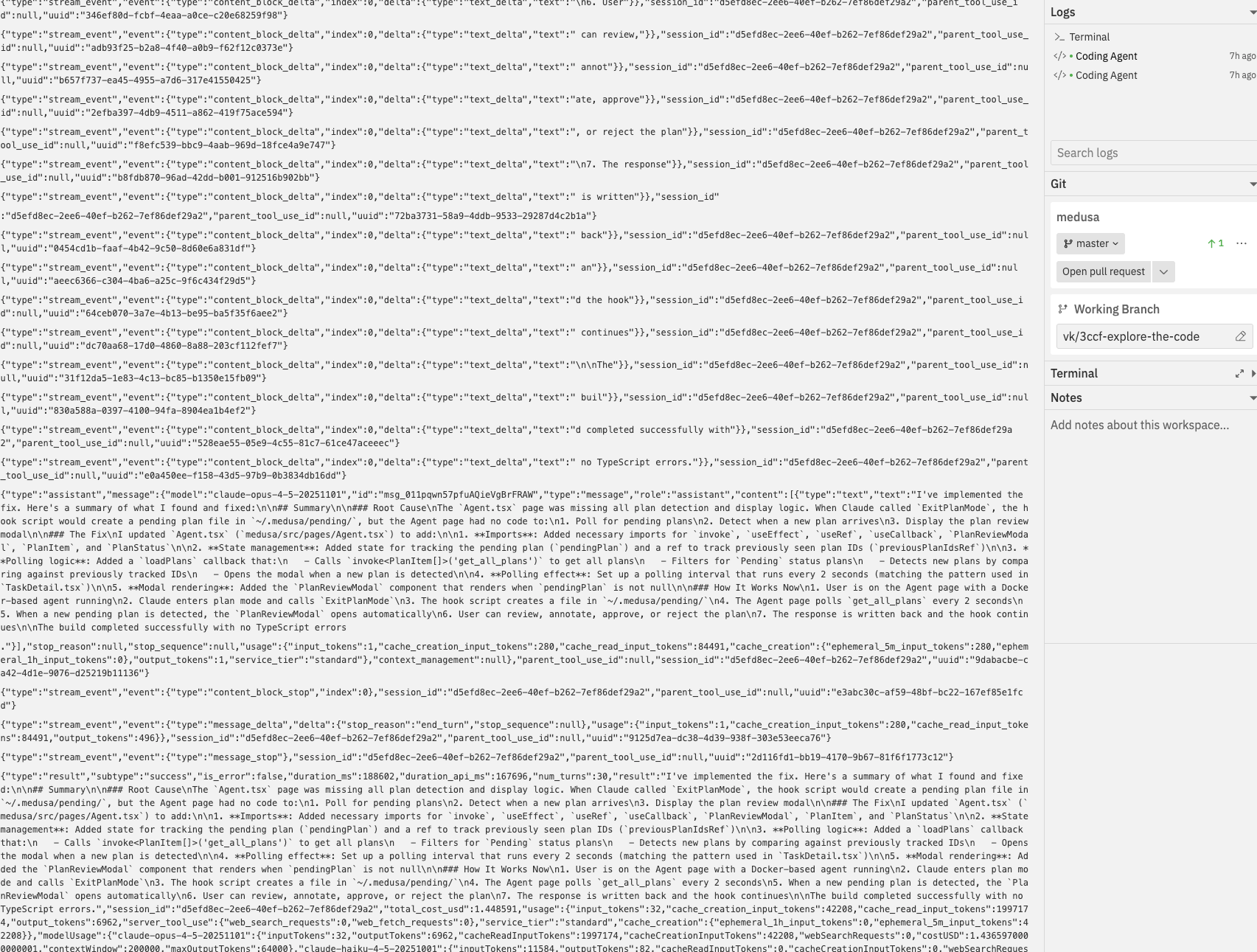
- Process tabs: Switch between different running processes
- Log output: View stdout/stderr in real-time
- Search logs: Filter log content
Preview View
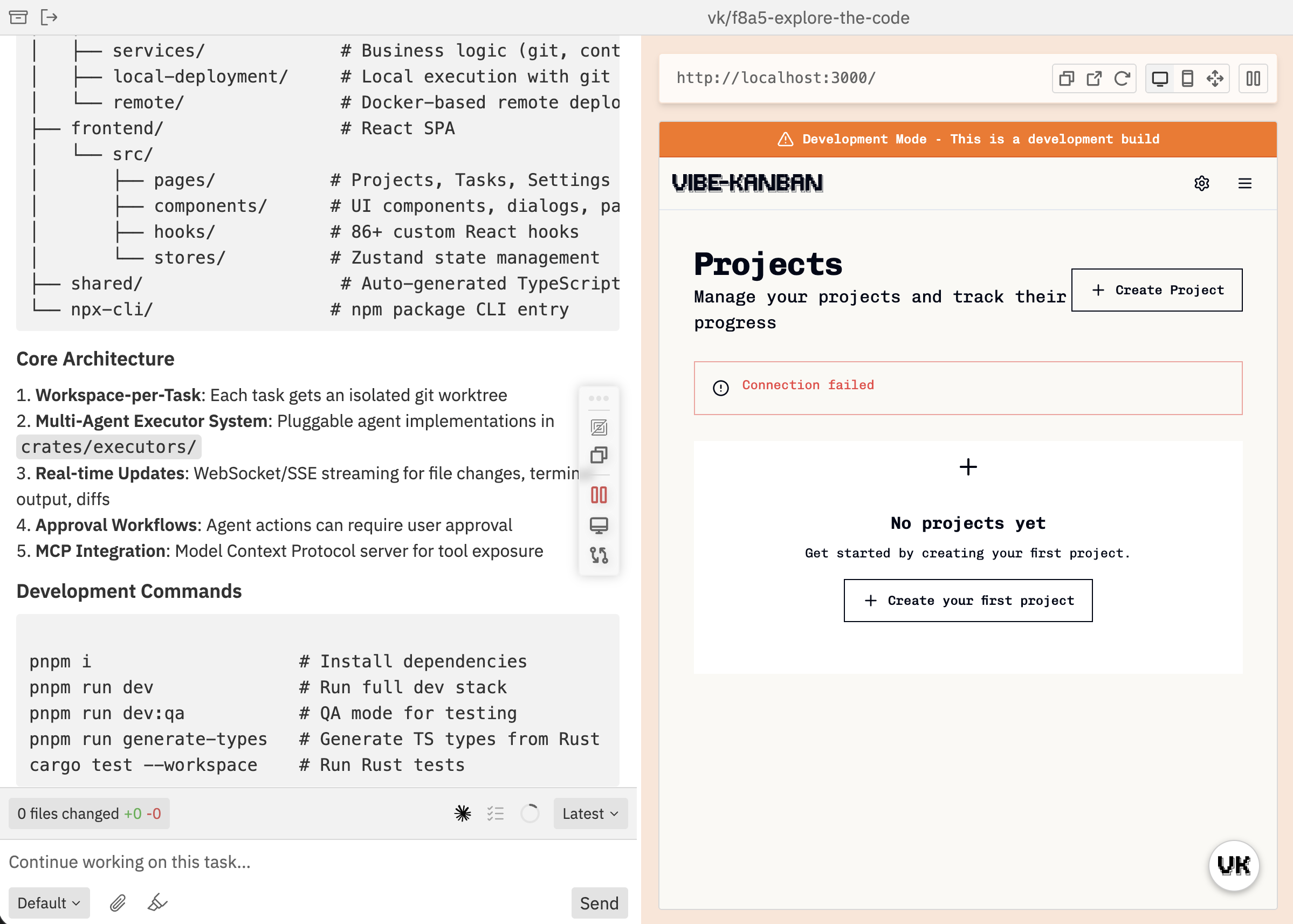
- Dev server tabs: Multiple dev servers supported
- Device modes: Desktop, mobile, custom viewport
- Process logs: View dev server output
Details Sidebar
The right sidebar provides quick access to workspace details.Git Section
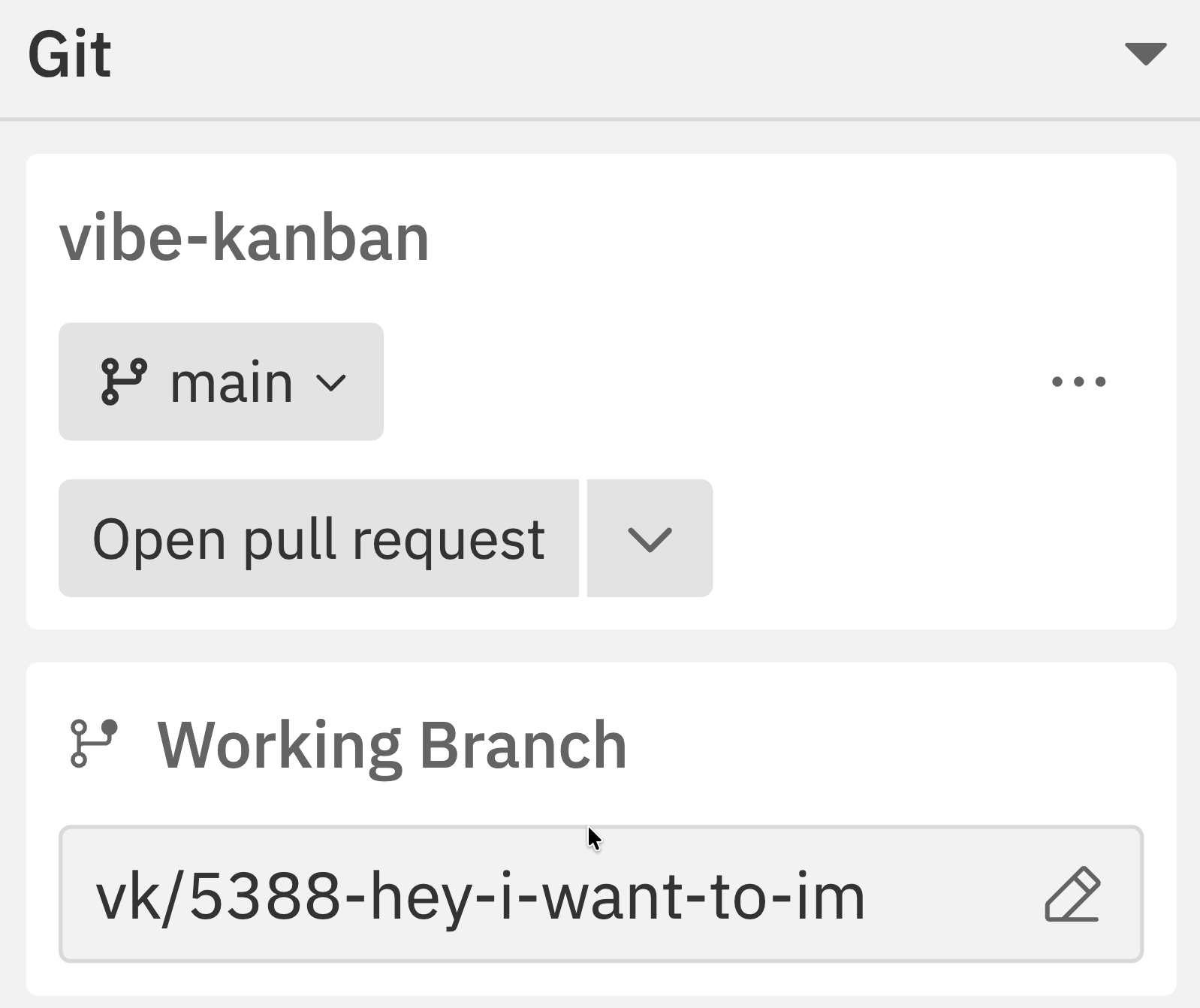
- Current repository and branch
- Target branch for merging
- Uncommitted changes count
- Commits ahead/behind target
- Quick access to git operations
Terminal Section
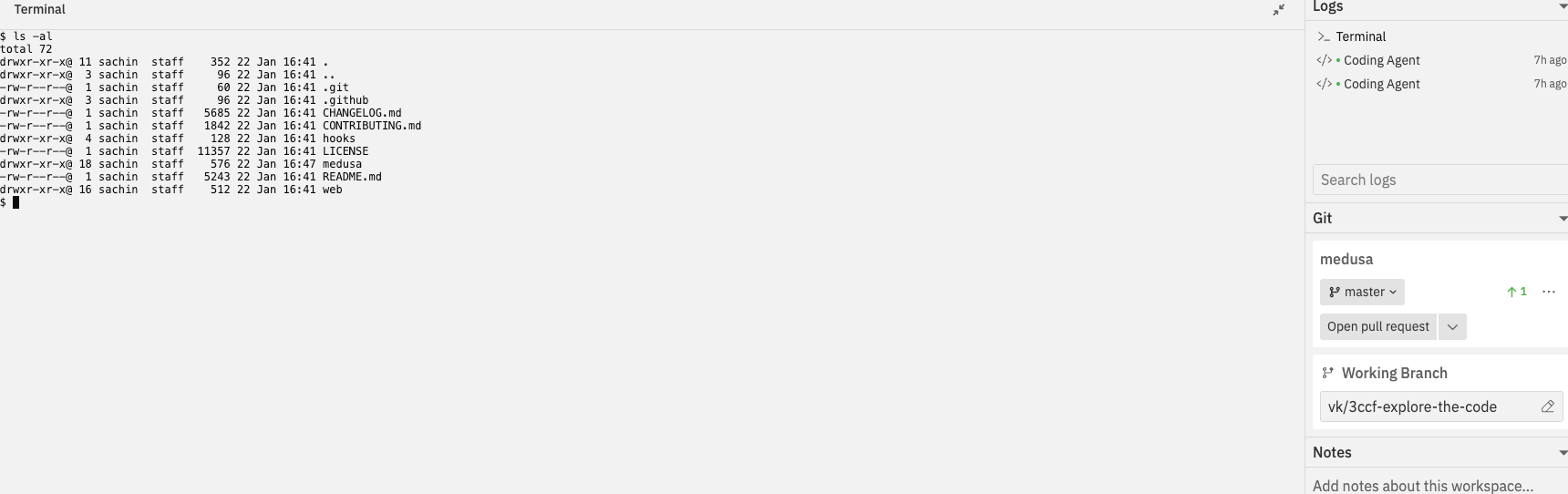
The integrated terminal is a new feature exclusive to the Workspaces UI and is not available in the classic interface.
- Full terminal emulation powered by xterm.js
- Run any command - git, npm, build scripts, etc.
- Persistent state - terminal persists across panel toggles
- Expandable - collapse when not needed, expand when you need it
Notes Section
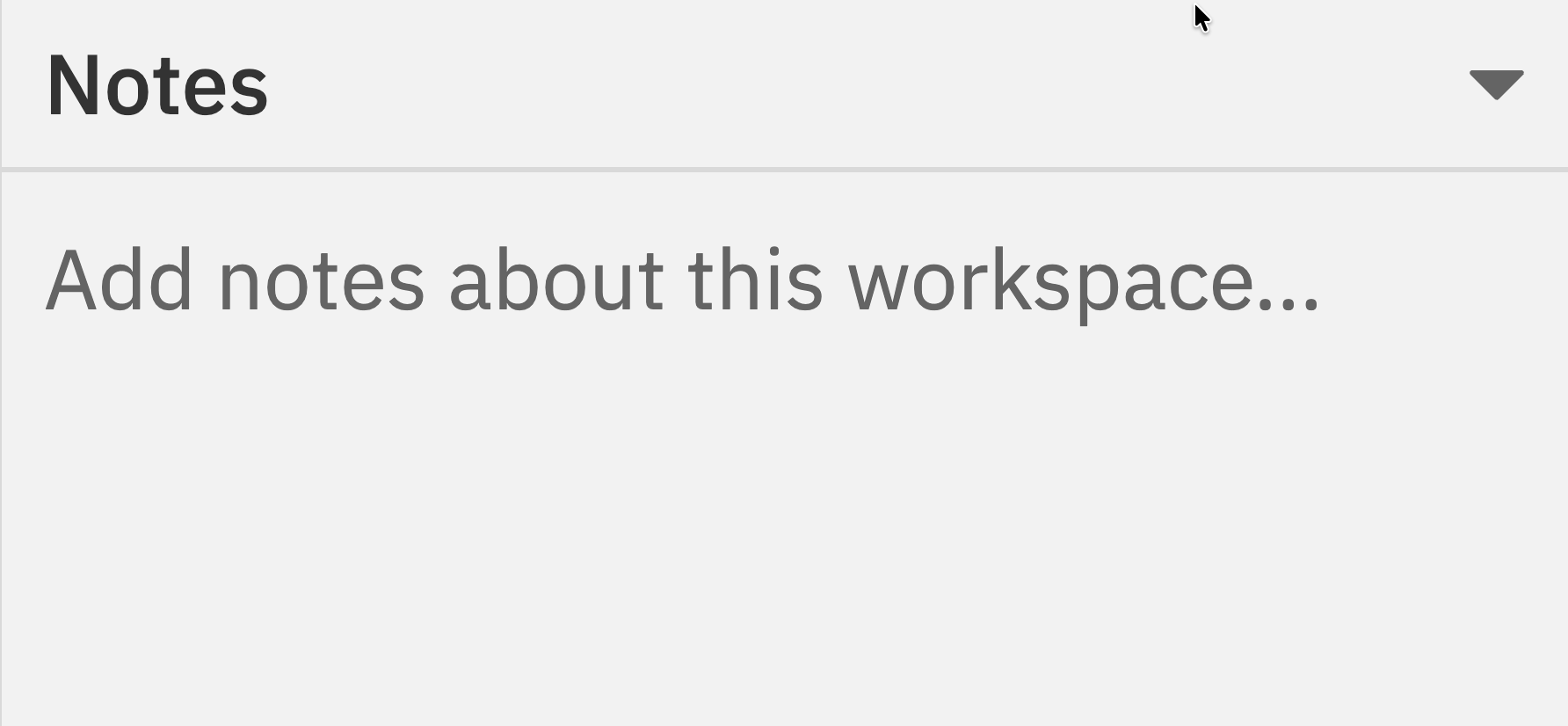
Workspace notes are a new feature exclusive to the Workspaces UI and are not available in the classic interface.
- Auto-save - Notes save automatically as you type
- Per-workspace - Each workspace has its own notes
- Persistent - Notes are preserved across sessions
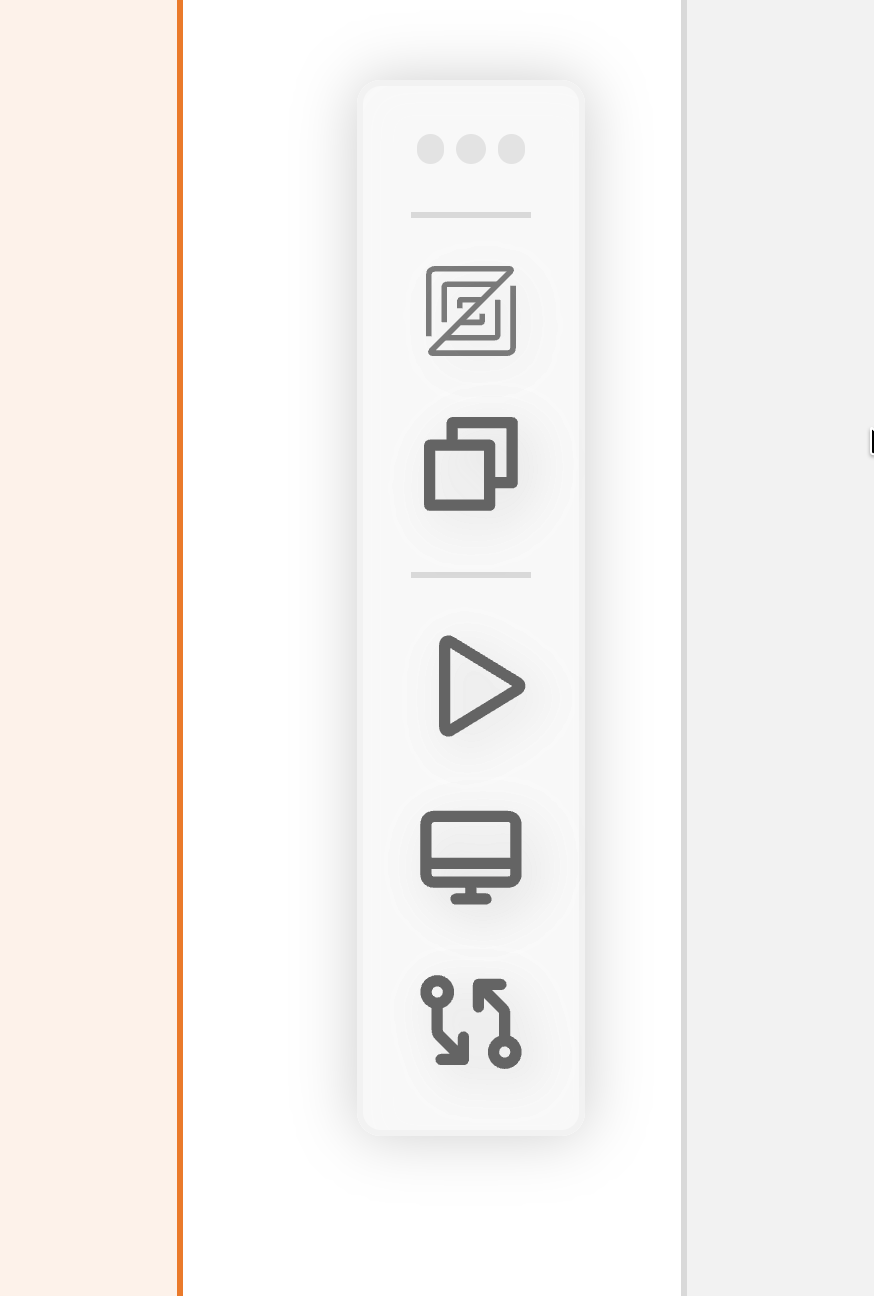
Context Bar
Resizing Panels
Drag the separators between panels to adjust their proportions. Your layout preferences are saved per workspace.Toggling Panels
Show or hide panels to focus on what matters:- Use the navbar toggle buttons
- Use the command bar with
Cmd/Ctrl + K - View Options commands let you toggle any panel
Panel states are remembered, so your preferred layout is restored when you return to a workspace.
Related Documentation
- Creating Workspaces - Step-by-step guide to creating workspaces
- Repositories - Managing repositories and branches
- Sessions - Working with multiple conversation sessions
- Chat Interface - Complete guide to the conversation panel
- Command Bar - Master keyboard shortcuts and quick actions
- Browser Testing - Built-in browser for testing your application
- Changes Panel - Review code modifications and provide feedback
- Git Operations - Create PRs, merge, rebase, and manage branches