

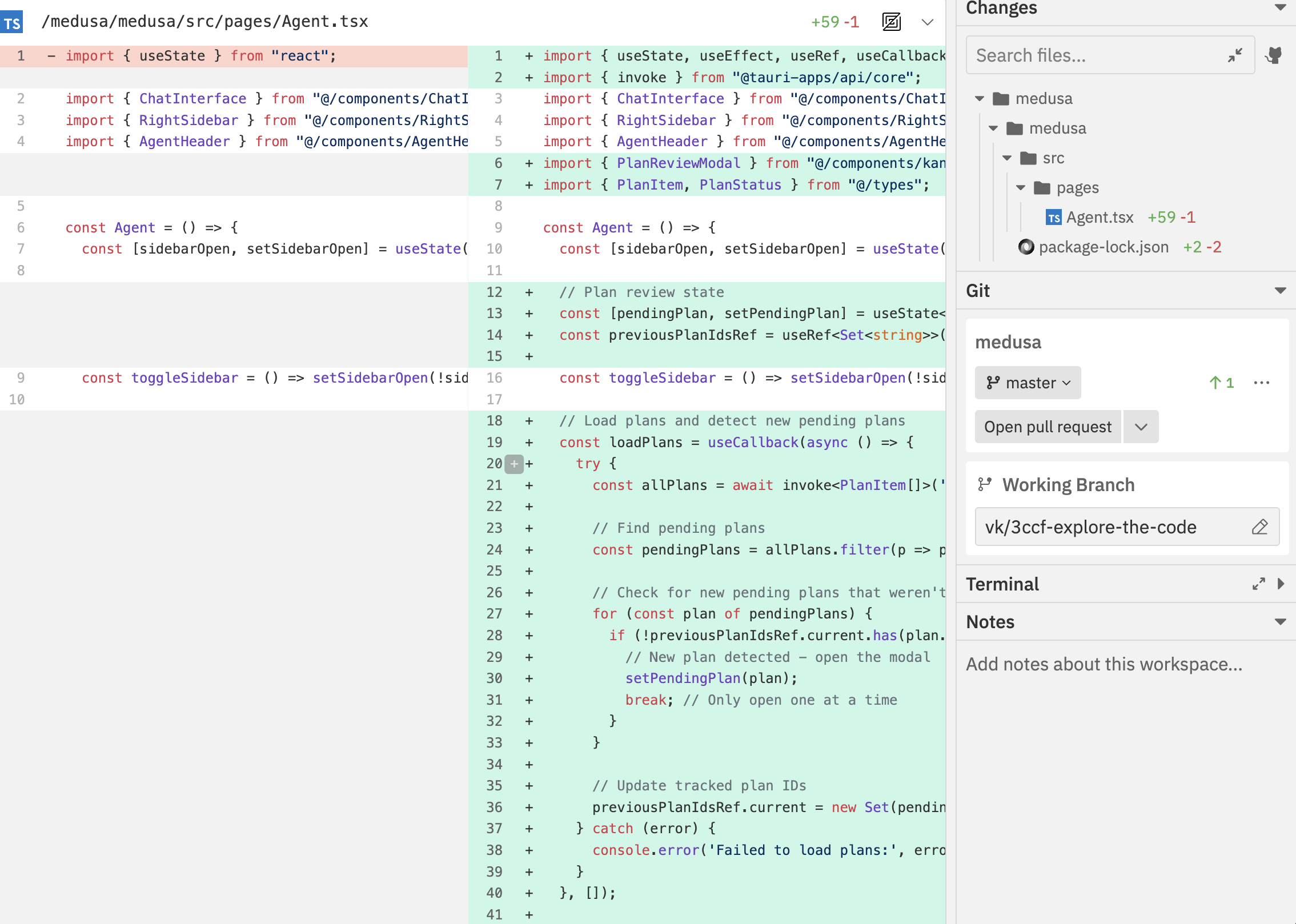
Why Review Changes?
Before committing or creating a PR, you should always review what the agent changed:- Verify correctness - Does the code do what you asked?
- Check for issues - Are there bugs, security problems, or style violations?
- Understand the approach - Learn what the agent did so you can explain it to reviewers
- Provide feedback - Ask the agent to fix problems before committing
Opening Changes
- Click the Changes toggle () in the navbar
- Click the changes icon in the context bar
- Use the command bar:
Cmd/Ctrl + K→ “Toggle Changes Panel”
File Tree
The changes panel displays a hierarchical file tree:- Folders: Expand/collapse to navigate
- Files: Click to view the diff
- Search: Filter files by name
- Expand/Collapse All: Quick navigation buttons
Diff Viewer
View code changes with syntax highlighting:Diff View Modes
Toggle between two display modes:
Switch modes using the diff view toggle in the navbar (when Changes panel is open) or via command bar:
Cmd/Ctrl + K → “Toggle Diff View Mode”.
Diff Options
Customise the diff display:
Access these via the command bar’s Diff Options page.
Giving Feedback with Comments
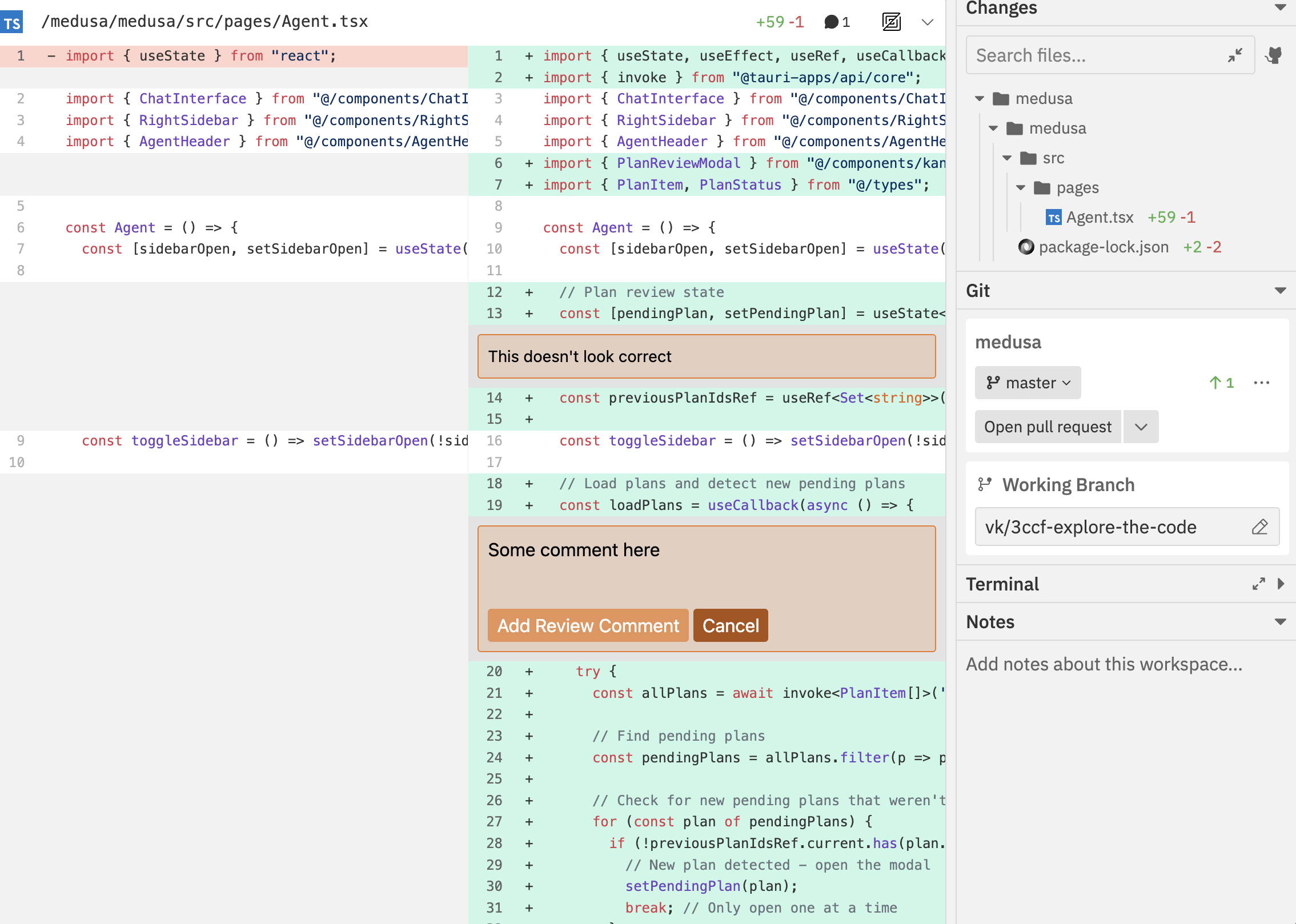
Adding Comments
- Hover over a line in the diff
- Click the comment icon that appears
- Write your feedback
- Submit the comment
Comment Uses
- Request changes: Ask the agent to modify specific code
- Ask questions: Get explanations about implementation choices
- Provide context: Share additional requirements or constraints
- Approve sections: Indicate code that looks good
Agent Response to Comments
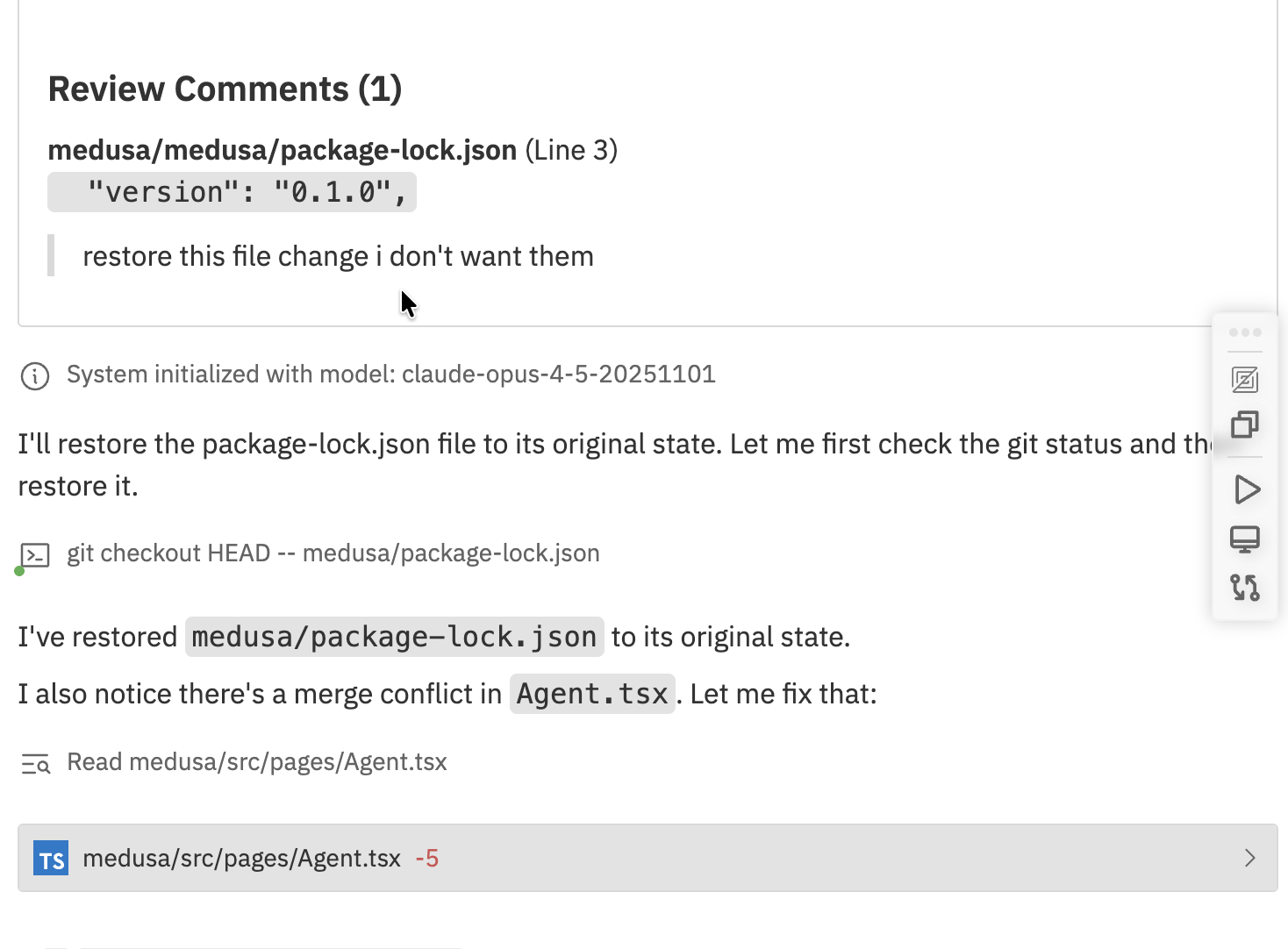
Comments are visible to the agent in subsequent messages, helping guide further development.
GitHub Integration
When your workspace is linked to a pull request:Viewing GitHub Comments
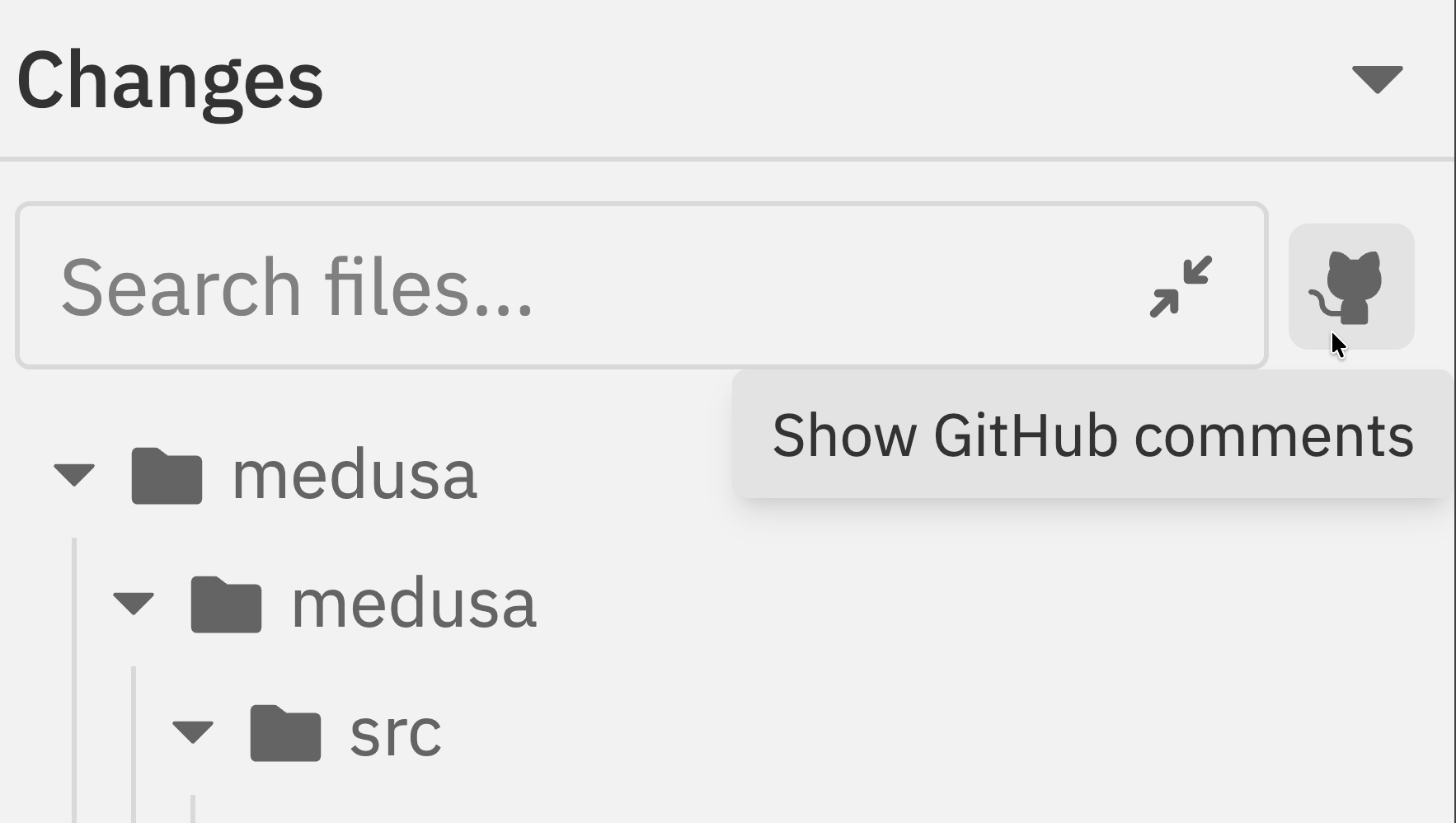
- Click the GitHub icon in the changes panel toolbar to toggle GitHub comments
- Comments from the PR appear inline with the diff
- Badge shows comment count per file
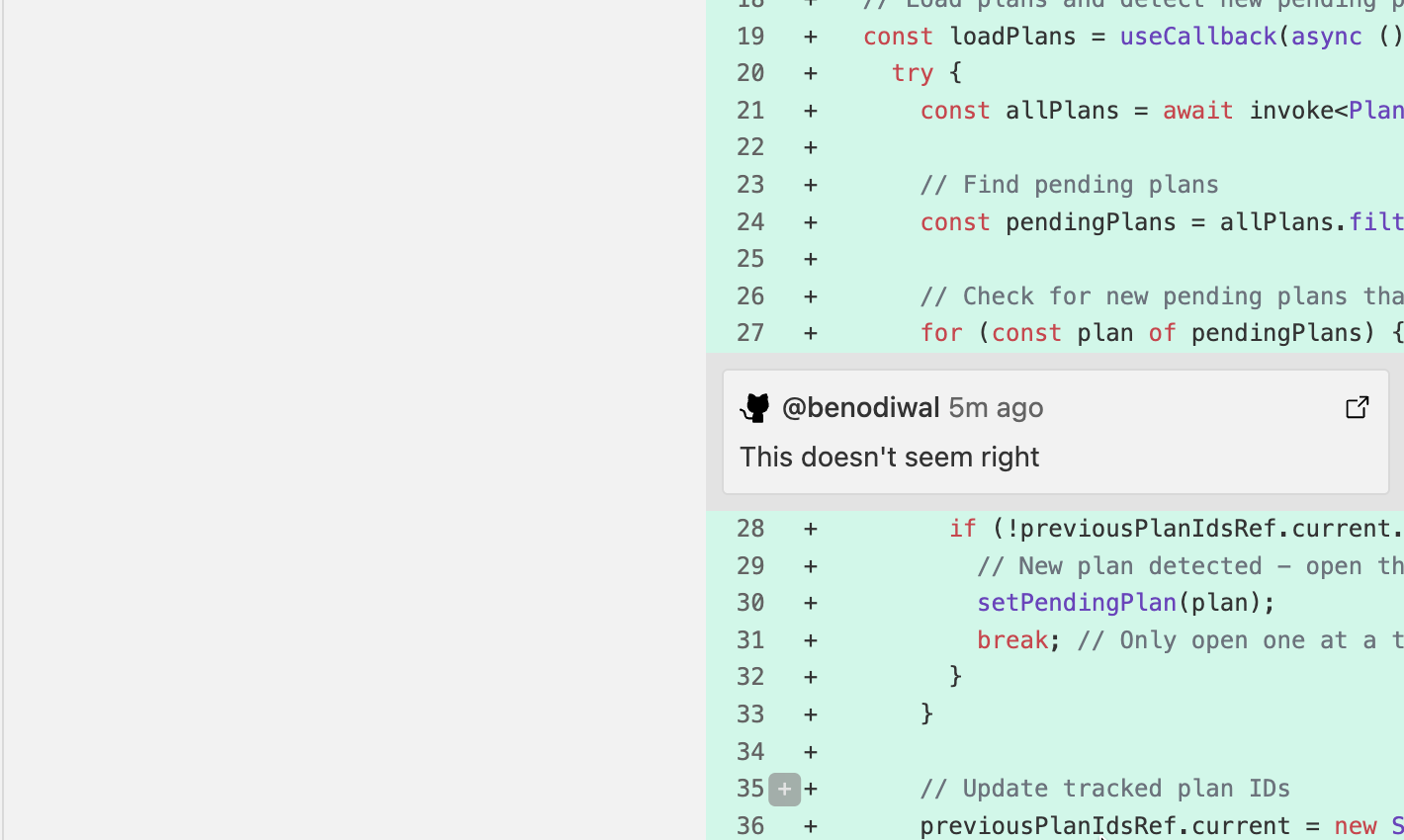
Only submitted review comments are shown. Pending reviews (not yet submitted on GitHub) won’t appear until you submit the review.
Linking to a PR
Workspaces automatically link when:- You create a PR from the workspace
- The workspace branch matches an existing PR
Review Workflow
Follow this workflow to effectively review and refine agent changes:1
Wait for agent to finish
Let the agent complete its work. The status in the sidebar will change from “Running” to “Idle”.
2
Open the Changes panel
Click the Changes icon in the navbar or use
Cmd/Ctrl + K → “Toggle Changes Panel”.3
Review each file
Click through each modified file in the file tree. Look for:
- Logic errors - Does the code do what you intended?
- Missing pieces - Are there unhandled edge cases?
- Code quality - Is the code readable and maintainable?
- Security issues - Any obvious vulnerabilities?
4
Add comments on issues
For any problems you find, hover over the line and click the comment icon. Write specific feedback:Good comment: “This API endpoint should validate the user ID before querying the database to prevent unauthorized access.”Bad comment: “This is wrong, fix it.”
5
Send feedback to agent
Type a message in the chat (e.g., “Please address the review comments”) and send it. The agent will see your inline comments and make corrections.
6
Re-review and repeat
After the agent addresses feedback, review the new changes. Repeat until you’re satisfied.
7
Create PR when ready
Once changes look good, create a pull request using the Git panel or command bar.
Related Documentation
- Browser Testing - Test your application with the built-in browser
- Interface Guide - Overview of workspace panels
- Git Operations - Create PRs and manage branches