

This is the new Settings UI currently in Beta. It provides the same configuration options with a redesigned interface accessible from the Workspaces UI.
Projects
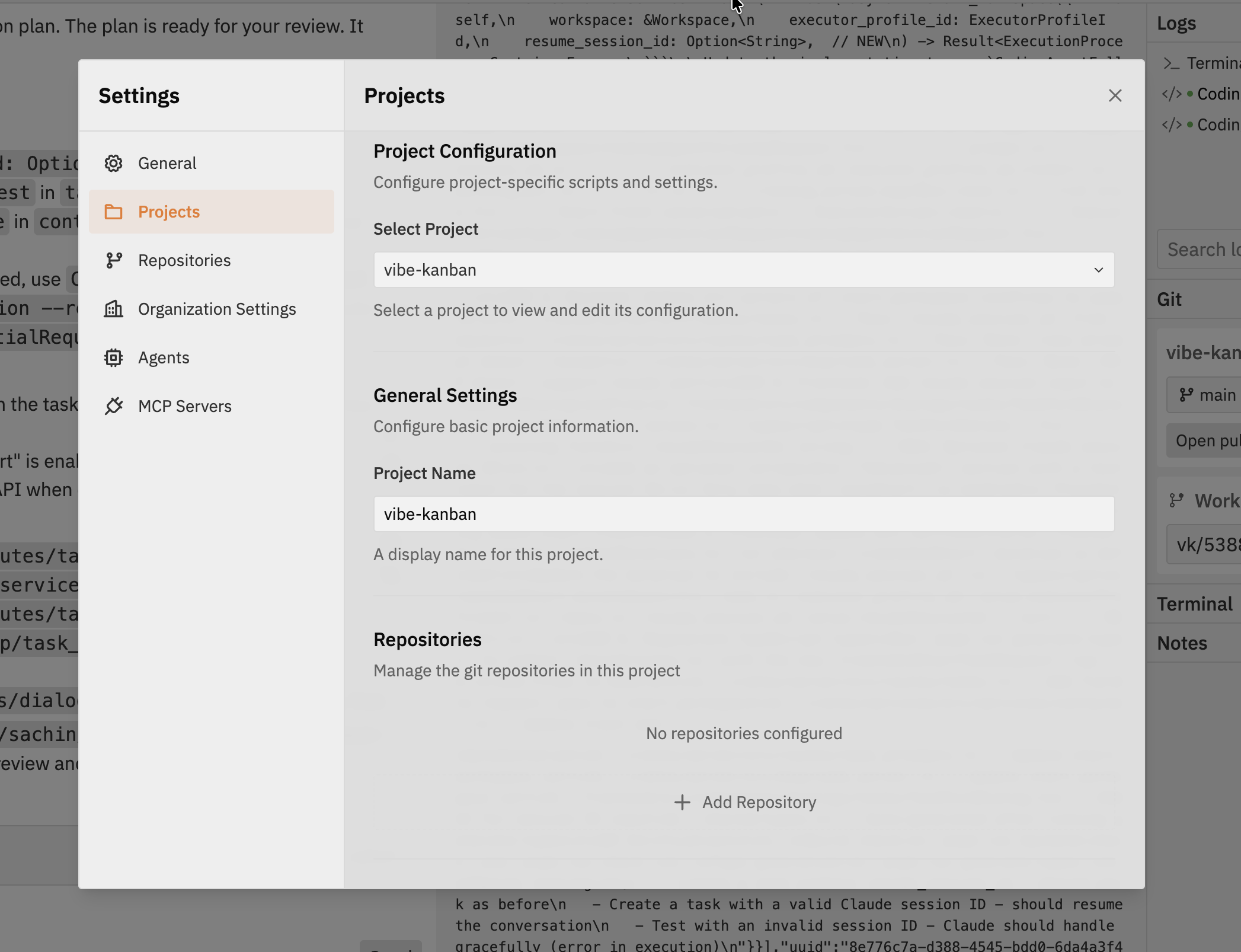
Accessing Project Settings
- Open Settings from the Workspaces navbar
- Select the Projects tab
- Choose a project from the dropdown to view and modify its settings
Repositories
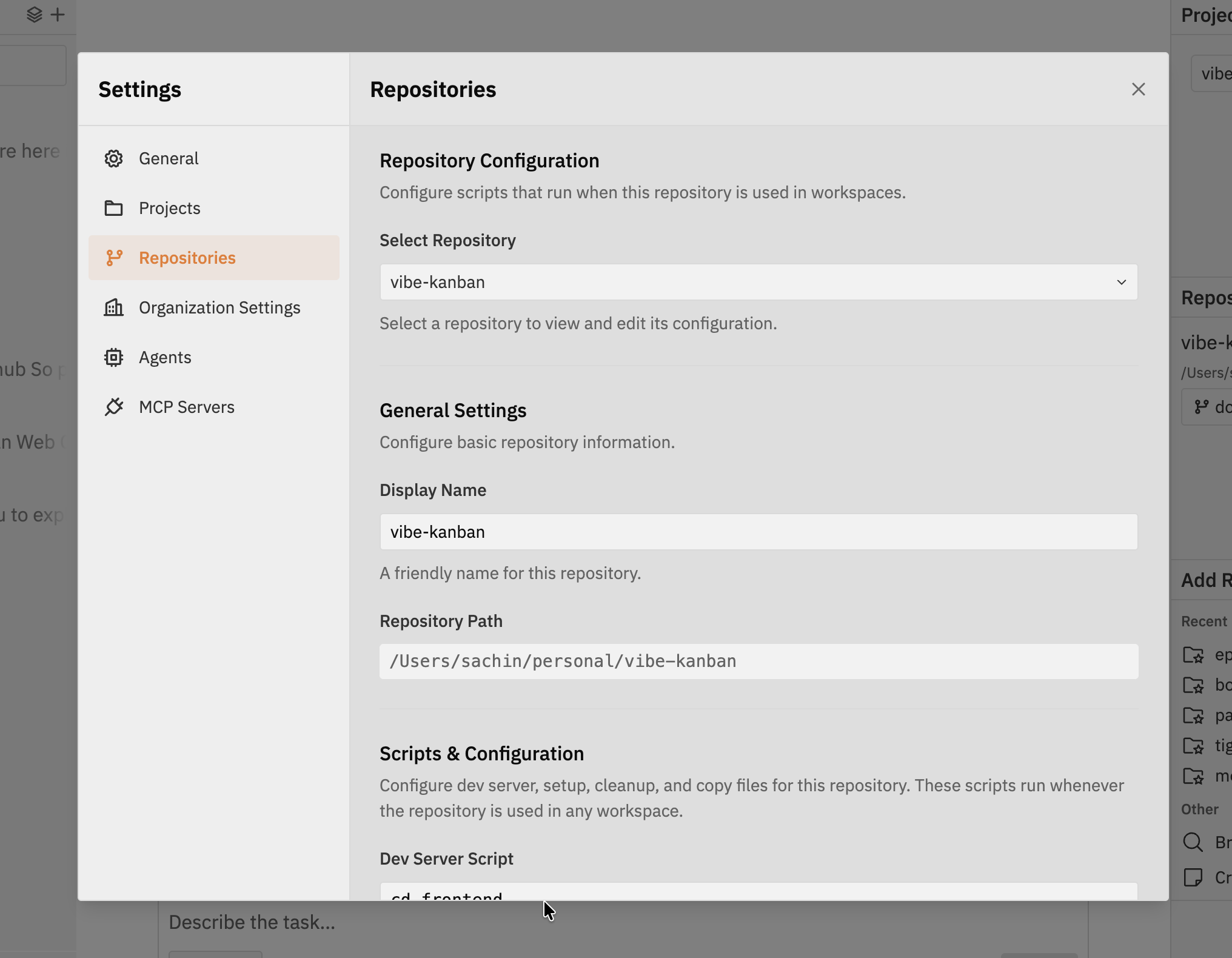
Accessing Repository Settings
- Open Settings from the Workspaces navbar
- Select the Repositories tab
- Choose a repository from the dropdown to view and modify its settings
General Settings
Configure basic repository information:- Display Name - A friendly name for this repository
- Repository Path - The local path to the repository
Scripts & Configuration
Configure dev server, setup, and cleanup scripts for this repository. These scripts run whenever the repository is used in any workspace, ensuring a consistent development environment.Dev Server Script
Command to start your development server. This enables the built-in preview browser in Workspaces, allowing you to see your application running as you make changes. Common examples:| Framework | Command |
|---|---|
| Vite | npm run dev |
| Next.js | npm run dev |
| Create React App | npm start |
| Django | python manage.py runserver |
| Rails | rails server |
Preview Panel Documentation
Learn how to use the built-in preview browser with your dev server
Setup Script
Commands that run before the coding agent starts working. Use this to prepare the development environment. Why use a setup script?- Install dependencies - Ensure all packages are installed before the agent modifies code
- Build prerequisites - Compile shared libraries or generate files the agent needs
- Environment preparation - Set up databases, pull Docker images, or configure services
Setup scripts run in the repository’s root directory. They execute once when the workspace starts, not on every agent message.
Cleanup Script
Commands that run when a workspace closes. Use this to clean up resources and stop background processes. Why use a cleanup script?- Stop services - Terminate background processes that might conflict with other workspaces
- Free resources - Release database connections, Docker containers, or other resources
- Clean temporary files - Remove build artifacts or cache files
- Format code - Run formatters to ensure consistent code style after agent changes
| Use Case | Command |
|---|---|
| Stop Docker containers | docker compose down |
| Kill background processes | pkill -f "node server.js" |
| Clean build artifacts | rm -rf dist/ .cache/ |
| Stop PostgreSQL | pg_ctl stop -D /usr/local/var/postgres |
| Kill process on port | lsof -ti:3000 | xargs kill -9 2>/dev/null |
| Language/Tool | Command |
|---|---|
| JavaScript/TypeScript (Prettier) | npx prettier --write . |
| JavaScript/TypeScript (ESLint) | npx eslint --fix . |
| Rust (cargo fmt) | cargo fmt |
| Rust (Clippy) | cargo clippy --fix --allow-dirty |
| Python (Black) | black . |
| Python (Ruff) | ruff check --fix . |
| Go | go fmt ./... |
Best Practices
Keep scripts fast
Keep scripts fast
Long-running setup scripts delay workspace startup. Install dependencies in setup, but avoid lengthy build processes unless necessary.
Use relative paths
Use relative paths
Scripts run from the repository root. Use relative paths or environment variables rather than hardcoded absolute paths.
Handle errors gracefully
Handle errors gracefully
Add
|| true to commands that might fail but shouldn’t block the workspace:Test scripts locally
Test scripts locally
Run your scripts manually in a terminal before configuring them in Vibe Kanban to ensure they work correctly.