

This is the new Settings UI currently in Beta. It provides the same configuration options with a redesigned interface accessible from the Workspaces UI.
This page covers configuring MCP servers within Vibe Kanban for your coding agents. For connecting external MCP clients to Vibe Kanban’s MCP server, see the Vibe Kanban MCP Server guide.
Overview
MCP servers provide additional functionality to coding agents through standardized protocols. You can configure different MCP servers for each coding agent in Vibe Kanban, giving them access to specialized tools like browser automation, access to remote logs, error tracking via Sentry, or documentation from Notion.Accessing MCP Server Configuration
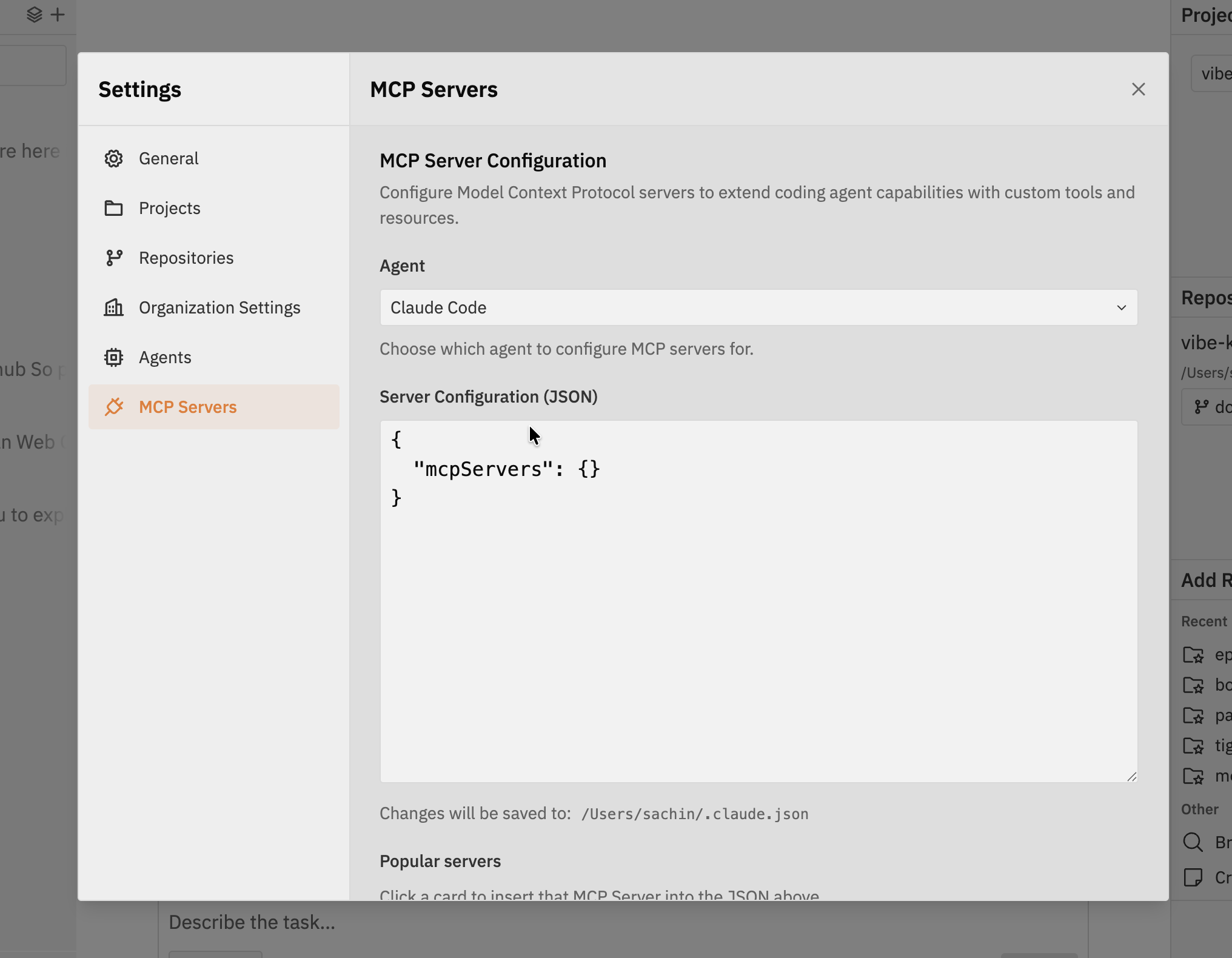
- Navigate to Settings in the Workspaces navbar
- Click on MCP Servers tab
- Select the coding agent you want to configure MCP servers for
Popular MCP Servers
Vibe Kanban provides one-click installation for popular MCP servers. Click a card to insert a pre-configured MCP server into the JSON configuration.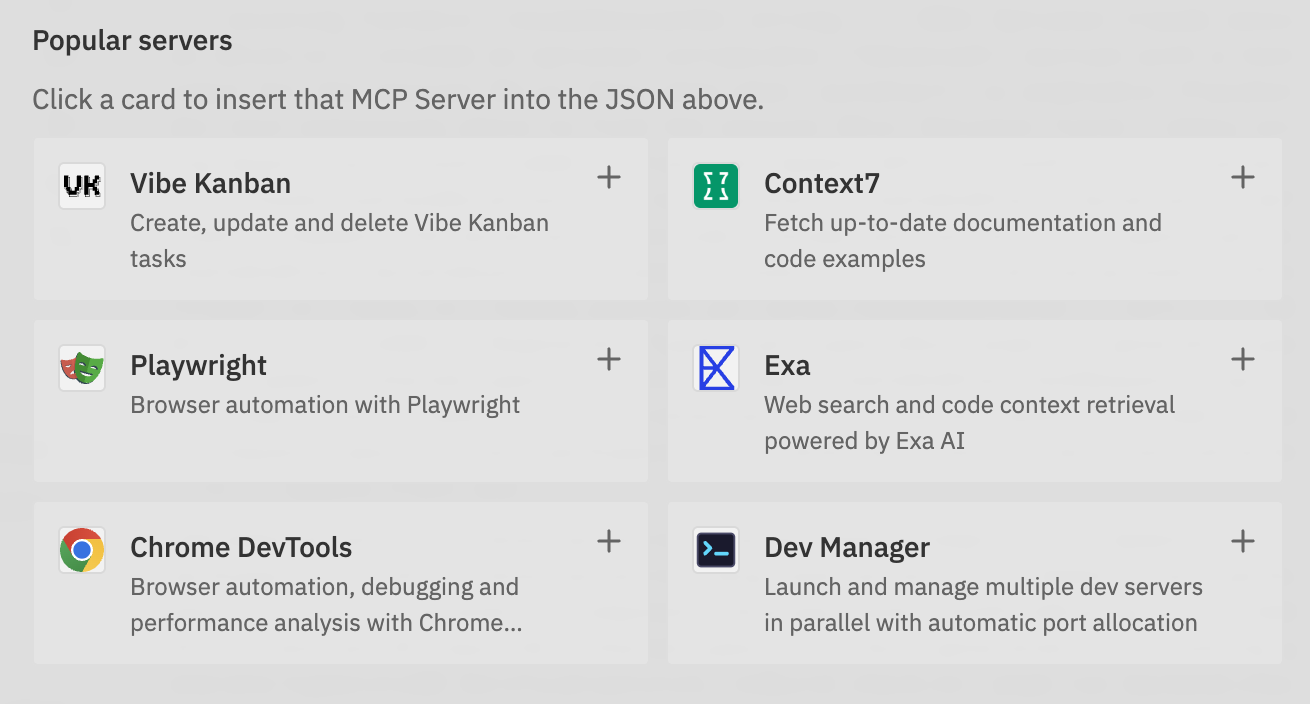
Adding Custom MCP Servers
You can also add your own MCP servers by configuring them manually:Select Coding Agent
Choose the coding agent you want to configure MCP servers for from the Agent dropdown.
Update Server Configuration JSON
In the Server Configuration JSON editor, add your custom MCP server configuration. The JSON will show the current configuration for the selected agent, and you can modify it to include additional servers.Example addition:
Save and Test
After updating the JSON configuration:
- Click “Save Settings” to apply changes
- Test the configuration by using the agent with MCP functionality
- Check agent logs for any connection issues
These changes update the global configuration file of the coding agent and will persist even if you stop using Vibe Kanban.
Best Practices
Next Steps
- Explore the Agent Configurations guide for advanced agent setup
- Check out Supported Coding Agents for agent-specific features